
Your Huawei Pura 70 Pro stores temporary cached data to help apps load faster, but over time this buildup can take up valuable space and sometimes cause apps to stutter. Clearing it out is a quick way to refresh your phone's performance without losing any personal data.
Clear Individual App Cache
Open Settings and go to Apps. You'll see a list of all your installed applications. Tap on any app, then select Storage usage. Here, you'll find the Clear cache button. Tapping it removes the app's temporary files.
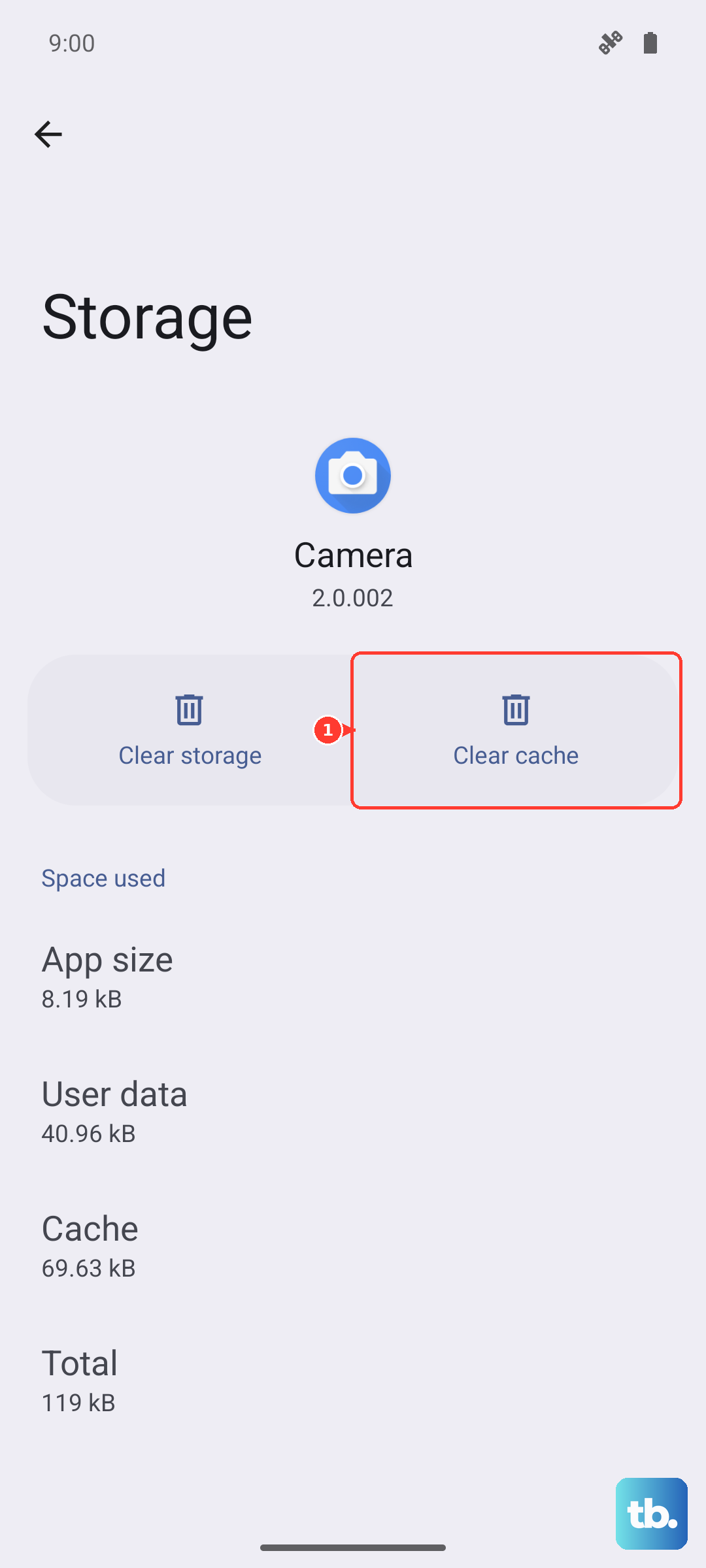
This is perfectly safe for your login info and saved data. I'd focus on apps like Petal Search, browsers, and social media platforms, as they tend to accumulate the largest caches over weeks of use.
Use the Phone Manager for a Quick Clean
Huawei includes a handy tool right on your phone. Open the Phone Manager app from your home screen or app drawer. Tap on Cleanup and the app will immediately scan for junk files, including app caches, residual files, and temporary downloads.
It presents you with a list of items you can safely remove. Just tap the clean button to free up that space in seconds. It's a great first step if your phone feels sluggish.
Clear Your Browser's Cache
If you're using Huawei's Petal Browser, the process is straightforward. Open the browser, tap the menu icon (three lines), and go to Settings. Scroll down to Privacy & security and select Clear browsing data.
Make sure Cached images and files is checked. You can choose a time range, like "All time," then tap Clear data. This will speed up browsing without affecting your saved passwords.
Check What's Using Your Storage
For a bigger picture, go to Settings > Storage. This breaks down exactly what's filling your phone. Tap on categories like Apps, Images, and Audio to see the largest files.
This is where you can find and delete old downloaded files, large video attachments from messages, or unused applications. Managing storage here helps prevent performance issues before they start.
Restart Your Pura 70 Pro
Never underestimate a simple reboot. It clears the system's active memory (RAM) and temporary caches that aren't stored long-term. Just press and hold the Power button until the menu appears, then tap Restart.
Doing this every few days can resolve minor glitches and keep everything running smoothly. If an app is acting up, a restart is always a good first try.
Manage Apps from the AppGallery
Since your Pura 70 Pro uses Huawei's AppGallery, it has built-in tools for app management. Open the AppGallery, go to Me (the profile icon), and select Installation management.
Here you can see your apps and check for updates. Keeping apps updated through the AppGallery can sometimes resolve bugs that cause excessive cache generation or storage use.
Force Restart for Stubborn Issues
If your phone is frozen and you can't access the settings menu, you may need to force a restart. This is different from a normal reboot. Press and hold the Power button for about 10 seconds or until you feel a vibration and see the Huawei logo appear.
This will shut down and restart the phone, clearing any stuck processes. It's a useful step if the system UI is unresponsive after trying other cache-clearing methods.