
That "Unfortunately, the keyboard has stopped" message on your Huawei Pura 70 Pro is a real roadblock. It's a common hiccup on EMUI, but you can usually get things typing again with a few straightforward steps.
I'd start by simply force stopping the keyboard app. This clears out any temporary glitch that's causing it to crash. Swipe down from the top of your screen and tap the settings gear, then go to Apps > App management.
Find "Baidu Input Huawei Edition" in the list, that's the default keyboard. Tap on it, then hit Force stop. Give it a second, then try opening any app where you need to type. If you've installed a third-party keyboard from the AppGallery, look for that app name instead.
Restart Your Huawei Pura 70 Pro
If force stopping didn't do the trick, a full phone restart is your next best move. It clears the system's working memory and can fix a surprising number of app-related issues. Just press and hold the power button until the power off menu appears, then tap restart.
For a more thorough refresh, you can perform a force restart. Press and hold the power button for about 10 seconds, or until you feel the phone vibrate and see the Huawei logo appear on screen. This is different from a normal restart and can help if the system is temporarily frozen.
Clear the Keyboard's Cache and Data
Corrupted cache files are a frequent culprit behind keyboard crashes. Clearing them is safe, as it only removes temporary data. You will, however, lose any custom dictionary words or personalized keyboard settings you've saved.
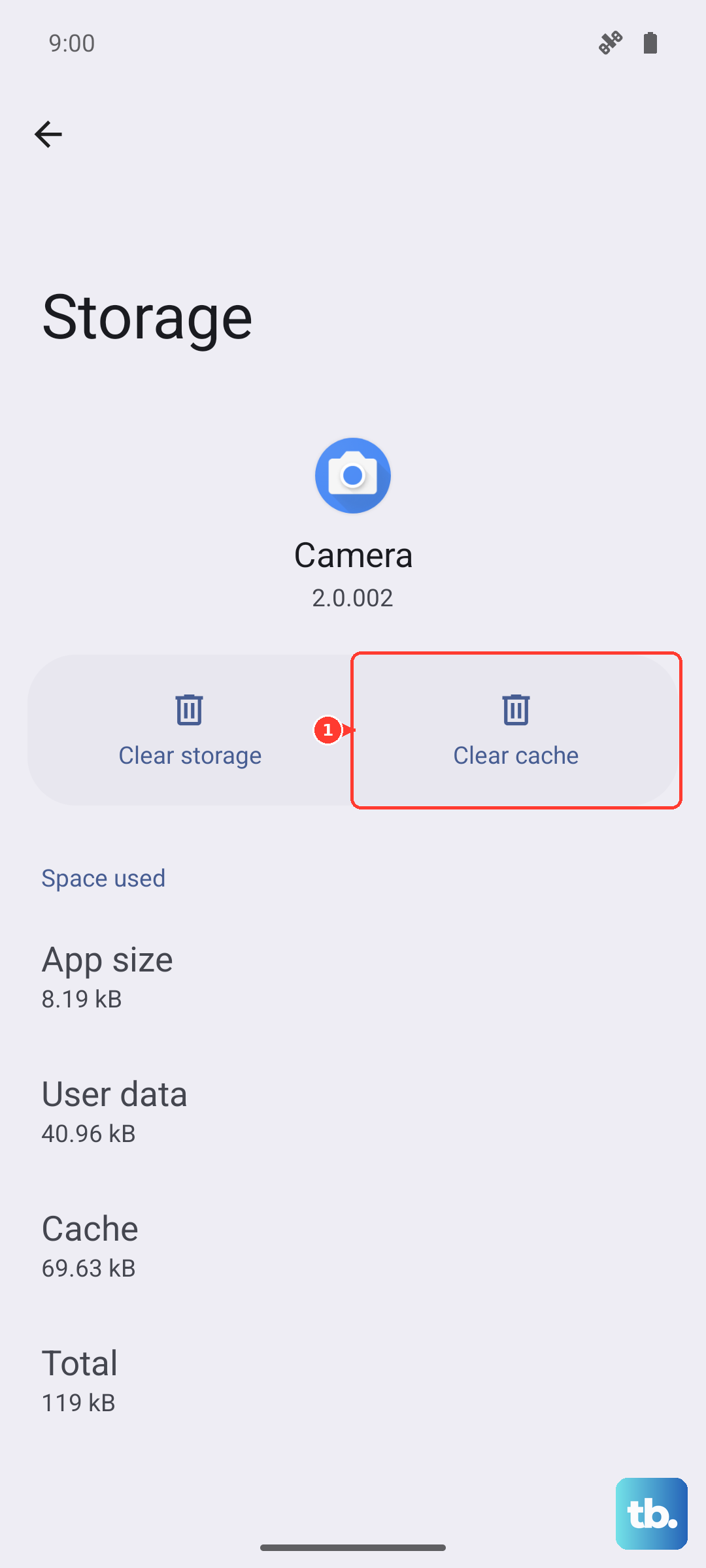
Head back to Settings > Apps > App management and find your keyboard app again. This time, tap on Storage. First, tap Clear cache. If the problem persists, come back here and tap Clear data. Confirm the action, and your keyboard will be reset to its original, out-of-the-box state.
Check for System Updates
Huawei regularly releases EMUI updates that include bug fixes for issues just like this. An outdated system can sometimes have conflicts with core apps, including the keyboard.
Go to Settings and scroll down to System & updates. Tap on Software update and then Check for updates. If an update is available, make sure your phone is plugged into its included 100W SuperCharge adapter or has plenty of battery, and install it. This has resolved keyboard problems for many users after a major OS update.
Reset All App Preferences
This is a useful, non-destructive reset that doesn't touch your personal files. It will reset all your app permissions, disabled apps, background data restrictions, and default app assignments (like which app opens links).
It can fix issues where a system app like the keyboard has gotten into a bad state. Navigate to Settings > Apps > App management. Tap the four-dot menu icon in the top right corner and select Reset app preferences. Confirm the reset, and your phone will reboot. You'll just need to re-grant permissions to apps as you use them again.
Boot Into Safe Mode
If the keyboard starts working fine in Safe Mode, you'll know a third-party app you installed is causing the conflict. This is especially worth trying if you've recently sideloaded an app from outside the Huawei AppGallery, as compatibility can be unpredictable without Google services.
To enter Safe Mode, press and hold the power button until the power off slider appears. Then, press and hold the "Power off" text on your screen. A prompt will ask if you want to reboot to Safe Mode. Tap OK. If your keyboard works normally here, start by uninstalling your most recently downloaded apps one by one to find the culprit.
Install a Fresh Keyboard from AppGallery
Sometimes the best fix is to just switch to a different keyboard entirely. Since the Pura 70 Pro uses Huawei's AppGallery, you have solid options like SwiftKey or TouchPal available directly. Search for "keyboard" in the AppGallery, install your choice, and follow the prompts to enable it in your phone's settings.
To set a new default, go to Settings > System & updates > Language & input > Virtual keyboard. Tap on Manage keyboards to enable your new one, then tap Default keyboard to select it.
Check for Conflicts with Dictionary or Voice Services
The keyboard relies on other system services to function. If Huawei's built-in dictionary or voice input service has an issue, it can take the keyboard down with it. You can try clearing the cache for these related components.
Go back to Settings > Apps > App management, tap the four-dot menu, and select Show system processes. Look for apps named "Dictionary" or "Voice input." Tap on each one, go to Storage, and select Clear cache. Avoid clearing data here unless you're sure, as it might delete offline language files.
Consider a Factory Reset
This is your last resort, and you must back up everything important first using Huawei's built-in backup tool or by manually transferring files to a computer. A factory reset will wipe your phone back to its original software state, which can eliminate any deep-seated software corruption.
Before you do this, ensure your contacts, photos, and messages are safely backed up. Then, go to Settings > System & updates > Reset. Tap on Factory data reset and follow the on-screen instructions. After the reset, set up your phone as new and test the keyboard before restoring your full backup, in case the backup contains the corrupted data.











