
Your Pixel 9 Pro XL stores temporary files from apps and the system as you use it. Over time that cached data eats up storage and can slow things down. Clearing it regularly keeps your phone running smoothly. Here's how to do it on Android 14.
Clear App Cache Individually
Open Settings and tap Apps. You'll see a list of every installed app. Tap the one you want to clean up, then tap Storage & cache and hit Clear cache. This wipes out temporary files without affecting your login info or personal data inside the app.
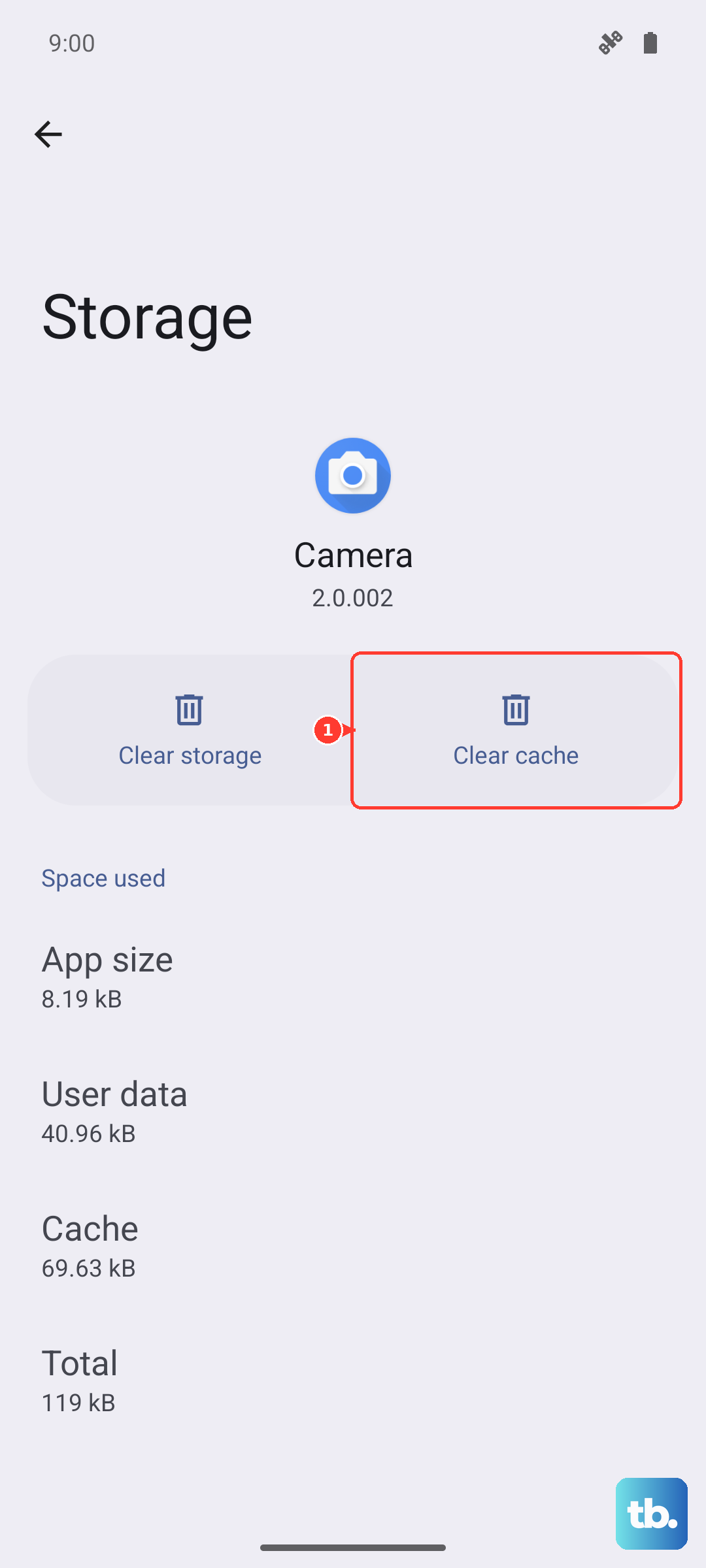
Focus on heavy hitters first: browsers, social media apps, streaming services, and games tend to build up the biggest caches. The Pixel 9 Pro XL doesn't have a built-in "clear all cache" button, so you'll need to do this per app. But it only takes a few taps once you know which apps are hogging space.
Clear Browser Cache in Chrome
Open Chrome and tap the three-dot menu in the top corner. Go to Settings > Privacy and security > Clear browsing data. Check Cached images and files and leave the other options unchecked unless you also want to clear history or cookies. Select a time range (All time is fine for a thorough clean) and tap Clear data.
This won't sign you out of websites or delete saved passwords. If you do have issues with sites not loading properly after clearing cache, a quick page refresh usually fixes it.
Use Files by Google to Junk Clean
Your Pixel comes with Files by Google pre-installed. Open it and tap the Clean tab at the bottom. The app scans for junk files, temporary app files, and duplicate downloads. Tap Clean next to each category to remove them. It's a one‑tap way to clear cached junk across multiple apps without digging into each one's settings.
Files by Google also suggests large old files and unused apps. You can review those suggestions and delete what you don't need right from the same screen.
Restart Your Pixel
A simple restart clears temporary system caches and frees up RAM. Press and hold the Power button and Volume Up button simultaneously until the restart menu appears. Tap Restart and wait for your phone to boot back up. Doing this once a week keeps things from getting bogged down.
Check Storage Usage for Large Files
Go to Settings > Storage to see a breakdown of what's taking up space. Tap any category, Images, Videos, Audio, or Apps, to drill into the details. You can delete large video files or back up photos to Google Photos and then remove the local copies to free up gigabytes.
Old downloads in the Files folder also pile up. Open the Files app, go to Downloads, and clear out anything you no longer need. A few minutes of cleanup can reclaim several hundred megabytes without any risk to your apps or settings.