
Your iPad Pro (M4) builds up temporary files and cached data as you use it, which can sometimes slow things down or take up valuable storage. Clearing this cache can give your iPad a fresh start and free up space. The process is a bit different than on an iPhone, so here are the best ways to do it on your iPad Pro.
Clear Safari Cache on iPad
To clear your main web cache, open the Settings app and go to Safari. Scroll down and tap Clear History and Website Data. Confirm your choice. This will log you out of websites and clear your history, cookies, and all cached site files.
If you want to keep your browsing history but still delete the cached files, there's another path. Go to Settings > Safari > Advanced > Website Data. Here, you can tap Remove All Website Data to just clear the cache.
Use Offload App to Clear App Cache
iPadOS doesn't have a direct "clear cache" button for most apps, but offloading is a great workaround. Head to Settings > General > iPad Storage. You'll see a list of all your apps and how much space they use.
Tap on any app, like a streaming service or social media app, and select Offload App. This removes the app itself but keeps all your documents and data. Then, just tap the cloud icon to reinstall it. This process deletes the app's temporary cache files.
Delete and Reinstall Apps Completely
For a more thorough clean, you can delete an app entirely. Touch and hold the app icon on your Home Screen, tap Remove App, and then choose Delete App. Go to the App Store to download it again fresh.
This wipes everything, including cache, downloaded content, and settings. You'll have to sign back in and set preferences again, but it's very effective for apps that seem sluggish or bloated.
Manage Messages Storage
The Messages app can store a huge amount of photos, videos, and files. To clean it up, go to Settings > General > iPad Storage and tap on Messages. You'll see a breakdown by category.
Tap into sections like Photos, Videos, or Other Attachments to review and delete items you don't need. You can also set messages to auto-delete by going to Settings > Messages > Keep Messages and changing it from Forever to 30 Days or 1 Year.
Reset Network Settings to Clear DNS Cache
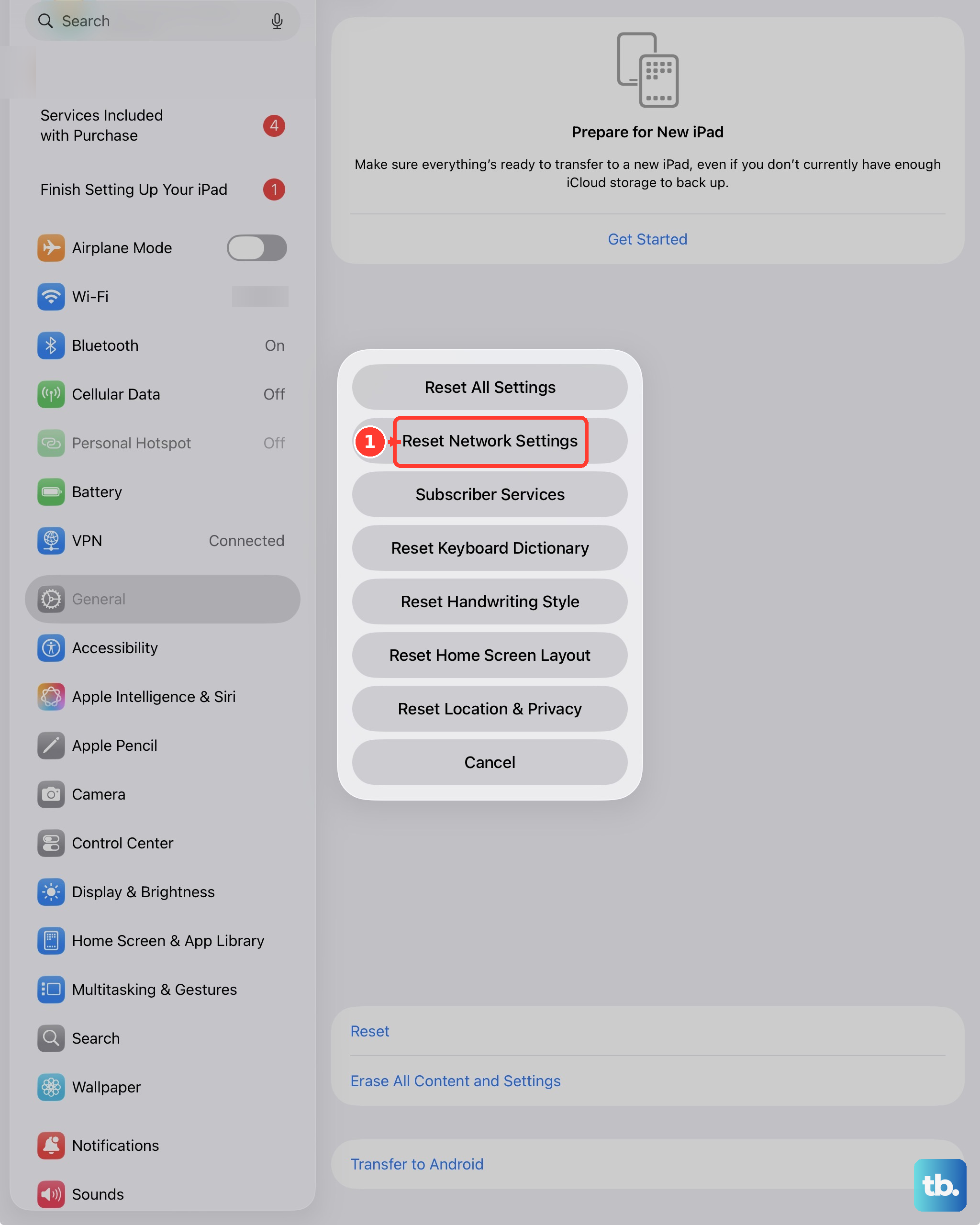
If websites are slow to load or you're having connection issues, your network cache might need clearing. The most reliable method on iPadOS is to reset network settings. Go to Settings > General > Transfer or Reset iPad.
Tap Reset and then choose Reset Network Settings. This will clear the DNS cache, forget all Wi-Fi networks, and reset cellular settings. You'll need to rejoin your Wi-Fi networks afterward.
Leverage iPad Storage Recommendations
Your iPad Pro has built-in tools to help manage space. In Settings > General > iPad Storage, check the recommendations at the top of the screen. iPadOS might suggest enabling Offload Unused Apps automatically or reviewing large attachments.
It will also prompt you to empty the Recently Deleted album in Photos. Letting your iPad handle these tasks can keep cache and clutter in check with minimal effort on your part.
Restart Your iPad Pro
Never underestimate a simple restart. It clears temporary system files and refreshes your iPad's memory. To restart your iPad Pro (M4), press and quickly release the Volume Up button, then quickly press and release the Volume Down button.
Finally, press and hold the top Power button until you see the Apple logo appear on the screen, then release. Doing this every couple of weeks helps maintain smooth performance.