
Your iPad Air M3 runs on iPadOS 18, and like any system, it builds up temporary files and cached data as you use it. When storage gets tight or apps start acting sluggish, clearing that cache can give it a new lease on life. Here's the most effective way to clear cache on your iPad Air M3, broken down by what's eating your space.
Clear Safari Cache on iPadOS 18
Safari on the iPad is usually the single biggest source of cached data. Open Settings > Safari and scroll down to Clear History and Website Data. Tap it once, confirm, and you're done. This wipes out browsing history, cookies, and every cached script from every site you've visited.
If you want to keep your history intact but still dump the cache, there's a middle ground. Go to Settings > Safari > Advanced > Website Data and tap Remove All Website Data. This clears the temporary site files without logging you out of everything, though you will need to sign into some sites again.
Offload Heavy Apps to Clear Temporary Files
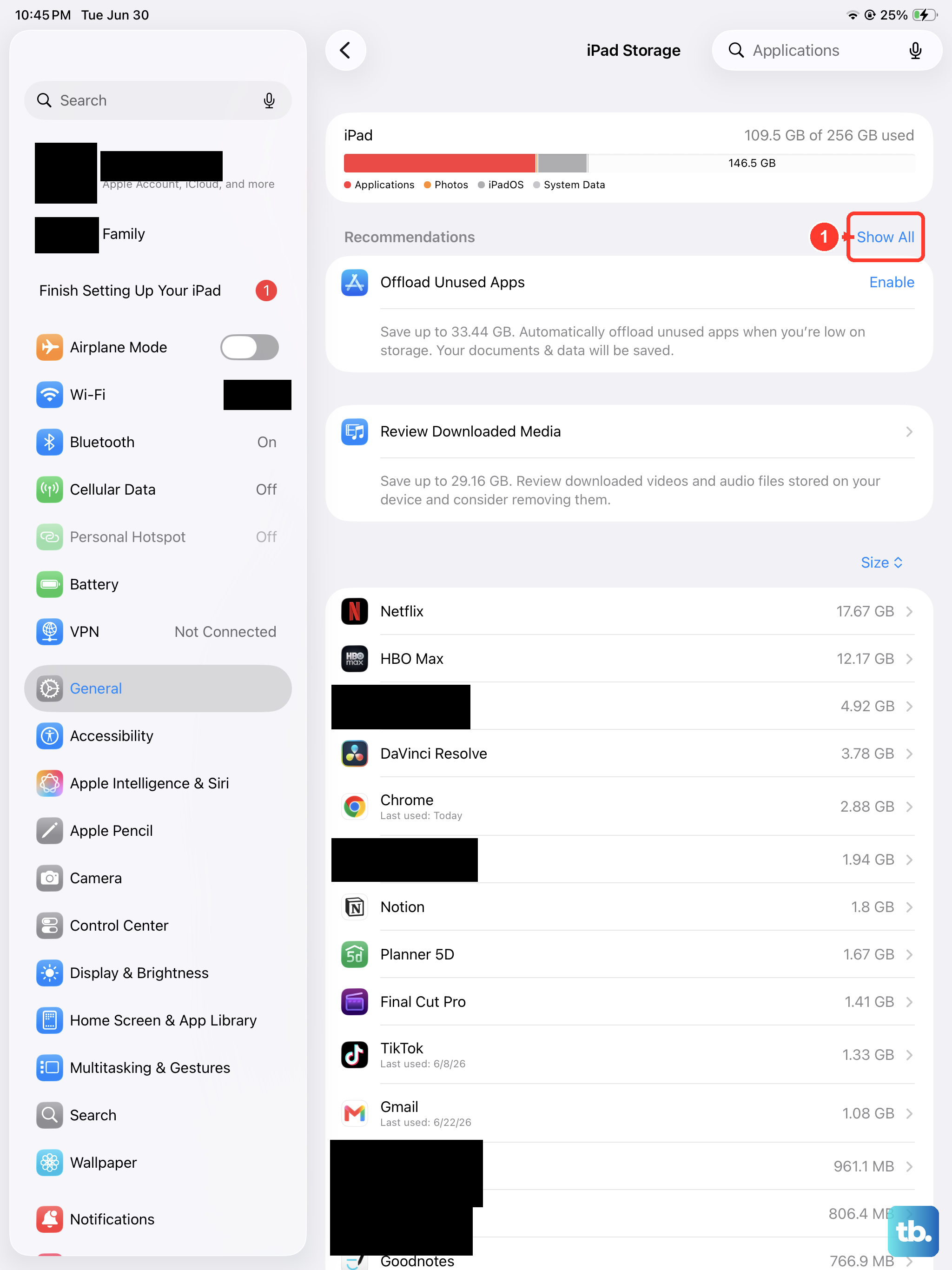
iPadOS 18 doesn't give you a single "clear all cache" button for third-party apps, but offloading is the next best thing. Head to Settings > General > iPad Storage. You'll see every app and exactly how much space it's taking. Tap one that's bloated, then tap Offload App. This removes the app itself but keeps its documents and login data.
Once it's offloaded, reinstall it from the App Store. You'll get a fresh copy of the app without all the accumulated junk. Social media and streaming apps are usually the worst offenders here.
Delete and Reinstall Apps for a Deeper Clean
For a deep clean, just delete the app outright. Hold down the app icon on the Home Screen, tap Remove App, then Delete App. Download it fresh from the App Store. This wipes everything, including cached downloads, stored credentials, and that stray 2GB video file you forgot about.
This is particularly effective for creative apps like Procreate or LumaFusion, which can build up large caches of project data on the M3 chip.
Clear Messages Attachments
Messages can quietly gobble up storage with shared photos and videos. Check Settings > General > iPad Storage > Messages. You'll see a breakdown of what's taking up space. Tap into each category and delete the stuff you don't need.
You can also set your iPad to auto-delete old messages. Go to Settings > Messages > Keep Messages and change it from Forever to 30 Days or 1 Year.
Flush the DNS Cache
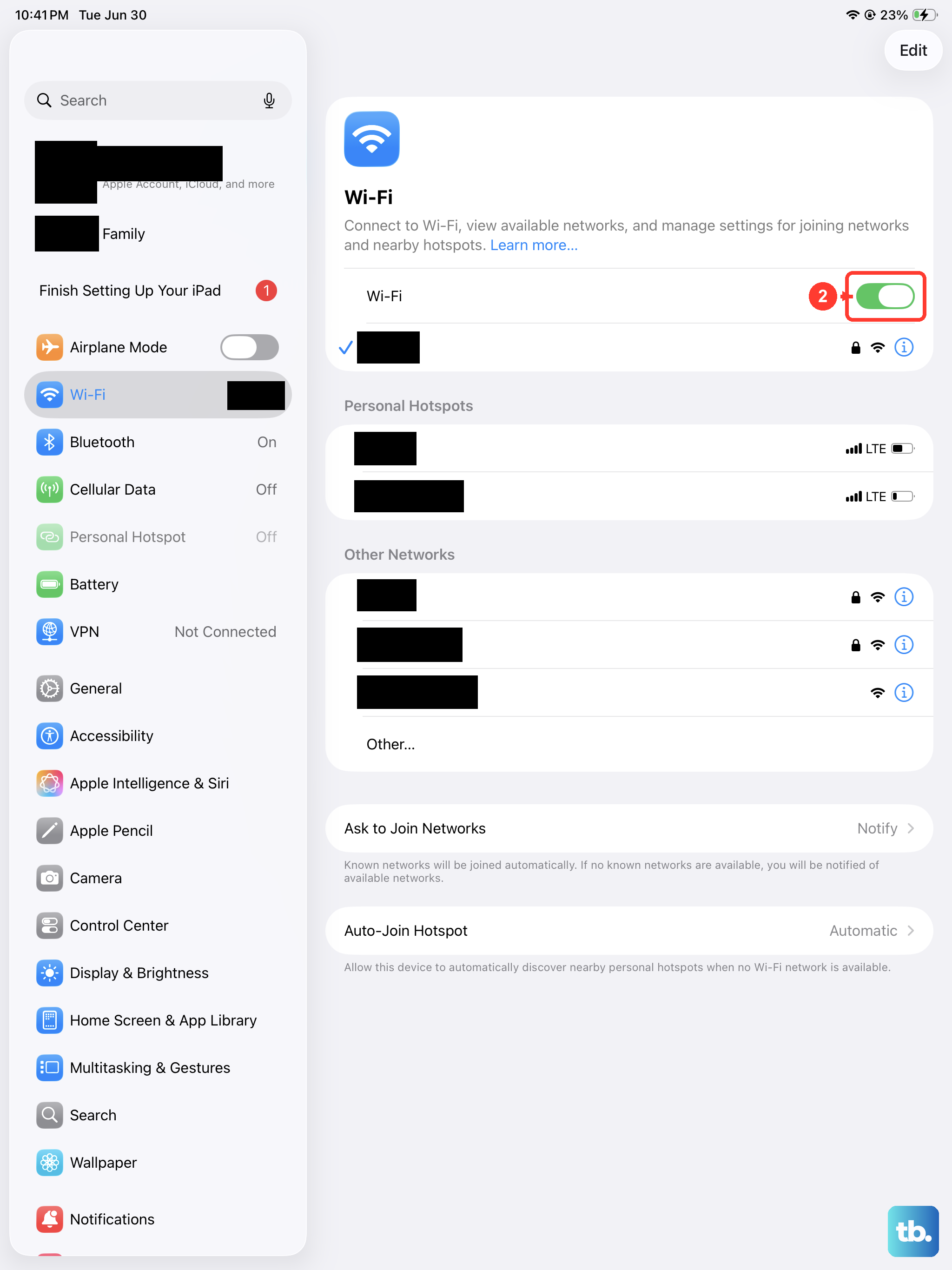
If your internet feels slow or pages fail to load properly, a stale DNS cache might be the issue. On the iPad Air M3, you can flush it by toggling Wi-Fi off and back on. Go to Settings > Wi-Fi, tap the toggle for your network, wait a few seconds, and turn it back on.
Alternatively, you can force your iPad to re-resolve all addresses by restarting it. A system restart clears the DNS cache along with other temporary network files.
Use iPadOS Storage Recommendations
iPadOS 18 is pretty good at suggesting cleanup tasks if you let it. Scroll up to the top of Settings > General > iPad Storage and look at the recommendations list. It will suggest enabling Offload Unused Apps, reviewing large attachments, and deleting old iMessage conversations automatically. These tools run in the background and help keep your storage healthy without much input from you.
Force Restart Your iPad Air M3
A force restart clears the system cache and flushes the memory on your iPad Air M3. It's a good habit to do this every few weeks, especially if you notice random hiccups or if the battery percentage looks strange after a deep discharge.
Here's how to do it: Press and quickly release Volume Up, then Volume Down, then press and hold the Top button until the Apple logo appears. The whole process takes about thirty seconds and won't delete any of your data.
I'd start with this if your iPad feels unusually sluggish, or if it's having trouble recognizing a USB-C charger. Sometimes the system just needs a clean slate.