


To delete a downloaded iPhone update, open Settings > General > iPhone Storage, tap the downloaded iOS update, then tap Delete Update. This removes the downloaded installer without uninstalling the iOS version already running on your iPhone. To prevent another automatic download, change your automatic update settings separately.
The short version
- Delete the installer: Select the downloaded update in iPhone Storage and tap Delete Update.
- Stop repeat downloads: Turn off automatic installation and downloading in Automatic Updates.
- Keep the tasks separate: Turning off automatic updates or beta updates does not delete an existing download.
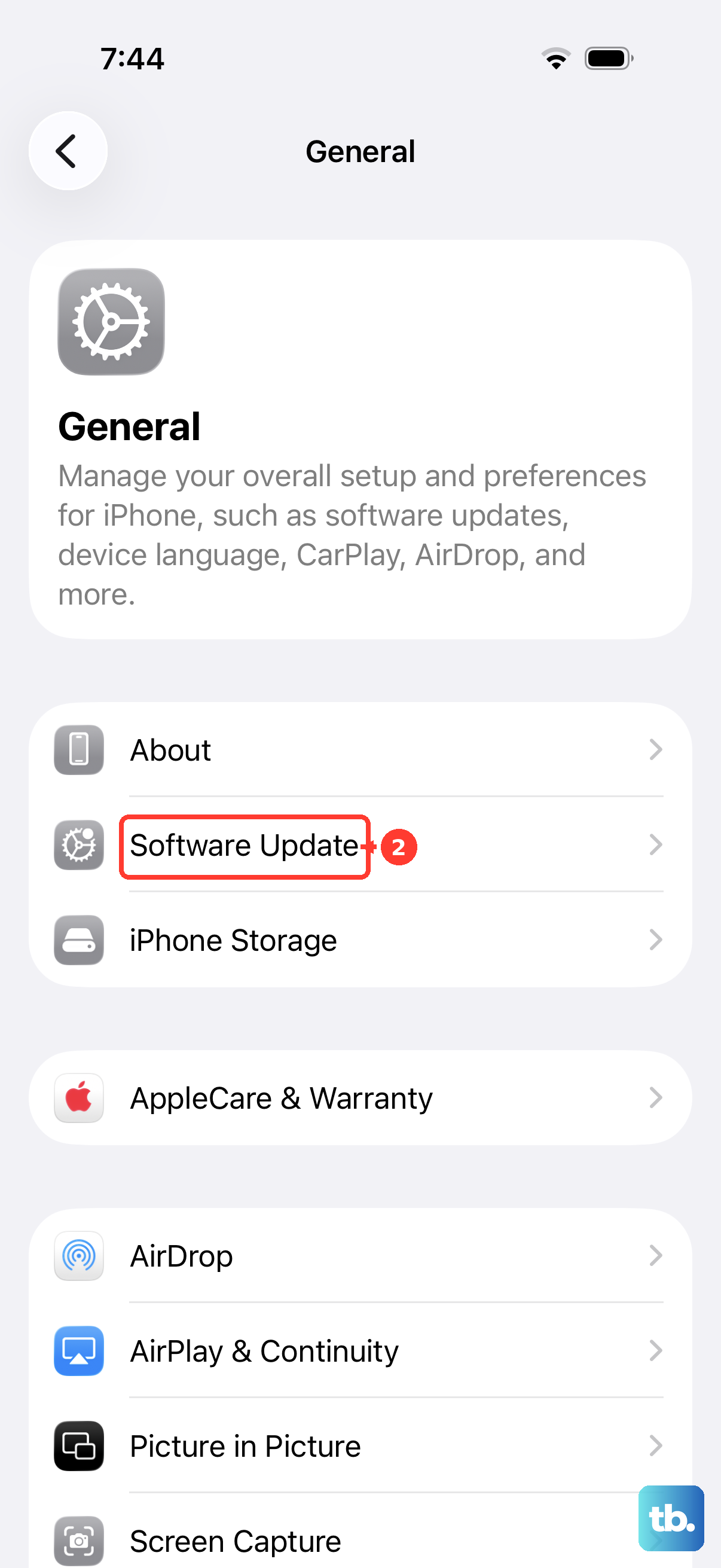
- Download again later: Open Settings > General > Software Update when you want to update.
| Control or option | What it does | When to use it |
|---|---|---|
| Delete Update in iPhone Storage | Deletes the downloaded installer | A downloaded, uninstalled update is listed |
| Voice Control | Operates the same deletion controls by voice | The feature is available and the update is listed |
| Automatic Updates on iOS 26 and iOS 27 | Controls future automatic downloads and installations | You want to prevent another automatic download |
| Automatic Updates on iOS 18 | Uses separate iOS Updates switches | Your iPhone uses the iOS 18 layout |
| Beta Updates | Stops beta enrollment | The setting is available on iOS 16.4 or later |
| Administrator policies | Control automatic updates or defer availability | Your supervised iPhone meets the management requirements below |
| Software Update | Lets you download an update again | You are ready to update later |
Delete the update from iPhone Storage
Open Settings, tap General, then select iPhone Storage. Find the downloaded iOS update in the storage list and tap it. Tap Delete Update to remove the package.
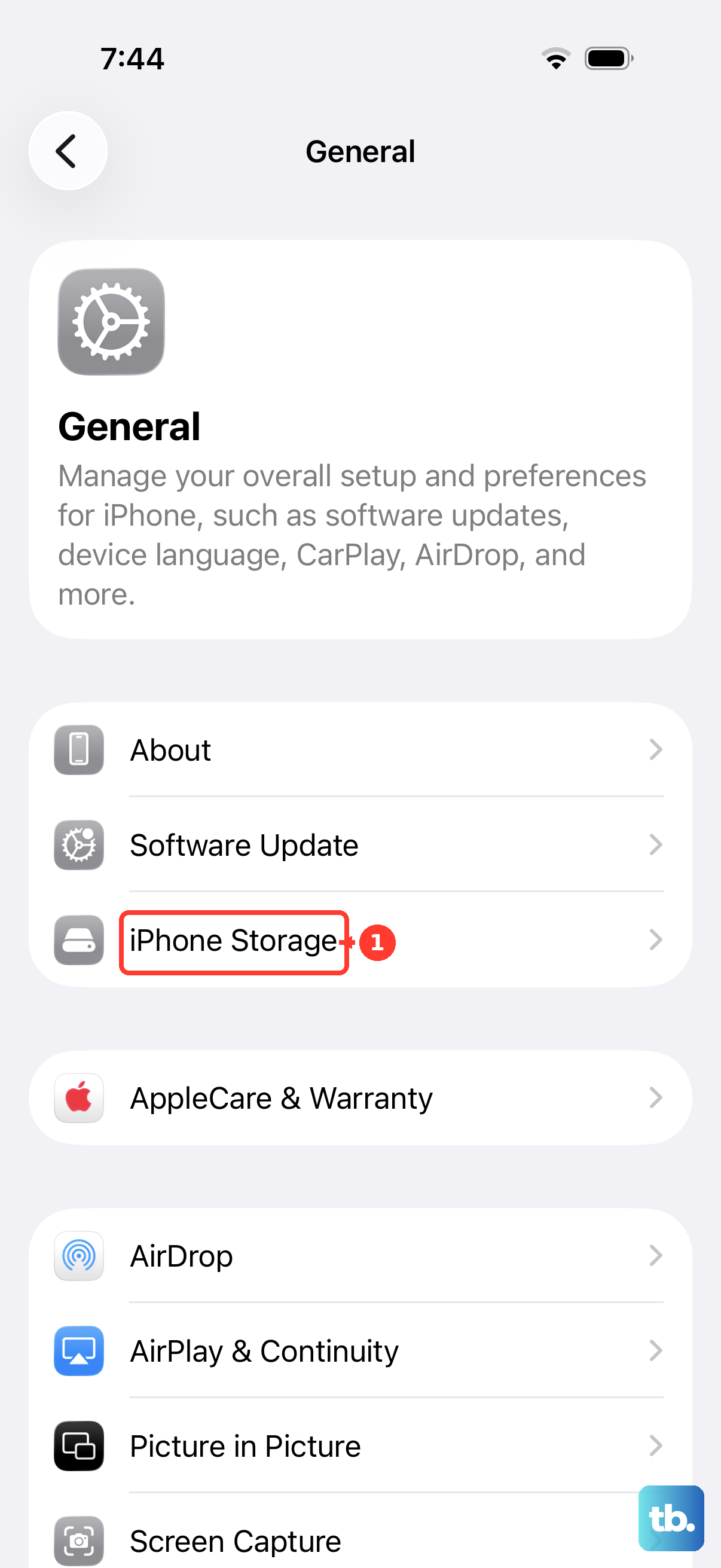
The update's displayed name varies, so look for the iOS update rather than one fixed entry name. These steps apply to current iPhones, including iOS 26 and iOS 27, when a downloaded, uninstalled update appears in the list.
Use Voice Control to delete the download
You can operate the same storage controls with Voice Control on iOS 13 or later, where the feature is available in your selected language and region. For initial setup, open Settings > Accessibility > Voice Control. Select Set up Voice Control and wait for the required download.
Open Settings and say Show Numbers. Use the displayed numbers to select General, then iPhone Storage, then the downloaded update, and finally Delete Update. Say Show Numbers again as needed to refresh the numbered controls.
This uses Apple's screen navigation feature to perform the same deletion task. The downloaded update must still be listed in iPhone Storage; there is no dedicated update-removal command involved.
Turn off future automatic downloads
On iOS 26 and iOS 27, open Settings > General > Software Update > Automatic Updates. Under iOS Updates, turn off Automatically Install. Next, turn off Automatically Download, which becomes visible after Automatically Install is off.
These switches control future automatic activity. To remove a package you already downloaded, complete the deletion in iPhone Storage separately.
On iOS 18 with its older switch layout, open Settings > General > Software Update > Automatic Updates. Turn off iOS Updates below Automatically Install, then turn off iOS Updates below Automatically Download. This version-specific layout also applies to iPhone XR, iPhone XS, and iPhone XS Max running iOS 18. Remove any existing downloaded package separately through iPhone Storage.
Stop receiving beta updates
On an iPhone running iOS 16.4 or later with Beta Updates available, open Settings > General > Software Update > Beta Updates. Tap Off to stop beta enrollment. To clear an already downloaded update, return to iPhone Storage and delete the package separately.
Turning off beta updates does not uninstall a beta version already running on your iPhone. Older advice about removing a beta configuration profile applies to iOS 16.3.1 or earlier; current versions use Beta Updates > Off.
Ask your administrator to control managed updates
If your organization supervises your iPhone running iOS 18 or later and enrolled it through Device Enrollment or Automated Device Enrollment, ask your administrator to configure Software Update settings. These controls belong to your administrator, and management-console menu labels vary by provider.
Your administrator can set AutomaticActions > Download to AlwaysOff and AutomaticActions > InstallOSUpdates to AlwaysOff. The download policy covers updates, excluding upgrades and Background Security Improvements. The Deferrals > CombinedPeriodInDays policy can delay update and upgrade availability by 1 to 90 days.
These policies control future update behavior. Apple does not document them as a way to delete an existing package, so use iPhone Storage for a downloaded update that appears there.
Use a computer if a missing update still needs installing
The deletion procedure depends on the downloaded update appearing in iPhone Storage.
If the update is absent and your goal is to finish updating, Apple directs you to update through a computer. That fallback installs an update; it does not provide another menu for deleting a specific downloaded installer.
Download the update again when ready
When you decide to update later, open Settings > General > Software Update to download an update again. Review Automatic Updates if you also want to change how future downloads and installations happen automatically.
Frequently Asked Questions
Can I delete a downloaded update by restarting my iPhone?
Apple's support instructions for removing a downloaded update use iPhone Storage: find the update in the list, tap it, then tap Delete Update.
Is removing an installed beta the same as deleting its download?
No, removing an installed beta requires a different procedure. Apple's computer recovery procedure erases the device and installs the current public release.
Should I use Background Security Improvements to remove an iOS update?
No, those controls should not replace the iPhone Storage procedure for a downloaded full iOS installer. On iOS 26.1 and later, the separate controls are under Settings > Privacy & Security > Background Security Improvements. Older Remove Security Response instructions concern installed security patches.
What is the oldest iOS version that supports Delete Update?
Apple does not specify a minimum iOS version for its iPhone Storage deletion procedure. The condition is that a downloaded, uninstalled update appears in the storage list.