


To remove an unused Windows user profile, sign in with a different administrator account, open System Properties, and select the unwanted profile under User Profiles to delete it. This method works on Windows 11 and Windows 10 and deletes the profile separately from its user account.
Back up any files you want to keep and sign the unwanted user out before starting. If you also want to remove that person's sign-in access from a Windows 11 PC, use the account removal option in Settings.
The short version
- Profile only: Delete the selected profile through System Properties from another administrator account.
- Account and data: On Windows 11, open Settings > Accounts, then remove the account and its data under Other users.
- Before deletion: Back up needed files and sign the unwanted user out.
- Command alternative: PowerShell CIM commands can target one unloaded, non-system profile by its exact SID.
| Method | What it does | When to choose it |
|---|---|---|
| System Properties | Deletes a selected profile independently of its account | One profile on Windows 11 or Windows 10 |
| Windows 11 Settings | Removes device sign-in information and data | The person no longer needs this PC |
| PowerShell CIM | Deletes an unloaded, non-system profile by SID | You want to inspect and preview the target |
net user | Deletes a local account before separate profile cleanup | You prefer Command Prompt |
Remove-LocalUser | Deletes a local account before separate profile cleanup | Your Windows installation provides the LocalAccounts module |
| Group Policy | Deletes qualifying inactive profiles at restart | Supported editions other than Home |
| MDM profile cleanup policy | Deploys inactive-profile cleanup to managed devices | Supported Windows versions and editions |
| Microsoft profile-age sample | Previews and optionally deletes aged profiles | You can review and maintain a sample script |
| Shared PC mode | Manages eligible accounts and profiles using deletion rules | A supported shared device |
| Shared PC configuration tools | Deploy Shared PC settings through Intune, provisioning, or PowerShell | You manage shared Windows devices |
| Work or school disconnection | Removes an organizational connection from the device | You need related account cleanup |
DeleteProfile API | Deletes a profile from an administrator's application | You are building a Windows desktop application |
Prepare the account and files before deletion
Decide whether you want to delete only the stored profile or remove the person's account from the PC as well. Deleting a profile does not necessarily prevent its account from signing in again. Choose account removal when your goal includes removing that person's device sign-in access.
Save any files you need from the unwanted profile before deleting it. Have that user sign out, then sign in with a different administrator account. For a single unused profile, start with System Properties; you do not need to run the alternative methods after a successful deletion.
Delete the profile through System Properties
Open Start, search for Control Panel, and open it. Under View by:, select Large icons, then select System. On Windows 11 and Windows 10, this opens Settings.
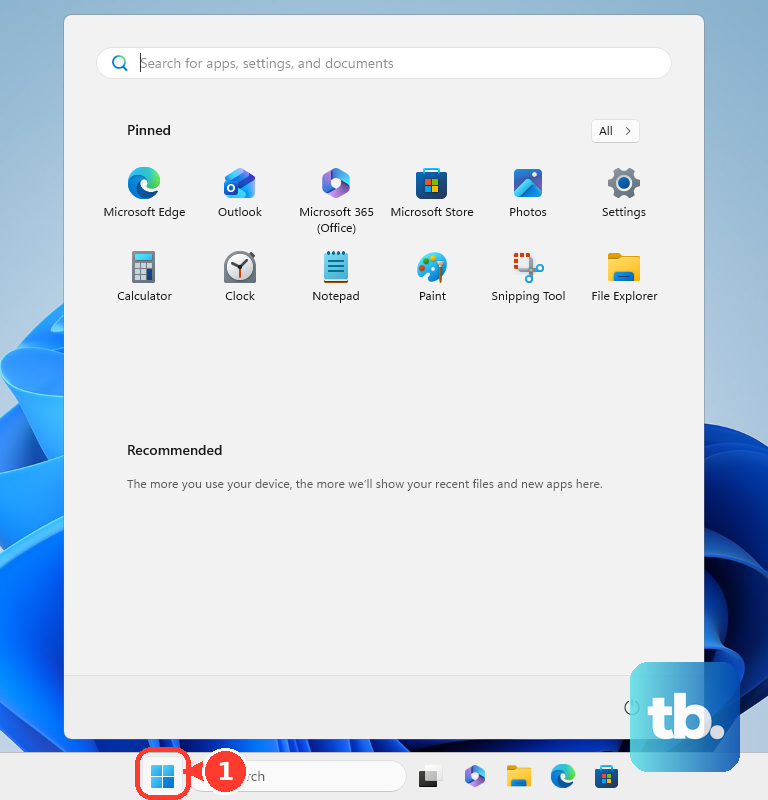
Select Advanced System settings to reach System Properties. Under User Profiles, select Settings. Select the unwanted profile, check that it is the intended profile, then select Delete.
If you cannot complete the deletion, check that the unwanted user is signed out and that you are using another administrator account. The PowerShell method below also lets you inspect whether a profile is loaded before attempting removal.
Remove the account and its data on Windows 11
On Windows 11, open Settings > Accounts. Under Other users, expand the account you want to remove. Beside Account and data, select Remove.
This removes the person's sign-in information and data from the device. Choose it when the person no longer needs an account on this PC, and save any needed files before removing their data.
Use PowerShell to select a profile precisely
On Windows 11 or Windows 10 with PowerShell CIM cmdlets, you can identify a profile by its SID and preview its removal. This method requires administrator privileges and targets an unloaded, non-system profile. It leaves the underlying account in place.
Open PowerShell with administrator privileges. List the profiles and their identifying information with this command:
Get-CimInstance -ClassName Win32_UserProfile | Select-Object LocalPath,SID,Loaded,SpecialFind the unwanted profile using its LocalPath, then identify its exact SID. Check the Loaded and Special values as well. The selection command below excludes loaded profiles and special system profiles.
Replace REPLACE_WITH_EXACT_SID with the SID of the profile you intend to delete, keeping the surrounding single quotation marks. Run this command to store that specific eligible profile in $p:
$p = Get-CimInstance -ClassName Win32_UserProfile | Where-Object { $_.SID -eq 'REPLACE_WITH_EXACT_SID' -and -not $_.Loaded -and -not $_.Special }Inspect the selection before continuing. The following command displays the selected profile's path, SID, and status:
$p | Select-Object LocalPath,SID,Loaded,SpecialIf no profile is listed, stop and check the exact SID and the profile's status in the original output. If the unwanted profile is loaded, sign that user out before repeating the selection. Keep the filters in place so the command continues to exclude loaded and system profiles.
Once the selection matches the intended profile, preview the removal with -WhatIf. Review the proposed action before running the deletion:
Remove-CimInstance -InputObject $p -WhatIfCheck the preview against the profile you selected. After confirming the target, run the deletion command:
Remove-CimInstance -InputObject $pRun the original profile-listing command again to check whether the selected SID remains. Remove the account separately if you also want to remove its sign-in access.
Remove a local account with commands
On Windows 11 and Windows 10, including Home, net user can remove a local account. Treat this as account deletion with a separate profile cleanup step. Microsoft documents account deletion, without promising complete removal of the profile data.
Open Command Prompt with administrator privileges. List the local accounts first:
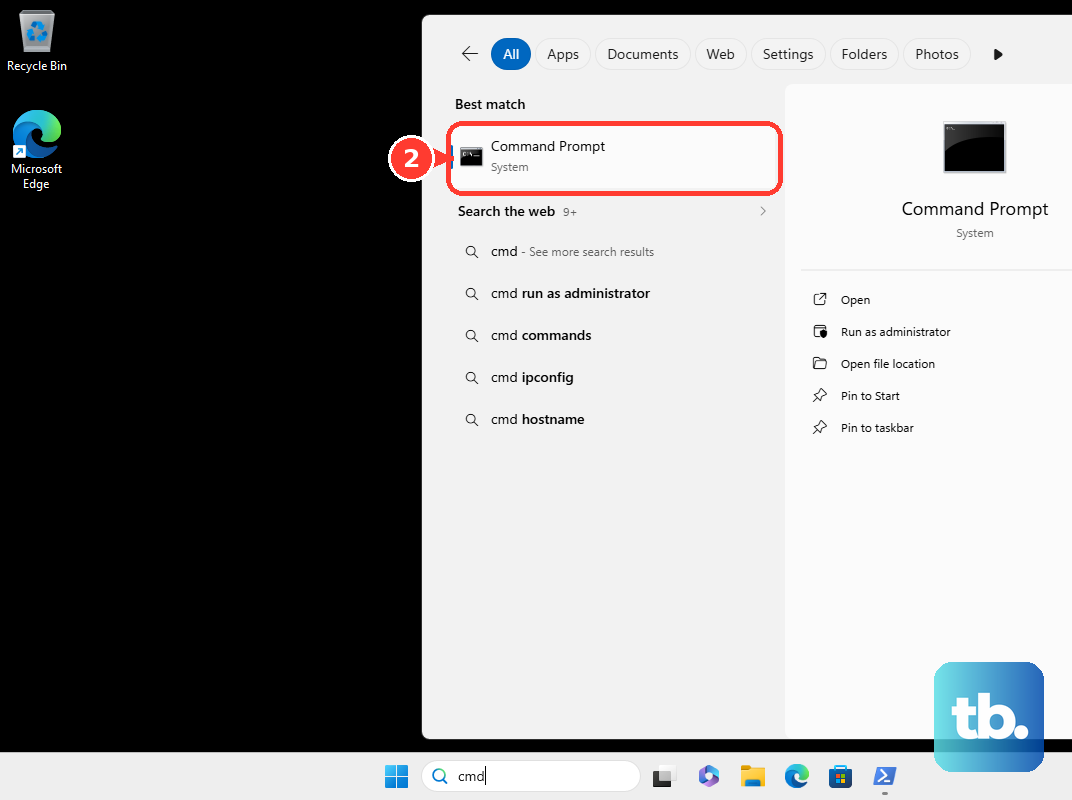
net userIdentify the exact account you want to remove. Replace ACCOUNT_NAME with that name, keeping the quotation marks, then run:
net user "ACCOUNT_NAME" /deleteDo not add /domain when you intend to delete only a local account. After removing the account, return to System Properties and open Settings under User Profiles. If its profile remains, select that profile and select Delete to complete the cleanup.
You can instead use Remove-LocalUser on Windows installations that provide Microsoft.PowerShell.LocalAccounts, including Windows 11 and Windows 10. Open Windows PowerShell with administrator privileges, replace ACCOUNT_NAME with the exact account name, and preview the removal:
Remove-LocalUser -Name "ACCOUNT_NAME" -WhatIfCheck that the preview identifies the intended account. Remove that account with:
Remove-LocalUser -Name "ACCOUNT_NAME"This cmdlet deletes the local account and is not documented as complete profile cleanup. Return to System Properties and delete any remaining profile using the steps above.
Clean up inactive profiles
For recurring cleanup, Group Policy can delete profiles that meet an inactivity threshold when the computer restarts. This applies to Windows 11 Pro, Enterprise, Education, applicable IoT Enterprise editions, and their Windows 10 equivalents. It does not apply to Windows Home, and it affects all qualifying profiles.
Open the Local Group Policy Editor using gpedit.msc. Navigate to Computer Configuration > Administrative Templates > System > User Profiles. Open Delete user profiles older than a specified number of days on system restart.
Select Enabled and set the inactivity threshold in days. Select OK, then restart the computer for eligible profiles to be deleted.
For managed devices, you can deploy the same cleanup policy through MDM. Configure ./Device/Vendor/MSFT/Policy/Config/ADMX_UserProfiles/CleanupProfiles using an ADMX-backed SyncML policy with chr format and the desired inactivity threshold. Assign it to the relevant devices; eligible profiles are deleted at the next restart.
The MDM policy applies to Windows 11 Pro, Enterprise, Education, and applicable IoT Enterprise editions from version 21H2 onward. It also applies to specified patched Windows 10 versions beginning with version 2004, but not Windows Home. Microsoft does not provide a complete ready-to-paste payload for this policy.
For script-based cleanup, save Microsoft's profile-age cleanup sample as ADDelProf.ps1. Microsoft lists Windows 11 and Windows 10 among its applicable systems but excludes the sample from its standard support programs. Use elevated Windows PowerShell; do not assume this WMI-based sample runs unchanged in PowerShell 7.
Start by previewing the profiles that meet your chosen age threshold. To preview profiles unused for 60 days, run:
.\ADDelProf.ps1 -Days 60Review the candidates before enabling deletion. To process profiles meeting the same threshold, run:
.\ADDelProf.ps1 -Days 60 -DeleteAt the Delete user profile? prompt, select Yes for the intended deletion. Keep this script-based workflow separate from the restart-based Group Policy or MDM configuration.
Configure cleanup on shared PCs
Shared PC mode provides account and profile management for shared devices, with account eligibility rules and exemptions. It applies to Windows 11 Pro, Enterprise, Education, applicable IoT Enterprise editions, and supported Windows 10 editions from version 1607 onward. It is not available on Windows Home.
Configure SharedPC/EnableAccountManager as true. Configure SharedPC/DeletionPolicy as 0 for immediate deletion, 1 for disk-space-based deletion, or 2 for disk-space and inactivity thresholds. Configure the applicable DiskLevelDeletion, DiskLevelCaching, and InactiveThreshold values before enabling SharedPC/EnableSharedPCMode.
In Intune, create a Settings catalog policy, configure the Shared PC category, and assign it to a security group. For provisioning, configure SharedPC in Windows Configuration Designer and apply the resulting provisioning package.
For PowerShell deployment, configure MDM_SharedPC through the MDM Bridge WMI Provider. Device settings must run under LocalSystem. These options configure the same shared-device cleanup mechanism and are intended for managed devices that support Shared PC mode.
Disconnect an unused work or school account
On Windows 11 and Windows 10 with a connected work or school account, open Settings > Accounts > Access work or school. Expand the unwanted connection, select Disconnect, then select Yes.
This removes the connection's device sign-in information and data without deleting the organizational account itself. Microsoft does not document disconnection as a substitute for deleting an arbitrary Windows user profile. Use the profile deletion steps when that is your goal.
Delete a profile from a Windows application
If you are building a Windows desktop application, the DeleteProfile API provides programmatic profile deletion with administrator privileges. Call it with the target user's SID. Pass NULL for the profile path to obtain it from the registry, and NULL for the computer-name argument.
Check the return value and use GetLastError on failure. The computer-name argument must be NULL on Windows Vista and later. This is an application programming interface, so use one of the earlier methods for interactive cleanup.
Frequently Asked Questions
Will removing a Windows account from the PC delete its Microsoft account?
No. Removing the account through Windows 11 Settings removes its sign-in information and data from that device. The person's Microsoft account remains.
Why might Remove-LocalUser be unavailable in PowerShell?
The Microsoft.PowerShell.LocalAccounts module is unavailable in 32-bit PowerShell on a 64-bit system. Check which PowerShell environment you opened before using this account-removal method.
Should you use an old WMIC profile deletion command?
Use System Properties or PowerShell CIM instead. Microsoft states that WMIC was removed and is no longer available as a Feature on Demand on Windows 11 version 24H2 and later. WMI itself is distinct from the retired WMIC command-line tool.
Is Delprof2 a good choice for cleaning up a current Windows PC?
Choose System Properties or PowerShell CIM for this task. Delprof2's developer documents Windows 10 UWP compatibility problems and says it will not work around them. Its older compatibility claims do not establish compatibility with current Windows 11.
Can Microsoft's profile-age sample handle remote computers or roaming profiles?
Yes. The sample supports remote computers and roaming profiles, along with user and domain filters. Review those options before using it for cleanup beyond the local PC.