


To check Windows logs, open Start, type Event Viewer, select Event Viewer, then expand Windows Logs and choose System or Application. Select an event to read its description, or use Filter Current Log... to narrow the results by time and event level. These steps apply to Windows 11 and Windows 10, and Event Viewer is built into Windows, so you do not need a download.
The short version
- Open the viewer: Search for Event Viewer from Start and select Event Viewer.
- Choose a log: Under Windows Logs, select System for Windows components and services or Application for application events.
- Narrow the results: Select Filter Current Log... and choose a relevant time range and event levels.
- Read and save: Inspect General and Details, then select Save All Events As... when you need a copy.
| Log | What you can check | Access or collection requirement |
|---|---|---|
| System | Windows component and service events | Select it under Windows Logs |
| Application | Application events | Select it under Windows Logs |
| Security | Recorded auditing events | Requires permission to read the log |
| Setup | Setup events | Select it under Windows Logs |
| Forwarded Events | Events collected from other computers | Requires configured event collection |
Open Event Viewer
Open Start, type Event Viewer, and select Event Viewer in the results. Alternatively, right-click Start, or press Windows + X, then select Event Viewer.
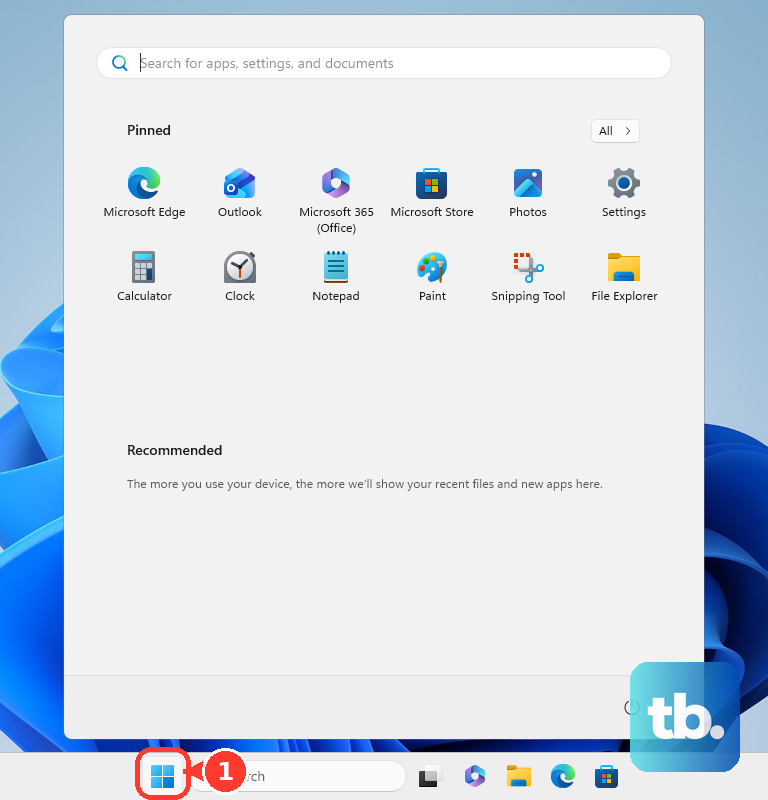
You can also open Event Viewer through Run. Press Windows + R, enter the following command, then press Enter.
eventvwr.mscFor another route, press Ctrl + Shift + Esc to open Task Manager. On current Windows 11, select Run new task; on Windows 10, select File > Run new task. Enter eventvwr.msc in Open, then select OK.
Choose the Windows log you need
Expand Windows Logs in the left pane, then select the log you want to inspect. Choose System for Windows components and services, or Application for application events.
Select Setup for setup events or Security for auditing events. Access to Security depends on your permissions, and the activity you need must have been recorded through auditing.
Choose Forwarded Events when you are inspecting events collected from other computers. This log needs configured event collection to contain useful data, so it is not the starting point for checking your own PC's application or system events.
Filter events by time and level
Select the log you want to inspect, then select Filter Current Log... under Actions. On the Filter tab, choose a Logged range that covers the activity you want to check.
To focus on serious events, check Critical, Error, and Warning. Optionally specify Event sources or event IDs, then select OK. The available sources and other filter choices depend on the selected log.
If the filtered view does not show the event you need, open Filter Current Log... again. Broaden the time range or revise the selected levels, sources, and event IDs before checking another log.
Read an event and search for matches
Select an event and read its description on the General tab. Choose Details for structured event data, or double-click the event to open its properties in a separate window.
To search the selected log, choose Find in the Actions pane, where Filter Current Log... is also available.
Check logs for a specific app or component
For application or component channels, expand Applications and Services Logs, then select the relevant provider and channel. The channels available depend on your installed applications and enabled Windows components.
For Microsoft Defender Antivirus events, open Applications and Services Logs > Microsoft > Windows > Windows Defender > Operational. Select an event and read General or Details, just as you would in a standard Windows log.
Create a view for repeated checks
Create a custom view when you want to reuse a filter or check events across multiple logs. Select Custom Views > Create Custom View..., set Logged and the required event levels, then select By log.
In Event logs, check System and Application to include both. Optionally enter event IDs, then select OK. In Save Filter to Custom View, enter a Name and select OK. Reopen the named view under Custom Views whenever you need that combination again.
Save logs and open saved copies
To keep a copy for later inspection or technical support, right-click the required log and select Save All Events As.... Choose a location and filename, then select Save. Select Display information for these languages, check English, and select OK to help another computer display the event descriptions.
To reopen the resulting .evtx file, right-click Event Viewer (Local) and select Open Saved Log.... Browse to the file and select Open. Microsoft recommends matching the viewing computer's Windows build to the source computer's build for the best display of saved logs.
Frequently Asked Questions
Can you check Windows logs with PowerShell?
You can read the newest 50 System events by opening Windows PowerShell or a PowerShell tab in Terminal and running Get-WinEvent -LogName System -MaxEvents 50. Replace System with Application or Security to read another log; protected logs may require elevation. Run Get-WinEvent -ListLog * to list available channels, and add -Force to include debug and analytic channels.
Should you use Get-EventLog from older instructions?
Use Get-WinEvent for current commands. Microsoft retains Get-EventLog for compatibility and warns that its underlying Win32 API is deprecated. You cannot use Get-EventLog as a PowerShell 7 cmdlet.
Can Event Viewer show events that were never recorded?
You cannot recover previously unrecorded events by enabling security auditing afterward. Enabling a diagnostic channel also collects future events, so you need to reproduce the issue after enabling it.
Can you open Event Viewer by voice?
With Voice access configured and listening on Windows 11 version 22H2 or later in a supported language, say Open Event Viewer. If numbered search results appear, choose the number for Event Viewer. You do not need a Copilot+ PC for ordinary app-opening commands.
Why do older instructions mention Administrative Tools?
On Windows 11, you will find the folder named Windows Tools instead of Administrative Tools. Open Control Panel, select Windows Tools, then double-click Event Viewer.
Can you reuse an Event Viewer filter in PowerShell?
You can inspect or copy its XML query by opening Filter Current Log... or Create Custom View..., configuring the choices on Filter, then selecting XML. Use the copied query with Get-WinEvent -FilterXml when you need the same filtering in PowerShell.