You need the motherboard model before buying RAM, checking BIOS updates, or matching the right support page. Windows can usually show it in a minute, but laptops and prebuilts may report only an OEM board ID. Start with the built-in tools, then move to firmware, physical labels, or trusted hardware apps when the first result is too vague.
1. Start with Windows System Information
This fixes the fastest Windows check for most desktop PCs and many custom builds.
Press Windows key + R.
Type msinfo32, then press Enter.
In System Information, select System Summary.
Read BaseBoard Manufacturer, BaseBoard Product, and BaseBoard Version.
For the cleanest result, open Start, search for System Information, right-click it, and choose Run as administrator.
2. Pull the model with PowerShell
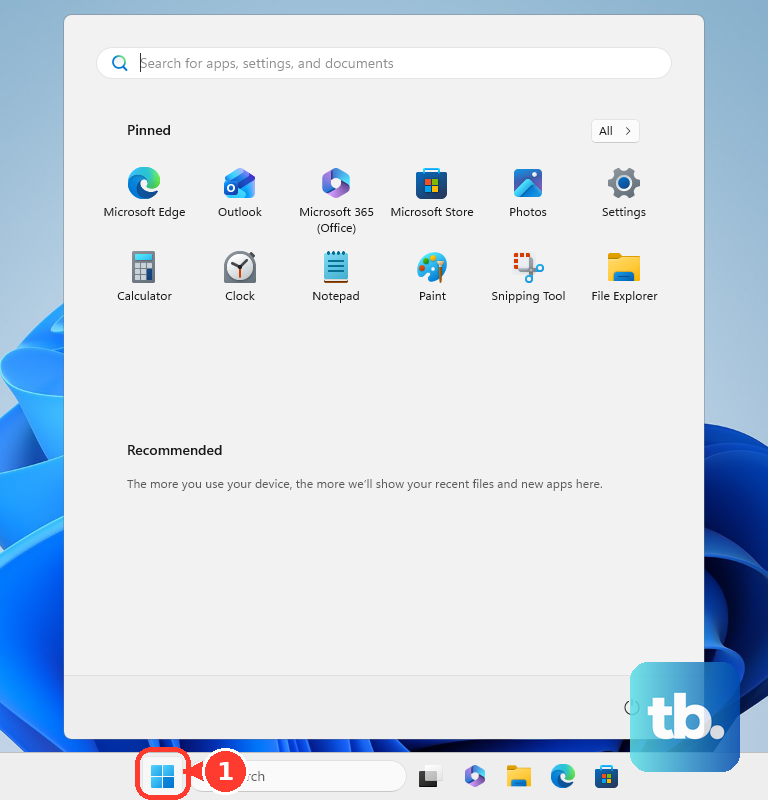
Open Start.
Type PowerShell.
Open Windows PowerShell or PowerShell.
Run Get-CimInstance -ClassName Win32_BaseBoard | Select-Object Manufacturer, Product, Version, SerialNumber.
Read Manufacturer, Product, Version, and SerialNumber in the output.
For BIOS matching, also run Get-CimInstance -ClassName Win32_BIOS | Select-Object Manufacturer, SMBIOSBIOSVersion, ReleaseDate, SerialNumber.
3. Identify a prebuilt in Settings
Right-click Start.
Select Settings.
Open System.
Select About.
Read the device name and model near the top, then check Device specifications for processor, RAM, and system type.
Use this when System Information gives a generic board string, because Settings usually identifies the Windows device model rather than the retail motherboard model.
4. Read the model in UEFI or BIOS
This fixes unclear or missing motherboard names reported inside Windows.
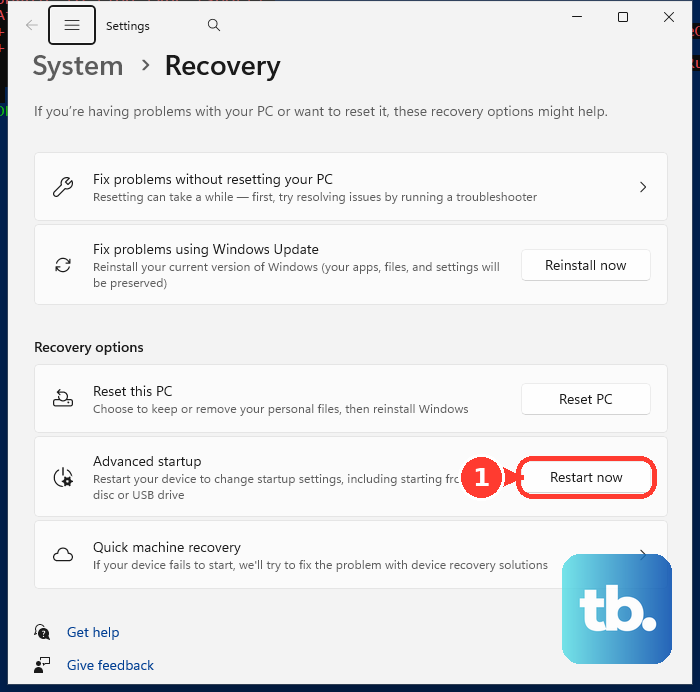
- 1.Open Settings.
- 2.Go to System, then Recovery.
- 3.Under Advanced startup, select Restart now.
- 4.After the restart, choose Troubleshoot, then Advanced options, then UEFI Firmware Settings, then Restart.
- 5.In firmware, open the first information page, such as Information, EZ Mode, Main, or System Information, and read the motherboard or system model and BIOS version.
- 6.To enter firmware during startup instead, restart and press the vendor key before Windows loads: DEL for ASUS motherboards, F2 at the Dell logo or F12 then BIOS Setup or System Setup for Dell, F10 for HP, and F1 at the logo for Lenovo ThinkPad, ThinkCentre, and ThinkStation models.
5. Inspect the board or box
Shut down the desktop PC.
Unplug power.
Open the case only when it is safe for you to do so.
Read the model name printed on the motherboard PCB.
For ASUS boards, check the model name printed on the motherboard and the serial-number label on the backside.
Check the motherboard retail box or packaging sticker when you still have it.
Skip opening laptops and all-in-ones for this job; identify the device model through Windows, firmware, or the manufacturer instead.
6. Use a trusted hardware app
Download CPU-Z from CPUID, open it, select the Mainboard tab, and read Manufacturer, Model, Chipset, and BIOS.
Download HWiNFO from the official HWiNFO download page, run the Installer or Portable version, and read the motherboard or baseboard and BIOS information.
Download Speccy from CCleaner or Piriform, open Summary or Motherboard, and read the motherboard details.
Download Belarc Advisor from Belarc, run the Advisor, and review the local HTML profile in your browser for hardware or system-board details.
For an MSI motherboard or supported MSI system, install MSI Center from MSI, open MSI Center, select Support, and read the motherboard name and BIOS version.
Use official download pages for these tools instead of third-party download portals.
7. Check the board on Linux
Open Terminal.
Run sudo dmidecode -t baseboard.
Read the Base Board Information fields, including Manufacturer, Product Name, Version, and Serial Number.
Use sudo dmidecode -t 2 as the alternate type form.
This command needs root or sudo access, and the result depends on the SMBIOS or DMI data exposed by the system firmware.
8. Find the device model on Mac or Surface
On a Mac, use Apple menu > About This Mac to read the Mac model name and serial number.
For more detail, open System Information and read the model identifier.
This identifies the Mac model, not a commodity motherboard model, because Apple normally exposes the computer model rather than a consumer motherboard equivalent.
On a Surface, shut it down, wait about 10 seconds, hold Volume-Up while pressing and releasing Power, keep holding Volume-Up until Surface UEFI appears, and read PC information for model, serial number, System UUID, asset tag, and firmware component versions.
9. Avoid old Windows commands
Older guides often recommend wmic baseboard get product,manufacturer,version,serialnumber in Command Prompt.
Microsoft says WMIC is removed by default from the latest Windows 11 24H2 and 25H2 installations, removed on upgrade in Windows 11 25H2, and scheduled for complete removal in the next Windows feature update.
Use Get-CimInstance in PowerShell instead.
Older PowerShell examples may use Get-WmiObject -Class Win32_BaseBoard, but Microsoft superseded Get-WmiObject with Get-CimInstance starting in PowerShell 3.0.
For BIOS and system context only, use Command Prompt to run systeminfo, or run systeminfo | findstr /I BIOS to filter BIOS lines.
For a work or school device, your IT team may also see hardware details in Microsoft Intune admin center > Devices > select a device > Hardware.
Frequently Asked Questions
Why does Windows show a generic motherboard name?
Some prebuilt laptops and desktops report OEM board IDs or generic strings from firmware data. Use Windows Settings to identify the device model, or check UEFI/BIOS for the system model and BIOS version.
Is the motherboard serial number the same as the model?
No. The model identifies the board type, while the serial number identifies the individual board. PowerShell can show both when the firmware exposes them.
Can I check my motherboard without opening the PC?
Yes. Use Windows System Information, PowerShell, UEFI/BIOS, or a trusted hardware information app first. Opening the case is mainly useful for accessible desktop PCs.
What is the safest app for checking motherboard details?
Use official vendor pages only: CPUID for CPU-Z, HWiNFO for HWiNFO, CCleaner/Piriform for Speccy, Belarc for Belarc Advisor, or MSI for MSI Center on supported MSI systems.











