


To connect your iPhone directly to a printer by USB, use a supported Star receipt printer, the cable specified for its model, and an iOS app that supports its wired connection. For a home USB printer, you can use a compatible computer to share the printer or print a transferred file. A matching cable alone does not establish compatibility.
The short version
- Check before buying: Confirm explicit iPhone wired-printing support for both the printer and the app.
- Direct USB exception: Certain Star receipt printers support an iPhone USB connection with compatible software.
- Home printing: AirPrint uses a local network, while Mobility Print can share a computer-connected USB printer.
- Computer alternative: Transfer a supported document to a Mac by USB, then print it from the Mac.
| Option | What connects by USB | What you need |
|---|---|---|
| Supported Star receipt printer | iPhone to printer | Supported model, specified cable, and compatible iOS software |
| AirPrint | USB is not the printing connection | Compatible printer on the same local network |
| HP Wi-Fi Direct | No USB connection | Supported HP model and its Wi-Fi Direct details |
| HP app | No direct iPhone USB support | Supported configured HP printer |
| Mobility Print | Computer to printer | Compatible host computer and the same local network |
| USB transfer to a Mac | iPhone to Mac, then Mac to printer | File Sharing app and configured Mac printer |
| External storage transfer | Storage connects to each device separately | Compatible drive or reader and a printing computer |
| File server transfer | USB can connect the computer to its printer | Accessible server and a printing computer |
| Cloud storage transfer | USB can connect the computer to its printer | Compatible cloud service and a printing computer |
| Epson flash-drive photo printing | USB drive to printer | ET-8500 or ET-8550 and supported photos |
| Managed AirPrint discovery | USB is not the printing connection | Enrolled iPhone, compatible network printer, and administrator setup |
| HP Enterprise flash-drive printing | USB drive to printer | Supported FutureSmart 4 or 5 printer with the feature enabled |
Check your exact printer model first
Check the printer manufacturer’s instructions for an explicit iOS wired-printing feature before buying an adapter. Match the full model name, then check that the app you intend to print from supports that connection. Hardware support and app support are separate requirements.
For AirPrint compatibility, open Apple’s About AirPrint page, follow Search for AirPrint-enabled printers, and search for your exact model. A USB-only listing means driverless USB printing from a Mac. It does not establish that you can connect that printer directly to your iPhone.
HP’s USB OTG printing solution explicitly excludes Apple devices. Connecting an ordinary HP USB printer through a Lightning camera adapter, USB-C adapter, or OTG cable does not provide a supported iPhone printing workflow. For those printers, check the network or computer-assisted options below.
Connect a supported Star receipt printer
Direct wired printing is an option for specific Star receipt printers when you have compatible iOS printing software. This supports specialized receipt printing, so confirm the model and software before following these cable instructions. It does not provide a generic AirPrint document-printing connection.
For a second-generation Star mC-Print3, connect the printer’s USB-C port to your iPhone using a USB-C to USB-C or USB-C to Lightning cable, as appropriate. USB-C cables must meet USB 2.0, support at least 3 A, and be no longer than 2 m. Lightning cables must be Apple or MFi-certified and no longer than 2 m.
For the earlier MCP31LB, MCP31L, MCP31LBNH, and MCP31LNH models, connect your iPhone’s Lightning or USB-C cable to the printer’s USB-A (2.4A) port. Do not substitute the USB-B computer connection. If a Windows or Android device was already connected through USB-B, the iPhone charges without communicating with the printer.
Get Star Quick Setup Utility for supported Star printers on iOS 15.0 or later. Open Initial Settings > Search Printer to search, then use Printer Operation Check > Printer Test for a sample receipt or photo. You can find interface controls under Printer Settings > Interface Settings. The utility does not make arbitrary USB printers compatible, and your regular printing app still needs to support the printer’s iOS USB connection.
Fix recognition of supported wired accessories
Unlock your iPhone before connecting supported wired hardware. If the hardware is not recognized, disconnect it, unlock the phone, and reconnect it. Accessory permission controls communication, but it does not install printer support.
To review the current setting, open Settings > Privacy & Security > Wired Accessories. USB-C iPhones offer Always Ask, Ask for New Accessories, Automatically Allow When Unlocked, and Always Allow. Lightning iPhones offer Automatically Allow When Unlocked and Always Allow. On a supervised iPhone, an administrator can control this setting using Apple Configurator or mobile device management.
If reconnecting supported hardware does not resolve the connection, recheck the exact printer port and the app’s supported connection types. For a printer without explicit iOS wired-printing support, use its supported network connection or print through a compatible computer.
Use AirPrint for documents and photos
For an AirPrint-compatible network printer, connect the iPhone and printer to the same local network. The printer can use a wired network connection, but its USB connection is not the AirPrint transport. You can also follow the steps to connect your iPhone to a wireless printer when setting up network printing.
Open the document or photo in an app that supports printing. Tap Share or Actions, choose Print, then tap No Printer Selected. Choose the printer, adjust copies and available page options, and tap Print.
When a printer app asks to discover devices on your local network, tap Allow. On iOS 14 or later, you can change that permission in Settings > Privacy & Security > Local Network by turning on the app. This permission enables the app’s network discovery, not USB printing.
Print with a supported HP printer without a router
On HP LaserJet Pro MFP models that support Wi-Fi Direct and iPhone printing, obtain the printer’s Wi-Fi Direct name and password. Open Settings > Wi-Fi on your iPhone, select the printer’s Wi-Fi Direct network, and enter its password when requested. Open your document or photo, choose Print, select the printer, and tap Print. Afterward, reconnect your iPhone to its usual Wi-Fi network.
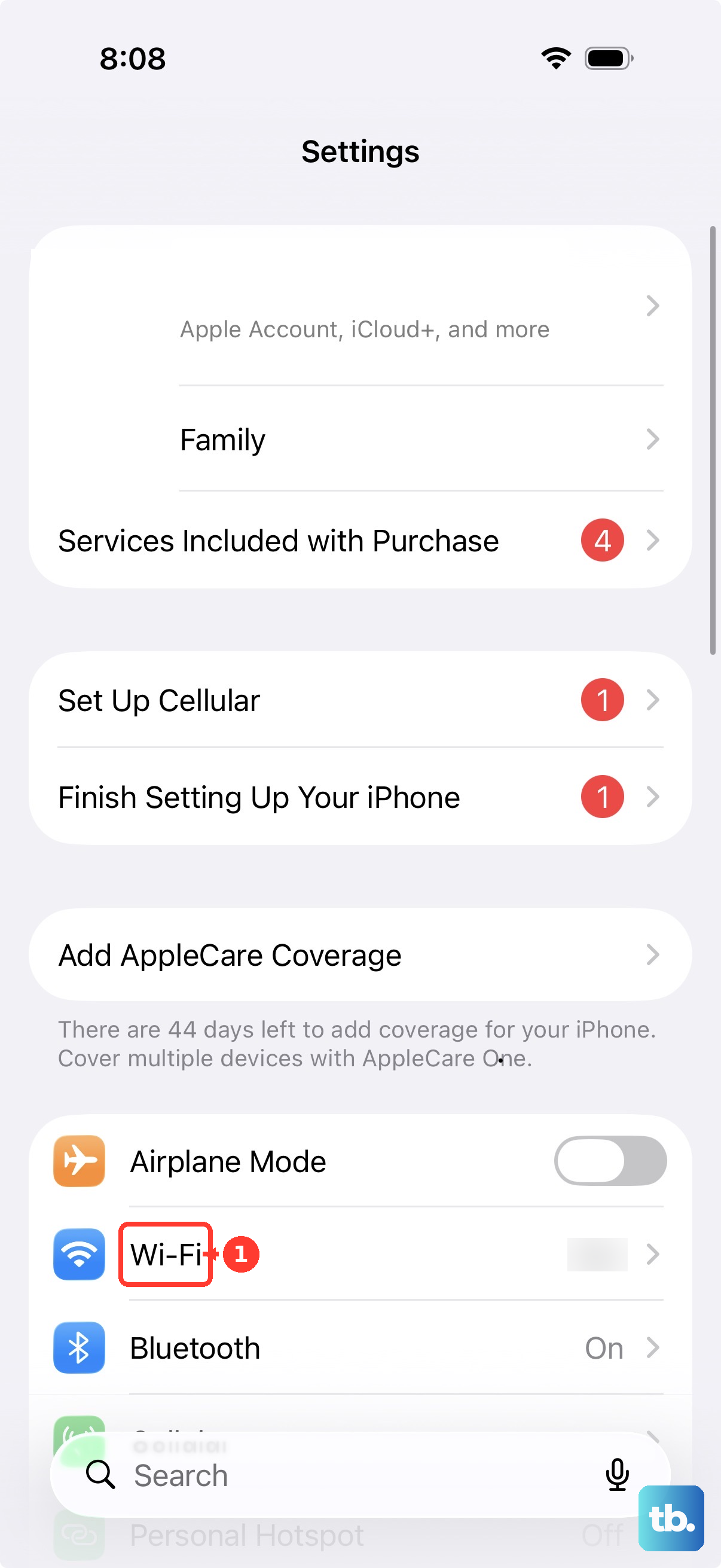
The way you find those connection details depends on the HP model. On supported touchscreen models, tap the Wi-Fi Direct icon; on supported models without a touchscreen, press Information to print an Information Report. Other printer models need their own Wi-Fi Direct connection instructions.
On supported models, you can also select the printer in the HP app and open Advanced Settings, or choose Printer Settings > View All > Advanced Settings. In the printer’s embedded web interface, open Network or Networking, then Wi-Fi Direct > Setup, or open Wi-Fi Direct Setup, depending on the interface. Enter the printer PIN if requested to view its connection details.
For additional print controls with a supported configured printer, obtain the HP app through HP’s product page and its Apple App Store link. The HP app replaces HP Smart, which HP says is no longer available for download. In the HP app, tap the printer image, choose Print Documents, open the file, and tap Print Preview.
Adjust the available Paper, Copies, Print Quality, and Color Options controls, then tap Print. Options vary by printer. Using the HP app does not add support for a direct iPhone-to-HP USB cable.
Share a computer connected USB printer
PaperCut Mobility Print lets a compatible computer publish its configured printers for mobile printing. The computer connects to the printer by USB, while your iPhone connects over the local network. First, make sure that the computer can print to the USB printer.
Check Mobility Print’s system requirements for the host operating system and printer driver before installation. Current iPhone clients require iOS 16.0 or later, and supported hosts include Windows 11, macOS 13 or later, and supported Linux distributions. Label printers and plotters are excluded, and ARM hosts have additional limitations.
Get the server software from the official PaperCut Mobility Print product page and install it on the computer physically connected to the printer. Complete setup and retain mDNS discovery for a typical home network. Keep the computer available and connect your iPhone to the same network.
In the document’s app on your iPhone, tap the share icon and select Print. Select the published printer and print; if authentication is configured, enter the PaperCut Username and Password. The mDNS workflow requires no additional iPhone app. Keep the iPhone on the print server’s local network, because Mobility Print’s Cloud Print feature excludes iOS.
Transfer a document to a Mac by USB
With macOS Catalina or later and an iPhone running current iOS, you can transfer a document from an app that supports File Sharing. Connect the iPhone to the Mac with a USB cable. Open Finder, select the iPhone, and click Files.
Expand the file-sharing app using its triangle, select the document, and drag it into a Mac folder. Finder does not expose every iPhone document through this route. If the document is outside a supported File Sharing app, use a compatible storage, server, or cloud transfer route instead.
After configuring the USB printer on the Mac, open the transferred file in an app that can read it. Choose File > Print or press Command + P, select the printer under Printer, adjust the available options, and click Print. The Mac performs the printing; this transfer does not expose its USB printer directly to your iPhone.
Move files through storage or a server
Another transfer option is to connect a compatible USB drive or SD-card reader to your iPhone. Copy the file using Files or another supported app, then move the storage device to the printing computer. This requires compatible storage and adapters.
For a file server, open Files and choose Browse > More > Connect to Server. Enter the server address, tap Connect, choose Guest or Registered User, provide credentials when needed, and tap Next. Cloud files can also be accessed through Browse > Locations in Files or through the service’s computer interface. These routes transfer the file for printing from another device.
If you have an Epson ET-8500 or ET-8550, you can print supported photos from a compatible USB flash drive at the printer. After copying the photos from your iPhone, insert the drive into the printer’s front USB port. Open Print Photos > Print, select OK, select photo thumbnails, and choose Next. Adjust paper settings and Copies, then select the Print icon.
That Epson workflow reads photos from the storage drive; connecting your iPhone does not substitute for that drive. Other printers have different file-format and control-panel requirements, so confirm their storage-printing instructions before using this route.
Set up printing on managed devices
For an enrolled iPhone, an administrator can configure an AirPrint payload to make compatible network printers available. In Apple Configurator’s AirPrint payload, click Add, enter the printer’s IP address and Resource path, configure Port and optional TLS, then click OK. MDM-console labels vary by provider. This configuration provides network printer discovery without adding a generic USB printer driver to the iPhone.
If flash-drive printing is disabled on a supported HP Enterprise or Managed printer using FutureSmart 4 or 5, an administrator can enable it at the printer. Open Settings, choose Copy/Print or Print, then open Enable Print from USB Drive and select Enabled. Insert the storage drive and retry. This enables printing from a flash drive, not a direct iPhone USB connection.
Frequently Asked Questions
Can AirPrint work if a printer app has local-network access turned off?
Yes, Apple says system services such as AirPrint can still operate when an app’s own local-network access is denied. Turning off that permission for an app does not necessarily prevent you from using AirPrint.
Why did my Star printer’s Bluetooth connection disconnect when I plugged in USB?
On a second-generation Star mC-Print3, connecting the same iOS device through USB-C disconnects its Bluetooth connection. Use software that explicitly supports that printer’s iOS USB connection for the wired workflow.
Can an AirPort or Time Capsule turn my USB printer into an AirPrint printer?
No, Apple explicitly states that a printer connected to an AirPort Base Station or AirPort Time Capsule USB port cannot use AirPrint. You can instead use an AirPrint-compatible network printer or a compatible computer-hosted Mobility Print setup.
Should I install Printer Pro when an older tutorial recommends it?
Readdle discontinued Printer Pro, ended updates, and removed it from sale. If you already own it, Readdle says you may continue using your copy, but its last explicitly supported release was iOS 15. Choose a current supported route for your printer and devices.
How do I adjust a photo in the HP app before printing?
With a supported configured printer, tap the printer image, select Print Photos, and open the photo. Use Layout, Adjust, or Text, then tap Next to reach Print Preview and tap Print. Available options vary by printer.
Can I use the Star USB instructions with Shopify POS on an iPhone?
Shopify’s help pages do not describe an iPhone USB setup for the Star mC-Print3. Its USB instructions cover compatible iPads and Android devices through Shopify POS Hub, or direct USB for Android. For your iPhone, check Shopify’s Bluetooth or network connection options.
Why does Mobility Print ask for an iOS configuration profile?
Mobility Print’s Known Host discovery uses an iOS configuration profile. Its mDNS and DNS discovery workflows require no additional iPhone app, so your setup depends on the discovery method configured for the server.
What should I check before relying on Printopia?
Check the vendor’s product page and request confirmation of compatibility with your exact iOS and macOS versions before relying on it. The product page explicitly advertises iOS 17 compatibility, so that claim alone does not establish compatibility with your versions.