

To change your Wi-Fi password using an iPad, open your router’s app or administration webpage, sign in as its administrator, edit the wireless password, and save it. Changing the network password disconnects devices that need to reconnect with the replacement. The exact menus depend on your router’s model and software.
If someone has already changed the network password, reconnect your iPad using the current password. To change the password for a Personal Hotspot broadcast by your iPad, use Settings instead.
The short version
- Home Wi-Fi: Change the network password through your router’s administration webpage or companion app.
- Saved connection: Rejoin the network with its current password to update the iPad’s access.
- Personal Hotspot: Change the password in Settings > Cellular > Personal Hotspot on an eligible iPad.
- After saving: Reconnect affected devices using the replacement password.
| Equipment or task | Where to make the change | Requirement or limit |
|---|---|---|
| TP-Link router through Safari | Router administration webpage | Menus depend on model and firmware |
| TP-Link router through Tether | Tether app | Tether-compatible router |
| Deco mesh network | Deco app | Connect to the Deco network |
| Google Wifi or Nest Wifi | Google Home app | Network managed through Google Home |
| eero main network | eero app | Main network controls |
| eero guest network | eero guest-network controls | Separate from the main password |
| NETGEAR through Nighthawk | Nighthawk app | Supported router |
| Orbi through its app | Orbi app | Supported system and account credentials |
| Orbi through Safari | Router administration webpage | Supported system and administrator credentials |
| ASUS through its app | ASUS Router app | Compatible router with firmware 3.0.0.6.102_35404 or later |
| ASUS through Safari | Router administration webpage | Firmware 3.0.0.6.102_35404 or later |
| Linksys Dual-Band WiFi Router | Local router interface | Models using the stated menu path |
| Rented Xfinity Gateway | Xfinity app | Primary, Manager, or Member account |
| Xfinity through Safari | Admin Tool | Eligible XB2 or XB3 without WiFi Intelligence or WiFi Extenders |
| Supported AT&T equipment | Smart Home Manager app | Compatible equipment and Apple device |
| Supported Verizon Fios routers | Verizon account website | Fios Quantum Gateway or Fios Advanced router |
| Rejoin a network | Settings > Wi-Fi | Current network password and iPadOS 27 steps |
| Replace a saved connection | Forget This Network, then rejoin | Managed networks can restrict forgetting |
| iPad Personal Hotspot | Personal Hotspot settings | Wi-Fi + Cellular iPad and supporting carrier plan |
| Managed connection credentials | Organization’s device-management service | Administrator updates the configuration |
| Reset iPad network settings | Reset Network Settings | Removes ordinary saved network configuration |
| Reset a NETGEAR router | Router’s reset button | Model-specific recovery that erases configuration |
| Look up a saved password in Settings | Settings > Wi-Fi | iPadOS 16.1 or later; lookup only |
| Look up a saved password in Passwords | Passwords app | iPadOS version that includes the app; lookup only |
Choose the password you want to change
Your home Wi-Fi password controls access to the wireless network. The router administrator password controls access to its settings, while your internet provider account can have another password of its own. Sign in with the credentials requested by the management interface.
Choose the specific network you intend to update before replacing its password. Separate wireless bands, guest networks, and other network names can have their own credentials. Editing one network’s password does not necessarily update the others.
Change the password through Safari
Connect your iPad to the router’s network before opening its local administration webpage in Safari. Authenticate as the router administrator, then use the path that matches your equipment and firmware.
For a TP-Link router using this interface, open https://tplinkwifi.net in Safari and enter the router administrator password. Open Advanced > Wireless > Wireless Settings, replace Password, then select Save. If your router uses TP-Link’s Wi-Fi 8 interface, open Wi-Fi > Main Network instead.
For an Orbi system supporting browser administration, open orbilogin.com while connected to Orbi. Sign in with the username admin and the router administrator password chosen during setup. Select Wireless, replace Password (Network Key), then select Apply.
For an ASUS router running firmware 3.0.0.6.102_35404 or later, open http://www.asusrouter.com or the router’s LAN address in Safari. Authenticate as administrator and open Network > Main network profile. Edit the wireless password, then select Apply.
On Linksys Dual-Band WiFi Router models using this local interface, sign in and open Configuration > Wi-Fi > Wireless Security. Replace Passphrase for each relevant band, then select Save. This path applies specifically to those Dual-Band models.
If an older tutorial sends you to Linksys Smart WiFi cloud management, Linksys has discontinued those services on selected products. Use local browser administration where your affected model supports it. For affected EA and WRT routers, use a mobile browser in desktop mode; some affected mesh workflows require a desktop computer.
Use Tether Deco Google Home or eero
For a Tether-compatible TP-Link router, get the app through the official Tether product page, which also provides compatibility information. Connect to the router’s Wi-Fi, open Tether, select the router under Devices, and authenticate. Open More > Wi-Fi Settings, choose the relevant band or MLO network, replace its password, then tap Save.
With a Deco mesh system, connect the iPad to the Deco network and open Deco. Tap More > Wi-Fi Settings, replace the password, then tap Save. Menus can vary by model and software.
For Google Wifi or Nest Wifi, open Google Home and tap Home > Wifi > Network settings. Select the existing password, enter its replacement, then tap Save. If you need the app, open the official Google Home page and select Get the app. Google requires Google Home for network changes previously handled by the Google Wifi app.
To update an eero network, open eero and tap Settings > Wifi name & password > Wifi network password. Enter the replacement password, then tap Save. This changes the main network password; guest access has separate controls.
Use NETGEAR or ASUS router apps
On a NETGEAR router supported by Nighthawk, open Nighthawk and select WiFi Settings. Select the network you want to change, enter the replacement password, then tap Save.
For an Orbi system supported by the Orbi app, connect the iPad to the Orbi network and open Orbi. Enter your account credentials and tap SIGN IN, then open WiFi Settings. Replace Network Key (Password) and tap SAVE.
With a compatible ASUS router running firmware 3.0.0.6.102_35404 or later, authenticate in ASUS Router. Open Settings > Network > Main network profile, edit the wireless password, then tap Apply. You can also use the browser path for that firmware.
Change the password through your internet provider
For a rented Xfinity Gateway, use the Xfinity app with a Primary, Manager, or Member account. You can obtain the app from Xfinity’s official apps page. Sign in only through Xfinity’s own app or website, and never share a code, password, or remote access with someone who contacts you.
After signing in, select WiFi > WiFi details > Edit WiFi settings. Replace WiFi password, then select Save. The app is required for gateways using WiFi Intelligence or Xfinity WiFi Extenders.
Xfinity’s browser alternative applies only to XB2 and XB3 gateways where the Admin Tool remains available, excluding networks with WiFi Intelligence or WiFi Extenders. For an eligible gateway, connect to the private home network, open http://10.0.0.1 in Safari, and authenticate as administrator.
Open Gateway > Connection > Wi-Fi, then under Private Wi-Fi Network, select Edit for the relevant network. Replace Network Password, then select SAVE SETTINGS. For XB6 and later gateways, use the Xfinity app.
For AT&T equipment supported by Smart Home Manager, open the app and tap My Wi-Fi. Tap Edit beside the password, enter the replacement, then tap Save. AT&T provides this path for its iOS app; check app compatibility for your iPad.
For a Fios Quantum Gateway or Verizon Fios Advanced router, open My Verizon in Safari and sign in, then select Home. Open Services > Internet, then under My Network, choose the network and select Manage. Enter the replacement credentials and select Save Changes. Use Safari’s desktop website presentation if needed to reach these menus.
If your equipment or account does not match these conditions, use your provider’s official help for the applicable procedure.
Reconnect your iPad with the new password
Once the network password changes, reconnect devices using the replacement. On iPadOS 27, open Settings > Wi-Fi, select the network, and enter its current password when requested. This updates the iPad’s connection credentials without changing the router’s password.
Forgetting a network removes the saved connection and, with iCloud Keychain, can also remove it from other devices using the same Apple Account. To replace that saved connection, open Settings > Wi-Fi > Edit, then tap the More Info button beside the network. Tap Forget This Network, then tap Forget.
On iPadOS 27, return to Settings > Wi-Fi and select the network again. Enter its current password when prompted. Some supervised or managed networks prevent forgetting; for an organization-managed connection, have its administrator update the Wi-Fi configuration through the device-management service.
Change your iPad Personal Hotspot password
Personal Hotspot applies to Wi-Fi + Cellular iPads with a carrier plan that supports it. Changing this password changes access to the network broadcast by your iPad, rather than your home router.
Open Settings > Cellular > Personal Hotspot. Tap Wi-Fi password and enter its replacement. Devices joining the hotspot will need the replacement password.
Fix connection or administrator access problems
Start by confirming that you are joining the network whose password you changed. If you edited a particular band or guest network, use that network’s current credentials. When the iPad needs to replace a saved connection, follow the forgetting and rejoining steps above.
Resetting network settings removes ordinary saved network configuration so you can enter it again. For continued connection troubleshooting, open Settings > General > Transfer or Reset iPad > Reset > Reset Network Settings. This does not change the router’s Wi-Fi password, and configuration-profile or device-management settings are handled separately.
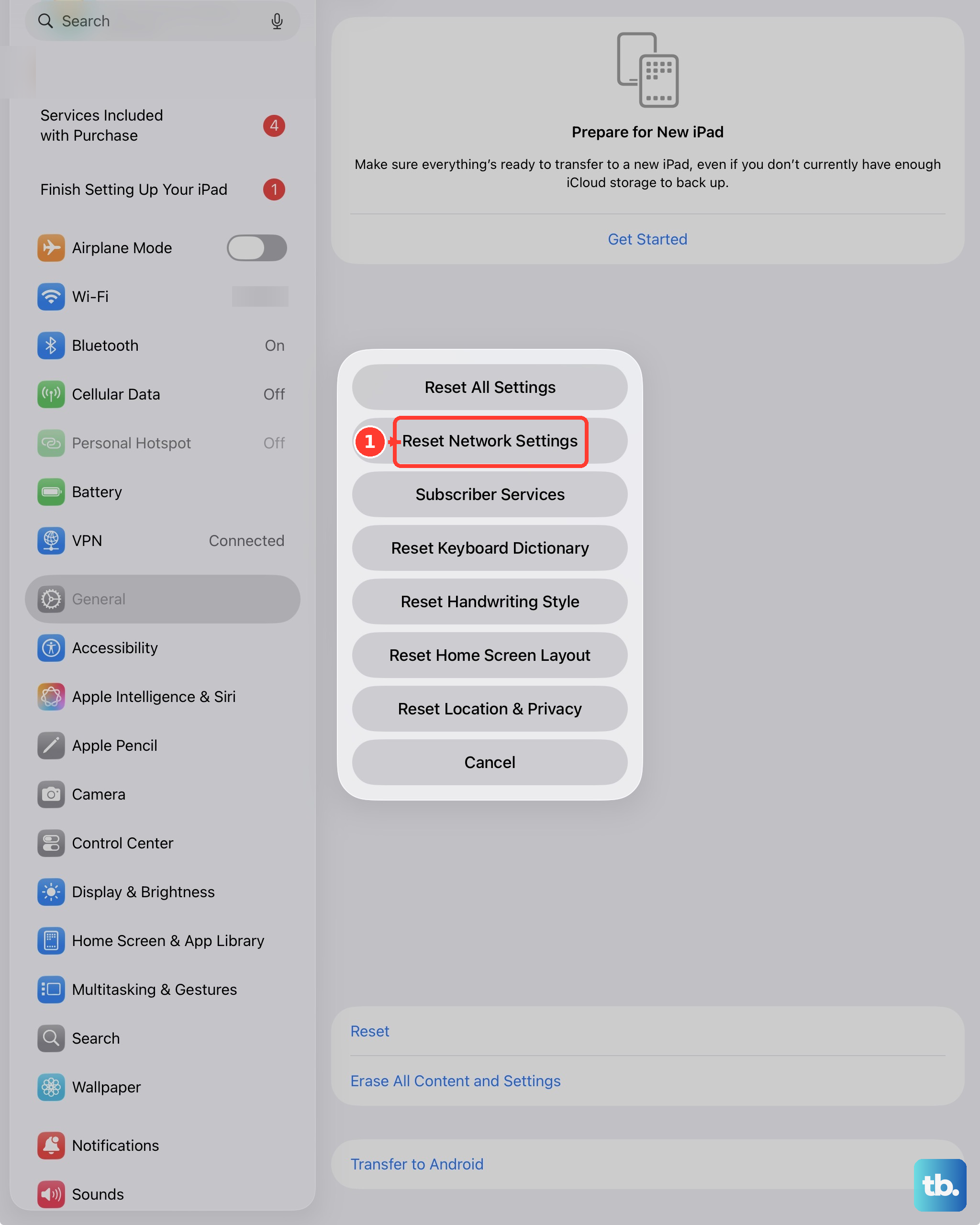
If you cannot authenticate as the router administrator, use the manufacturer’s official help for your model’s recovery procedure. A factory reset is a model-specific recovery option, so confirm that your NETGEAR model uses the following procedure before proceeding.
A factory reset erases the router’s configuration. For NETGEAR models covered by its seven-second reset procedure, leave the power on and use a paper clip to hold the recessed Restore Factory Settings or Reset button for seven seconds. Release it and allow the reset to finish. Reconfigure the router from your iPad through its supported app or browser interface, including a new Wi-Fi password.
Frequently Asked Questions
Can you look up the saved Wi-Fi password before changing it?
On iPadOS 16.1 or later, open Settings > Wi-Fi, select the network’s information button, and reveal Password after authenticating. On iPadOS versions that include the Passwords app, open it, authenticate, select Wi-Fi, choose the network, and reveal its password. These controls let you look up a saved password rather than edit the router’s password.
How do you reconnect to a hidden Wi-Fi network?
On iPadOS 27, open Settings > Wi-Fi and select Other. Enter the hidden network’s name, security type, and current password.
How do you change an eero guest password separately?
Open eero and tap Settings > Guest wifi network, edit the existing guest network’s password, and tap Save. If you need to create the guest network first, turn on Enable guest network and tap Save. You can also reach the guest controls from Home by selecting your network name at the upper left and tapping the box-with-arrow icon beside the network.
Can Tether change the password when you are away from home?
Tether supports remote access through an existing TP-Link ID binding on compatible routers. With that binding already in place, you can access the router remotely instead of connecting the iPad to its Wi-Fi first.
Should you follow an older AirPort Utility tutorial on iPadOS 27?
Apple says iPadOS 26 was the final officially supported release for AirPort Utility, and all AirPort hardware and software are discontinued. Existing installations remain after an iPadOS 27 upgrade, but official support does not extend to that version.
Does an iPad without cellular data need anything extra for initial eero setup?
An iPad without cellular data needs nearby Wi-Fi during initial eero setup. eero’s app requirements page lists iOS 15 or later.