

To change the Samsung Keyboard background to a photo, open Theme Park, select Keyboard > + Create new, choose an image with the Gallery icon, then save and apply the design. For a simple color change, open Settings > General management > Samsung Keyboard settings > Theme and choose an available light or dark theme.
The photo method requires a Good Lock-compatible Galaxy phone with Samsung Keyboard set as the default, and excludes One UI Core. Built-in themes work on Galaxy phones and tablets that have the Theme setting, including devices without Good Lock.
The short version
- Photo background: Create a keyboard design in Theme Park, save it, then tap Apply.
- Simple colors: Choose a built-in light or dark theme in Samsung Keyboard settings.
- Custom effects: Use Keys Cafe to customize colors, typing effects, and sounds.
- Appearance conflicts: System Dark mode and accessibility styling can affect the appearance you see.
| Option or place | What you can do |
|---|---|
| Theme Park photo design | Put a personal image behind the keys |
| Keys Cafe recommended style | Apply a ready-made color design |
| Keys Cafe custom style | Choose colors and effects |
| Alternate Keys Cafe photo controls | Add a photo on Australian variants displaying Style your own keyboard |
| Built-in Theme | Choose light or dark keyboard styling |
| Keyboard toolbar Settings | Open appearance settings while typing |
| High contrast keyboard | Choose a contrasting color combination |
| System Dark mode | Apply dark styling across preloaded Samsung apps |
| Scheduled Dark mode | Schedule system appearance changes |
| Galaxy Themes design | Apply a phone theme that includes keyboard styling |
| Light display setting | Reveal a downloaded keyboard design hidden by Dark mode on affected Hong Kong products |
| Default or another Galaxy theme | Replace the current Galaxy Themes appearance |
| Floating keyboard transparency | Adjust transparency in floating mode |
| Easy mode | Enable keyboard contrast alongside broader usability changes |
| Accessibility Display mode | Apply a preset covering keyboard contrast and other display settings |
| Good Lock store listing | Get Good Lock on an eligible device |
| Theme Park store listing | Get the module for photo backgrounds |
| Keys Cafe store listing | Get the module for colors and effects |
Put a photo behind your keyboard with Theme Park
On a compatible Galaxy phone, get Good Lock from the Galaxy Store, then install Theme Park through Good Lock. You can also get Theme Park from its store listing. Your device’s store eligibility determines whether you can install it.
Open Theme Park and select Keyboard > + Create new. Tap the Gallery icon and choose your photo. Tap the save icon at the upper right, then name your design. Select the saved design and tap Apply.
Saving the design and applying it are separate steps, so finish both. If your phone is not compatible with Good Lock, use the built-in Theme option if your device has that setting.
Choose a built-in light or dark theme
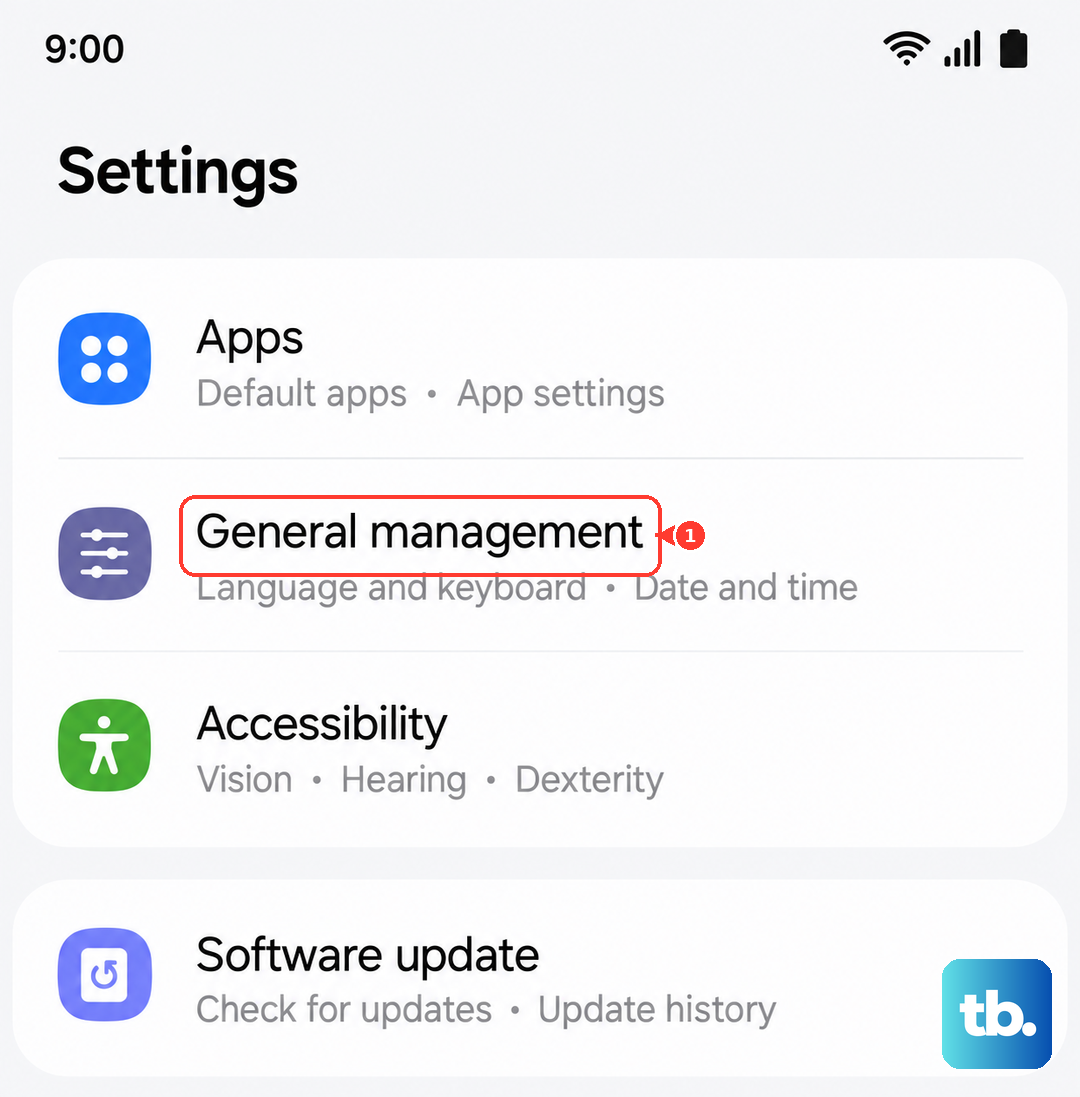
On a Galaxy phone or tablet with the setting, open Settings > General management > Samsung Keyboard settings > Theme. Choose an available light or dark theme.
You can also open a text field to display Samsung Keyboard, then tap the Settings gear in its visible toolbar. Open Theme or High contrast keyboard to change the appearance. If the toolbar is not visible, search your device’s Settings for Samsung Keyboard.
If Theme is unavailable while system Dark mode is enabled, open Settings > Display and select Light first. Return to Samsung Keyboard settings > Theme and choose your keyboard appearance.
Customize colors and effects in Keys Cafe
On a compatible Galaxy phone, install Keys Cafe through Good Lock or get Keys Cafe from the Galaxy Store. With Samsung Keyboard selected and the redesigned Keys Cafe interface, open Keys Cafe and choose Keyboard. Select a recommended style, then tap Apply.
To create your own style in that interface, open Keyboard, then tap MY +. Choose Color and your desired typing and sound effects, then tap Save. Name the style and tap Save again.
For a personal photo, use the Theme Park steps above. If your Australian Galaxy variant instead displays Style your own keyboard, follow the alternate photo controls below.
Use the alternate Keys Cafe photo controls
On an Australian Galaxy variant displaying Style your own keyboard, install both Keys Cafe and Theme Park. Open Keys Cafe, select Style your own keyboard, and turn its switch on. Tap +, then the Gallery icon, and choose your photo.
Tap the download icon, enter a keyboard name, and tap OK. Tap the new theme to apply it. If Keys Cafe displays the redesigned Keyboard interface, use Theme Park for your photo background.
Change contrast or use system Dark mode
On a supported Galaxy phone or tablet, open Settings > Accessibility > Vision enhancements > High contrast keyboard. Enable the feature and choose an available color combination. Some software versions label the category Visibility enhancements instead of Vision enhancements.
You can also find High contrast keyboard in Samsung Keyboard settings. Turn it off to stop applying the high-contrast styling.
On Galaxy devices running Android 10 or later, open Settings > Display and select Dark to apply dark styling to preloaded Samsung apps, including the standard keyboard. Select Light to reverse it. Downloaded themes and accessibility styling can affect the result.
Alternatively, open the Quick settings panel and tap Dark mode. On the separate-panel interface introduced in One UI 7, swipe down from the top-right corner to open Quick settings.
Apply keyboard styling from Galaxy Themes
On a supported Galaxy phone with a Samsung account, touch and hold an empty area of the Home screen, then tap Themes. On first launch, tap Continue or Agree, whichever appears. Choose a theme with the keyboard design you want and tap Download for a free theme.
To apply an installed theme, open Menu, select My stuff, then choose Themes. Select the theme and tap Apply; tap Apply again if prompted. Keyboard styling depends on the theme you choose.
Adjust a floating keyboard’s transparency
On a Galaxy phone or tablet supporting the floating keyboard, open the keyboard’s Settings gear and select Mode > Floating keyboard. Return to Samsung Keyboard settings, open Size and transparency, and adjust the transparency. These transparency controls apply to the floating keyboard.
Fix a theme that does not look as expected
Samsung’s guidance for Hong Kong Galaxy products identifies Dark mode as a cause of downloaded keyboard designs being hidden. If this affects your phone, open Settings > Display and select Light. Check the themed keyboard again.
Applying another Galaxy theme replaces the current Galaxy Themes appearance. To return to the default or choose another installed theme, touch and hold an empty Home screen area and tap Themes. Open Menu, select My stuff, then choose Themes. Select the default theme or another installed theme and tap Apply, confirming with Apply if prompted.
Deleting a downloaded theme removes that downloaded item. If you also want to delete the unwanted download after replacing its appearance, open Menu > Purchased items, tap the trash icon, select the theme, then tap Delete.
Frequently Asked Questions
Can the keyboard background change automatically at sunset?
On Galaxy devices offering scheduled Dark mode, you can schedule system styling by opening Quick settings, touching and holding Dark mode, and enabling Turn on as scheduled. Select Sunset to sunrise, or choose Custom schedule > Set schedule, set Start and End, and tap Done. While Dark mode is on, your device’s menus, settings, and preloaded Samsung apps use a darker theme.
Can I use Galaxy Themes to change a Galaxy Tab keyboard?
Galaxy Themes is not supported on Galaxy Tabs. If your tablet has Samsung Keyboard’s Theme setting, you can choose a built-in light or dark theme instead.
Does Easy mode also change the keyboard appearance?
Yes, on Galaxy devices offering Easy mode, it enables a high-contrast keyboard while also enlarging interface elements and changing other usability settings. To enable it, open Settings > Display > Easy mode and turn the switch on.
Can I apply a contrast preset that changes more than the keyboard?
On supported Galaxy devices with One UI 4.0 or later, open Settings > Accessibility > Vision enhancements > Display mode and select High contrast. This preset groups keyboard contrast with other display-accessibility changes.