
Snapchat notification sounds are not controlled from one universal menu. Snapchat+ gives you the clearest in-app option for specific friends or Groups, Android can change sounds through notification categories, and iPhone mainly gives you a Snapchat sound on/off switch.
Start with the method that matches where you want the sound to change: inside Snapchat for one conversation, Android settings for app categories, or iPhone settings for audio alerts. Snapchat documents a second route to the same picker: open My Account, tap your Snapchat+ membership card, tap Custom Notification Sounds, then pick the friend or Group and the sound.
Change the sound for one friend or Group with Snapchat Plus
Use this Snapchat+ option when you want one friend or Group to have its own Snap, Chat, or typing notification sound.
- 1.Open Snapchat and go to the Chat screen.
- 2.Press and hold the friend or Group conversation.
- 3.Tap Chat Settings, then Notification Sounds.
- 4.Choose a custom sound.
- 5.Tap the blue checkmark to save it.
Use Android notification categories for Snapchat
This applies on Android phones that show Snapchat notification categories. The available categories come from Snapchat's Android notification channels, so change the category that matches the alert you want to hear differently.
Open Settings and tap Notifications.
Tap App notifications, then choose Snapchat.
Open Notification categories and select the Snapchat category you want to change.
Tap Sound, choose a new sound, then tap Save.
Show hidden categories on Samsung Galaxy
Open Settings and tap Notifications.
Tap Advanced settings.
Turn on Manage notification categories for each app.
Go back to App notifications, choose Snapchat, then open Notification categories.
Tap the category you want to adjust, make sure Allow notifications is on and Alert is selected, then open Sound and choose the tone.
If Snapchat does not expose a category on your Galaxy device, use the broader Android default alert instead.
Set the broader Android default alert
The most common reason this helps is that some app alerts use the phone's default notification sound instead of a separate app category sound.
Open Android Settings and go to Sound & vibration.
Tap Default notification sound. Google's Pixel instructions label the same item Notification, and other manufacturers use their own wording, so pick whichever notification entry that screen shows.
Choose a sound, then tap Save.
This affects Snapchat only when the Snapchat notification channel uses the system default sound.
Control Snapchat sounds on iPhone
Open iPhone Settings.
Tap Notifications, then choose Snapchat under Notification Style.
Use Sounds to turn Snapchat audio alerts on or off.
To change alert volume, open Settings and tap Sounds & Haptics. On iOS 26 and earlier, drag the slider below Ringtone and Alerts. On iOS 27, drag the volume slider below Ringtone, or turn off Match Ringtone Volume under Alerts and System Sounds and drag that slider to set alert volume on its own.
For Snapchat, use iPhone Settings as a sound switch and volume control, not a Snapchat-only custom tone picker.
Change a Snapchat call ringtone with Snapchat Plus
Use this Snapchat+ setting when the sound you want to change is the call ringtone for one friend or Group. Snapchat documents this one only as a custom ringtone for that friend or Group, while it documents the separate Notification Sounds picker as the sound that plays for a Snap, Chat, or typing notification, so use that picker for those alerts.
Open Snapchat and go to the Chat screen.
Press and hold the friend or Group.
Tap Chat and Notification Settings, then Notification Settings.
Open Ringtone and choose a sound.
Quiet one Snapchat conversation instead
Use this when one friend is making too much noise and you do not need a new tone.
- 1.Open Snapchat and go to the Chat screen.
- 2.Press and hold the friend's name.
- 3.Tap Chat and Notification Settings, then Notification Settings.
- 4.Turn on Mute Chats for message alerts.
- 5.Turn on Mute Calls for call alerts.
Fix Snapchat for Web notification sounds
Snapchat for Web uses your browser and operating system notification controls instead of a Snapchat-only sound picker.
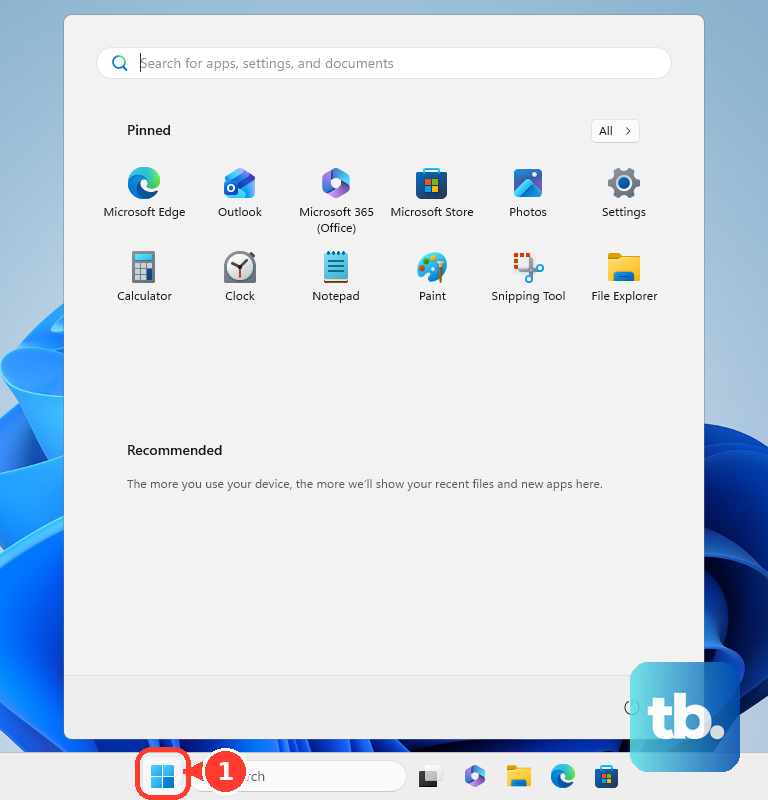
On Windows 11, open Start, then Settings, System, and Notifications. Select Chrome or Edge under Notifications from apps and other senders, then use Play a sound to control incoming browser notification audio.
In Chrome, open More, then Settings, Privacy and security, Site Settings, and Notifications. Set the default notification behavior, or open View site information on web.snapchat.com and turn on Notifications.
In Edge, open Settings and more, then Settings, Privacy, search, and services, Site permissions, and All sites. Select web.snapchat.com and set Notifications to Allow or Block.
On macOS, open System Settings, then Notifications, and choose Chrome, Edge, or the installed web app entry. Turn Allow notifications on or off and adjust the available sound options.
If browser notifications are allowed but still silent, check the operating system notification sound setting for that browser.
Avoid outdated Snapchat sound tricks
Older fixes often point to a free global Snapchat sound picker inside Snapchat settings or a Snapchat-specific selectable tone inside iPhone Settings. Snapchat's current in-app custom notification sound and ringtone controls are Snapchat+ features for individual friends or Groups, while iPhone Settings gives Snapchat a sound on/off control.
On school or work devices, Snapchat notification sounds can be controlled by the administrator. Managed Apple devices can set app notification sound behavior through device management, and managed Chrome or ChromeOS environments can allow or block notifications for web.snapchat.com.
If this method fails, use the personal-device controls above: Snapchat+ for per-conversation sounds, Android notification categories for system-level sound changes, or iPhone Notifications settings to turn Snapchat sounds on or off.
Frequently Asked Questions
Can I change the Snapchat notification sound without Snapchat Plus?
Yes, on Android when Snapchat exposes notification categories in system settings. Inside Snapchat, custom notification sounds for friends or Groups require Snapchat+.
Why don't I see a Snapchat sound picker on iPhone?
For Snapchat, iPhone Settings provides a sound on/off control. Apple documents selectable notification tones only for certain apps, such as FaceTime and Messages, and neither Apple nor Snapchat documents a tone list for Snapchat, so expect a sound switch. Open Settings, tap Notifications, tap Snapchat, then tap Sounds to see what your build offers.
Does the Snapchat ringtone setting change all Snapchat notifications?
Snapchat documents two separate Snapchat+ controls. Notification Sounds is documented as the sound that plays when you get a Snap, Chat, or typing notification from that friend or Group. Ringtone is documented only as a custom ringtone for a friend or group, with no stated scope. Use Notification Sounds for Snap, Chat, and typing alerts.
Can Snapchat for Web use a custom Snapchat-only sound?
No current Snapchat for Web control provides a Snapchat-only custom sound. Use Windows, macOS, Chrome, or Edge notification settings to allow, block, or silence browser notification sounds.