Windows sign-in settings get messy fast when a PIN stops working, fingerprint unlock disappears, or the lock screen asks for a password at the wrong time. The fix starts in one place: the Windows Sign-in options page.
Use the steps below to change the sign-in method you actually use, then tighten the lock screen and passwordless settings that control what Windows shows next time you sign in.
1. Open the right Windows sign-in page
Go to Start > Settings > Accounts > Sign-in options.
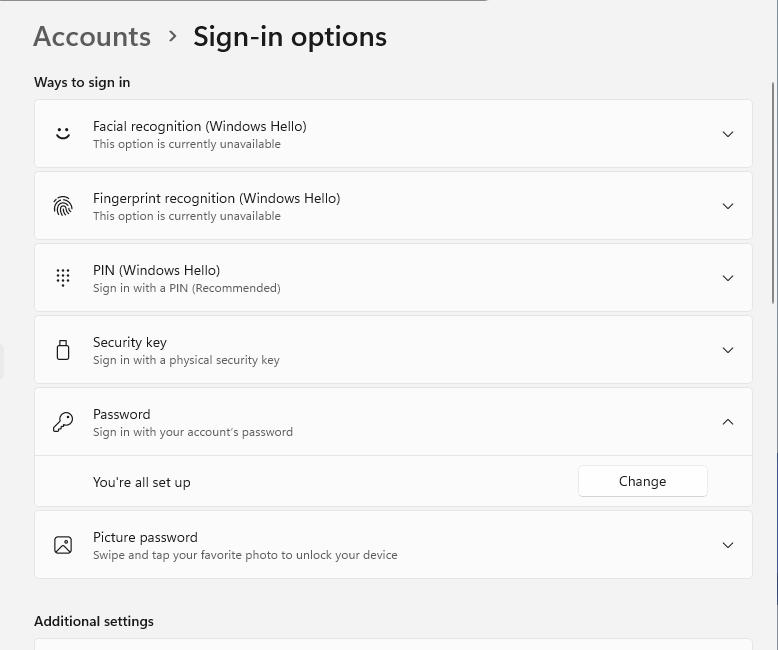
On Windows 11, look under Ways to sign in for PIN, face, fingerprint, password, and security-key options. Look under Additional settings for lock timing, account-details privacy, Dynamic lock, restart behavior, and Windows Hello-only sign-in. Windows 10 uses the same Accounts > Sign-in options path with some different labels.
If an option is missing, match it to the requirement first. Facial recognition (Windows Hello) needs a Windows Hello-compatible infrared camera. Fingerprint recognition (Windows Hello) needs a fingerprint reader. Work or school PCs show the options allowed by the organization.
2. Change or reset your PIN
- 1.Open Start > Settings > Accounts > Sign-in options.
- 2.Select PIN (Windows Hello).
- 3.Choose Change PIN.
- 4.Enter the old PIN, enter the new PIN, confirm it, and finish the prompts.
Forgot the PIN while signed in? Open PIN (Windows Hello), select I forgot my PIN, verify the account, and create a new PIN.
Stuck on the sign-in screen? Select I forgot my PIN below the PIN box and follow the prompts. For a local account, choose Sign-in options, sign in with the password, then reset the PIN from Settings.
3. Set up face or fingerprint unlock
For face unlock, go to Settings > Accounts > Sign-in options > Facial recognition (Windows Hello) > Set up, then follow the camera prompts.
For fingerprint unlock, go to Settings > Accounts > Sign-in options > Fingerprint recognition (Windows Hello) > Set up, then scan your finger when Windows asks.
Want another finger enrolled? Open Fingerprint recognition (Windows Hello) and choose Add a finger. To start over, choose Remove, then use Set up again.
Face recognition has a cleaner tune-up option. Open Facial recognition (Windows Hello) and select Improve recognition. To delete face sign-in data instead, choose Remove.
4. Fix external Hello devices
Enhanced Sign-in Security (ESS) controls whether external Windows Hello peripherals work: with ESS on, non-ESS cameras and fingerprint readers are blocked, and external camera modules are not ESS-supported at all. To use a non-ESS external camera or fingerprint reader on Windows 11 version 24H2 or newer, open Settings > Accounts > Sign-in options > Additional settings > Enhanced sign-in security and turn the toggle Off.
On Windows 11 version 23H2, the setting is Sign in with an external camera or fingerprint reader. When that toggle is off, Enhanced Sign-in Security is enabled and non-ESS external peripherals cannot be used for Windows Hello sign-in. When it is on, Enhanced Sign-in Security is disabled and compatible external peripherals work.
For a supported ESS fingerprint scanner, attach the scanner, open Additional settings, select Update PIN if Windows asks, then enroll the fingerprint with that scanner.
5. Update your Windows password
- 1.Open Settings > Accounts > Sign-in options.
- 2.Select Password.
- 3.Choose Change.
- 4.Follow the prompts for the account on that PC.
For a Microsoft account, use Forgot my current password inside the password change flow when you do not know the current password. From the sign-in screen, select I forgot my password. You can also choose Sign-in options > Web sign-in, or reset it in a browser at account.live.com/password/reset.
For a local account, Windows asks for the old password, new password, and password hint. From the sign-in screen, select the password entry arrow, select OK, choose Reset password, answer the security questions, and enter a new password. If you created a reset disk earlier, choose Use a password reset disk.
6. Manage passkeys and security keys
On Windows 11, passkeys live in their own page at Settings > Accounts > Passkeys. Native passkey management there requires Windows 11 version 22H2 with KB5030310 or later, though passkeys themselves work on all supported Windows versions. To delete a device-bound passkey, select More (...) beside the passkey name, then choose Delete passkey.
To choose where passkeys are saved, open Passkeys > Advanced options. Turn available passkey services on or off, including Save passkeys to this Windows device, and configure supported third-party passkey manager integration, which requires Windows 11 version 24H2 or later and a supported provider.
For a physical security key, open Start > Settings > Accounts > Sign-in options > Security Key > Manage. Insert the USB key or tap the NFC key, then follow the prompts.
To add a security key to a personal Microsoft account, sign in at account.microsoft.com, then go to Security > More security options > Add a new way to sign in or verify > Use a security key. For work or school accounts, go to myaccount.microsoft.com > Security Info > Add method > Security key.
7. Control when Windows asks again
To change the sign-in delay after you have been away, open Settings > Accounts > Sign-in options. In Windows 11, open Additional settings > If you've been away, when should Windows require you to sign in again? and pick an option. In Windows 10, use Require sign-in.
For Dynamic lock, pair your phone to the PC over Bluetooth first. Then go to Sign-in options > Additional settings > Dynamic lock and turn on Allow Windows to lock your device automatically when you're away. Take the paired phone with you; Windows locks within about a minute after Bluetooth range is lost. Dynamic lock only locks the PC.
To require sign-in after a screen saver, go to Settings > Personalization > Lock screen > Screen saver. Choose a screen saver, set Wait, then turn on On resume, display logon screen.
8. Tighten privacy and passwordless options
To hide or show account details on the lock screen, open Settings > Accounts > Sign-in options > Additional settings, then use Show account details on the sign-in screen.
To remove the password as a device sign-in option for a Microsoft account, first set up Windows Hello, then turn on For improved security, only allow Windows Hello sign-in for Microsoft accounts on this device. In Windows 10, the setting is Require Windows Hello sign-in for Microsoft accounts.
To control what Windows restores after updates and restarts, use Automatically save my restartable apps and restart them when I sign back in and Use my sign-in info to automatically finish setting up after an update under Additional settings.
Skip older netplwiz automatic-login instructions. Microsoft's current documented automatic-logon options are Sysinternals Autologon and the documented Registry Editor method, and both are security risks for anything except a physically secured PC.
Frequently Asked Questions
Can I switch from a local account to a Microsoft account in Windows?
Yes. Open Settings > Accounts > Your info > Sign in with a Microsoft account instead, then follow the prompts. To switch back, use Sign in with a local account instead from the same page.
How many security keys can I add to a work or school account?
Microsoft documents support for up to 10 security keys per work or school account when the organization allows security keys.
Where do I turn off automatic passkey creation in Microsoft Edge?
Open Microsoft Edge > Settings > Passwords and autofill > Microsoft Password Manager > More settings, then turn Automatically upgrade to passkeys on or off.
Can an administrator reset another local user's password?
Yes, on Windows editions with Local Users and Groups access. Open Computer Management > Local Users and Groups > Users, right-click the user, choose Set Password, then enter and confirm the new password.