


To change monitor order on Windows 11, drag the tiles in Settings > System > Display; to make monitor 2 your main screen, select its tile, expand Multiple displays, then check Make this my main display. These actions change the desktop arrangement or primary screen, but neither exchanges the identification numbers 1 and 2. The setup steps below use Windows 11 menus.
The short version
- Match your screens: Select Identify to see which physical monitor belongs to each numbered tile.
- Change their order: Use extended mode, drag the tiles to match your desk, then select Apply.
- Choose your main screen: Select the desired tile, expand Multiple displays, then check Make this my main display.
- Keep the numbers separate: A screen numbered 2 can be your main display without becoming display 1.
| Option | What it does | When to use it |
|---|---|---|
| Windows display arrangement | Changes desktop positions | The pointer crosses the wrong screen edge |
| Windows main display setting | Chooses the primary monitor | You want monitor 2 as your main screen |
| Extend these displays | Enables separate desktop areas | Your monitors mirror each other |
| Windows + P | Switches display modes | You want extended, mirrored, or single screen operation |
ms-settings:display | Opens display controls directly | You prefer the Run shortcut |
| AMD Eyefinity arrangement | Orders screens in a combined desktop | You use a compatible Radeon Eyefinity group |
| AMD Preferred Display | Chooses a screen for applications with resolution limitations | Eyefinity is active |
| DisplayFusion configuration | Changes layout and primary screen | You want saved profiles with Pro |
| DisplayFusion download | Provides the installer | You need the utility |
| MultiMonitorTool interface | Selects the primary monitor | You prefer a utility or keyboard shortcut |
| MultiMonitorTool commands | Switch primary screens and save layouts | You use scripts or shortcuts |
| MultiMonitorTool download | Provides a utility without installation | You want to extract and run it |
| Voice access | Operates existing display controls | You use voice access on Windows 11 |
| Window movement shortcut | Moves one application window | You want the window on another monitor |
| Windows display API | Configures positions and the primary device programmatically | You develop managed scripts or utilities |
Identify your monitors and enable extended mode
On Windows 11, open Start > Settings > System > Display. Select Identify to match the numbered tiles with the monitors on your desk. Note which number belongs to the screen you want on the left, on the right, or as your main display.
If both monitors show the same desktop, press Windows + P and select Extend. This gives the screens separate desktop areas so you can arrange them. Selecting Duplicate mirrors the desktop instead.
You can also choose Extend these displays in the display-mode selector on the Windows 11 Display page. Select Apply if shown, then select Keep changes if Windows asks you to confirm. Arrange the tiles after the extended desktop is active.
Arrange the screens to match your desk
Drag the display tiles into the same relative positions as your physical monitors. Put the left monitor's tile on the left and the right monitor's tile on the right, or place one above the other for a stacked setup. Select Apply to save the arrangement.
Move your pointer between the screens to check the result. If it crosses to the wrong monitor, select Identify again, correct the tile positions, and select Apply. The arrangement should follow your desk layout, regardless of which screen carries the number 1.
For example, placing tile 2 to the left of tile 1 makes display 2 the left-hand part of your desktop. It does not rename that monitor display 1. Intel explains that Windows display numbers do not indicate primary or secondary status.
Make monitor 2 your main display
Select the tile for monitor 2, or whichever screen you want to use as your primary monitor. Expand Multiple displays, then check Make this my main display. If you are uncertain which tile belongs to that monitor, select Identify to match them before changing the main display.
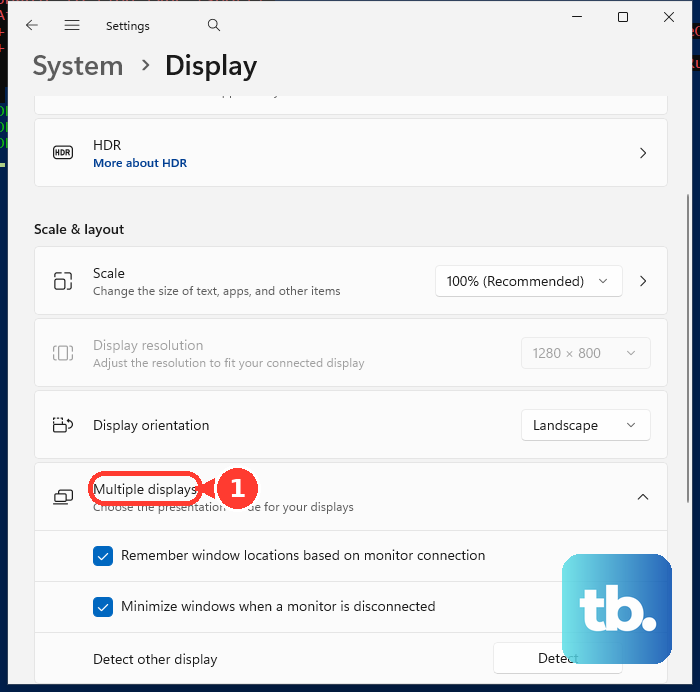
The selected screen can remain numbered 2 while serving as your main display. You do not need to move its tile to the first position or place it on the left. Desktop position and the main-display choice are separate settings.
These Windows controls work independently of the monitor brand or graphics-card vendor. For a regular extended desktop, you can configure the layout and main screen here without setting up a combined desktop in a graphics utility.
Move a window or use just one screen
When you only want an application on the other monitor, activate its window and press Windows + Shift + Left arrow or Windows + Shift + Right arrow. This moves the window between monitors in an extended desktop. Your main display and screen arrangement stay the same.
To use a single screen instead, press Windows + P and select PC screen only or Second screen only. Return to Extend when you want separate desktop areas again. These choices change the display mode; they do not exchange monitor numbers or directly choose the main display within an extended layout.
Use graphics controls for a compatible setup
AMD Eyefinity combines multiple monitors into one desktop on compatible Radeon desktop systems running AMD Software: Adrenalin Edition. First enable extended mode in Windows, then open AMD Software, search for Display, and select Display Settings. In the Eyefinity section, select Quick Setup.
To correct an Eyefinity group's order, select Display Arrangement > Rearrange Displays. Click the position box that matches the physical monitor turning blue, then repeat for the remaining monitors. If Display Arrangement is unavailable, select Discard Setup and recreate the group with Quick Setup.
For ordinary Radeon multi-monitor setups, AMD directs you to Windows display settings. If you use GeForce Game Ready or Studio drivers, NVIDIA has retired the classic NVIDIA Control Panel and directs you to the NVIDIA app for supported configuration features. NVIDIA retains Control Panel support for RTX PRO while professional features migrate. You can use the Windows controls above for the monitor arrangement and main-display tasks.
Save layouts with DisplayFusion
If you frequently switch between monitor arrangements, DisplayFusion can preserve configurations for reuse. Get it from the official DisplayFusion download page by selecting Download Installer Now. Monitor profiles and customizable hotkeys are Pro features, and the installer includes a 30-day Pro trial.
Right-click the DisplayFusion system-tray icon and select Monitor Configuration. Adjust the layout in that window, then select the desired monitor and select Set as Primary.
Select Save Profile to preserve the configuration and Load Profile to restore it later. Open Manage Monitor Profiles to assign a HotKey to a saved profile.
Switch the primary screen with MultiMonitorTool
For a utility that runs without installation, open the official MultiMonitorTool download page and choose the download matching your Windows architecture. The vendor supplies 32-bit and x64 downloads. Extract the archive and run MultiMonitorTool.exe.
Select the desired monitor in the upper pane, then choose Set As Primary Monitor or press Ctrl + F9. Check the utility's monitor identifiers before using one in a shortcut. Identify the target screen instead of assuming its number matches the one you expect.
Once you have confirmed the target, you can also switch the primary screen through a command or shortcut. To make the utility's monitor 2 primary, run this command:
MultiMonitorTool.exe /SetPrimary 2To cycle the primary display instead, use MultiMonitorTool.exe /SetNextPrimary. These commands change the primary monitor without renaming Windows display numbers.
Frequently Asked Questions
Can you open Display settings without going through the Start menu?
Press Windows + R, enter ms-settings:display, and press Enter. This opens the Display settings page directly on Windows 11 and Windows 10, where you can arrange the tiles or select the target monitor and check Make this my main display.
Can you operate the display controls by voice?
On Windows 11 with voice access enabled and Display settings open, say show numbers, then speak the number for the control you want to activate. For pointer positioning, say show grid and use the displayed grid numbers and display letters to target the controls. These commands let you operate the existing settings by voice.
How do you choose a screen for games that cannot use the full Eyefinity resolution?
With Eyefinity active on a compatible Radeon configuration, open AMD Software > Display Settings. Under Global Display, select the desired monitor and set Preferred Display to Enabled. Applications and games that do not support the combined resolution can then use that screen. This setting is available only while Eyefinity is active and is separate from the Windows main-display choice.
Can MultiMonitorTool save and restore a monitor configuration?
Save a working layout with MultiMonitorTool.exe /SaveConfig "monitors.cfg". Restore that saved configuration with MultiMonitorTool.exe /LoadConfig "monitors.cfg". You can use these commands from scripts or shortcuts.
Can you configure monitor positions through the Windows display API?
If you develop a Windows desktop utility or managed script, you can enumerate displays with EnumDisplayDevices, configure positions through DEVMODE.dmPosition with DM_POSITION, and call ChangeDisplaySettingsExW. Use CDS_SET_PRIMARY to select the primary device and CDS_UPDATEREGISTRY to persist settings. This requires programming or an existing utility.