


To change a folder icon in Windows, right-click the folder, select Properties > Customize > Change Icon..., choose an icon, then select OK > Apply > OK. You can choose a built-in icon or browse to a custom .ico file. These steps apply to ordinary folders with a Customize tab in Windows 11 and Windows 10.
The short version
- One folder: Open Properties > Customize > Change Icon... to choose its replacement icon.
- Custom artwork: Select Browse... to open an .ico file, and keep that file in its original location.
- Shortcuts: Change a folder shortcut through its Shortcut tab.
- Undo: Select Restore Defaults in the folder’s icon dialog to restore its default icon.
| Task | Route | Main consideration |
|---|---|---|
| Choose a built-in folder icon | Properties > Customize > Change Icon... | Requires customization controls and permission |
| Reach the controls by keyboard | Select the folder and press Alt + Enter | Opens the same folder properties |
| Use your own icon | Browse... in the icon dialog | Keep the .ico file in its assigned location |
| Change a folder shortcut | Properties > Shortcut | Changes the shortcut’s appearance |
| Customize desktop system icons | Desktop icon settings | Separate from ordinary folder icons |
| Apply icons to several folders | Folder Marker | Batch and portable features depend on edition |
| Color folders and subfolders | Folder Painter | Adds a folder context menu |
| Recover a trusted blocked customization | PowerShell with Unblock-File | Applies when the download trust marker causes the problem |
| Undo icon changes | Restore Defaults or the utility’s reset controls | Use the control for the type of icon you changed |
Change an ordinary folder icon
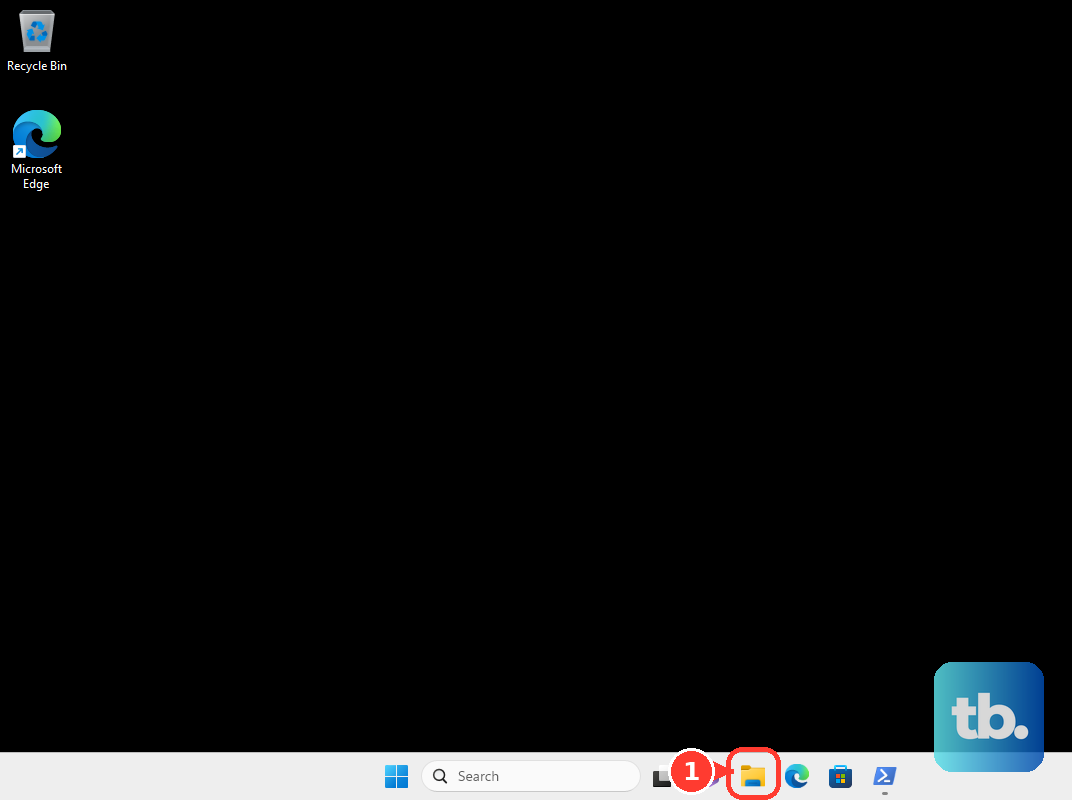
Open File Explorer and find the folder you want to customize. Right-click that folder, select Properties, then open the Customize tab. Select Change Icon... to display the available icons.
Choose an icon from the displayed list, then select OK. Back in the folder’s properties, select Apply, then OK to finish. You need permission to customize the folder, and the folder must expose the Customize tab.
To reach the same controls with the keyboard, press Windows + E to open File Explorer, select the folder, then press Alt + Enter. Use Tab and the Up Arrow, Down Arrow, Left Arrow, and Right Arrow keys to move through the controls, pressing Enter to activate a selection. Open Customize > Change Icon..., choose an icon, then select OK > Apply > OK.
Set up your own icon file
For a custom icon, open the folder’s Properties > Customize > Change Icon... dialog and select Browse.... Open your .ico file, choose the icon, then select OK > Apply > OK. Keep an externally stored icon file in its original location after assigning it.
A PNG or JPG renamed with an .ico extension is not a valid conversion. Use an actual .ico file for this workflow. If you move the icon file later, return to Browse..., select it from its new location, and apply the selection again.
Change a folder shortcut icon
A folder shortcut uses a different tab from the folder itself. Right-click the existing shortcut, select Properties, open Shortcut, then select Change Icon.... Choose an icon or select Browse... to open an .ico file, then select OK > Apply > OK.
To create a desktop shortcut first on Windows 11, right-click the folder and select Show more options > Send to > Desktop (create shortcut). If your context menu already shows all options, select Send to > Desktop (create shortcut) directly. You can then customize that shortcut through its properties. The change affects the shortcut’s appearance, so customize the actual folder separately if you want to change its icon too.
Customize desktop system icons
To change the desktop User’s Files icon on Windows 11, open Settings > Personalization > Themes > Desktop icon settings. On Windows 10, open Settings > Personalization > Themes > Desktop icon settings.
Select User’s Files in the icon list, then select Change Icon.... Choose the replacement and select OK > Apply > OK. The same dialog lets you customize This PC, Network, and Recycle Bin, but these changes do not replace ordinary folder icons throughout File Explorer.
To keep themes from replacing your customized desktop system icons, uncheck Allow themes to change desktop icons in that dialog. Select Apply, then OK to save the setting. This control applies to desktop system icons, including User’s Files.
Apply icons or colors to several folders
Folder Marker provides icon and color choices through a folder context menu on Windows 11 and Windows 10. Get it from the official Folder Marker download page, choosing the edition that includes the features you need. With the program installed, right-click a folder, open Mark Folder, then choose an icon or color.
For several folders, select them together, right-click the selection, open Mark Folder, and choose an icon. Editions with the application’s multiple-folder mode also let you open Folder > Multiple Folders, select Add, choose the folders, select an icon, and select Apply. Available icons and features depend on the edition.
To customize a folder tree in an edition that includes recursive changes, open Folder Marker, select Browse, and choose the parent folder and replacement icon. Select Apply selected icon to all subfolders, then select Apply. In editions with the portable-icon option, select Make customized folder distributable before applying the change if you want the icon to travel with the folder.
Folder Painter 1.3 is another option for Windows 11 and Windows 10, especially for folder colors. Download it from the official Folder Painter page, run the appropriate executable, select an icon pack, and select Install. Its Install command adds the File Explorer integration.
Right-click the target folder, open Change Folder Icon, and choose a color. To include subfolders, select Change the icon of subfolders in Folder Painter before applying the color. For a portable icon, select Copy icon while in folder, select Install, and reapply the folder color. Sordum acknowledges a problem with this portable-icon option in the Spanish interface.
Fix a custom icon that stops appearing
If you moved the assigned icon file, select it again through Properties > Customize > Change Icon... > Browse.... Choose the file in its current location, then select OK > Apply > OK. Folder permissions and Windows trust checks also apply when you use a third-party icon utility.
On affected Windows 11 and Windows 10 installations, security updates released on or after June 9, 2026 can cause Windows to ignore untrusted downloaded or remote folder customizations. Microsoft says trusted desktop.ini customizations still work. If a trusted desktop.ini file has been blocked by its download trust marker, you can unblock that specific file.
Open PowerShell and run the following command, replacing the example path with the actual path to the trusted desktop.ini file. Use this only for a file you trust, since the command removes its blocking marker.
Unblock-File "C:\Your\Folder\Path\desktop.ini"Restore the original folder icon
For an ordinary folder, right-click it and select Properties > Customize > Change Icon.... Select Restore Defaults, then OK > Apply > OK. For a desktop system icon, select it in Desktop icon settings, select Restore Default, then select Apply > OK.
In Folder Marker editions with these commands, choose Action > Restore Default Icon for Chosen Folder(s) to reset selected folders. Choose Action > Roll Back all Changes to reverse the program’s changes. In Folder Painter, right-click the folder, open Change Folder Icon, and select Default Folder Icon.
Use the utility’s reset controls before removing it, since uninstalling an icon utility should not be assumed to restore previously assigned icons. To remove Folder Painter’s context-menu integration, open the program and select Uninstall. Restore its folder icons separately when needed.
Frequently Asked Questions
Can you change the system default folder icon with Folder Marker?
In Folder Marker editions with this feature, select an icon, then choose Action > Use Selected Icon as the System Default Folder Icon. To undo it, choose Action > Restore System Default Folder Icon. An individual folder’s own customization can take precedence.
Can you convert a picture into a folder icon?
In Files 4.3 on supported Windows systems, select a folder that supports customization and open Properties > Customization. Under Choose a custom folder icon, select Browse, and open a PNG, BMP, JPG, JPEG, or JFIF image. In the conversion notice that appears, select Browse, choose the output .ico location, and select Save. Files selects the converted icon automatically. Select Save in the folder’s properties to apply it.
Can you operate the folder icon dialog by voice?
On Windows 11 version 22H2 and later, you can start Voice access through Settings > Accessibility > Speech with a microphone and a supported Voice access language. With the folder’s properties open, say Show numbers, then say Click <number>, substituting the displayed number for the control you want. Repeat the numbering command as the screen changes to activate Customize, Change Icon..., your chosen icon, OK, Apply, and the final OK.
Is IconPackager officially compatible with Windows 11?
Stardock does not list official Windows 11 compatibility for IconPackager. Its listed system requirements cover Windows 10, Windows 8, and Windows 7, so choose a method with Windows 11 support for a Windows 11 PC.