

To archive emails in Outlook, select the message and choose Archive. In classic Outlook for Windows that is the box icon next to Delete on the Home tab, and pressing Backspace in the message list does the same. For Microsoft 365, Outlook.com and Exchange accounts, the message moves to the Archive folder in the same mailbox, where you can find it or move it back later.
Archiving clears the Inbox without deleting anything, but it does not make your mailbox any smaller. Microsoft states that moving messages to the Archive folder with the Archive button doesn't reduce your mailbox size. If space is the real goal, you need one of the two other kinds of archive covered further down: a .pst file on your computer, or an Online Archive that your organization turns on.
Outlook on the web and new Outlook for Windows have the same Archive button, and on the web E archives the selected message when the Outlook keyboard shortcuts are on. One catch in classic Outlook on our PC: Backspace did nothing in a message opened in its own window, so use that window's Archive button instead. Other accounts can archive elsewhere: POP and IMAP accounts can use a folder you choose, and Gmail archives to All Mail on a Mac or phone.
The short version
- Classic Outlook: select a message and choose Archive, the box icon next to Delete on the Home tab.
- Shortcuts: Backspace in the classic message list, E in Outlook on the web when its Outlook keyboard shortcuts are on. Delete sends mail to Deleted Items instead.
- Find it: archived mail sits in the Archive folder in the folder list. In classic Outlook, Ctrl + Shift + V opens Move Items, then choose Inbox and OK.
- Space: the Archive folder does not free mailbox space. A .pst file or an Online Archive does.
- AutoArchive: classic Outlook only, and it was switched off on our PC.
Where archived email goes in Outlook
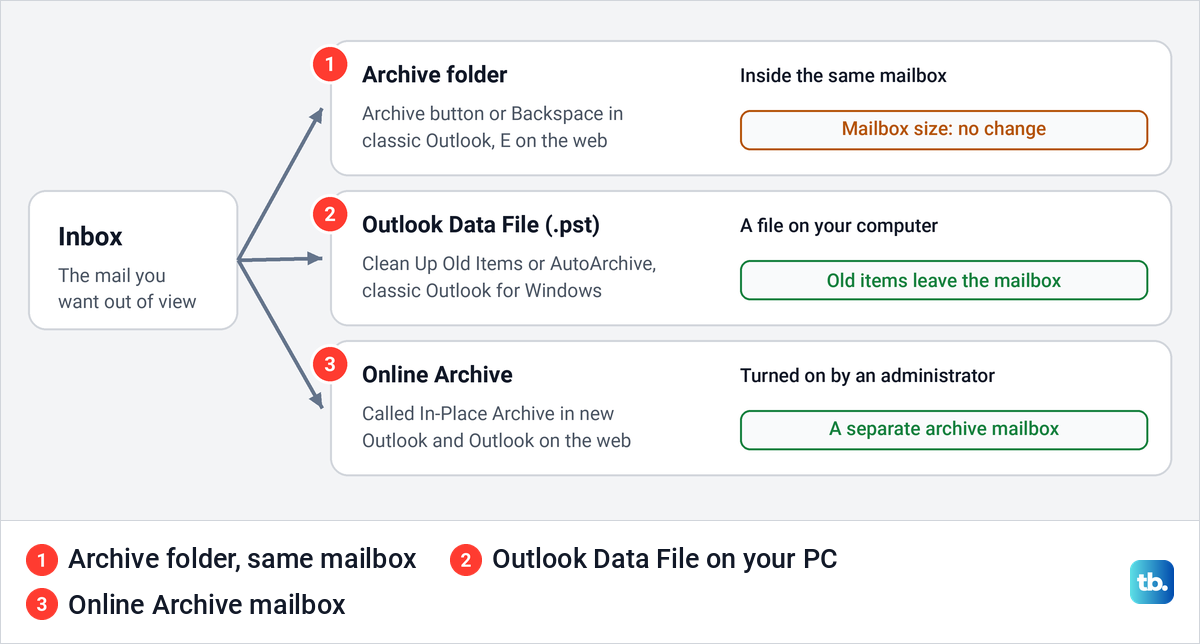
Outlook uses the word archive for three different places, and mixing them up is why people archive half their Inbox and still get a mailbox full warning. The everyday Archive button only moves mail into a folder. The other two move mail out of your main mailbox, and both need more setup than one click.
| What you use | Where the mail goes | Frees mailbox space | Where it works |
|---|---|---|---|
| Archive, Backspace in classic Outlook, E on the web | The Archive folder, inside the same mailbox (All Mail for Gmail on a Mac or phone) | No | Classic and new Outlook, Outlook on the web, Mac and phone apps |
| Clean Up Old Items or AutoArchive | An Outlook Data File (.pst) on your computer | Yes, old items leave the mailbox | Classic Outlook for Windows, where your organization allows it |
| Moving mail to Online Archive or In-Place Archive | A separate archive mailbox | Yes, in your main mailbox | Work or school accounts where an administrator turned it on |
Microsoft's own caution is not to confuse the Online Archive with your existing Archive folder, because the ribbon's Archive action puts mail in the ordinary folder and never in the Online Archive. The diagram below shows the three side by side.
Archiving is not a backup either. The Archive folder lives in the same mailbox as your Inbox, and a .pst file is a single file on one drive. If you need a safe copy of your mail, treat that as a separate job.
How to archive an email in classic Outlook
Open the folder that holds the message, usually Inbox, and click the message once in the message list. The Archive button stays greyed out until a message is selected, which is the first thing to check if it seems to do nothing. On the default Simplified Ribbon of our classic Outlook, the button had no text label at all.
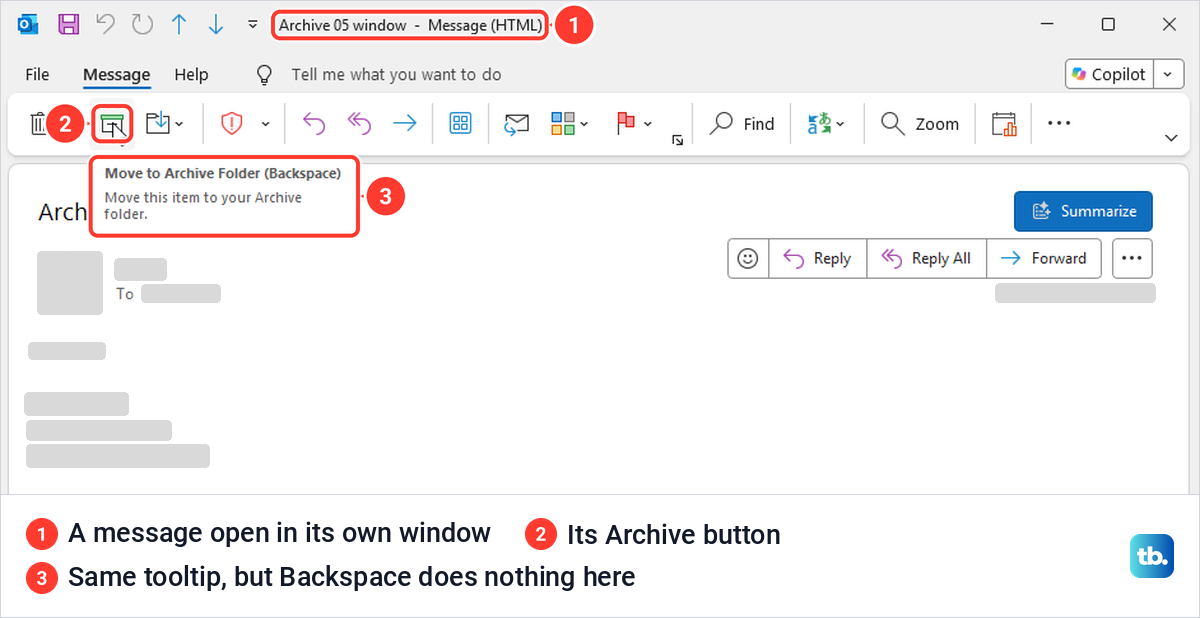
Select Archive on the Home tab. It is the box icon right after the Delete bin, and hovering over it shows the tooltip Move to Archive Folder (Backspace). Microsoft's instructions say to look in the Delete group, but our ribbon showed no group names, so the icon and its tooltip are the reliable way to spot it.
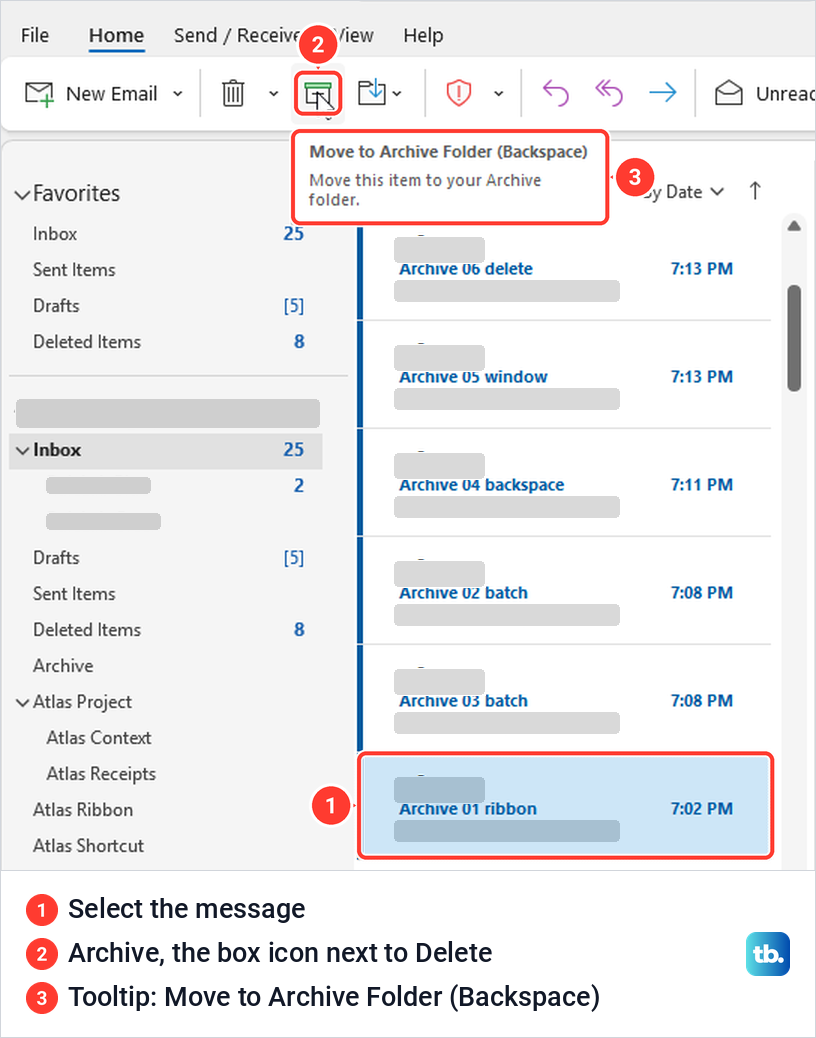
The message leaves the Inbox straight away, with no confirmation box. On our PC it showed up in the Archive folder in the folder list, under the same account as the Inbox it came from. Microsoft notes that for Microsoft 365, Outlook.com and Exchange accounts the Archive folder already exists, even if you have never used it, and it can't be deleted.
POP and IMAP accounts work a little differently. For those, Microsoft says you can create an Archive folder or pick an existing one with Set Archive Folder, under the Tools button in the Mailbox Settings part of File > Info.
Archive several emails at once
Archive works on a whole selection. Hold Ctrl and click each message you want, then select Archive once. We picked two test messages this way, and one click moved both into the Archive folder together.
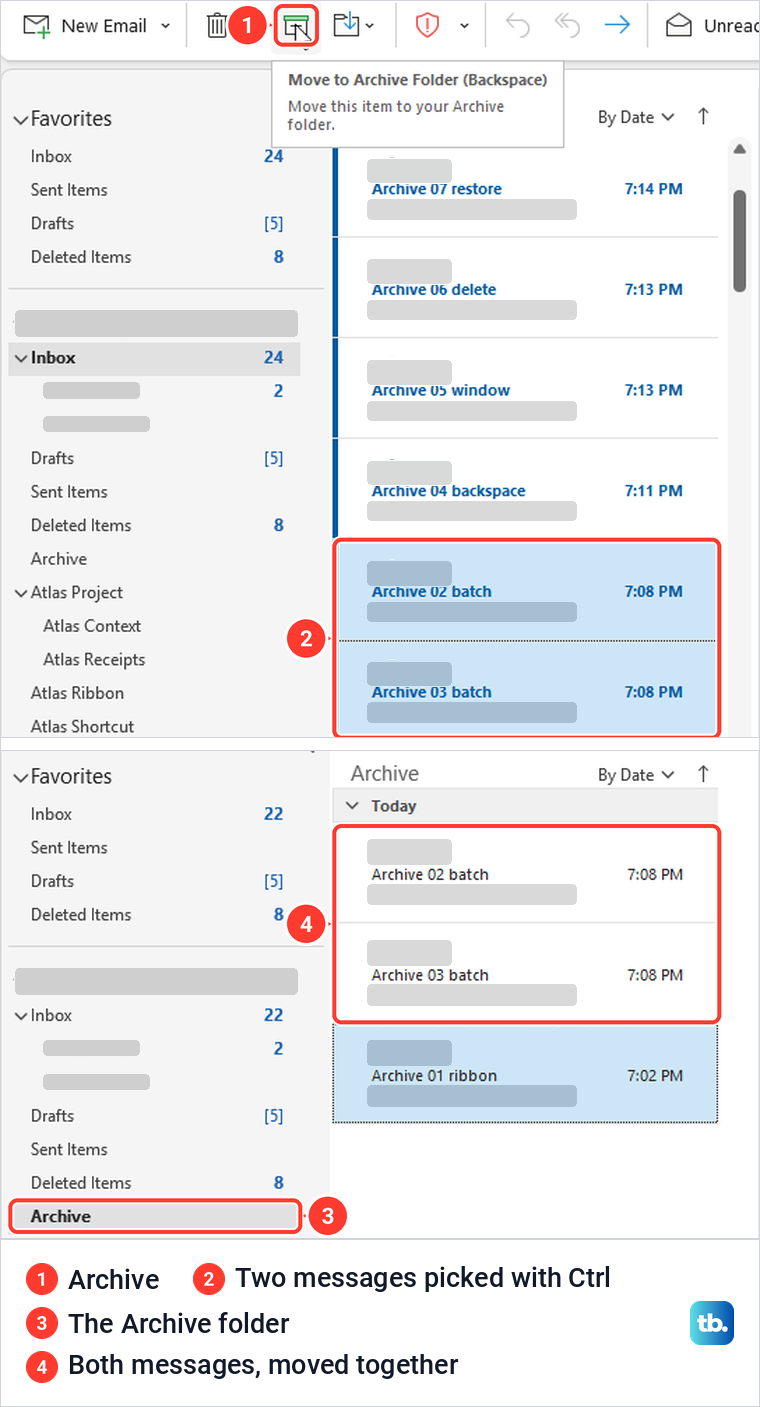
If the messages are spread through a long list, our guide to select multiple emails in Outlook shows the other ways to pick them before you archive. Microsoft's steps start with selecting one or more messages in your Inbox or another folder, so the button works the same from Sent Items or a folder you made yourself.
The Archive folder is one big pile sorted by date. If you would rather file mail by project or client, create a new folder in Outlook and move messages there instead of archiving them.
Archive with the Backspace key
In classic Outlook, Backspace is the archive shortcut. Select one or more messages in the message list and press it, and they go to Archive just as they do with the button. We pressed it on a selected test message and found it in the Archive folder a moment later.
It only works from the main window. When we opened a message in its own window, Backspace did nothing, even though that window's Archive button shows the same tooltip with Backspace in it. Selecting that Archive button archived the message and closed the window, and Microsoft documents the same limit.
Delete is not the same as archive
The Delete key does something different. When we pressed Delete on a test message, it went to Deleted Items, not Archive, which matches Microsoft's description of the two keys.
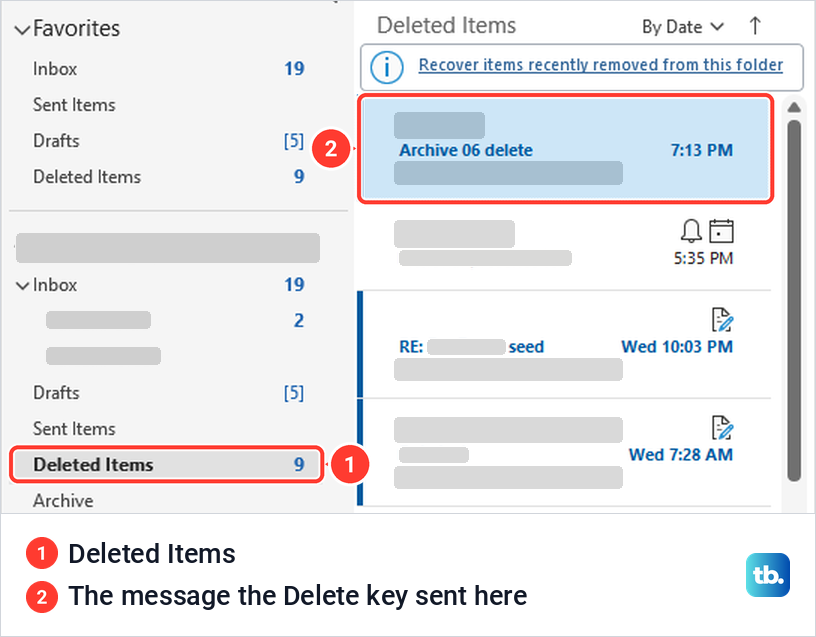
A deleted message can still be moved back while it sits in Deleted Items. We selected it there, pressed Ctrl + Shift + V, chose Inbox in the Move Items box and selected OK, and it was back in the Inbox. Mail you mean to keep belongs in Archive, because the Tools button on File > Info has an Empty Deleted Items Folder command that permanently deletes everything in Deleted Items.
How to find archived emails in Outlook
Archived mail lives in the Archive folder in the folder list on the left, under the same account as your Inbox. Microsoft's instructions for the web place it under Folders, while for us in Outlook on the web it sat directly under the account name with the other folders.
If you cannot see the folder list, it may be minimized. When we set the folder pane to Minimized, it shrank to a thin strip showing only Inbox, Sent Items, Drafts and Deleted Items, the same folders as our Favorites, with no Archive. Select View > Layout > Folder Pane > Normal to bring the full list back.
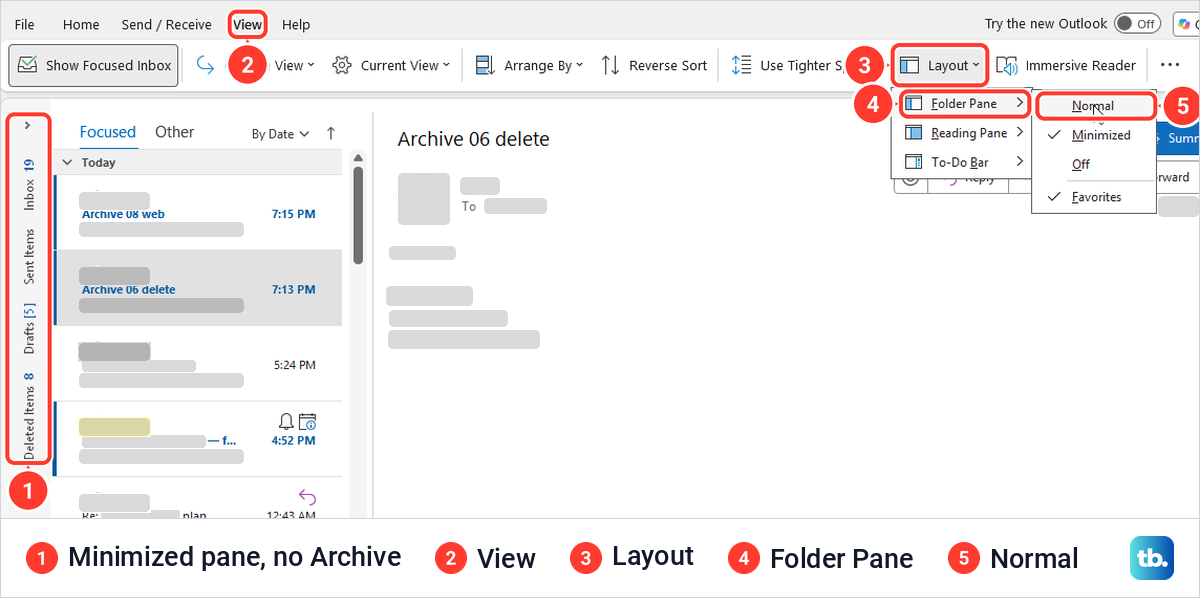
Microsoft's help gives the path as View > Folder Pane > Normal. On our ribbon Folder Pane was inside the Layout menu, with Normal, Minimized, Off and Favorites as its choices.
Search finds archived mail too. Microsoft says classic Outlook searches your entire mailbox by default when you type in the Search box, and that selecting the Archive folder first limits the search to that folder. If a message you know is in Archive still does not come up, fix Outlook search results that are missing before you assume it is gone.
An Online Archive works differently. Microsoft says it acts somewhat like a second account with its own folders, so it isn't included in searches run from the Inbox, and you open it from the folder list to look through it.
Move an archived email back to the Inbox
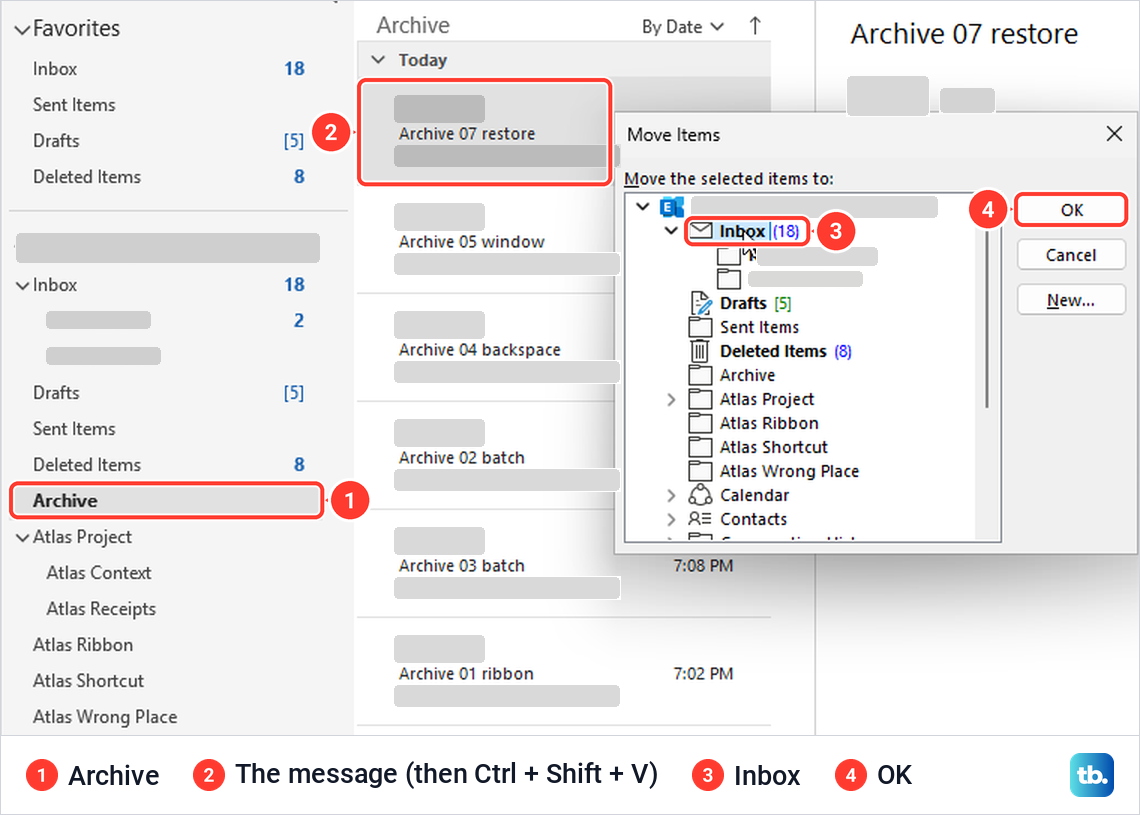
Open Archive, select the message, and press Ctrl + Shift + V to open the Move Items box. Choose Inbox under your account and select OK. That is how we put an archived test message back, and it reappeared in the Inbox with the rest of the mail, which is also Microsoft's advice for a message archived by mistake.
If messages keep turning up in a folder you did not choose, an inbox rule may be moving them for you. Our guide to fix Outlook rules that are not working shows how to check what each rule does and repair one that misbehaves.
How to archive emails in Outlook on the web
Outlook on the web has the same Archive button on its Home tab. Select the message, then select Archive in the toolbar. Its tooltip reads Move this message to your archive folder. (E), and a dark Archived notice with Undo appeared at the bottom of the message list as soon as we selected Archive.
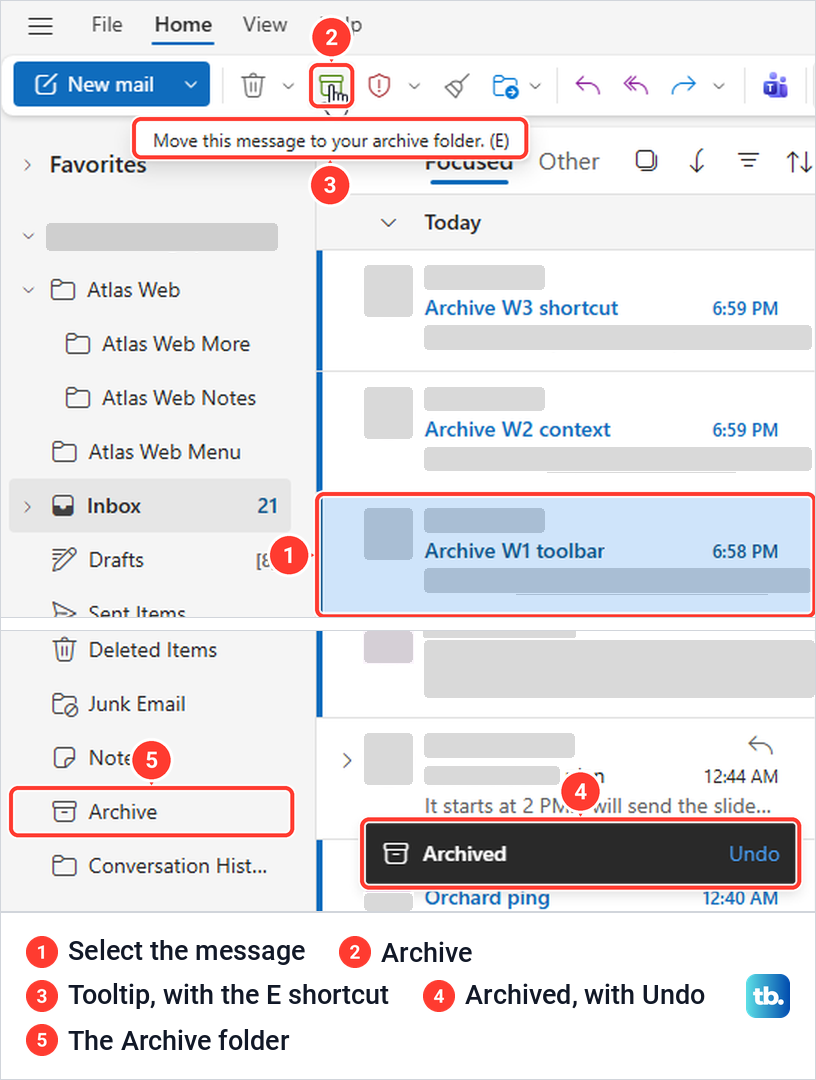
Select Undo in that notice to put the message straight back. Otherwise it waits in the Archive folder in the folder list, where we found it at the top of the folder.
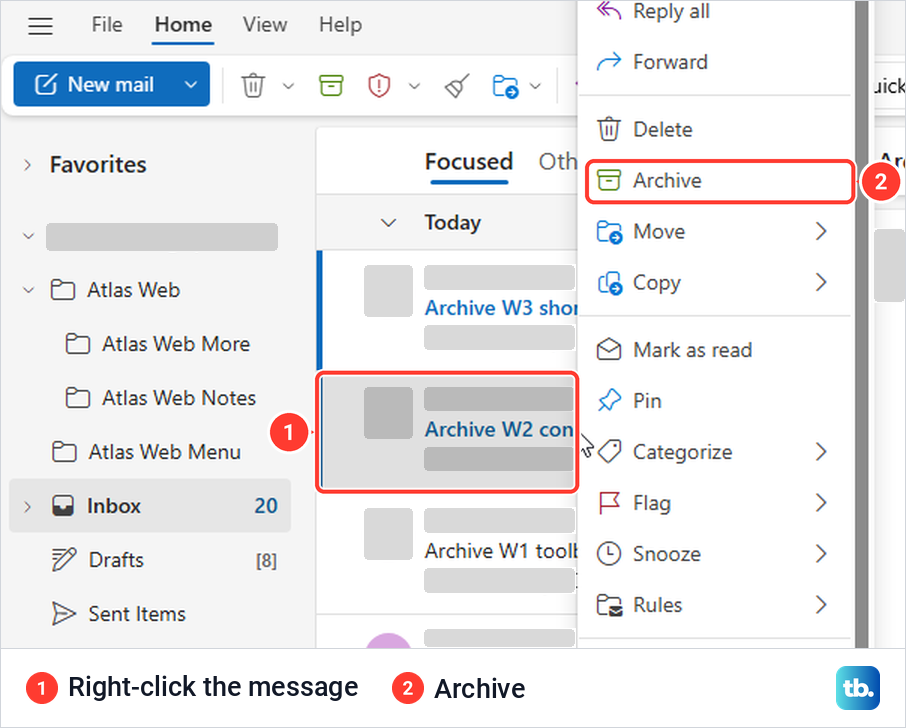
Right-clicking a message gives the same command. In our message menu, Archive sat between Delete and Move, and choosing it showed the same Archived notice with Undo.
The keyboard shortcut on the web is E, not Backspace. With a message selected, pressing E archived it for us, where the Outlook shortcut set was chosen. If E does nothing, select Settings (the gear at the top right), then General and Accessibility, and check what is picked under Keyboard shortcuts.
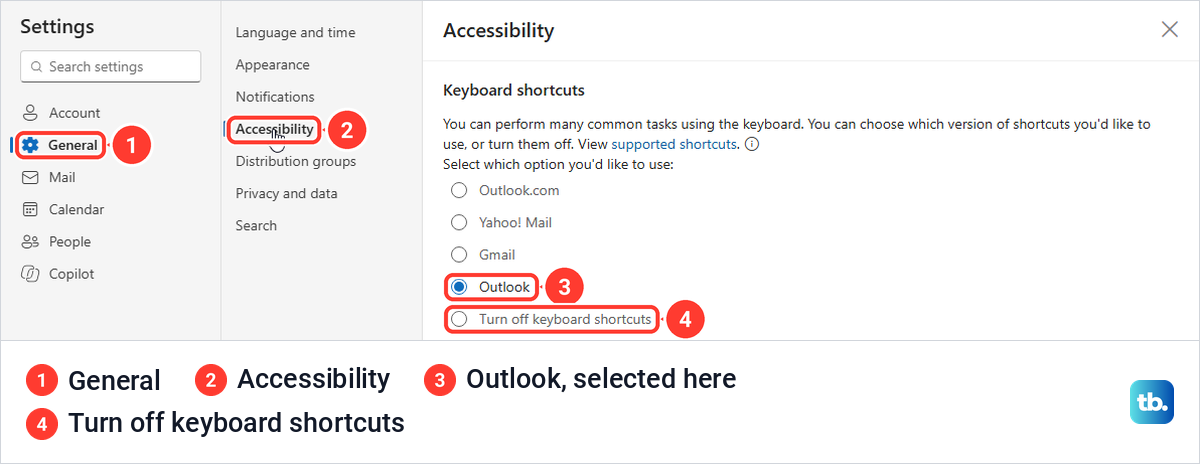
The list also offers Outlook.com, Yahoo! Mail and Gmail sets, plus Turn off keyboard shortcuts. Microsoft's shortcut list gives E for archiving on the web, and you select Save after changing the set.
Move a message back on the web
To restore a message on the web, open Archive, select the message and select Move to in the toolbar. For us, Move to only listed recently used folders, so we typed Inbox in its search box. Two Inbox entries appeared: the real Inbox, and "Inbox" (Create new), which would make a second folder with the same name.
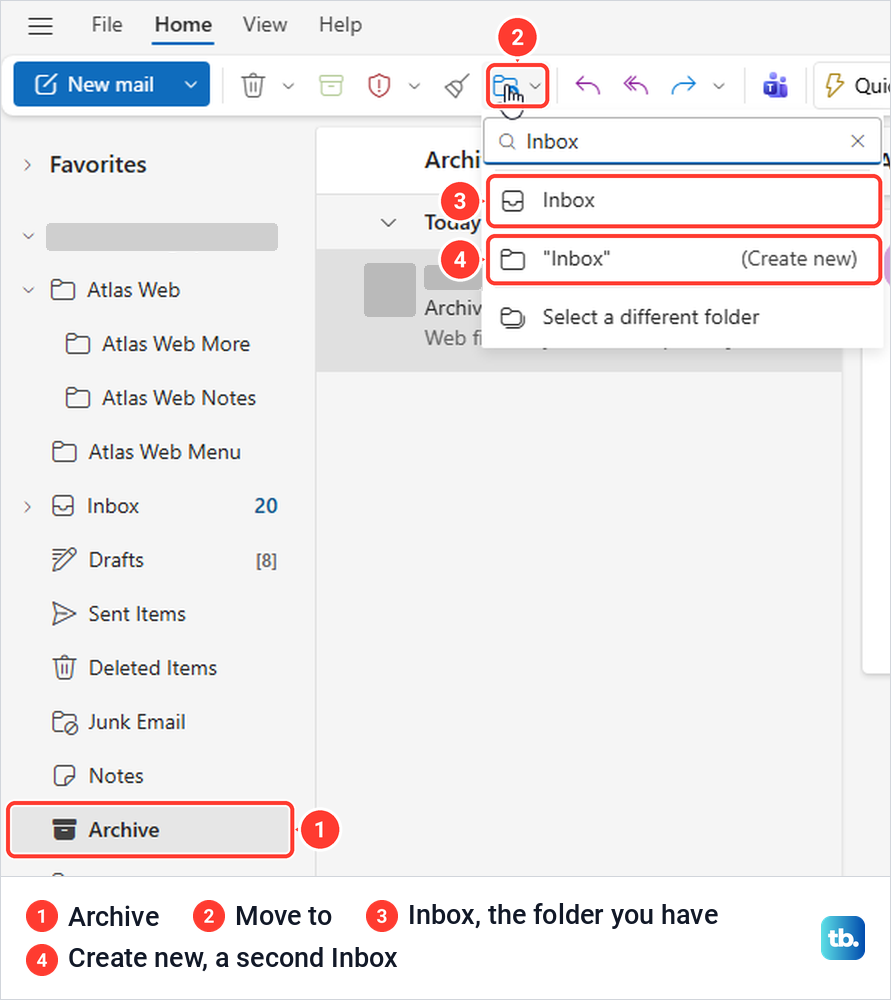
Choose the plain Inbox entry and the message goes straight back. If an archived message shows up in Outlook on the web but not in the desktop app, or the other way round, check that both are signed in to the same account, then fix Outlook mail that is not syncing.
How to archive in new Outlook for Windows
New Outlook for Windows follows the web version closely. Microsoft's steps are to select the email, select Archive in the toolbar, and use the pop-up notification's Undo if you change your mind. Archived mail goes to the same Archive folder in your folder list.
Two things are missing compared with classic Outlook. Microsoft says AutoArchive is not available in new Outlook, and the separate archive mailbox appears there as In-Place Archive. If you need AutoArchive or Clean Up Old Items, switch back to classic Outlook first.
How to archive emails in Outlook for Mac and on a phone
In Outlook for Mac, Microsoft's steps are to choose one or more messages and select Archive on the ribbon, and to customize the toolbar if the button is missing. The first time, Outlook may ask where archived mail should go. Continue creates an Archive folder for that account, and Choose another folder uses one you already have.
Microsoft notes that the folder is called Archive for Microsoft 365, Outlook.com, iCloud and Yahoo accounts, and All Mail for Gmail. To undo a mistake on a Mac, open the archive folder and move the message back to your Inbox.
In the Outlook app for iPhone and Android, Microsoft gives three ways. Long-press a message in the inbox and tap the Archive icon, tap the Archive icon at the bottom of an open message, or set Archive as a swipe action under Settings > Mail > Swipe Options and swipe the message.
Why archiving did not free up mailbox space
If Outlook says your mailbox is almost full, the Archive button will not help. Microsoft says moving messages to the Archive folder doesn't reduce your mailbox size, because that folder is part of the same mailbox. In classic Outlook, File > Info shows a usage bar under Mailbox Settings, so you can see where you stand.
The space-saving option for work and school accounts is an Online Archive, which Microsoft says can store older messages where they won't occupy space in your primary mailbox. An administrator has to turn it on and also sets the policies for when mail moves there. Classic Outlook and Outlook for Mac call it Online Archive, while new Outlook and Outlook on the web call it In-Place Archive.
If you have one, it appears in your folder list next to the rest of your mail. Microsoft's steps for classic Outlook are to locate the Online Archive folder and drag messages to and from it, and in new Outlook and on the web to move items into the In-Place Archive. If dragging messages there does nothing, our guide to fix drag and drop in Outlook covers the usual causes.
If you cannot find an Online Archive or In-Place Archive after expanding your account in the folder list, ask your administrator whether one is turned on for you, since only an administrator can enable it. Microsoft also documents archive policies on the web, applied with Assign policy on a message or folder, but says the option may not be available if your IT administrator hasn't turned it on.
Move old email to a PST file with Clean Up Old Items
Classic Outlook for Windows can also move old mail out of the mailbox into an archive file on your computer. Microsoft describes it as a separate Outlook Data File (.pst) that you can open from Outlook any time you need it. It also says this kind of archiving might not be available if your profile connects to an Exchange Server, or if your organization has a retention policy that overrides it.
Select File > Info, then Tools under Mailbox Settings, and choose Clean Up Old Items. Pick Archive this folder and all subfolders, select a folder in the list, and enter a date under Archive items older than. The Archive file box shows where the .pst file will go, and Browse picks another place before you select OK.
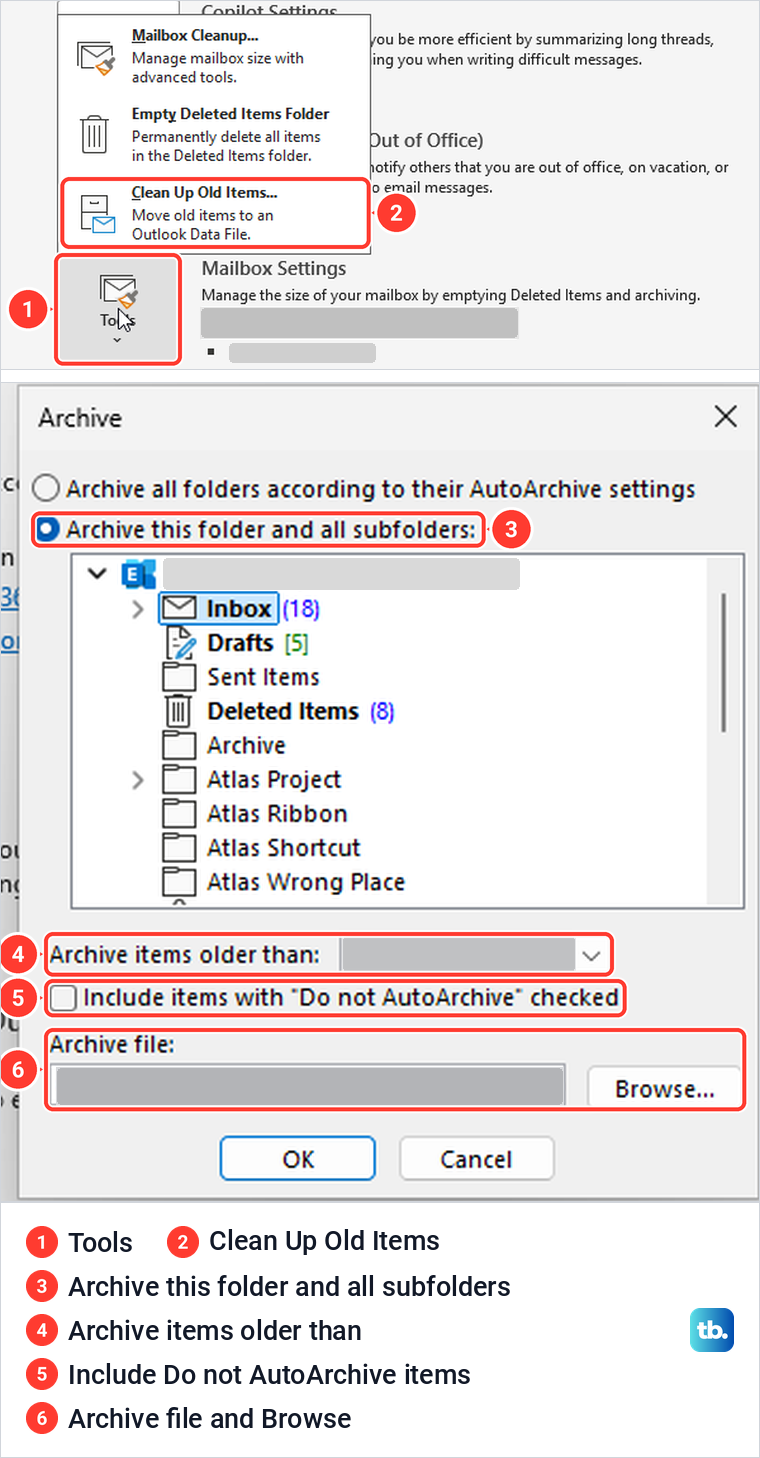
Every option in that box was there on our PC, including Include items with "Do not AutoArchive" checked. Microsoft says that box ignores the Do not AutoArchive setting for this one archive without removing it from the items.
Treat the .pst file as the only copy of that mail. Microsoft gives this warning for AutoArchive's .pst file: the messages are removed from the server and are harder to find through search, and if the drive holding the file becomes unusable, they are lost. A file made with Clean Up Old Items is also a single file on one drive, so keep a copy of it somewhere else.
To read that mail later, choose File > Open & Export > Open Outlook Data File in classic Outlook and pick the .pst file. Microsoft says to expand the file's top level in the folder pane to see its subfolders, then click each one to see what is inside. It also says classic Outlook searches only the current mailbox by default, so change the search scope to All Mailboxes to include the file.
Set up AutoArchive in classic Outlook
AutoArchive does the same job on a schedule. Select File > Options > Advanced, then AutoArchive Settings under AutoArchive. Tick Run AutoArchive every, set the number of days, and then choose what happens to old items.
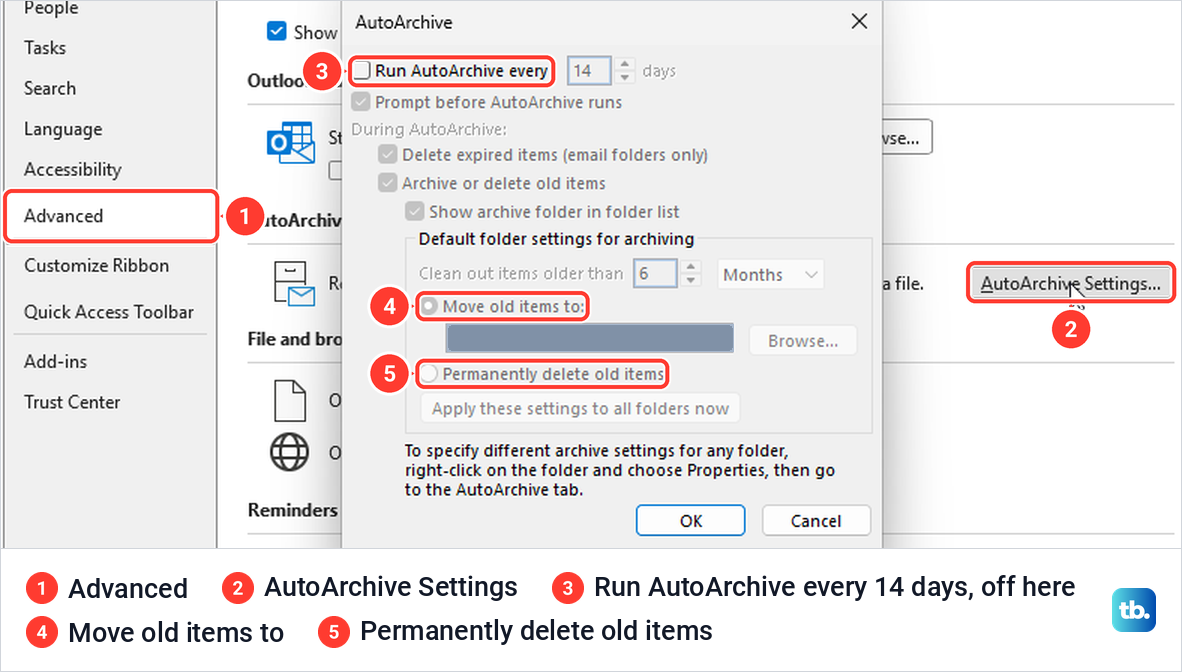
On our PC, Run AutoArchive every 14 days was unticked, so every other choice in the box was greyed out. One of Microsoft's pages says Outlook uses AutoArchive at a regular interval by default, so open the box and check rather than assume either way.
To keep old mail, choose Move old items to and check the file path next to it. Permanently delete old items keeps no copy, and Microsoft says items it deletes are not archived. Microsoft also gives a range of one day up to 60 months for Clean out items older than, with a default of 6 months for Inbox and Drafts and 2 months for Sent Items and Deleted Items.
Folders can have their own settings. Right-click a folder such as Inbox, choose Properties and open the AutoArchive tab. Our Inbox was set to Do not archive items in this folder, with Archive items in this folder using the default settings and Archive this folder using these settings as the other two choices.
If old messages stay put after AutoArchive runs, check that tab first. Microsoft says a message's age counts from when it was received or last changed and saved, whichever is later, and marking a message read or unread counts as a change. It also says that with several Exchange accounts in one profile, the AutoArchive settings you set for one apply to the others.
What to do when Archive or archived mail is missing
If the Archive button is greyed out, select a message first, because on our classic Outlook it stayed grey until one was selected. If the Archive folder itself is missing from a Microsoft 365, Exchange or Outlook.com account, Microsoft says to go to File > Office Account > Update Options > Update Now. Our guide to update Outlook on your computer walks through that.
If Clean Up Old Items, AutoArchive Settings or a folder's AutoArchive tab is missing, your organization may have turned them off. Microsoft says the Archive command that Clean Up Old Items uses doesn't appear if your profile includes an Exchange account and your organization uses Online Archive, and that a network administrator can also turn it off. In that case ask your IT team, since only they can turn it back on.
Archive is also the wrong place for some mail. A suspicious message should not be filed away for later, so report a phishing email in Outlook instead. If one sender keeps filling your Inbox, block an unwanted email sender rather than archiving the same mail every day.
How we tested this guide
We tested this in classic Outlook for Microsoft 365 and Outlook on the web in Microsoft Edge on Windows 11, version 25H2, archiving test messages and moving them back.
Frequently Asked Questions
Where do archived emails go in Outlook?
For Microsoft 365, Outlook.com and Exchange accounts they go to the Archive folder of the same account, which you open from the folder list on the left. POP and IMAP accounts can use a folder you choose, and Gmail archives to All Mail in Outlook for Mac and the phone apps. If the folder list is minimized in classic Outlook, select View > Layout > Folder Pane > Normal to see it.
Does archiving emails free up space in Outlook?
Not with the Archive button, because Microsoft says moving mail to the Archive folder doesn't reduce your mailbox size. An Online Archive turned on by your administrator, or a .pst file made with Clean Up Old Items or AutoArchive in classic Outlook, does move mail out of the mailbox.
What is the shortcut to archive an email in Outlook?
It is Backspace in classic Outlook for Windows, with the message selected in the message list, and E in Outlook on the web when its Outlook keyboard shortcuts are on. Backspace does not archive a message opened in its own window.
Can I undo archiving an email?
In Outlook on the web and new Outlook, select Undo in the notice that appears. Otherwise open the Archive folder and move the message back, which in classic Outlook is Ctrl + Shift + V, then Inbox and OK.
Is the Archive folder the same as Online Archive?
No. The Archive folder is an ordinary folder in your mailbox, while an Online Archive, called In-Place Archive in new Outlook and on the web, is a separate mailbox an administrator turns on. The Archive button never sends mail to it.
Why is AutoArchive missing in Outlook?
Microsoft says new Outlook for Windows does not have AutoArchive. In classic Outlook it can be unavailable when your profile connects to an Exchange Server or a retention policy overrides it, so ask your administrator.