

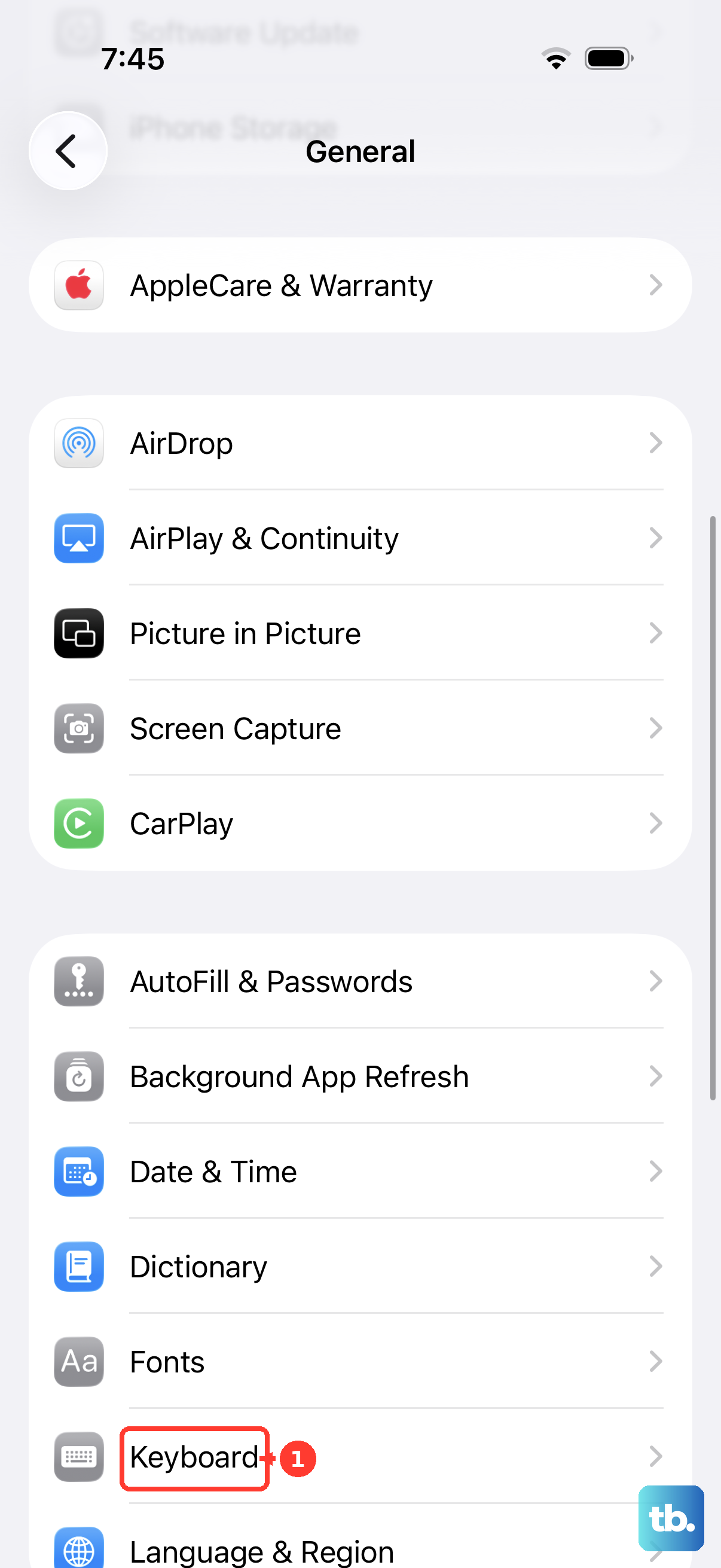
To change your iOS 26 keyboard back to normal, open Settings > General > Keyboard to adjust corrections and predictions, or open Keyboards to restore your preferred language and letter layout. Sounds, vibration, and display preferences have separate controls. Choose the adjustment that matches what you want to change, since resetting the keyboard dictionary clears personalization rather than changing its visual design.
The short version
- Typing behavior: Adjust Auto-Correction and Predictive Text in keyboard settings.
- Familiar layout: Choose your preferred language and letter arrangement, or center a keyboard shifted to one side.
- Appearance and feedback: Adjust display preferences separately from keyboard sounds and vibration.
- Persistent mistakes: Check for an available keyboard accuracy update before considering a dictionary reset.
| What you want to change | Control or action | What it affects |
|---|---|---|
| Automatic corrections | Auto-Correction | Automatic spelling changes |
| Suggestions row | Predictive Text | Suggested words and inline predictions |
| Inline completions only | Show Predictions Inline | Completions within your text |
| An individual suggestion | Keep typing or retain your original word | The suggestion currently offered |
| A correction just applied | Tap the underlined word | The original spelling |
| Active keyboard | Hold the emoji or globe key | Your selected keyboard or language |
| Letter arrangement | Language options under Keyboards | Layouts such as QWERTY |
| Keyboard shifted to one side | Center keyboard-layout icon | One-handed keyboard position |
| Available languages and their order | Add New Keyboard or Edit | Your enabled keyboard list |
| Capitalization and other assistance | Individual controls under Keyboard | Spelling, punctuation, and math suggestions |
| Uppercase or lowercase key labels | Show Lowercase Keys | Letters displayed on the keys |
| Light or dark appearance | Light, Dark, or Automatic | System appearance, subject to app behavior |
| Liquid Glass appearance | Tinted or Clear | Liquid Glass on iOS 26.1 and later |
| Transparency and contrast | Reduce Transparency or Increase Contrast | Supported interface elements |
| Keyboard width | Rotate to landscape | Keyboard orientation in supported apps |
| Interface size | Display Zoom | The broader interface scale |
| Clicks and vibration | Keyboard Feedback | Sound and haptics |
| Unwanted text expansions | Delete an entry in Text Replacement | A saved shortcut |
| Preferred spellings and shortcuts | Add an entry in Text Replacement | A protected word or text expansion |
| Fast-typing accuracy | Software Update | Available iOS keyboard improvements |
| Learned words | Reset Keyboard Dictionary | Dictionary personalization |
Choose how corrections and predictions work
Open Settings > General > Keyboard, then turn off Auto-Correction to stop automatic spelling corrections. Turn it on if you prefer automatic correction. You can also reach these controls while typing by touching and holding the emoji or globe key, then tapping Keyboard Settings.
Change Predictive Text to remove or restore the suggestions row above the keyboard. Turning it off also disables inline predictions, the suggested completions within your text. To keep the row but stop inline completions, leave Predictive Text on and turn off Show Predictions Inline. Prediction options depend on your keyboard language, and inline predictions require a supported language.
Continue typing to reject an inline prediction, or tap your original word in the suggestions row to retain it. For an unwanted correction suggestion, tap the x button. Repeatedly rejecting a suggestion teaches iPhone to stop suggesting it.
If a correction has already been applied, tap the temporarily underlined corrected word. Choose the original spelling from the pop-up menu to undo that correction.
Restore your familiar keyboard layout
With multiple keyboards enabled, touch and hold the emoji or globe key while typing, then tap the keyboard you want. This lets you return to your preferred language or Apple keyboard. To change the letter arrangement, open Settings > General > Keyboard > Keyboards, tap the language, and select an offered layout such as QWERTY. Available layouts depend on the language.
If your keyboard is shifted to one side in the one-handed layout, touch and hold the emoji or globe key, then tap the center keyboard-layout icon. Alternatively, tap the exposed edge beside the shifted keyboard to center it again.
To add a language, open Settings > General > Keyboard > Keyboards, tap Add New Keyboard, and choose the language. To reorder your enabled keyboards, tap Edit, drag a keyboard’s reorder handle to the position you want, then tap Done.
Adjust capitalization and other typing assistance
Open Settings > General > Keyboard to adjust the remaining typing controls individually. Change Auto-Capitalization, Check Spelling, Enable Caps Lock, Smart Punctuation, or Show Math Results to match your preferences. Availability can depend on your keyboard language.
For the letters displayed on the keys, open Settings > Accessibility > Keyboards & Typing. Turn off Show Lowercase Keys for permanently uppercase labels, or turn it on to restore labels that change case. This changes the key labels, not the capitalization of the text you enter.
Adjust display appearance and keyboard width
For a light or dark appearance, open Settings > Display & Brightness and select Light or Dark. Apps may control their own keyboard appearance, so the result can differ between apps. To schedule appearance changes, turn on Automatic and open Options.
On iOS 26.1 and later within iOS 26, open Settings > Display & Brightness > Liquid Glass and choose Tinted or Clear. If Reduce Transparency or Increase Contrast prevents you from changing this setting, turn those controls off first under Settings > Accessibility > Display & Text Size.
You can instead enable Reduce Transparency or Increase Contrast on that accessibility screen to adjust system appearance. Their effects vary by interface element and app, so treat them as display preferences rather than an old keyboard theme.
For a wider keyboard, rotate your iPhone to landscape while typing in a supported app, such as Mail, Messages, Notes, or Safari. App support and orientation lock can affect whether the keyboard changes orientation.
On supported iPhones running iOS 26, open Settings > Display & Brightness > Display Zoom > Larger Text. Tap Done, then tap Use Zoomed. This scales the interface rather than resizing only the keyboard.
Set keyboard sounds and vibration
Open Settings > Sounds & Haptics > Keyboard Feedback. Change Sound and Haptic independently to restore clicks, enable vibration, or silence the feedback you do not want. If Haptic is on but typing produces no vibration, open Settings > Accessibility > Touch and enable Vibration.
Correct unwanted shortcuts and preferred spellings
When an abbreviation expands into an unwanted phrase, open Settings > General > Keyboard > Text Replacement. Deleting an entry removes that saved text-expansion shortcut. Tap Edit, tap the remove button beside the shortcut, then tap Delete and Done.
To keep a particular spelling from being corrected, stay in Text Replacement and tap the add button. Enter the word in Phrase, leave Shortcut blank, then tap Save. To create a text shortcut instead, enter the desired text in Phrase and its abbreviation in Shortcut, then tap Save.
Install available keyboard accuracy improvements
If your concern is accuracy during fast typing, Apple says iOS 26.4 includes an improvement for that behavior. On an earlier iOS 26 release, check for an available compatible update containing the improvement. A later installed update may already include it.
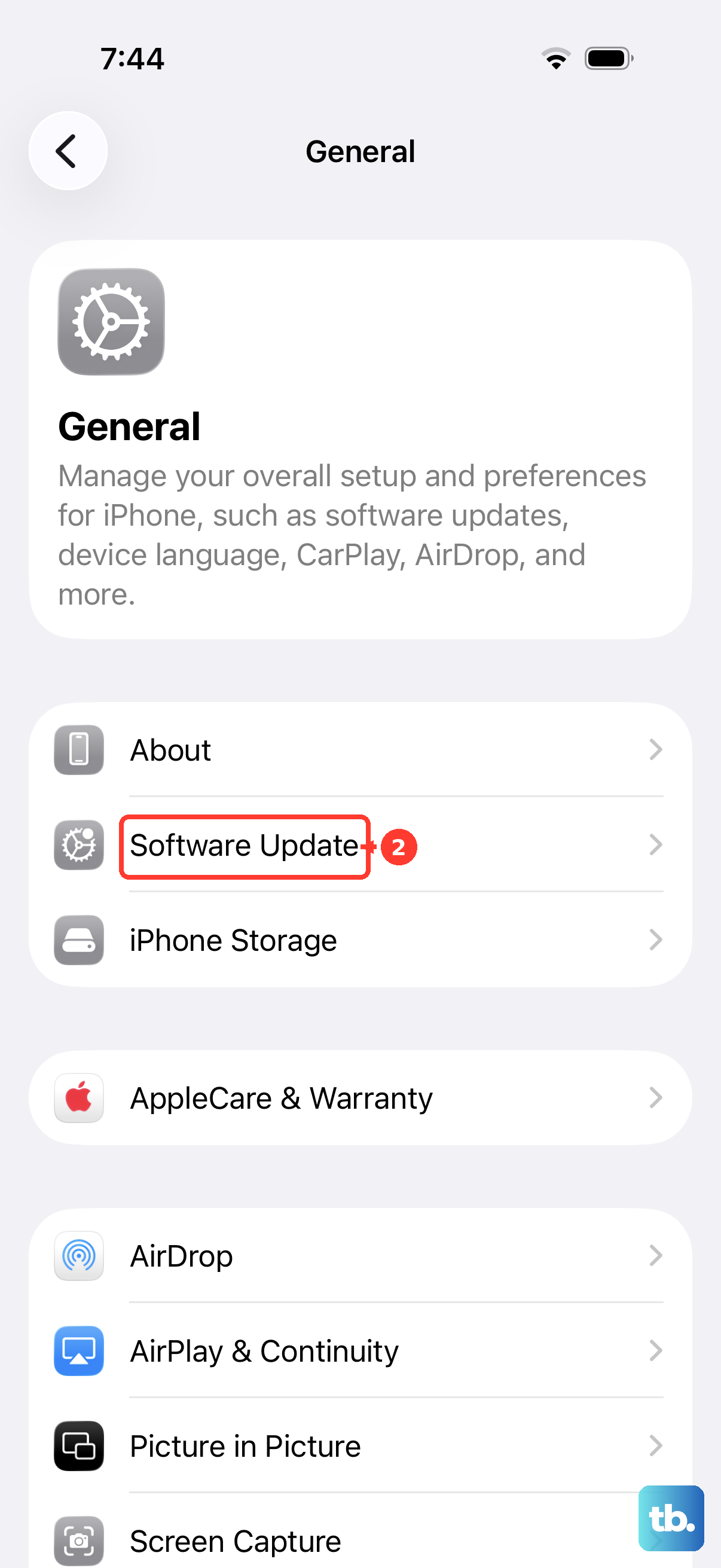
Back up your iPhone, then open Settings > General > Software Update. For an offered update, tap Download and Install. If the downloaded update instead presents Update to iOS 26, tap it and choose Update Now or Update Tonight. Install the compatible version actually offered to your device.
Reset the learned keyboard dictionary
Use a keyboard dictionary reset when you want to clear learned typing personalization. This changes dictionary preferences, not the keyboard’s visual design.
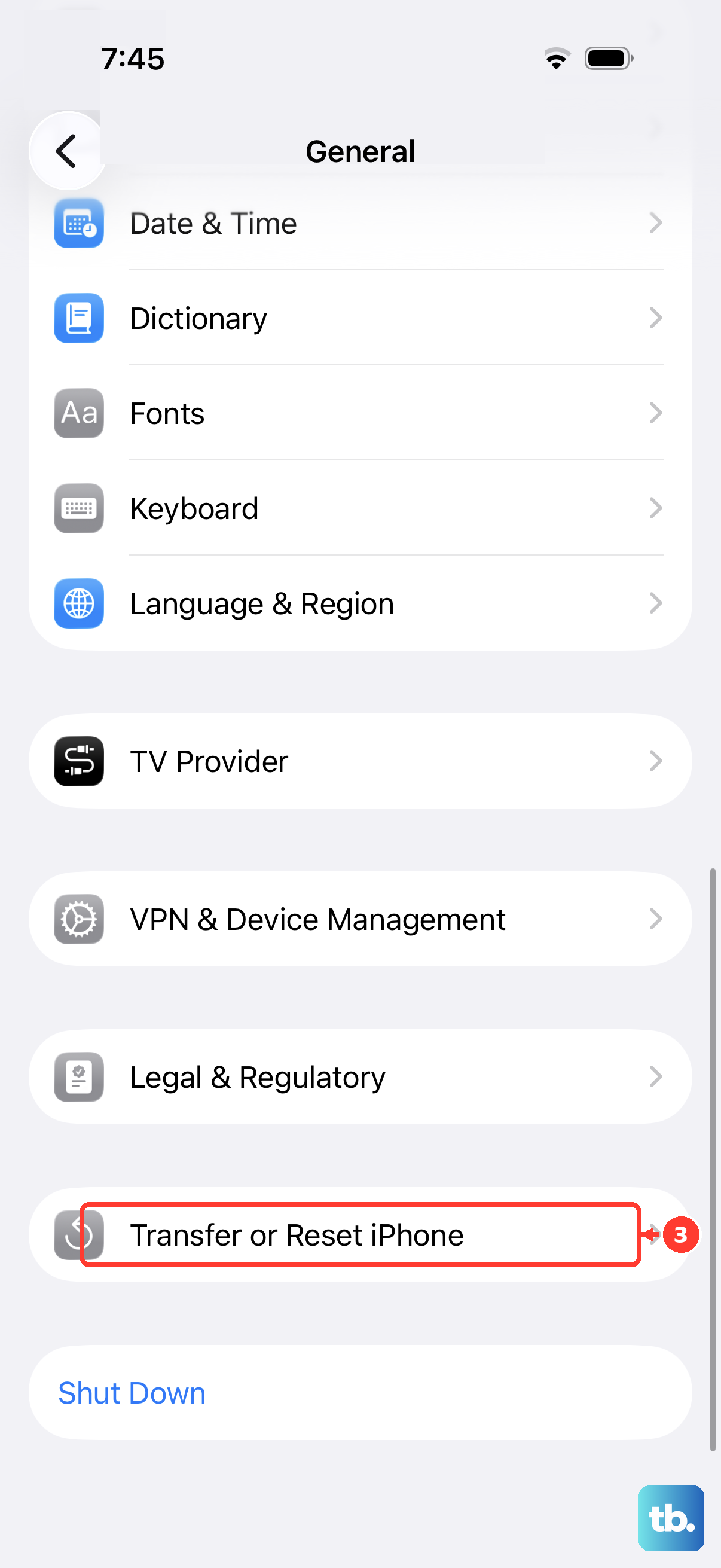
Resetting the keyboard dictionary erases the words you’ve added to it. Open Settings > General > Transfer or Reset iPhone > Reset > Reset Keyboard Dictionary. Enter your passcode, then tap Reset Dictionary.
Frequently Asked Questions
Can you alternate between swipe typing and tapping letters?
Yes, you can tap individual letters or slide between them with QuickPath while composing the same text. QuickPath availability varies by keyboard language.
How do you turn dictation off or change its punctuation?
Open Settings > General > Keyboard and turn off Enable Dictation. To keep dictation but change automatically inserted punctuation, adjust Auto-Punctuation on that screen. Dictation support depends on language and region.
Does a connected Magic Keyboard have separate correction settings?
Yes, connect your Magic Keyboard, then open Settings > General > Keyboard > Hardware Keyboard. Adjust Auto-Capitalization, Auto-Correction, or “.” Shortcut there. The app you are typing in must support the relevant typing assistance.
How can VoiceOver users change the way typing responds?
Open Settings > Accessibility > VoiceOver > Typing > Typing Style and choose Direct Touch Typing. This changes the typing style while keeping VoiceOver enabled. You can also change modes with the keyboard open by rotating two fingers to select Typing Mode in the VoiceOver rotor, then swiping up or down.
What if your work or school enforces keyboard restrictions?
On a supervised iPhone enrolled through Automated Device Enrollment and running iOS 26.4 or later, ask your administrator to review the Keyboard declarative configuration. It can enforce restrictions on correction, predictions, slide typing, spelling checks, dictation, math suggestions, and text replacement. The administrator’s steps depend on the management service.