


To adjust the screen size on your monitor, open your computer’s display settings and change scaling for larger text and apps, or change the resolution and picture controls to adjust how the image fits. Keep the monitor’s native resolution for sharpness when readability is the issue, then adjust scaling. The Windows steps below use Windows 11 menus.
Your monitor’s physical panel dimensions stay the same. Scaling changes the apparent size of desktop items, resolution changes the output image, and picture controls adjust its boundaries. Choose the control that matches what you want to change.
The short version
- Larger text and apps: Adjust display scaling while keeping the monitor’s native resolution.
- Sharper desktop: Select your monitor’s native resolution in the computer’s display settings.
- Cut off edges: Check the monitor or TV picture controls before trying graphics software resizing.
- One oversized website: Adjust browser zoom instead of changing the whole desktop.
| What you want to change | Control to use | What it affects |
|---|---|---|
| Text, apps, and desktop items | Display scaling | Apparent interface size |
| Output image dimensions | Display resolution | Desktop resolution |
| Text without enlarging everything | Accessibility text size | Supported interface and app text |
| One webpage | Browser zoom | Website content |
| Picture boundaries on a monitor or TV | Display hardware picture controls | Image fit and position |
| Picture boundaries through the graphics adapter | Graphics scaling and resizing | Image proportions and visible edges |
| Temporary close viewing | Screen magnification | Magnified screen area |
Adjust scaling in Windows
On Windows 11, open Start > Settings > System > Display. Select the monitor you want to adjust, then find Scale & layout. Open Scale and start with the percentage marked Recommended.
Choose a larger percentage to enlarge text, apps, and interface elements. Use a smaller percentage when you want those items to take up less space. Configure each connected monitor separately so the setting applies to the screen you intended.
For an external monitor that needs an independent desktop, press Windows + P and select Extend. Then return to the display settings, select that monitor, and adjust its scaling and resolution. Duplicating the desktop can restrict resolution to modes both displays support.
Set the monitor resolution in Windows
Right-click an empty area of the Windows 11 desktop and select Display settings. Select the monitor, then open Display resolution under Scale & layout. Choose the monitor’s native resolution to preserve sharpness.
Select Keep changes when the picture looks correct. Without a response, Windows restores the previous setting after 15 seconds. Available resolutions depend on the monitor, graphics hardware, connection, and display mode. If the expected resolution is missing, check the connection and driver steps below.
Change the desktop size on a Mac
On macOS 27, open the Apple menu > System Settings > Displays. Select your monitor and choose a resolution thumbnail to change the desktop resolution or apparent interface size. Available choices depend on the Mac and display.
For a list of resolutions, hold Control, click the thumbnails, and select Show List. Turn on Show all resolutions if available. To keep the list presentation, open Advanced and turn on Show resolutions as list.
Adjust a Chromebook or GNOME desktop
On ChromeOS, select the time, then open Settings > Device > Displays. Select Built-in Display or your external monitor’s name, then adjust Display and text size. On the external monitor’s tab, use Resolution to change its output resolution. Available external resolutions depend on the display and connection.
Chromebook keyboard shortcuts also change desktop sizing. Press Ctrl + Shift + Plus to make everything larger, or Ctrl + Shift + Minus to make it smaller. Press Ctrl + Shift + 0 to reset it.
On a Linux distribution using GNOME, open Activities, type Displays, and open Displays. Select the monitor in the preview, change Resolution or Scale, then select Apply and Keep Changes. Supported scaling choices depend on the distribution and graphics configuration.
Enlarge text or temporarily magnify the screen
On Windows 11, open Start > Settings > Accessibility > Text size to enlarge supported system and application text. Move the Text size slider, then select Apply. This targets text rather than enlarging the entire interface.
For temporary magnification in Windows 11, press Windows + Plus to start Magnifier or increase its zoom. Press Windows + Minus to reduce magnification. Exit with Windows + Esc when you finish.
On macOS 27, open the Apple menu > System Settings > Accessibility > Display. Under Text, select Text size and adjust the slider for supported apps using Use Preferred Reading Size. For screen magnification instead, open Accessibility > Zoom and turn on Use keyboard shortcuts to zoom.
With Mac zoom shortcuts enabled, press Option + Command + Plus to zoom in or Option + Command + Minus to zoom out. Press Option + Command + 8 to toggle zoom. These controls magnify the screen rather than selecting a different desktop resolution.
Resize content in your browser
When only website content needs resizing, use browser zoom. In desktop Chrome, open More > Zoom, then choose Zoom in or Zoom out. In desktop Edge on Windows or Mac, open Settings and more and choose Zoom in or Zoom out.
Chrome on Windows, Linux, and ChromeOS also supports Ctrl + Plus and Ctrl + Minus. On a Mac, use Command + Plus and Command + Minus. These shortcuts resize webpage content rather than the monitor’s entire desktop.
In Safari on Mac, open the Page menu in the Smart Search field, select Page Zoom, and choose a level. For a default across websites, open Safari > Settings > Websites > Page Zoom. Set When visiting other websites to your preferred percentage.
If a website keeps its own zoom setting, select its entry under Configured Websites and select Remove. Then set When visiting other websites to the percentage you want that site to use.
Fit the picture with monitor or TV controls
For cropped edges or an image that does not fit the screen, check the display’s own picture controls. On Samsung monitors with these controls, press the JOG button to open Function Key Guide. Select Menu > On-Screen Display > Picture Size.
In Samsung monitor PC mode, choose Wide or Auto. In AV mode, the choices include 4:3, 16:9, and Screen Fit. The available choices depend on the model and input mode.
On compatible Samsung TVs and Odyssey Ark displays, open Settings (All Settings) > Picture > Expert Settings > Picture Size Settings. Use Fit to Screen to show the full image. For manual resizing, set Picture Size to Custom, then adjust Zoom and Position. Availability depends on the model, year, and signal.
For a monitor connected through analog VGA, open its physical menu and try Auto Adjust or Auto Setup, as provided by the model. Adjust the horizontal and vertical position controls afterward when necessary. These alignment instructions apply to VGA connections on monitors that expose those controls.
Use graphics controls for remaining picture fit issues
On supported NVIDIA GPU-connected displays, open NVIDIA Control Panel > Display > Adjust Desktop Size and Position > Scaling. Choose Aspect ratio to preserve proportions, Full-screen to stretch the image, or No scaling to center it without scaling. Select OK to apply the choice.
For supported displays that need manual boundary adjustment, open the Size tab in the same NVIDIA controls. Check Enable desktop resizing, select Resize, and adjust the horizontal and vertical sliders. Select OK when the image fits. NVIDIA says these resizing controls are absent for unsupported display types.
For a compatible HDMI display connected to an AMD Radeon HDMI port, first select its native resolution and refresh rate. Open AMD Software, search for Display, and open Display Settings. Select the HDMI display and adjust HDMI Scaling. AMD says this control can be unavailable or disabled in unsupported configurations.
Restore missing resolution choices
Check the maximum resolution supported by any dock, USB display adapter, or video converter between the computer and monitor. If that device limits the monitor’s native resolution, connect the monitor directly or use a compatible adapter that supports the full resolution.
On Windows 11, open Start > Settings > Windows Update and select Check for updates. For optional graphics updates, open Advanced options > Optional updates within Windows Update and install the applicable driver. You can also find and update your graphics driver when expected resolution or scaling choices disappear.
For a temporary Windows 11 display-sizing fault, press Windows + Ctrl + Shift + B. Wait for the display to refresh, then check the picture fit. This resets the graphics driver rather than choosing a permanent screen size.
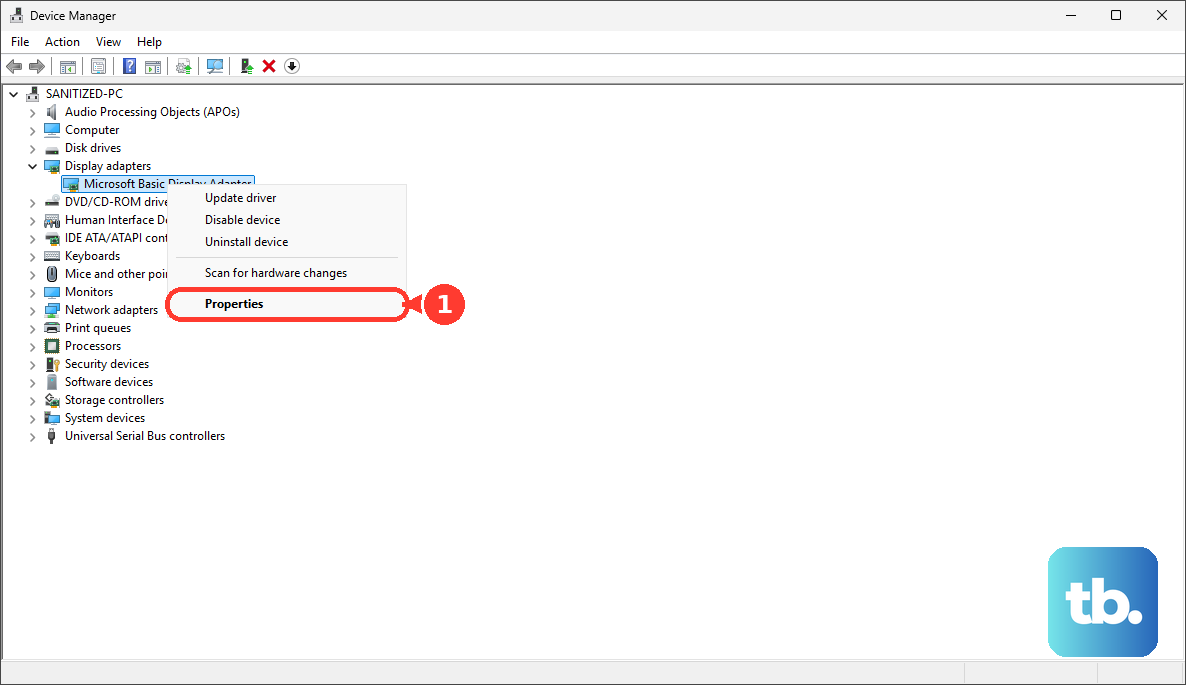
If sizing problems began after a graphics-driver update, search for and open Device Manager, then expand Display adapters. Right-click the graphics adapter and select Properties > Driver > Roll Back Driver. Use this Windows 11 fallback when a previous driver is available.
Frequently Asked Questions
Can you enter an exact scaling percentage in Windows 11?
You can enter a custom percentage in Windows 11 by right-clicking the desktop, selecting Display settings, and expanding Scale under Scale & layout. Enter a value under Custom scaling, then sign out and back in if prompted. Microsoft documents a range of 100% to 500% but recommends preset percentages.
How do you resize desktop icons without changing everything else?
On Windows 11, right-click an empty desktop area, open View, and choose Large icons, Medium icons, or Small icons. On macOS 27, hold Control while clicking the desktop, select Show View Options, and adjust Icon size or Text size.
How do you adjust the visible screen area on a PS5?
On PS5 or PS5 Pro connected to a compatible monitor or TV, open Settings > Screen and Video > Screen > Adjust Display Area and adjust the displayed boundaries. To change output resolution instead, open Settings > Screen and Video > Video Output > Resolution.
How do you adjust screen size on Nintendo Switch 2?
Dock the console, then open HOME Menu > System Settings > Display > Adjust Screen Size and follow the sizing prompts. These controls apply in TV Mode with a compatible monitor or TV. Use TV Resolution in the same display settings to choose a supported output resolution.