Windows Defender flagging a file you trust? You can add an antivirus exception through Windows Security on Windows 11 or Windows 10, including Home editions. Here’s how to choose the right exclusion, add it, and remove it when you’re done. Only exclude items you trust, with the smallest scope necessary, preferably a specific file or folder.
Add an exclusion in Windows Security
This tells Microsoft Defender Antivirus to skip your chosen item within the exclusion’s scope.
Open Start.
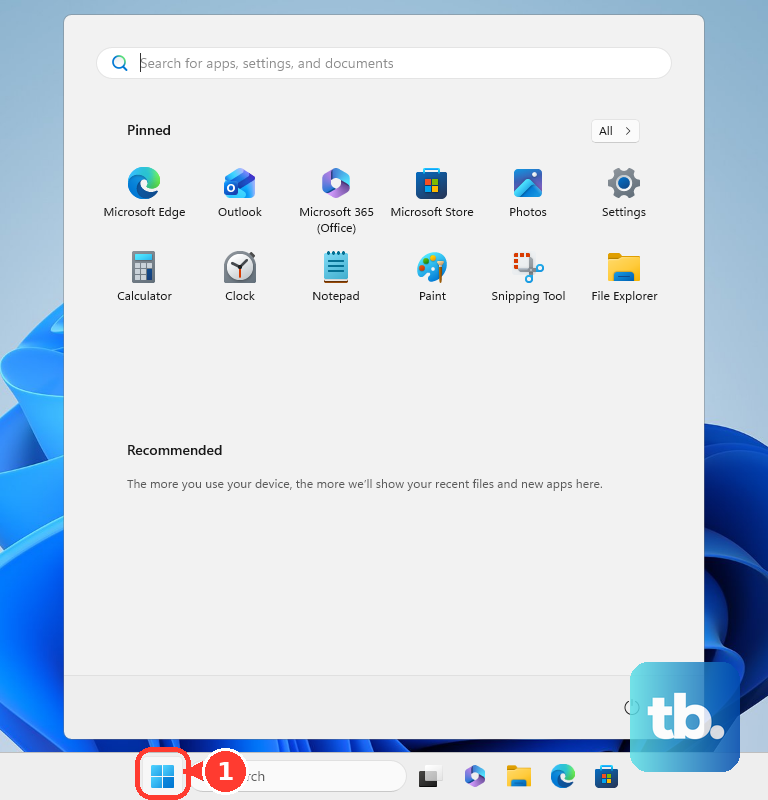
Search for Windows Security.
Open Windows Security from the results.
Select Virus & threat protection.
Under Virus & threat protection settings, select Manage settings.
Scroll to Exclusions.
Select Add or remove exclusions.
Click Add an exclusion.
Choose the type you need: File, Folder, File type, or Process.
For File or Folder, select the trusted item. For File type, enter the extension instead. For Process, enter the executable’s name or full path instead.
Approve the administrator prompt when Windows requests authorization.
Choose the right exclusion type
A File exclusion targets one file. A Folder exclusion covers the files and subfolders inside that folder, except reparse-point subfolders, which each need their own folder exclusion. Use the folder option only when you need that broader coverage.
A File type exclusion covers files with a particular extension. That reaches beyond a single trusted file.
A Process exclusion covers files the process opens. The executable itself stays outside that exclusion; use File to exclude the executable.
Process exclusions apply to real-time scanning. An exclusion does not guarantee that an item will never be scanned.
Remove an exception you no longer need
Undo an exclusion from the same settings page.
- 1.Open Windows Security and select Virus & threat protection.
- 2.Under Virus & threat protection settings, select Manage settings.
- 3.Under Exclusions, select Add or remove exclusions.
- 4.Select the exclusion you want to delete.
- 5.Choose Remove and approve any administrator prompt.
Handle a file Defender has already quarantined or removed
If Defender has already quarantined or removed your file, adding an exclusion does not bring it back.
Open Windows Security.
Select Protection history.
Expand the detection for your file. You need administrator privileges to inspect threat details.
For Threat found - action needed, open Actions.
Select Allow on device only if you trust the item.
For Threat quarantined, select Restore to return the file. Defender will detect it again.
Use Allow on device for that detection if you trust the item and want to allow it.
For Threat blocked, open Actions.
Select Allow to allow the next encounter. This does not recover the removed file.
To reverse a detection allowance, open Allowed threats. Detection allowances are separate from the file and folder exclusion list.
Resolve restrictions on changing exclusions
Adding an exclusion requires administrator authorization. Work or school policies also control whether you can change exclusions and whether local entries take effect.
Approve the administrator prompt using an authorized administrator account. Windows Home supports exclusions through Windows Security, so you do not need to upgrade to Pro.
If administrator authorization does not resolve the restriction on a managed device, ask your organization’s IT administrator to handle the exclusion.
Frequently Asked Questions
Can I add an exclusion through Windows 11 Settings?
Yes. Open Start > Settings > Privacy & security > Windows Security > Virus & threat protection. Under Virus & threat protection settings, select Manage settings. Under Exclusions, select Add or remove exclusions. Select Add an exclusion. This opens the same controls and exclusion list as Windows Security.
Does an antivirus exclusion let an app through the firewall?
No. Firewall exceptions permit network traffic and are separate from antivirus exclusions. Open Windows Security > Firewall & network protection > Allow an app through firewall. Select Change settings. Approve administrator authorization. Select the app’s checkbox, or use Allow another app to supply its path.
Will an exclusion let an app change protected folders?
That requires a separate Controlled folder access allowance. With Controlled folder access on, open Windows Security > Virus & threat protection > Manage settings > Manage controlled folder access > Allow an app through Controlled folder access. Approve Yes. Select + Add an allowed app. Choose Recently blocked apps or Browse all apps. Select the executable. This permits protected-folder changes without creating an antivirus scan exclusion.
Do I need to download anything to add a Defender exclusion?
No. Windows Security includes the controls for adding exclusions in Windows 11 and Windows 10.











