Adding a shortcut to Google Chrome can mean putting Chrome itself within easier reach, saving a website as a shortcut, or adding a quick link inside Chrome. The right path depends on where you want the shortcut to appear.
Start with the shortcut you need most. A taskbar, Dock, Shelf, or Home Screen icon opens Chrome faster; a website shortcut opens one page; a New Tab shortcut keeps a favorite site inside Chrome.
Put Chrome where you open it fastest
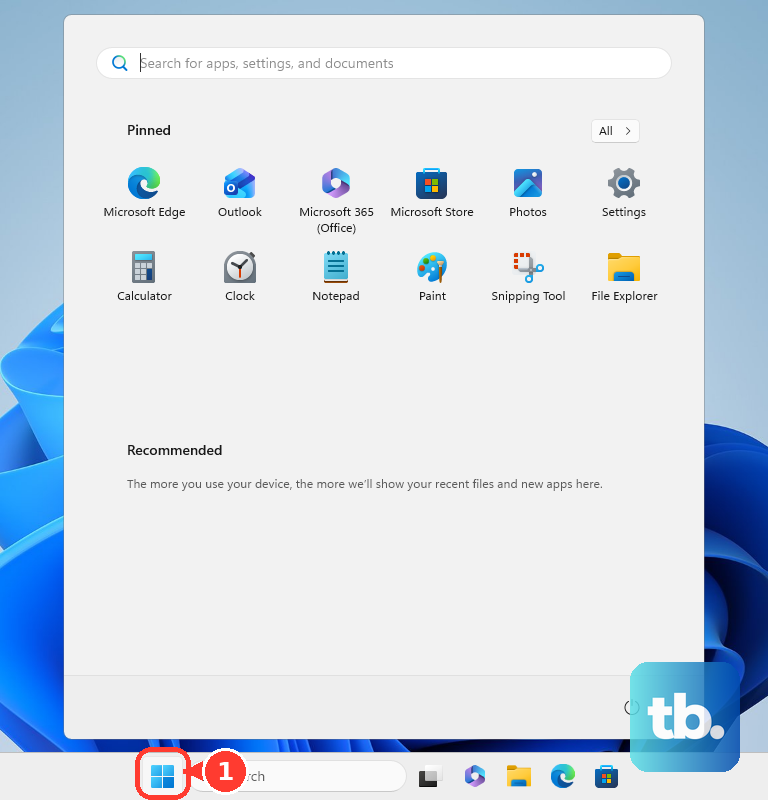
On Windows, open Start, find Chrome, right-click it, and select Pin to taskbar. That keeps Chrome on the taskbar.
On a Mac, find the Chrome app and drag it to the Dock.
On Linux, find Chrome, right-click it, then choose Pin to Dash or Add to Favorites, depending on your desktop.
On a Chromebook, open Launcher, find Chrome, right-click the app icon, and select Pin to Shelf. After it is pinned, press Alt plus 1 through 8 for shelf items one through eight, or Alt plus 9 for the last shelf item.
Create a website shortcut from Chrome on desktop
Use this when you want a computer shortcut that opens one specific website in Chrome.
- 1.Open Chrome.
- 2.Go to the website you want to create a shortcut for.
- 3.At the top right, select More, then Cast, save, and share, then Create shortcut....
- 4.Use Name to keep or rename the shortcut.
- 5.Select Create.
Replace older Chrome shortcut instructions
The most common cause is that older tutorials still use menu labels Chrome no longer uses for the current shortcut flow.
For desktop website shortcuts, open More, choose Cast, save, and share, then select Create shortcut....
Skip older instructions that say More tools and Create shortcut. The current desktop path uses Cast, save, and share.
For an app-like website window, open More, choose Cast, save, and share, then select Install page as app....
Ignore older instructions that use an Open as window checkbox. The current app-window flow is Install page as app....
Add a website shortcut on Android
This fixes a website you want to open directly from your Android Home screen.
Open Chrome.
Go to the website you want to create a shortcut for.
To the right of the address bar, tap More.
Tap Install and create shortcut.
Tap Create shortcut.
Use Rename if you want a different shortcut name.
Tap Add.
Shortcuts with the Chrome logo open in Chrome.
Move Chrome onto Android Home screens
Android also lets you place the Chrome app itself on the Home screen. Swipe up from the bottom of the Home screen, touch and hold Chrome, drag it where you want it, and release it.
For the favorite-app row, go to the Home screen and swipe up from the bottom. Find Chrome or search for it, then touch and hold Chrome and drag it to your favorite dock.
Press and hold Chrome to use available launcher shortcuts, including New tab, Incognito tab, and widgets.
If this method fails, create a website shortcut from Chrome instead with More, Install and create shortcut, Create shortcut, and Add.
Add Chrome shortcuts on iPhone or iPad
The most common cause of missing Chrome widget options on iPhone or iPad is that Chrome has not been installed and opened once.
For a Home Screen website shortcut, open Chrome.
Go to the website.
Tap Share to the right of the address bar.
Tap Add to Home Screen.
Confirm or edit the website details.
Tap Add.
For a Chrome Home Screen widget, touch and hold an empty space on the Home Screen.
Tap Add at the top.
Search for Chrome widgets and select Chrome.
Swipe to find the Chrome widget.
Tap Add Widget.
For the Dock, move another app out first if the Dock is full.
Touch and hold Chrome.
Tap Edit Home Screen.
Drag Chrome to the Dock and release it.
Tap anywhere on the screen to finish.
Manage shortcuts inside Chrome's New Tab page
Open Chrome.
Open a New Tab page.
At the bottom right, click Customize Chrome.
Under Shortcuts, select My shortcuts to manage your own links, or select Most visited sites to let Chrome fill the row.
Use the Add shortcut tile to enter the site name and URL.
Click Done.
Point to an existing shortcut icon, click More, then choose Edit shortcut or Remove.
To hide the row, turn off Show shortcuts.
Custom New Tab shortcuts on desktop require a signed-in Google Account and Google as the default search engine.
On Android, custom New Tab shortcuts do not sync to other devices.
Install website apps and handle managed devices
For a website Chrome offers as an app, open the site in Chrome, select More, then Cast, save, and share, then Install page as app.... When Install appears in the address bar, select it and follow the on-screen instructions.
For an installed web app already listed in Chrome, open chrome://apps, right-click the app, select Create shortcut, choose where the shortcut should appear, and click Create.
To remove an installed desktop web app, open it in Chrome, select More, then Uninstall [app name], then Remove.
On work or school devices, an administrator can force-install web apps, pin apps, preconfigure New Tab shortcuts, deploy bookmarks, add site-search shortcuts, and pin extension icons to the Chrome toolbar.
Frequently Asked Questions
What is the fastest way to add Chrome to my desktop or taskbar?
On Windows, open Start, find Chrome, right-click it, and choose Pin to taskbar. On Mac, drag the Chrome app to the Dock.
Can I make a shortcut that opens one website in Chrome?
Yes. On desktop, open the site in Chrome, go to More > Cast, save, and share > Create shortcut..., name it, and select Create.
Why do older instructions mention More tools?
That was an older Chrome menu path. Current Google instructions use More > Cast, save, and share > Create shortcut... for desktop website shortcuts.
Do Chrome New Tab shortcuts sync to every device?
Android custom New Tab shortcuts do not sync to other devices. Desktop New Tab shortcut management requires being signed in to a Google Account and using Google as the default search engine.