
Seeing that your Google Pixel 9a's SIM card isn't activated can stop you in your tracks, especially when you need to make a call or get online right away. This usually means your phone can't connect to your carrier's network, which is a common hiccup that's often easy to fix.
I'd start by giving your Pixel a quick restart. Press and hold the power button, then tap "Restart" on the screen. This simple step can clear out any temporary software glitches that might be blocking the connection and is the fastest thing to try.
Check Your SIM Card and Tray
First, make sure the SIM card is inserted correctly. The Pixel 9a uses a nano-SIM, and it needs to be seated perfectly in the tray. Power the phone off completely, then use the SIM eject tool to pop out the tray.
Take a look at the gold contacts on the SIM card itself. If you see any dust, lint, or scratches, gently wipe them with a soft, dry cloth. Carefully reinsert the tray, making sure it clicks into place, and then turn your phone back on.
Refresh Your Network Connection
If the SIM looks fine, the next step is to force your phone to search for the network again. Swipe down from the top of your screen twice to open the full Quick Settings panel, then tap the Airplane Mode icon to turn it on.
Wait about 15-20 seconds, then tap the icon again to turn Airplane Mode off. Your Pixel will scan for available networks. You can also try this manually by going to Settings > Network & internet > Internet, tapping the settings gear next to your carrier's name, and then tapping Network operators.
Choose "Select automatically" to let it search, or manually pick your carrier from the list if it appears.
Verify Activation and Account Status
If you just got this SIM card, it might not be activated on your carrier's end yet. The same goes if you've recently switched plans or carriers. The quickest way to check is to give your mobile provider a call or use their online chat support.
They can tell you in seconds if the SIM is active on your account. It's also worth checking your account balance if you're on a prepaid plan, as insufficient funds can sometimes prevent service from activating properly.
Update Your Phone's Software
Since the Pixel 9a runs Android 15, it's a good idea to make sure you have the latest system update. Google frequently releases updates that can improve network connectivity and modem performance, which is relevant given the Tensor G4 chip's known sensitivity in weak signal areas.
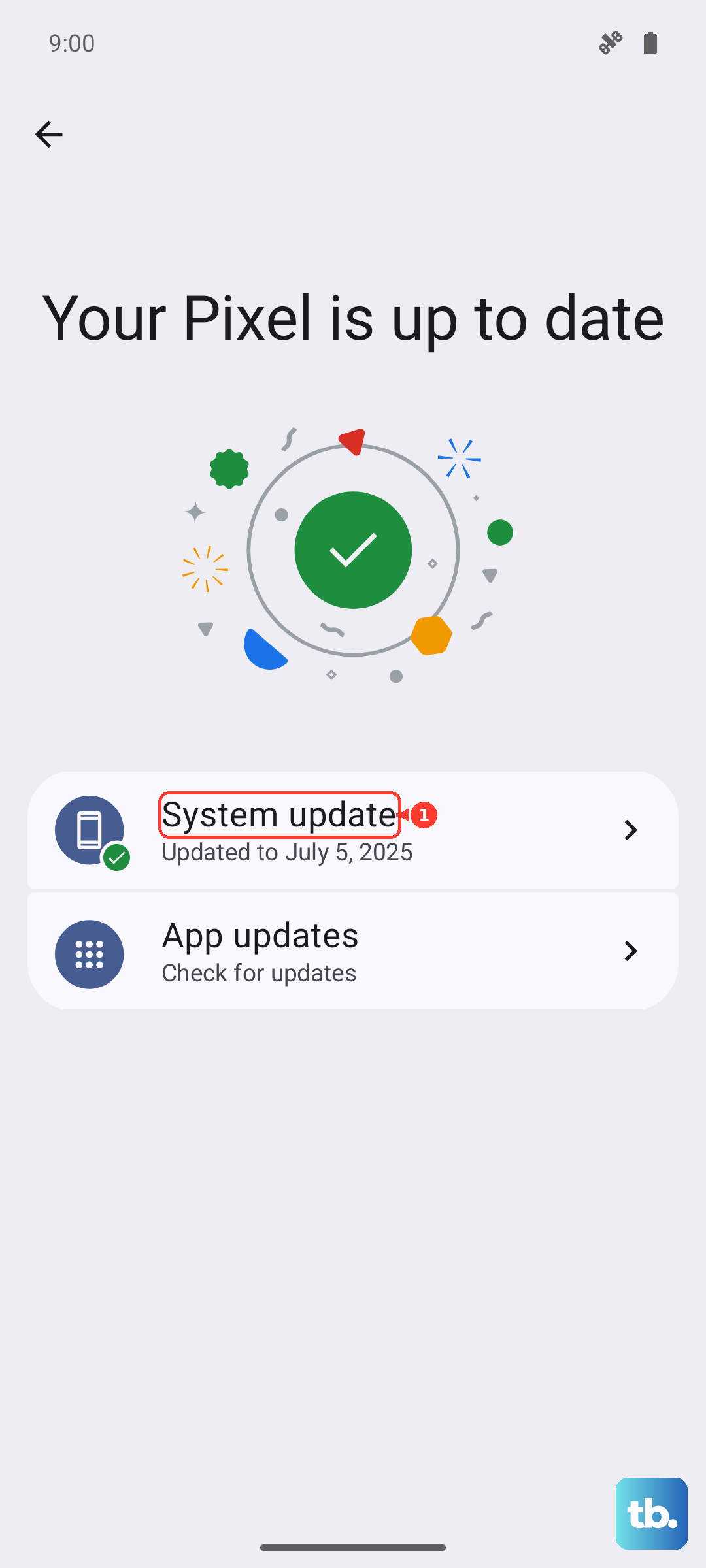
Go to Settings > System > System update and tap "Check for update." Install any available updates and restart your phone when prompted.
Reset Your Network Settings
This is a more thorough step that will clear all your saved Wi-Fi networks, Bluetooth pairings, and cellular settings back to default. It won't delete your personal data like photos or messages, but you will have to reconnect to Wi-Fi networks afterward.
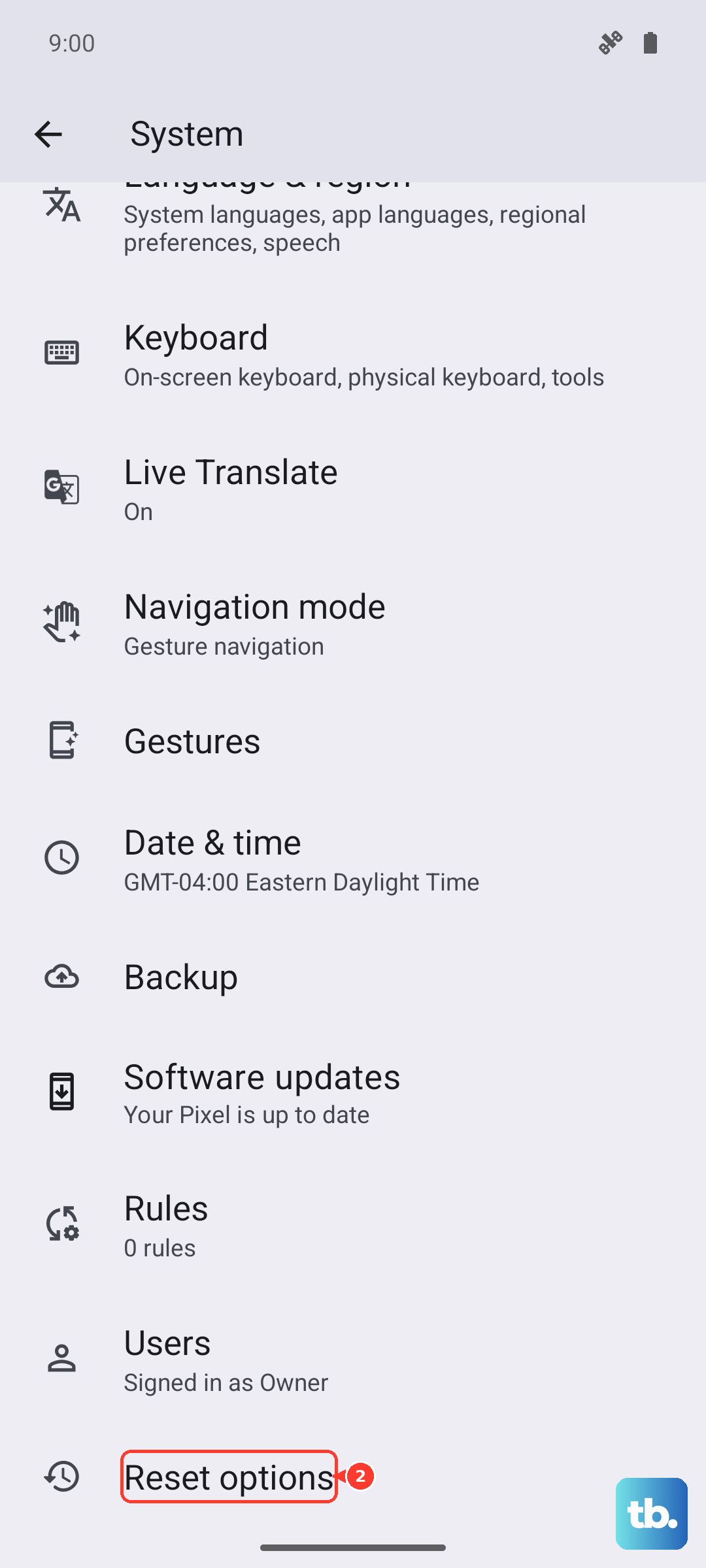
To do this, navigate to Settings > System > Reset options. Tap on Reset Wi-Fi, mobile & Bluetooth and confirm. After the phone resets, it will attempt to freshly register on the mobile network.
Test the SIM in Another Device
If you have access to another unlocked phone, try putting your Pixel's SIM card into it. If the SIM works perfectly in the other phone, then the issue is likely with your Pixel 9a's hardware or software.
If the SIM also fails to activate in the second phone, then the problem is almost certainly with the SIM card itself or your carrier account. This test gives you a clear answer on where to focus next.
Contact Your Carrier for a Replacement SIM
If you've tried everything else, reinserting the card, checking activation, testing it elsewhere, and it still won't work, the SIM card itself may be faulty. Physical damage isn't always visible to the naked eye.
Your carrier can deactivate the old SIM and provision a new one for you, often at no cost. They can usually activate the new SIM over the phone or in a store, getting you back online quickly.