
That spinning Wi-Fi icon on your Pixel 9a is a special kind of frustrating, especially when you just need to get online. The good news is, this is almost always a software hiccup you can fix yourself. I've found these steps work for most Pixel models, and they're a great place to start with your 9a.
Toggle Wi-Fi and Restart Your Phone
Let's start with the simplest fix. Swipe down from the top of your screen to open the Quick Settings panel and tap the Wi-Fi icon to turn it off. Wait five seconds, then tap it again to turn it back on. This forces your phone to drop the current connection and search for networks fresh.
If that doesn't do it, give your Pixel 9a a full restart. Press and hold the power button and volume up button together until the power menu appears, then tap "Restart." A reboot clears out temporary glitches in the system that can mess with the Wi-Fi radio.
Use Airplane Mode to Reset All Radios
This trick is a classic for resetting every wireless connection at once. Pull down the Quick Settings shade again and tap the Airplane Mode icon. Leave it enabled for about 15 to 20 seconds, then tap it again to turn it off.
This process cycles off and on your cellular, Wi-Fi, and Bluetooth radios simultaneously. It's a more thorough refresh than just toggling Wi-Fi alone and can resolve conflicts between the different antennas.
Forget the Problem Network and Rejoin
Your phone might be holding onto outdated or corrupted login information for your network. To clear it, go to Settings > Network & internet > Internet. Tap the gear icon next to your Wi-Fi network's name and select "Forget."
After you forget it, tap on the network name again from the list of available networks and re-enter the password. This is the best fix if you've recently changed your Wi-Fi password or gotten a new router.
Check for Router Issues
Before you spend more time on your phone, make sure the problem isn't with your internet source. Unplug your router and modem from power, wait a full 60 seconds, and then plug them back in. Give them a couple of minutes to fully boot up.
If other devices in your home are also struggling to connect, the router is almost certainly the culprit. You might also want to log into your router's settings to check for a firmware update, as outdated firmware can cause compatibility problems.
Disable Adaptive Connectivity and Battery Saver
Your Pixel has a feature called Adaptive Connectivity designed to save battery by managing how your phone uses Wi-Fi and mobile data. Sometimes it can be a little too aggressive. Go to Settings > Network & internet and turn off "Adaptive connectivity."
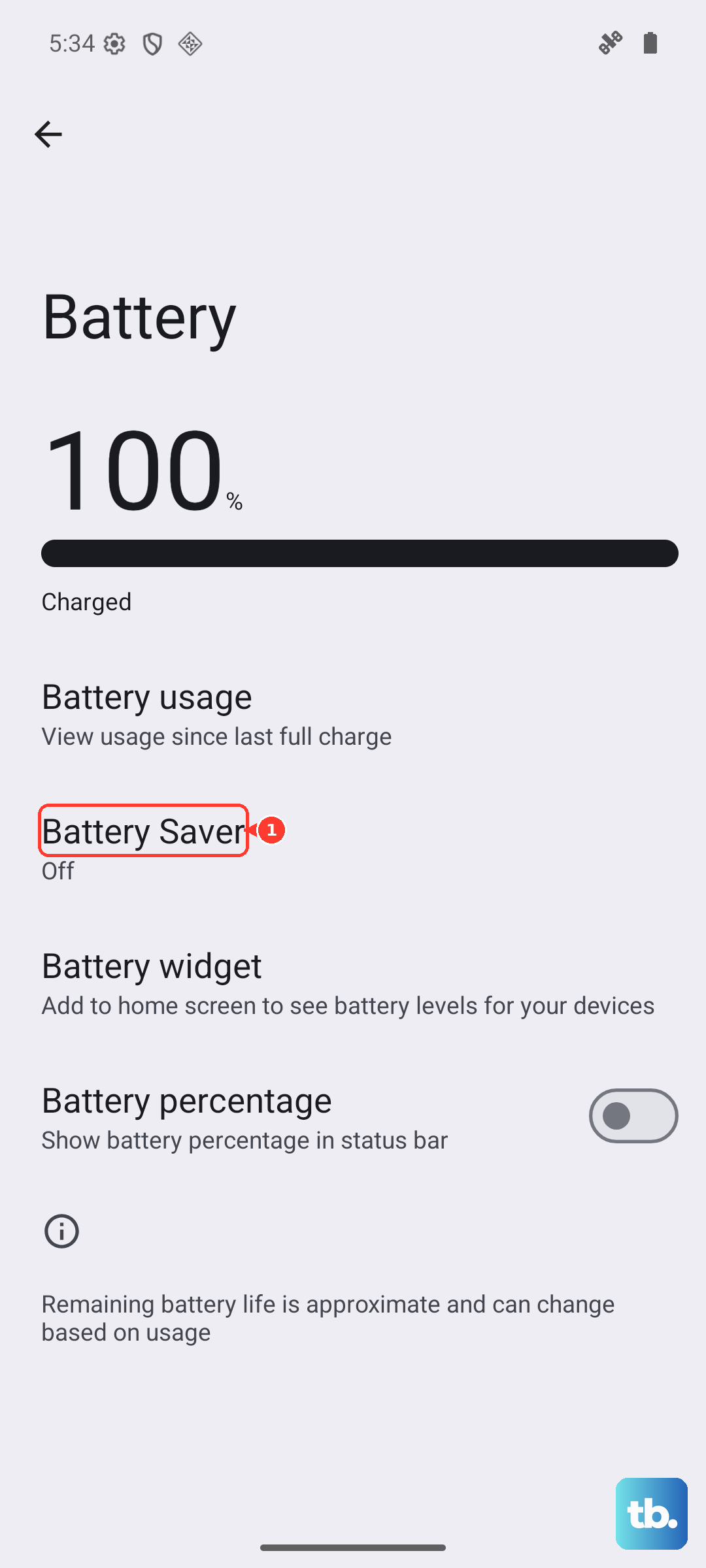
Also, check if Battery Saver or Extreme Battery Saver is active, as these modes can limit background network activity. Go to Settings > Battery and make sure any battery saver is switched off while you're troubleshooting.
Check for a Software Update
Google frequently releases updates that fix bugs, including connectivity issues. An outdated system could be the root of your Wi-Fi problems. Go to Settings > System > System update and tap "Check for update."
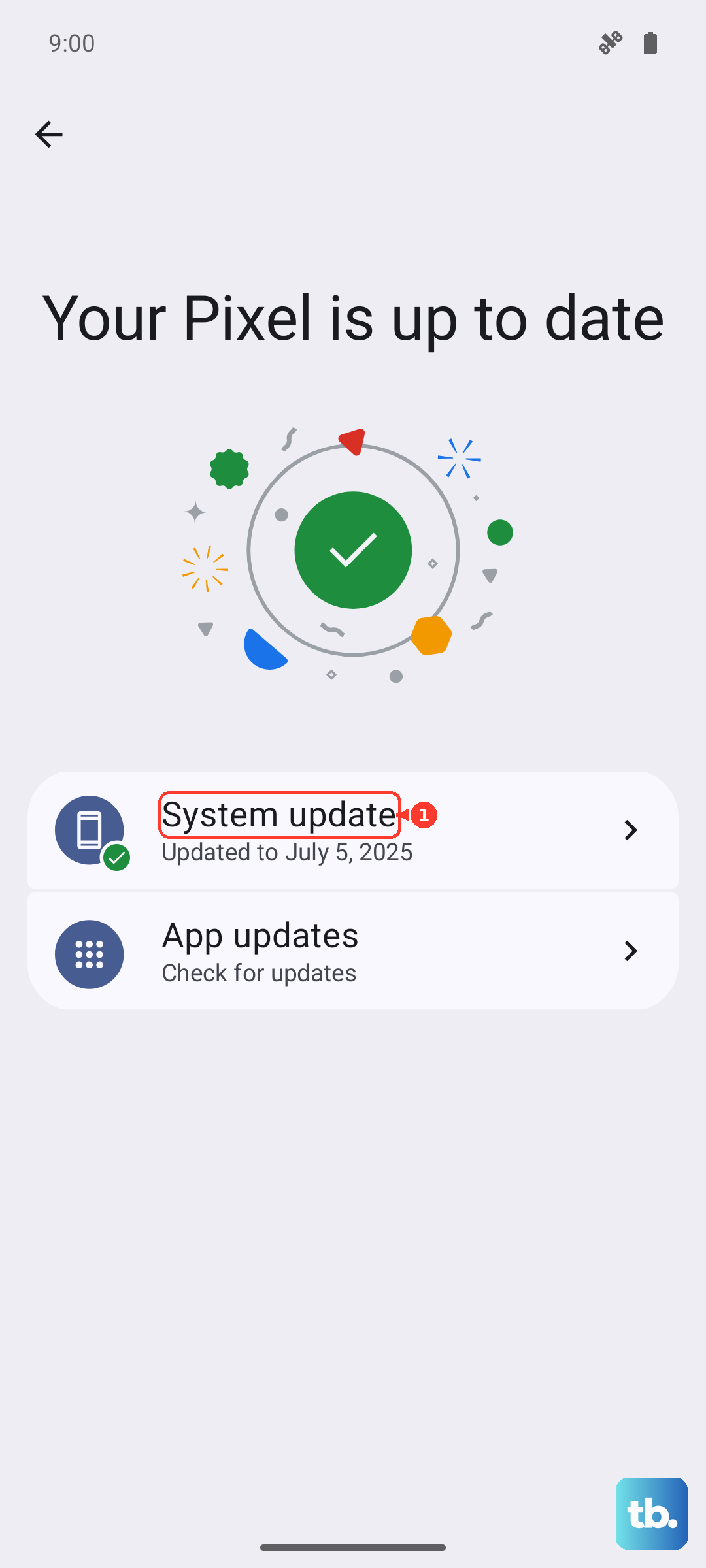
Install any available update and restart your phone if prompted. It's a good habit to keep your Pixel 9a updated, as these patches often address stability problems with the Tensor G4 modem and other components.
Verify Your Date and Time are Correct
This seems unrelated, but it's important. If your phone's clock is wrong, it can fail to properly validate security certificates required to join a secured Wi-Fi network. Go to Settings > System > Date & time.
Make sure "Set time automatically" is turned on. This ensures your Pixel syncs with network time servers and stays accurate.
Test in Safe Mode for App Conflicts
A third-party app you installed could be interfering with network functions. To check, you'll boot into Safe Mode. Press and hold the power button and volume up button together until the power menu appears, then press and hold the "Power off" option on your screen.
You'll see a prompt to reboot to Safe Mode. Tap it. If your Wi-Fi works perfectly in Safe Mode, a recently downloaded app is likely the cause. You'll need to restart your phone to exit Safe Mode, then uninstall apps one by one to find the offender, paying special attention to VPNs, ad blockers, or security apps.
Reset Your Network Settings
This is a more significant step that clears all your network configurations. It will erase saved Wi-Fi networks, Bluetooth pairings, and mobile network settings. Go to Settings > System > Reset options.
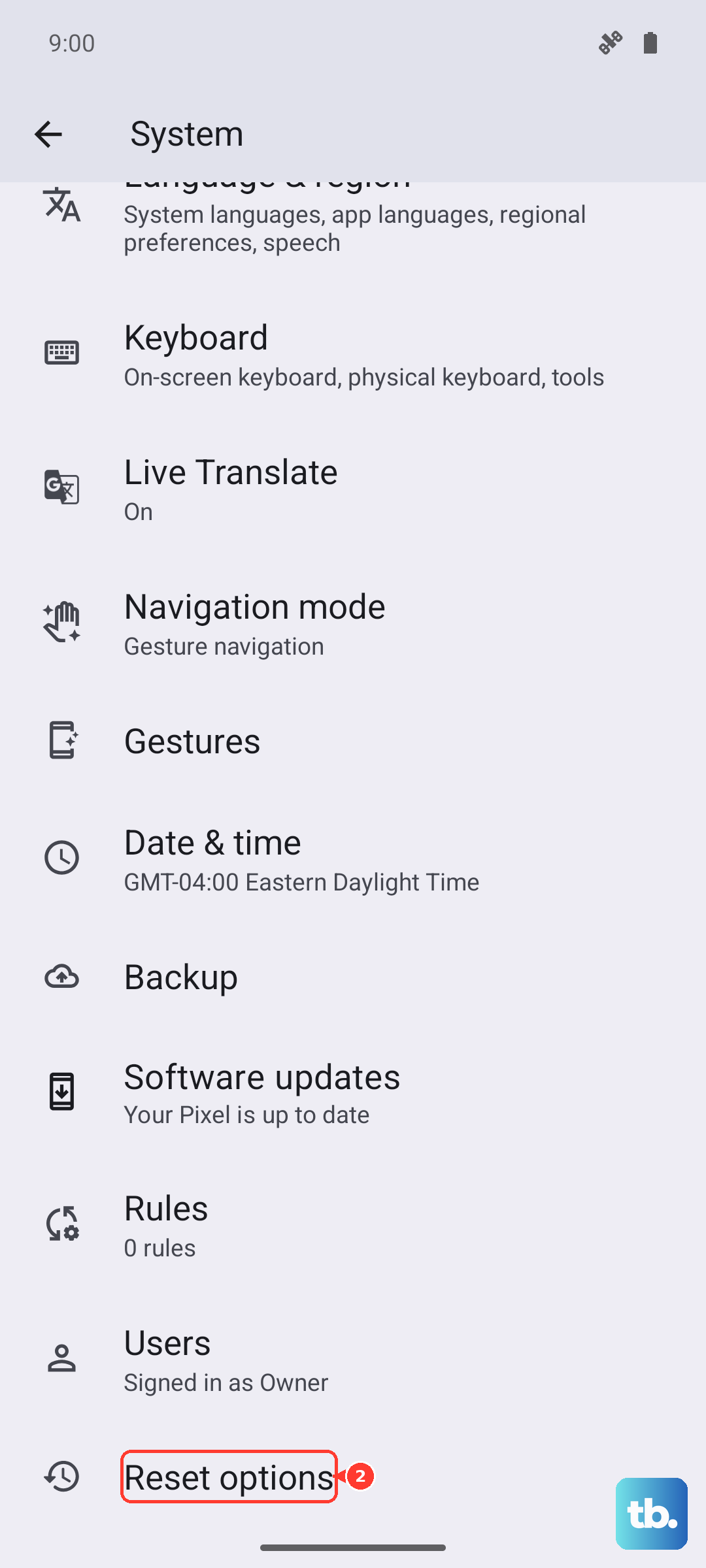
Tap "Reset Wi-Fi, mobile & Bluetooth." Confirm the action. After the reset is complete, you'll need to reconnect to your Wi-Fi and re-pair any Bluetooth devices, but it often resolves persistent, confusing connection issues.
Consider a Factory Reset
If you've tried every other step here and your Pixel 9a's Wi-Fi is still broken, a factory reset is the final software fix. This will erase everything on your phone, so you must back up your photos, contacts, and app data first.
To proceed, go to Settings > System > Reset options > Erase all data (factory reset). If Wi-Fi remains non-functional even after a full factory reset, the issue is likely a hardware problem with the phone's internal antenna or Wi-Fi chip.