
Keeping your Google Pixel 10 updated is the best way to ensure it runs smoothly and securely. With Android 15, Google provides a streamlined process for getting the latest features, performance tweaks, and critical security patches directly to your device.
Check for and Install an Update
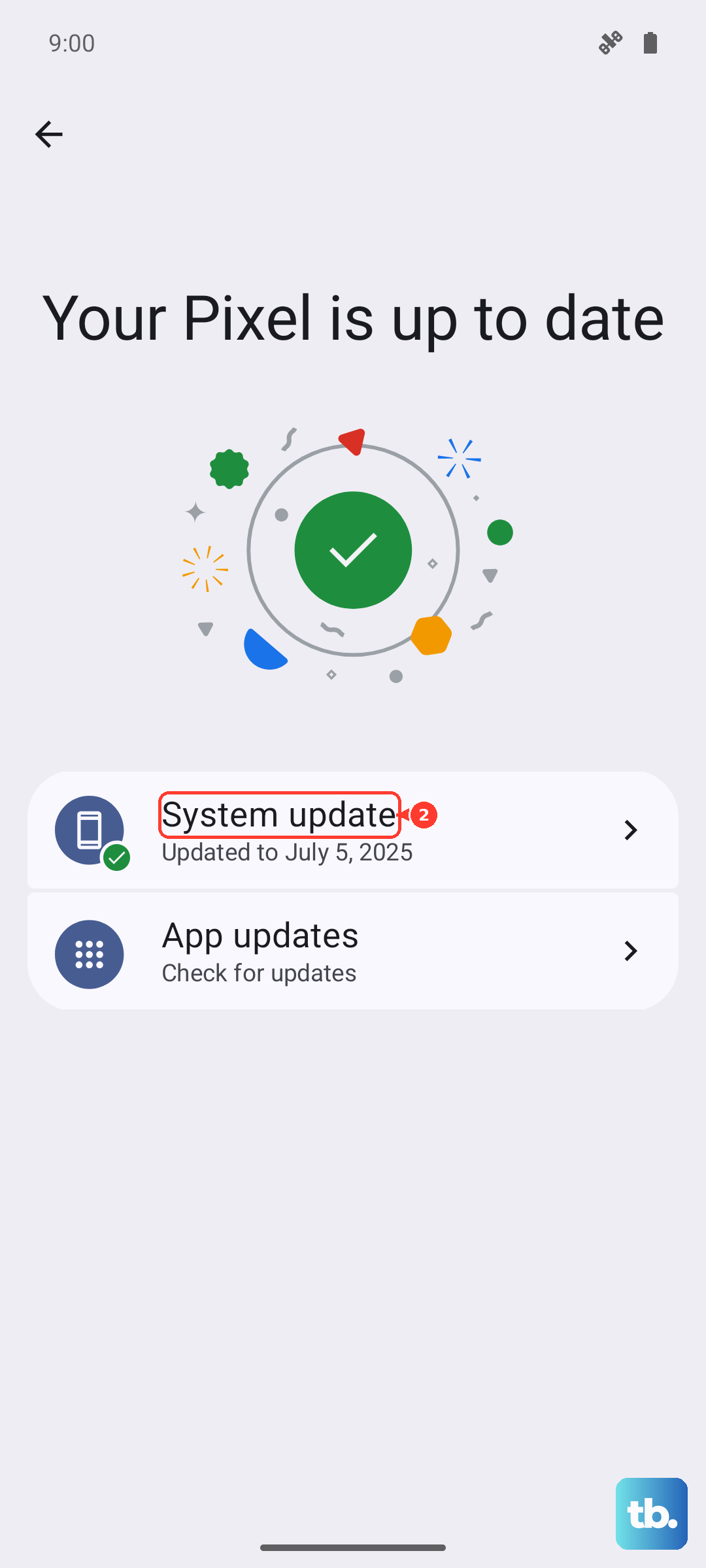
Open your Settings app and navigate to System > Software update. Tap on Check for update. If an update is available, you'll see an option to download and install it.
Before you start, I'd recommend plugging in your Pixel 10 with the official 30W USB-C charger or ensuring the battery is above 50%. Connect to a stable Wi-Fi network, as these downloads can be large. The installation process will restart your phone, so make sure you won't need it for the next few minutes.
Set Up Automatic Updates
You can have your Pixel 10 handle most of the work for you. In the same Settings > System > Software update menu, look for options like Auto-download over Wi-Fi. With this enabled, your phone will automatically download updates when connected to Wi-Fi and charging overnight.
You'll typically still get a notification to approve the installation, which gives you control over when the restart happens. This is a great set-it-and-forget-it way to stay current without having to manually check each month.
If an Update Gets Stuck or Fails
Sometimes a download can hang or an installation might fail partway through. The first thing to try is a force restart. Press and hold the Power button and the Volume Up button together for about 10 seconds until you see the Google logo.
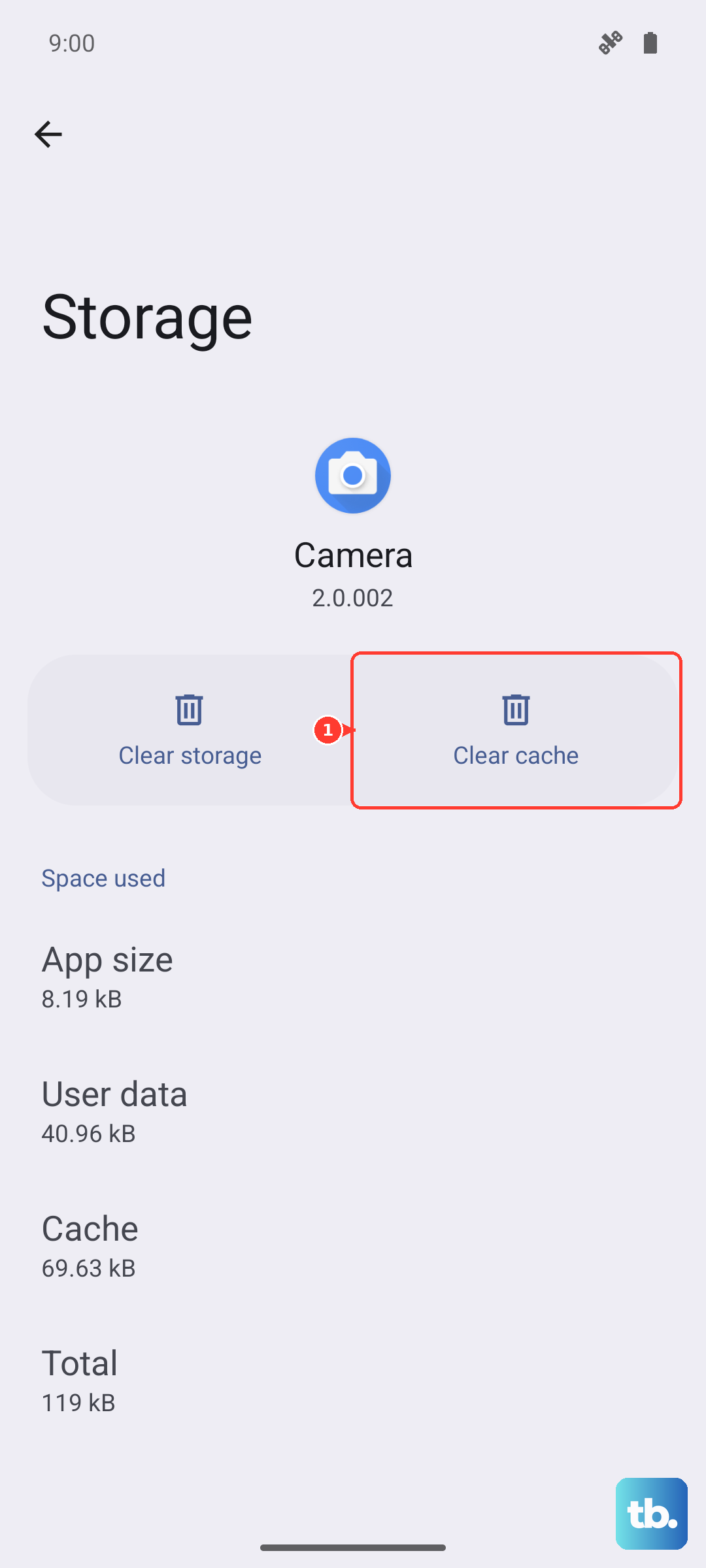
If the update still won't proceed, try switching to a different Wi-Fi network. A weak or unstable connection is a common culprit for failed downloads. You can also clear the cache for the Google Play Store app, as it sometimes assists with system updates, by going to Settings > Apps > See all apps > Google Play Store > Storage & cache > Clear cache.
Update Using Android Flash Tool (Advanced)
For situations where an over-the-air update repeatedly fails, or if you need to manually install a specific build, Google provides a web-based tool. On a computer, visit the official Android Flash Tool website in the Chrome browser.
You'll need to enable USB debugging on your Pixel 10 first, which is in Settings > About phone and tap Build number seven times to unlock Developer Options. Then, connect your phone via USB-C and follow the tool's instructions. This method is more technical but gives you direct control.
Verify Your Current Android Version
It's useful to know exactly what's running on your phone. Go to Settings > About phone to see your Android version, Android security update level, and Build number.
This information lets you confirm an update was successful or check if a specific security patch you heard about has been applied. Google Pixel phones usually receive updates for several years, so this screen tells you where you are in that support window.
Don't Forget App and Play System Updates
Updating the operating system is crucial, but your apps need love too. Open the Google Play Store, tap your profile icon, and go to Manage apps & device. Under the "Updates available" section, tap Update all.
There's another layer of updates specific to Pixel and Android. Go to Settings > Security & privacy > System & updates > Google Play system update. These updates improve core Android services and security independently of the larger monthly OS updates, so it's worth checking here periodically.
Regular updates are your primary defense against security vulnerabilities. They also bring optimizations that can improve battery life and fix bugs you might be experiencing. While it can be tempting to postpone a restart, installing updates promptly keeps your Pixel 10 performing at its best.