
Your Google Pixel 8, like any Android phone, builds up temporary cached data over time. This can eat into your storage and sometimes cause apps to feel sluggish or behave oddly. Clearing it out is a quick way to free up space and smooth things over.
Clear an Individual App's Cache
Head to Settings > Apps and select the app you want to clean up. Tap Storage & cache on its info page. Here, you'll see the Clear cache button. Tapping this removes temporary files the app has stored without touching your login info or personal data within the app.
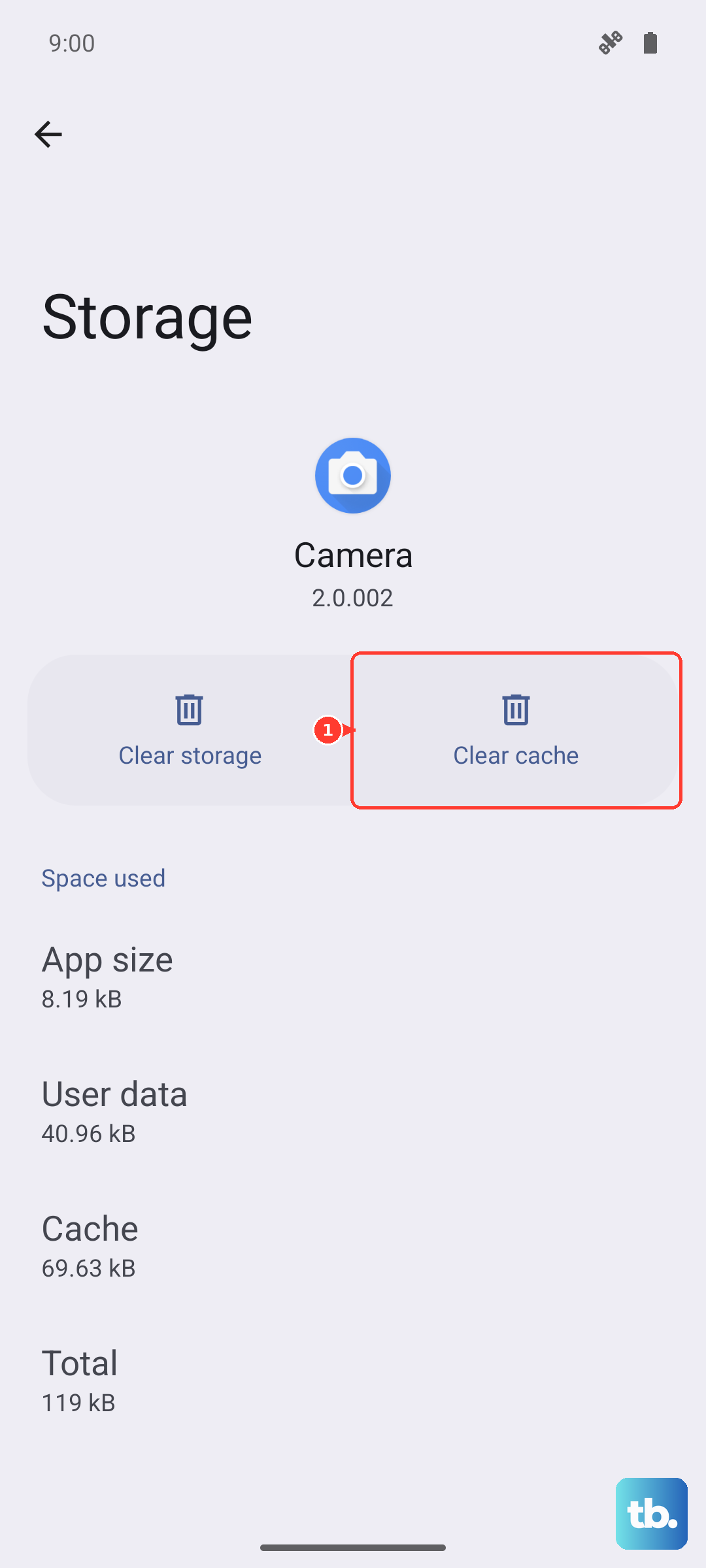
I'd focus on apps that typically hoard cache, like Chrome, YouTube, Instagram, and Spotify. These are usually the biggest space users.
Use the System-Wide Cache Clear
Your Pixel 8 has a handy feature to clear cached data for every app at once. Go to Settings > Storage and look for the Cached data entry near the top. Tapping it will give you the option to clear all cached files across your device with one confirmation.
This is a great first step if you're running low on space and don't want to go app-by-app. It's completely safe for your personal files.
Clean Chrome's Browsing Data
If your web browsing feels slow, Chrome's own cache might be the culprit. Open Chrome, tap the three-dot menu, and go to Settings > Privacy and security > Clear browsing data. Under the Basic tab, make sure Cached images and files is selected.
You can choose a time range, like "Last hour" or "All time," then tap Clear data. This won't log you out of websites unless you also clear cookies and site data.
Manage Storage with Files by Google
The Files by Google app comes pre-installed and is fantastic for this job. Open it and tap the Clean button on the bottom toolbar. The app will scan for junk files, duplicate downloads, and unused app caches.
It presents everything in simple categories, letting you review and delete what you don't need. It's one of the most effective tools for keeping your Pixel's storage tidy.
Clear Out Old Messages and Downloads
Don't forget about your Messages app. Long conversations, especially those filled with photos and videos, can take up more space than you think. Go through and delete old threads you no longer need.
Also, check your Downloads folder. You can access it through the Files app or your device's file manager to delete PDFs, APK files, or other items you grabbed once and forgot about.
Restart Your Pixel 8
A simple restart clears out temporary system caches held in your phone's RAM. Just press and hold the Power button until the power menu appears, then tap Restart. It's a good habit to restart your phone every few days to keep performance fresh.
If the screen is unresponsive, you can force a restart by holding the Power button for about 30 seconds until the device reboots.
Review Your Storage Breakdown
For a detailed look at what's filling your phone, go to Settings > Storage. You'll see a breakdown by category, Apps, Images, Videos, and more. Tapping into each section gives you more control.
For instance, in the Images section, you might see suggestions to delete blurry photos or screenshots. This menu is your central hub for understanding and managing your Pixel 8's storage.