


To improve Galaxy Note 8 iris recognition, clean the sensor area, hold the phone 25 to 35 centimeters from your face, and try again indoors with your eyes fully open. If recognition still fails, unlock with your backup PIN, pattern, or password and register your irises again. Samsung discontinued the Note 8 in 2020; its iris-scanning instructions remain specific to that device. It has a 6.3-inch display and dual rear cameras.
The short version
- Distance: Hold the Note 8 about 10 to 14 inches from your face.
- Lighting: Avoid direct sunlight and register your irises indoors.
- Sensors: Keep the iris camera, LED sensor, and proximity sensor clean.
- Backup unlock: Remember the PIN, pattern, or password required after restarting.
- Registration: Removing iris data disables the related features until you set them up again.
Check the backup unlock requirement
The Galaxy Note 8 requires a pattern, PIN, or password when you set up iris recognition. You need that backup method after the phone restarts or has not been used for more than 24 hours. A request for that credential is not by itself evidence that the scanner has failed.
Unlock the phone with the backup method before changing its iris settings. If you have forgotten the credential, use Samsung’s support options rather than erasing the device just to test the scanner. A reset can cause data loss.
Adjust distance and lighting
Hold the phone with its screen facing you, 25 to 35 centimeters away. Position your eyes inside the circles shown on the screen and look toward the top of the display. Keep your eyes fully open while the camera scans.
Move indoors if direct sunlight is falling on your face or the phone. Samsung recommends avoiding direct sunlight for Note 8 iris registration. The Note 8 stops scanning after ten seconds, or when held too close, to protect your eyes.
Clean the sensor area
Check the area around the iris recognition camera, LED sensor, and proximity sensor for dirt or debris. Clean the surface gently so the sensors have an unobstructed view. Samsung identifies contamination in those areas as a reason the Note 8 may struggle to recognize your irises.
Try recognition again with the correct distance and lighting after cleaning. This keeps the physical checks separate from the software checks that follow. There is no need to change all your settings at once.
Restart and check software
Press and hold Power, then tap Restart. Unlock with the backup credential after startup before testing iris recognition again. A restart is a basic troubleshooting step rather than a guaranteed repair.
Check for an available Samsung software update under Settings > Software update > Download and install. Menu wording can vary with the installed software and carrier. Follow the offered update instructions, and keep your installed apps updated as well.
For a separate problem with the Camera app, Samsung’s general cache controls are Settings > Apps, then the app’s Storage screen. Clearing cache removes temporary app data; tap Clear cache only for the app you intend to troubleshoot. Do not treat Camera cache clearing as a confirmed iris-scanner repair.
Test downloaded apps in Safe mode
Open the power menu, touch and hold Power off, and tap Safe mode. The phone restarts with most third-party applications disabled. Check whether the original problem persists while it is in that mode.
If the problem disappears, a downloaded app may be involved. Uninstalling an app removes it and can remove its local data, so save needed information first. Remove recently installed apps one at a time, restarting normally and checking again after each removal.
To exit Safe mode, hold Power and tap Restart. If the symptom also occurs in Safe mode, do not assume an app is responsible. Continue with iris re-registration or seek Samsung support.
Register your irises again
Removing saved iris data disables iris-related features until you register again. Open Settings > Lock screen and security > Iris Scanner and enter your backup screen lock. Tap Remove iris data, then REMOVE.
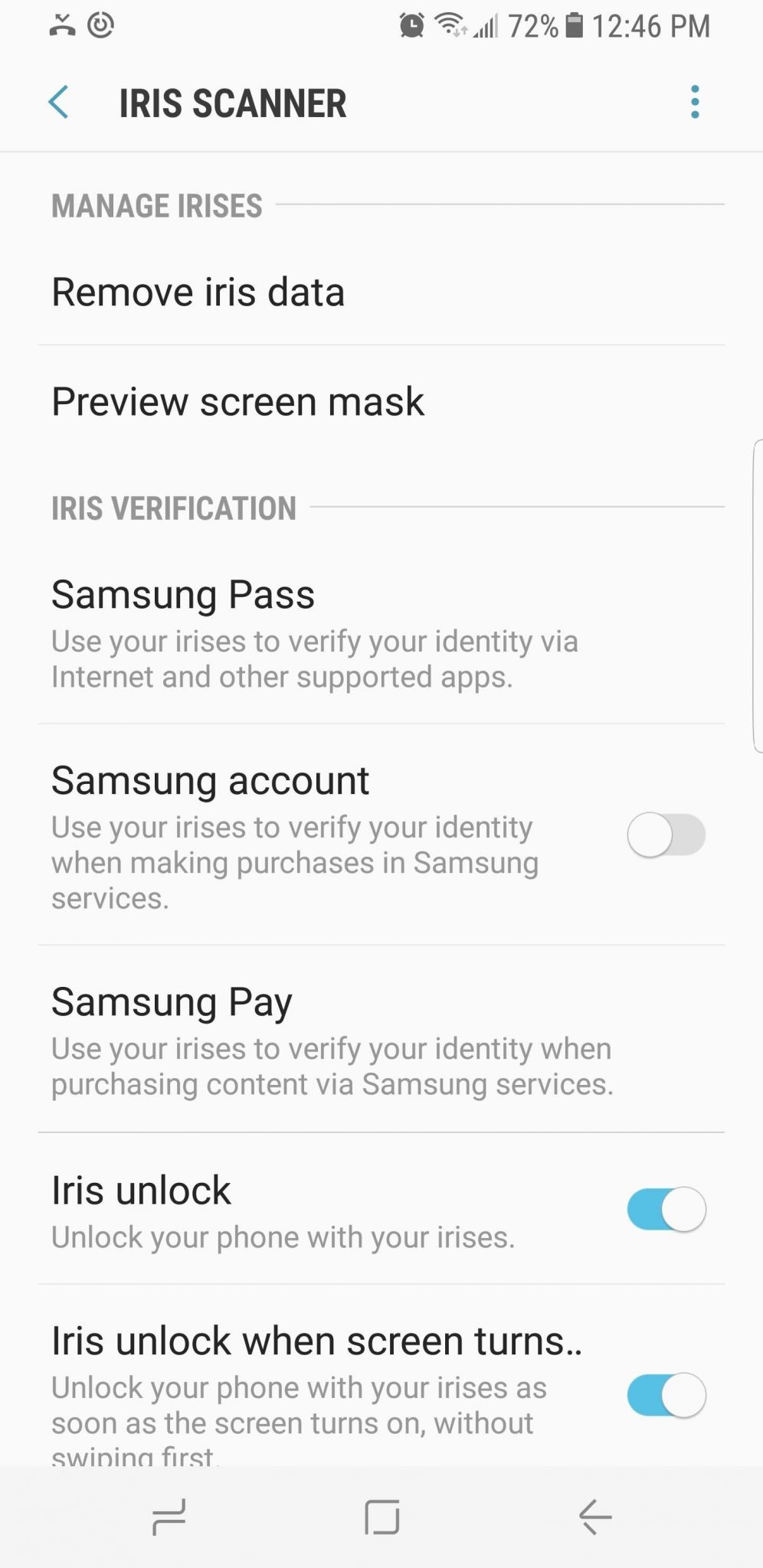
Return to Iris Scanner to register again, read the precautions, and tap OK followed by CONTINUE. Position your eyes in the circles at the recommended distance. When registration finishes, tap ENABLE and DONE to use iris unlocking.
The Note 8 can store one person’s iris data, not multiple people’s registrations. Keep the backup unlock credential available even after recognition works again. If the scanner still cannot recognize you under the recommended conditions, contact Samsung for assistance.
Updated October 2026: Corrected iris registration and removal labels, clarified scanning conditions, and removed unsupported repair promises. The original article was published in June 2018.