You enter your email and password, hit sign in, and Outlook just will not let you through. Maybe the password is suddenly "wrong," maybe a code never shows up, or maybe you are stuck in a loop that keeps sending you back to the login screen.
The good news: almost every Outlook sign-in problem has a known cause and a known fix. This guide walks through them in order, quickest and most common first, with the exact paths to follow on the web, on your phone, and in desktop apps.
One thing to know up front. For most sign-in problems, the supported path is Microsoft's own recovery tools rather than a manual fix, which is why several steps below point you straight to them.
Start With the Microsoft Sign-In Helper
Before you guess at the cause, let Microsoft diagnose it. The Sign-in Helper is Microsoft's primary recommendation for almost any "can't sign in" problem, and it routes you to the correct fix automatically.
Open it at go.microsoft.com/fwlink/?linkid=2300860 and follow the prompts. It can detect a forgotten password, a locked or blocked account, an unrecognized username, or a verification problem, then send you straight to the right recovery flow. If you only do one thing from this guide, do this.
Check the Username, Password, and Caps Lock
The most common cause of "wrong password" is the simplest. Passwords are case-sensitive, so a stuck Caps Lock key will fail a perfectly correct password.
Confirm a few basics before assuming anything is broken.
Type your full email as the username, select Next, then enter your password and select Sign in.
Check the domain. An @outlook.com account is not the same as @outlook.co.uk, and Hotmail, Outlook, and Live are different aliases.
Watch for typos in the name portion of the address.
If you are signing in from a new device or location, expect Microsoft to ask for an extra verification code before letting you in.
Reset a Forgotten Password
If the password genuinely is not working, reset it. On the sign-in page select "Forgotten your password?", or go directly to the reset portal at go.microsoft.com/fwlink/?linkid=2273955.
- 1.Enter your username (email, phone, or Skype name) and select Next.
- 2.Choose a verification method from the recovery options shown (a registered email or phone) and select Next.
- 3.Confirm it by retyping the first part of the email or the last four digits of the phone, then select Get code.
- 4.Retrieve the code, type or paste it, and select Next.
- 5.Enter your new password and select Next to finish.
If no send-code option appears, or you no longer have access to any method shown, use the sign-in helper at go.microsoft.com/fwlink/?linkid=2242650.
Recover or Correct an Unrecognized Username
Seeing "We couldn't find an account with that username" or "that Microsoft account doesn't exist" usually means a wrong address, not a missing account.
Use "Look up your Microsoft account" and check the products and services where you used it to confirm which address is registered. Verify the domain (.com versus country domains like .co.uk), confirm the alias (Hotmail, Outlook, or Live), and try an alternate alias or a phone number on the account. If it still fails, run the sign-in helper, and if the address genuinely stopped working, follow Microsoft's "My username and password have stopped working" guidance.
Unlock a Locked Account
Too many failed sign-in attempts can temporarily lock your account. You typically need to wait about 24 hours, and in some cases up to a week, before it frees up.
Go to account.microsoft.com and start the unlock flow, which prompts you to verify your identity.
Request a security code by text. You can use any phone number that receives texts; it does not need to be on the account.
Enter the digits from the message body, not the header. The code expires after 10 minutes.
If asked, create a new password.
If there is no Next option to verify, select the link beginning with aka.ms/ to open the account reinstatement form. A Microsoft Online Safety agent reviews it and contacts you by email. Do not resubmit, because that delays the response.
Unblock an Account Flagged for Unusual Activity
Microsoft blocks accounts when it detects unusual sign-in activity, to protect you from fraud or abuse. This is different from a lock.
Select the Sign-in Helper button to start the unblock process and follow the prompts, which may ask for a security code or a password change. If that does not work, use Microsoft's "When you can't sign in to your Microsoft account" guidance for reset and support options. Separately, if your mailbox or OneDrive storage is full you cannot send or receive email, so check your storage and Outbox too.
Sign In With a Recovery Code or Replace Lost Security Info
If two-step verification is on and you have lost your phone or authenticator app, a recovery code is your way in.
To use one: go to account.microsoft.com/account, enter your username, select "Other ways to sign in," choose "Use my password" then "Forgot password?", then "Use a different verification option," then "I don't have any of these," and at the prompt enter your 25-character recovery code. It is not case-sensitive and does not need spaces or dashes.
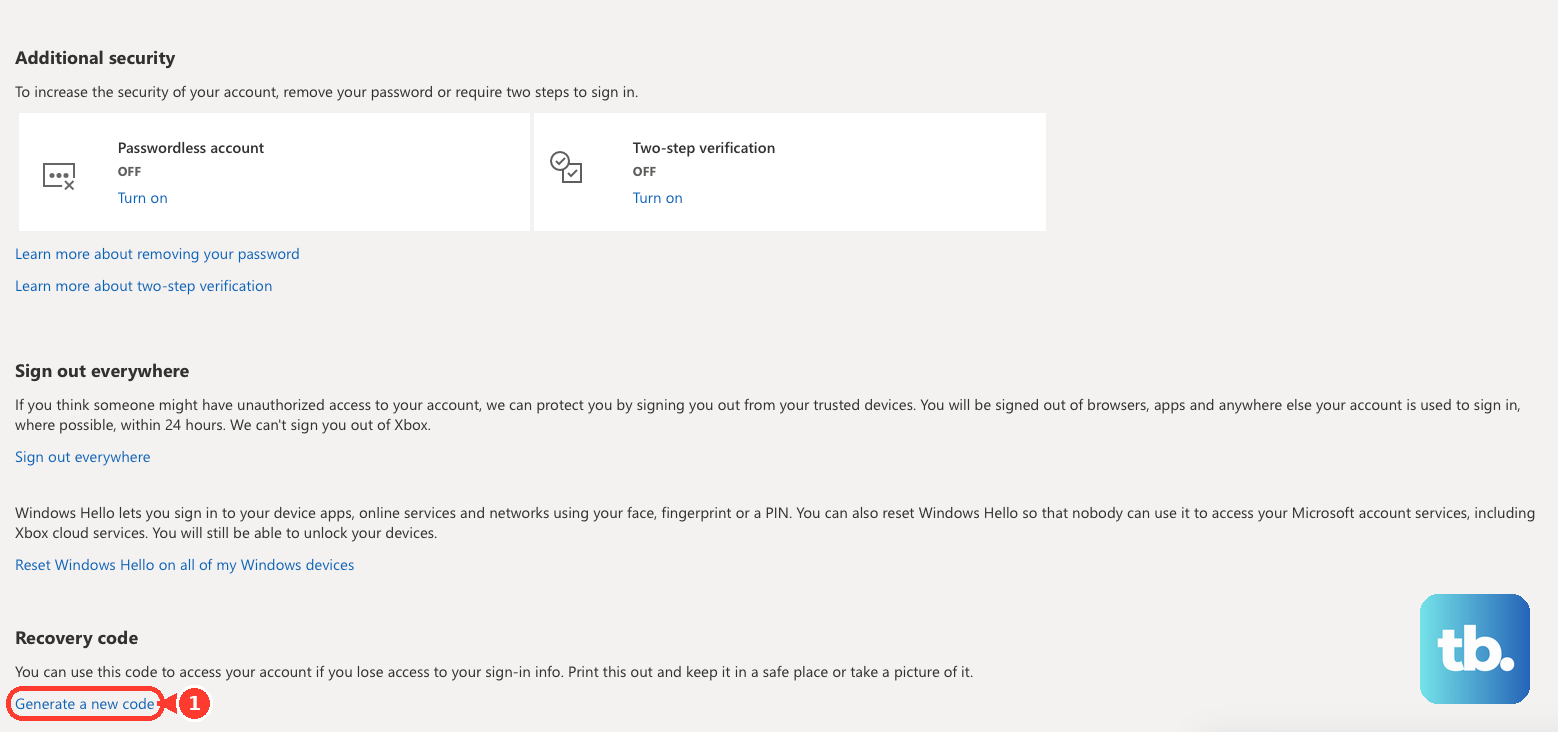
To generate a code before you are ever locked out, go to the "Manage how I sign in" page at account.live.com/proofs/manage/additional, scroll to the Recovery code section, and select "Generate a new code." Store it somewhere other than your sign-in devices. Generating a new code invalidates the old one.
If you know your password but lost all security info, begin signing in, select "I don't have any of these" at the verify prompt, and follow the steps to replace your security info. You then must wait 30 days before you can sign in.
Fix a Verification Code That Never Arrives
When the code simply does not show up, work through these checks.
Look in junk or spam for a message from accountprotection.microsoft.com and mark it trusted. Only the primary alias receives email codes.
Confirm the phone or email on file is current. Sign in to the Security page at account.microsoft.com/security, select "Update info," and pick a working method or "I don't have any of these."
VOIP numbers cannot receive codes, so add a real mobile number. A phone that blocks unknown senders or a full inbox can also stop SMS codes.
Verifying a second account while already signed in to an @outlook or @hotmail account in the same browser fails. Open a private window (Ctrl+Shift+P in Edge), sign in to the first account, open another private window for the second, copy the code, and return to the first window to enter it.
If you are temporarily blocked from requesting codes, switch between Wi-Fi and cellular, try another method, or wait up to a week.
Reset or Re-add the Account in the Outlook Mobile App
For the iOS or Android app, first confirm the credentials work by signing in to the same account in a phone browser. If browser sign-in also fails, fix that first; the problem is the account, not the app.
Update the Outlook app to the latest version, since recurring password prompts are often fixed by an update.
Force close and reopen the app.
If it still fails, open Settings (the gear icon), select the affected account, and choose Reset Account.
If that does not help, select the account again and choose Remove Account, then add it back and sign in.
If the app crashes on open, clear the browser cache on the device, then remove and reinstall Outlook and re-add the account.
Account type matters. For a work or school account, reset the password through your organization's sign-in or contact your IT admin; if Outlook mobile is blocked by policy, only the admin can unblock it. For a Gmail, Yahoo, or iCloud account, contact that provider.
Switch Desktop and Third-Party Apps to Modern Authentication
If classic Outlook, Apple Mail, Thunderbird, or another POP/IMAP app keeps prompting for your password, the cause is often Outlook.com retiring Basic authentication in favor of OAuth (Modern auth).
For classic Outlook desktop, upgrade to build 11601.10000 or higher (2007, 2010, 2013, 2016 MSI, 2019 LTSC, and POP/IMAP setups do not support OAuth), reconfigure with automatic setup, or install the free new Outlook.
For Thunderbird and Apple Mail, change the account's authentication setting to OAuth2, or remove and re-add the account so it uses modern auth.
For other apps, use the free Outlook app or ask the vendor about OAuth; some setups may still need an app password.
The simplest option is to just use Outlook on the web at outlook.com, which is unaffected by the Basic-auth removal.
Rule Out a Microsoft Outage
If you see "too many requests" errors, sign-in loops, or unexpected sign-outs, the issue may be a Microsoft service degradation rather than your account. Check the Microsoft 365 service health dashboard at status.cloud.microsoft/m365 for active incidents.
If it is a confirmed outage, wait for Microsoft to resolve it. Once the underlying authentication issue is rolled back, you may need to manually re-enter your password at the inline prompt. If too many failed attempts locked you out during the outage, you may still need to reset or re-enter your password afterward.
Use the Account Recovery Form as a Last Resort
If the Sign-in Helper did not resolve things, the recovery form is the final path. Note that if two-step verification is on and you cannot reach any alternate method, Microsoft cannot send a password-reset link or change your account, so the form is your only option.
Open the form at go.microsoft.com/fwlink/?linkid=2288285 from a device and location you have used to sign in before.
Provide a working email you can access; it can belong to a friend or relative and is only used to contact you.
Gather supporting details: exact subject lines of recent emails, contact names, old passwords, country-specific domain variants, and an Xbox hardware ID or Skype contacts if relevant.
Answer as thoroughly as you can. Guessing is fine, because wrong answers do not count against you, so check saved passwords in Edge, Chrome, or Mac Keychain.
Microsoft reviews and responds within 24 hours. If it fails, you can resubmit up to two times per day.
Frequently Asked Questions
Why does Outlook say my password is wrong when I know it is correct?
Passwords are case-sensitive, so a stuck Caps Lock key is a frequent culprit. Also confirm you are using the right alias and domain. If it truly stopped working, reset the password from the reset portal.
My verification code is not arriving. What now?
Check junk for a message from accountprotection.microsoft.com (only the primary alias gets email codes), confirm your phone number is current and not a VOIP line, and make sure your messaging inbox is not full. You can also request a text code to any phone that receives messages, and remember the code expires after 10 minutes.
I lost my phone and authenticator. Can I still get in?
Yes, if you saved a 25-character recovery code. Enter it through "Other ways to sign in." If you have no recovery code and no other security method, the account recovery form is your only path, since support cannot send reset links in that situation.
Why does my desktop or third-party email app keep asking for my password?
Outlook.com is removing Basic authentication. Update classic Outlook to build 11601.10000 or higher, switch Thunderbird or Apple Mail to OAuth2, re-add the account, or simply use Outlook on the web instead.
Can my account be closed for not signing in?
Yes. You must sign in at least once every two years. An account inactive or locked for two or more years is closed, and a deleted account cannot be reopened. An active subscription, certification, or Store registration keeps it active.
How long does a locked account stay locked?
After too many failed attempts, the account is temporarily locked. You typically wait about 24 hours, and in some cases up to a week, before you can try again or reset.