

A sheet of paper gripping the rollers, a half-printed page stuck in the slot, and a Support Code flashing on the screen of your Canon PIXMA TS6420a means a jam has stopped everything until the path is fully clear. The good news is that this 2-cartridge FINE printer has documented, official jam-clearing procedures for every spot paper can lodge, from the rear tray feed to the cassette to the auto duplex path. The wrong move here, like yanking paper hard while the rollers are still powered, can tear a sheet and leave scraps you cannot see, so the order you work in matters.
Below are the eight fixes Canon documents for this model, arranged easiest and safest first, ending with the panel reset and the official support path. Work through them in order and stop as soon as the paper is out and the printer prints a clean test page.
Before you start, one safety note covers every fix that follows. If the jam happens in the middle of a print job, do not just reach for the power switch. Canon's guidance is direct: "If paper becomes jammed during printing and you need to turn off the printer to remove it, press the printer's Stop button to stop the printing before you turn off the printer." Pressing Stop halts the feed mechanism so the rollers are not actively pulling on the trapped sheet, and for most of the procedures below Canon then has you power off and unplug the printer first so nothing moves while your hands are inside. One thing to expect afterward is that a jam cancels everything in the print queue. As Canon notes, "All jobs in the print queue are canceled," so you will reload paper and redo the print once the path is clear.
Ease the paper out of the slot or rear tray for Support Code 1300
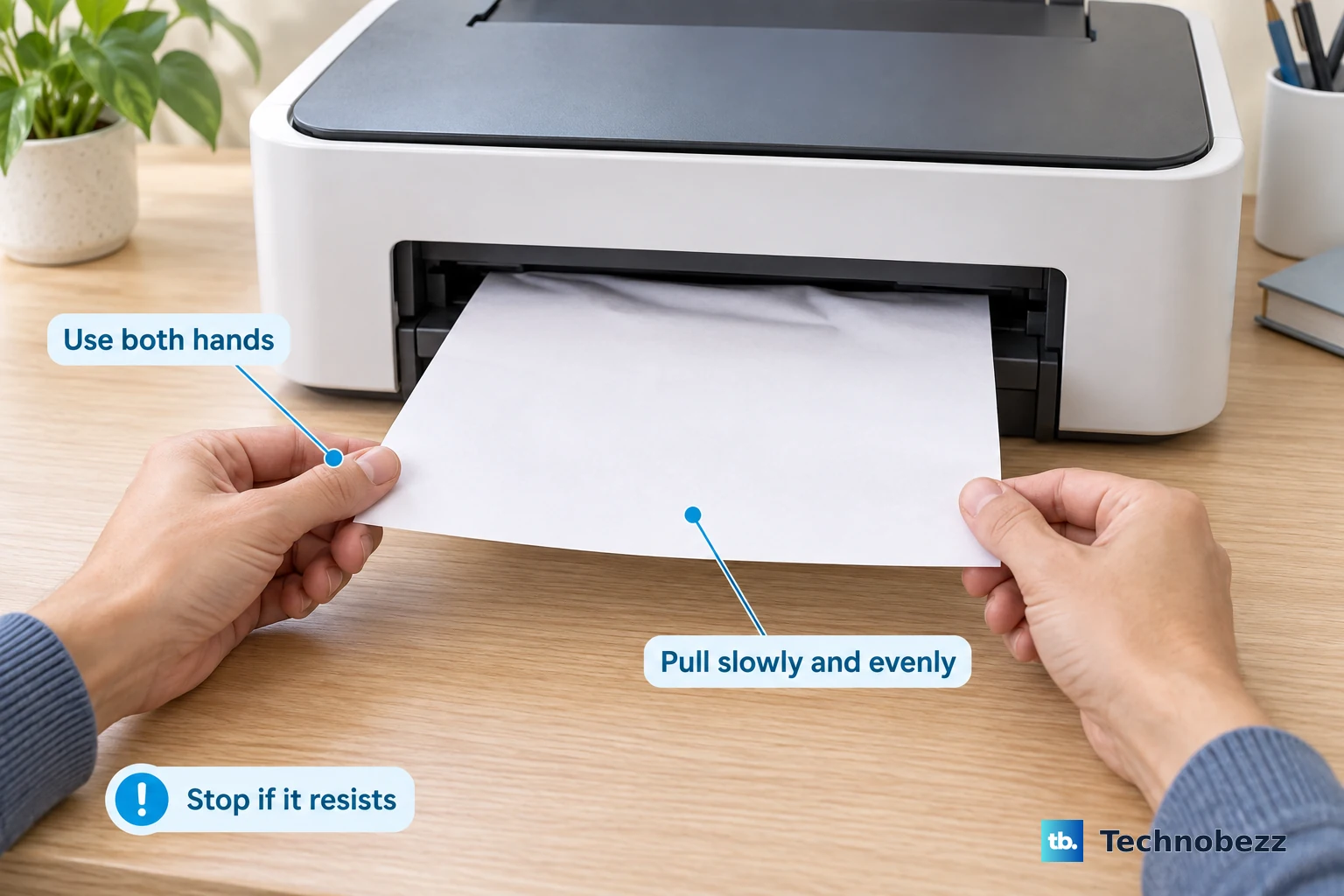
Support Code 1300 means paper jammed while feeding from the rear tray, and it is usually the quickest to fix. Canon's instruction is to "Slowly pull out paper, either from paper output slot or from rear tray, whichever is easier." Choose whichever end gives you a better grip.
Use both hands and go slow. Canon's exact wording is "Hold the paper with both hands, and pull it out slowly so as not to tear it." Tearing is the real risk here, because a scrap left behind triggers the same error again.
If the sheet refuses to move, do not force it. Canon offers a hands-off fix: "If you cannot pull out the paper, turn the printer back on without pulling forcibly. The paper may be ejected automatically." Once the paper is out, reload your paper and press the printer's OK button to clear the error.
Clear a jam from inside the printer under the scanning unit
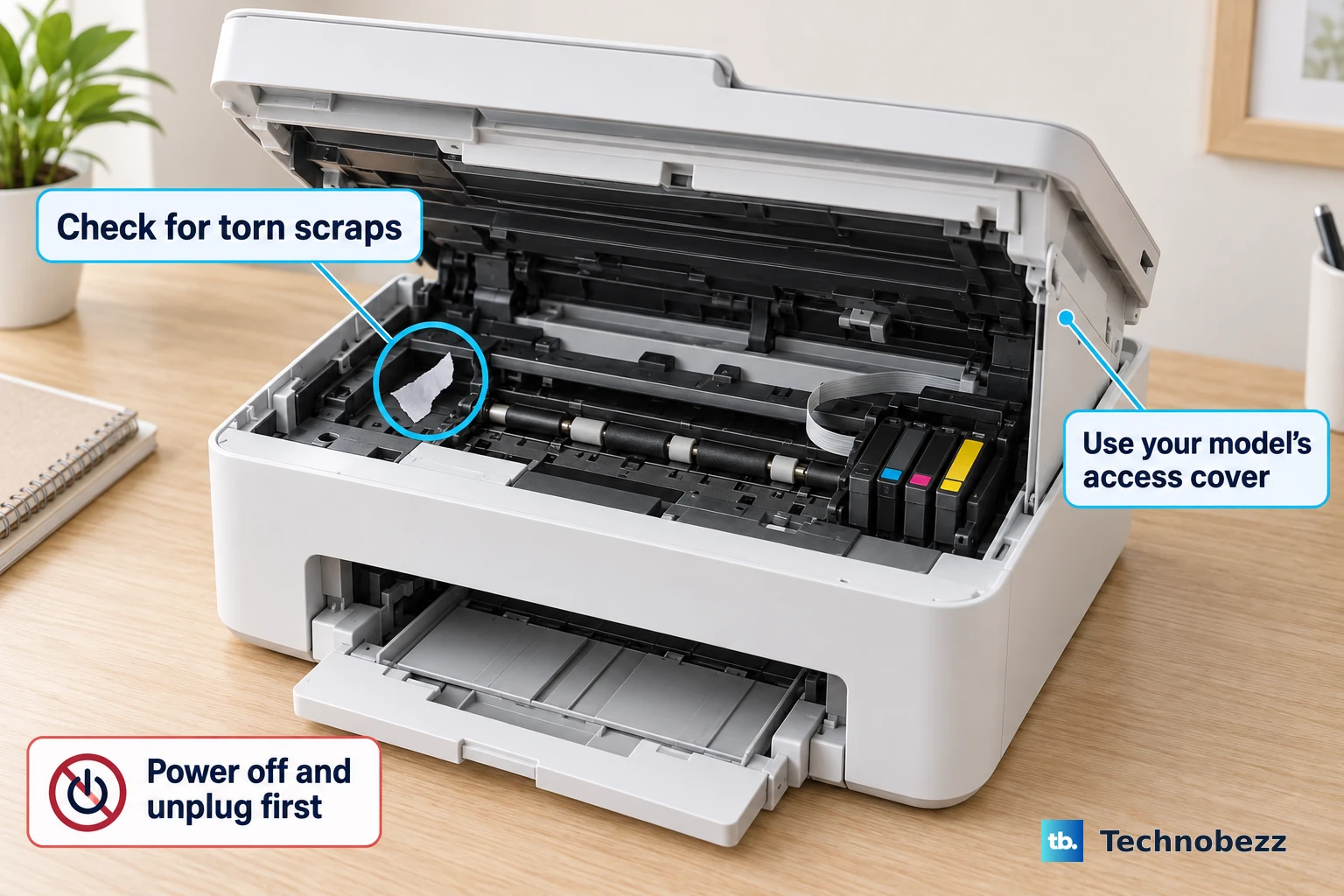
When paper is lodged deeper in the body, Canon's "Paper Is Jammed inside Printer" procedure takes you under the scanning unit. Follow these steps exactly as documented.
- 1.Turn off the printer and unplug it.
- 2.Open scanning unit / cover.
- 3.If paper is sitting under the cartridge holder, move the FINE cartridge holder to the far right or left, whichever makes it easier to remove the paper.
- 4.Hold jammed paper firmly in both hands and slowly pull out paper, so as not to tear it.
- 5.Check the area for any torn scraps, then close scanning unit / cover, plug in the printer again, and turn it back on.
One critical warning while you are inside: Canon says, "Do not touch clear film (A) and white belt (B)." Those internal parts are sensitive, and contact can affect print quality or feeding, so keep your fingers on the paper only.
Reach a stubborn jam from the rear cover and transport unit cover
For a jam fed from the cassette (Support Code 1303) or any sheet you simply cannot reach from the front, Canon documents a rear approach. Start by confirming the printer is unplugged: "Make sure you have unplugged the power cord." Then "Open rear tray cover and then pull up paper support."
Next, get the rear cover off and look for the paper. Canon's steps are "Detach rear cover. Pull out the rear cover," then "Slowly pull out paper." Keep to the paper itself, because the guidance warns, "Do not touch the inner parts of the printer."
If you still cannot find the jam, go one layer deeper. Canon says to "Detach transport unit cover. Lift up the transport unit cover and pull out it," then remove the paper. Reassemble in the correct order afterward: "Attach transport unit cover. Insert the transport unit cover slowly all the way into printer and take down the transport unit cover," followed by "Attach rear cover. Insert the projections of the right side of the rear cover into the printer, and then push the left side of the rear cover until it is closed completely." Then turn the printer back on.
Reload correctly and keep A5 out of the rear tray
Once the path is clear, reload your paper and press OK so the printer can resume normal feeding. How you load matters for whether the jam comes back, so seat the stack squarely rather than cramming it in.
Canon also flags one media-specific cause of repeat jams worth knowing about: "A5 paper may curl and jam as it leaves the printer." If you have been feeding A5 from the rear tray and seeing recurring jams, switching away from that size is the simplest way to get trouble-free output.
Flush a stuck print queue on Windows
Sometimes the paper is long gone but the error or jam status lingers because a ghost job is still sitting in the queue on your computer. On Windows, the fix is to clear that queue so the printer can start fresh.
- 1.Open the printer's print queue window.
- 2.Open the Printer menu and make sure "Use Printer Offline" is NOT checked.
- 3.To clear the backlog, choose "Cancel All Documents" and click Yes.
With the queue empty and the printer back online, send a fresh print job and see whether the error returns.
Clear the print queue on a Mac
The same stuck-job problem can keep a Mac from printing after a jam, and the cleanup is just as quick. Use the print queue controls in System Preferences.
- 1.Go to System Preferences, then Printers & Scanners.
- 2.Select your TS6420a, then click Open Print Queue.
- 3.Choose "Cancel All Documents" from the Printer menu and click Yes.
Removing the stuck jobs clears the path for a new print, so try printing again once the queue is empty.
Update the driver and match your exact Support Code
If errors keep appearing across multiple jobs, an out-of-date driver can be part of the problem. Install the latest driver for the TS6420a from Canon's official support and download page, which keeps your computer and printer communicating correctly.
It also pays to read the error your printer is showing rather than guessing. Match your on-screen Support Code, such as 1300 or 1303, to its page in Canon's TS6400 series jam guide. Each code points to the spot in the paper path where the sheet is stuck, which tells you whether to work from the front or the rear.
Reset from the panel, then reach Canon if paper tears inside
If the jam error continues even after the path looks clear, you can reset from the printer panel. Press the OK button to access the menu screen, then go to Device settings and select Reset setting. Canon offers several scopes: "Web service setup only," "LAN settings only" (which resets your network settings to factory default), "Settings only," and "Reset all" (which resets all settings, including the administrator password). Resetting LAN settings or choosing Reset all will clear your saved network connection, so you will need to set up Wi-Fi again afterward.
Be aware of what a reset leaves untouched. Canon notes that display language, print head position, and CSR cannot be reset, so a reset will not undo those. Choose the narrowest option that fits your situation, and reserve "Reset all" for when you genuinely want everything back to defaults.
Finally, know when to hand it off. If paper tears and you cannot remove the remaining piece, or the jam error simply will not go away, Canon's guidance is to contact a service center or Canon Support.
Frequently Asked Questions
What does Support Code 1300 mean on the Canon PIXMA TS6420a?
Support Code 1300 indicates paper jammed while feeding from the rear tray. Canon's fix is to slowly pull the paper from the paper output slot or the rear tray, whichever is easier, using both hands so it does not tear. If it will not pull out, turn the printer back on without forcing it, since the paper may eject automatically.
Why does my paper keep jamming after I clear it?
A common cause is leftover torn scraps in the paper path, so always check the area for fragments before closing everything up. Canon also notes that A5 paper may curl and jam as it leaves the printer, so if you are feeding A5 from the rear tray, switching to a different size can stop recurring jams. Reloading the stack squarely and pressing OK also helps the printer feed cleanly.
The jam is gone but my computer still shows an error. What now?
A stuck job in the print queue can keep the error showing. On Windows, open the print queue, confirm "Use Printer Offline" is not checked in the Printer menu, then choose "Cancel All Documents" and click Yes. On a Mac, go to System Preferences, then Printers & Scanners, open the print queue for your TS6420a, and choose "Cancel All Documents" from the Printer menu.
Will resetting the printer fix a persistent jam error?
If the error continues after the path is clear, you can reset from the panel by pressing OK, then selecting Device settings and Reset setting. You can choose "LAN settings only," "Settings only," or "Reset all," though "Reset all" also clears the administrator password and resetting LAN settings will clear your saved Wi-Fi connection. Note that display language, print head position, and CSR cannot be reset.
What should I do if the paper tears and I cannot get it out?
Do not keep pulling forcibly, since that can leave more fragments deeper inside. Canon's guidance is to contact a service center or Canon Support if paper tears and you cannot remove it, or if the jam error continues.