Photoshop is still the name people reach for when they mean serious image editing, but it is not the only way to clean up photos, build graphics, paint, retouch, or work with layered files. The best Photoshop alternative depends less on fame and more on the job in front of you.
Most people should start with Affinity by Canva. It is the closest current pick for a full desktop editing suite, it is positioned by Canva as completely free, and it covers photo, vector, and layout work in one place. After that, the right choice gets more specific: GIMP for open-source editing, Photopea for browser-based PSD work, Krita for painting, darktable for RAW photo workflows, and Canva or Adobe Express when speed matters more than pixel-level control.
At a Glance
| Best for | Software | Standout | Free tier |
|---|---|---|---|
| Most people | Affinity by Canva | Photo, vector, and layout tools in one desktop app | Completely free; Canva AI Studio needs Canva premium |
| Open-source editing | GIMP | Free raster editor across Linux, macOS, and Windows | Free and open source |
| PSD work in a browser | Photopea | Browser editor with PSD-capable workflows | Free access to premium features on the current product page |
| Digital painting | Krita | Brush-focused illustration tools with desktop and Android builds | Free desktop downloads |
| Fast social graphics | Canva Free Photo Editor | Template-led photo edits, filters, and effects (Background Remover needs Canva Pro) | Free plan with basic tools and limited generative AI credits and assets |
| AI-assisted browser edits | Pixlr | Web editor with subscription access across web, desktop, Android, and iOS | Free editor; paid plans remove ads and expand save and AI limits |
| Light Windows editing | Paint.NET | Layers, plugins, and a focused Windows interface | Free installer available |
| Apple design work | Pixelmator Pro | Mac and iPad image and design editor from Apple | No free tier listed |
| RAW photo workflow | darktable | Non-destructive RAW development across Windows, macOS, and Linux | Free under GPL 3.0 |
| Simple Adobe workflows | Adobe Express | Lightweight photo editing and design on web and mobile | Free plan with core photo tools and up to 32 images per project |
How we chose
We prioritized current software with official product pages, active platform support, clear free-tier information, and a real reason to choose it over Photoshop for a specific workflow. We gave more weight to editors that handle layered images, photo cleanup, illustration, RAW work, or fast publishing without pushing readers toward physical gear or retail buying decisions. We left out deprecated or legacy options, third-party download portals, and anything whose official URL or current availability could not be confirmed on an official vendor page.
Affinity by Canva
Key highlights
- Standout: Photo, vector, and layout tools in one desktop app
- Free tier: Completely free; Canva AI Studio needs Canva premium
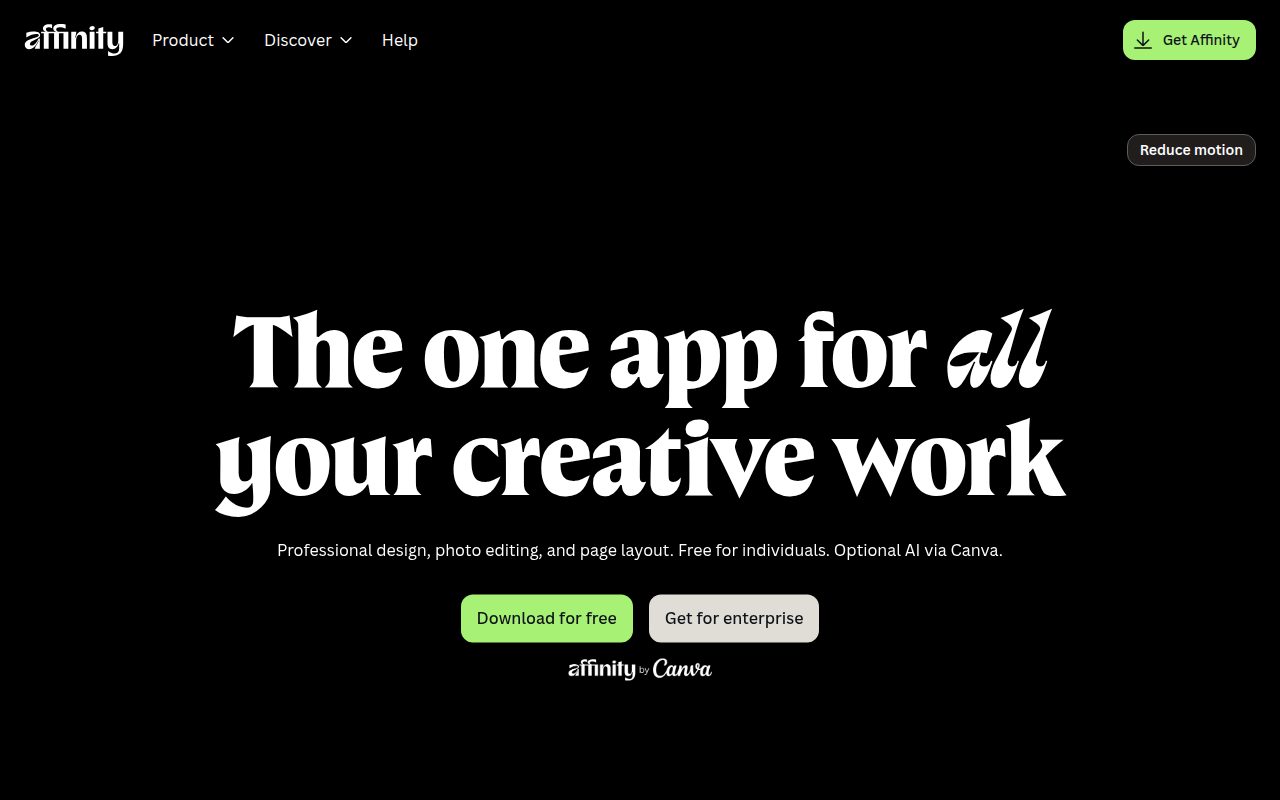
Affinity by Canva is the one most people should try first. It is a professional photo, vector, and layout app in a single desktop workspace, which makes it the broadest Photoshop alternative here for anyone who edits images but also needs design tools around them.
Its standout advantage is the current Canva positioning: the all-new Affinity app is described as completely free forever, with no stripped-back version. Mac and Windows are available now, iPad is listed as coming soon, and Canva AI Studio is the one piece tied to a Canva premium account.
Pros
- It combines photo, vector, and layout work in one app.
- It is the best default choice for people leaving Photoshop.
- The current desktop app is available for Mac and Windows.
- Canva describes it as completely free rather than a limited edition.
Cons
- Canva AI Studio requires a Canva premium account.
- iPad support is listed as coming soon rather than available now.
Most people who want a capable Photoshop-class desktop alternative without starting in a browser.
You need an iPad version today or you want every AI feature without a Canva premium account.
GIMP
Key highlights
- Standout: Free raster editor across Linux, macOS, and Windows
- Free tier: Free and open source
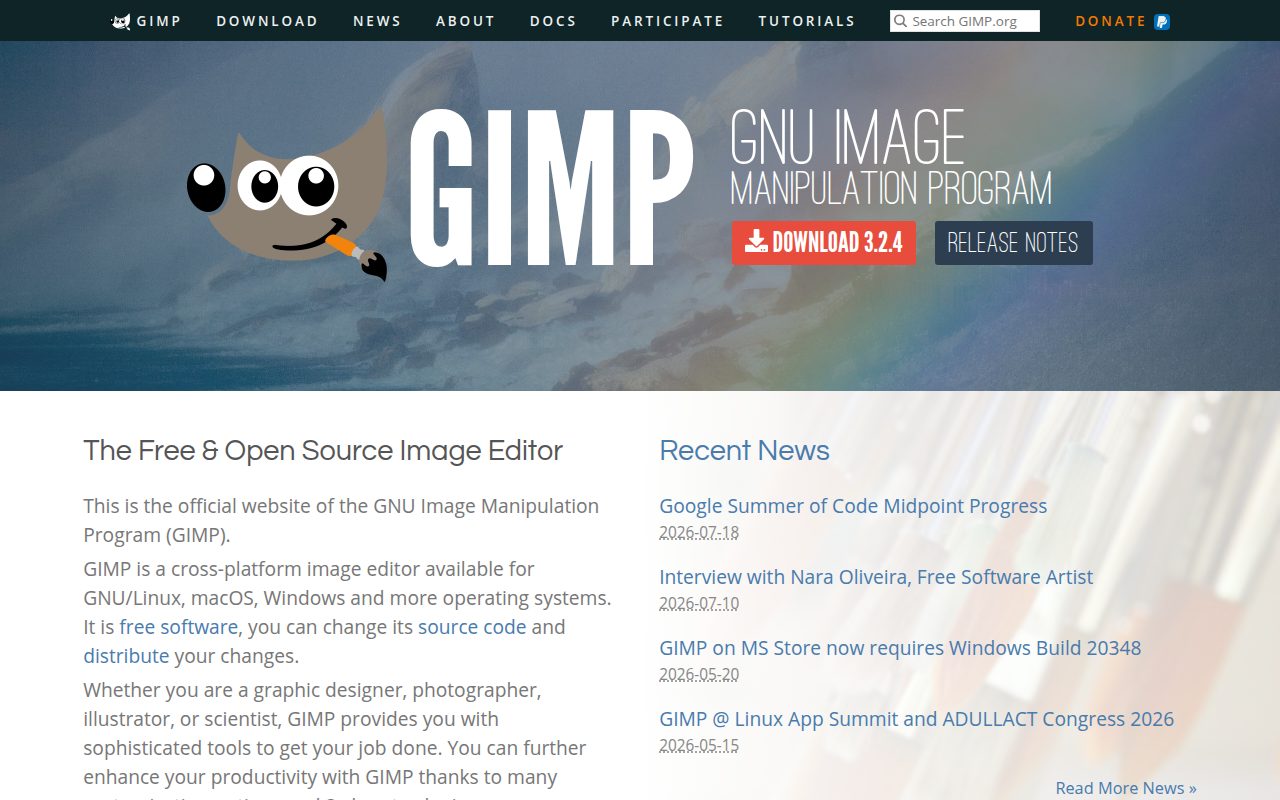
GIMP is the obvious pick for people who want a traditional raster editor that stays firmly in free and open-source territory. It runs on GNU/Linux, macOS, Windows, and other operating systems, so it is also one of the easiest recommendations for mixed-platform households or teams.
The current stable release is GIMP 3.2.4, and the official download page offers platform-specific paths, including Flatpak on Linux. It earns its spot because it is not trying to be a social design studio or a RAW catalog. It is an image editor first.
Pros
- It is free and open source.
- It supports GNU/Linux, macOS, and Windows.
- It is a strong fit for raster image editing.
- The official download page lists the current stable version.
Cons
- It is less template-driven than Canva or Adobe Express.
- It is not the best choice here for RAW-first photo organization.
Editors who want an open-source raster image editor with broad desktop platform support.
You want a template-first design app or a browser editor that opens immediately on any device.
Photopea
Key highlights
- Standout: Browser editor with PSD-capable workflows
- Free tier: Free access to premium features on the current product page
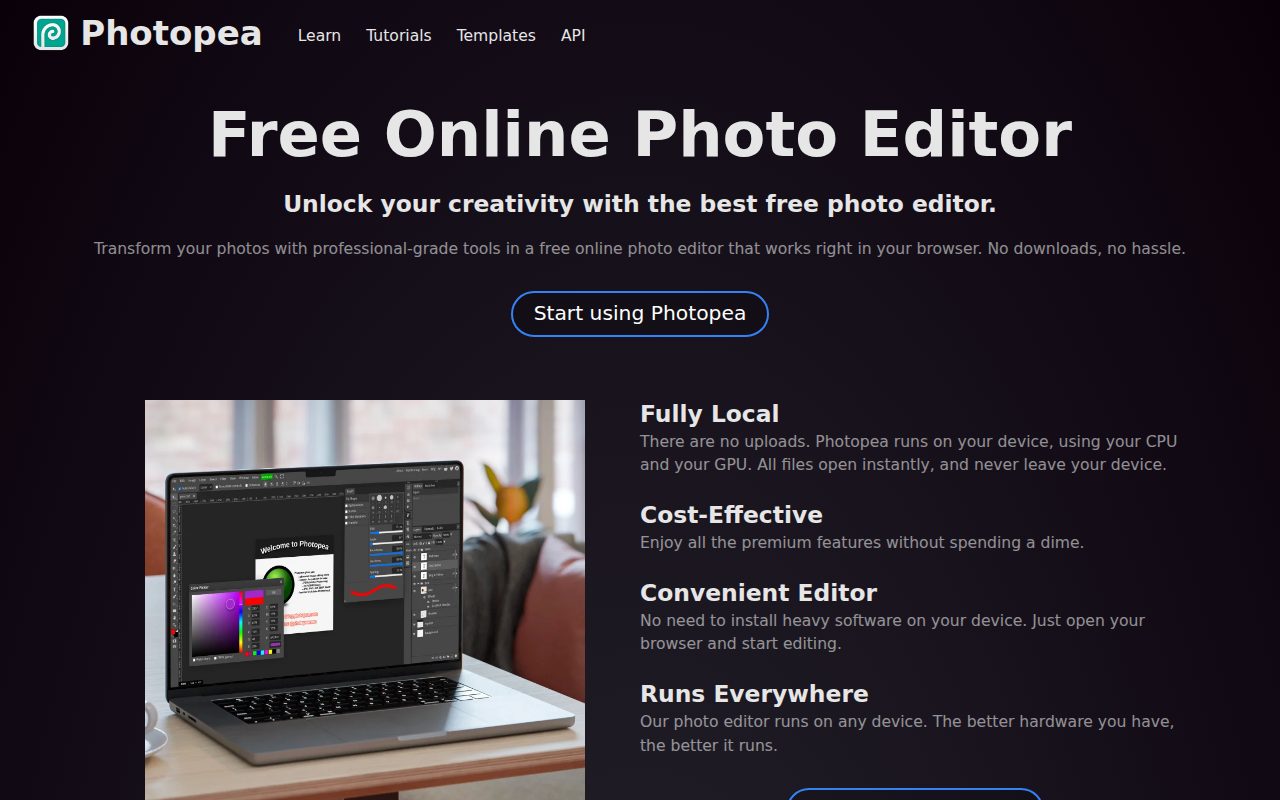
Photopea belongs near the top because it gives you a PSD-capable editor without asking you to install a desktop app. Open the site, start using Photopea, and you have a layered editing workspace in a modern browser.
The current product page says Photopea is free and offers premium features without spending money. That makes it the clearest choice when the file is more important than the machine you are sitting at, especially if you move between devices and still need a Photoshop-like browser workspace.
Pros
- It runs in a modern browser.
- It is built for PSD-capable editing workflows.
- The current product page presents it as free.
- It is useful when installing desktop software is inconvenient.
Cons
- It depends on browser performance and device capability.
- It is less suited to dedicated RAW photo development than darktable.
People who need browser-based layered editing, especially when PSD compatibility matters.
You prefer a native desktop app or your main workflow is RAW processing.
Krita
Key highlights
- Standout: Brush-focused illustration tools with desktop and Android builds
- Free tier: Free desktop downloads
Krita is the Photoshop alternative to pick when the canvas matters more than the template. It is a free, open-source digital painting app that can also handle some image-editing workflows, but its natural home is illustration, drawing, and brush-heavy creative work.
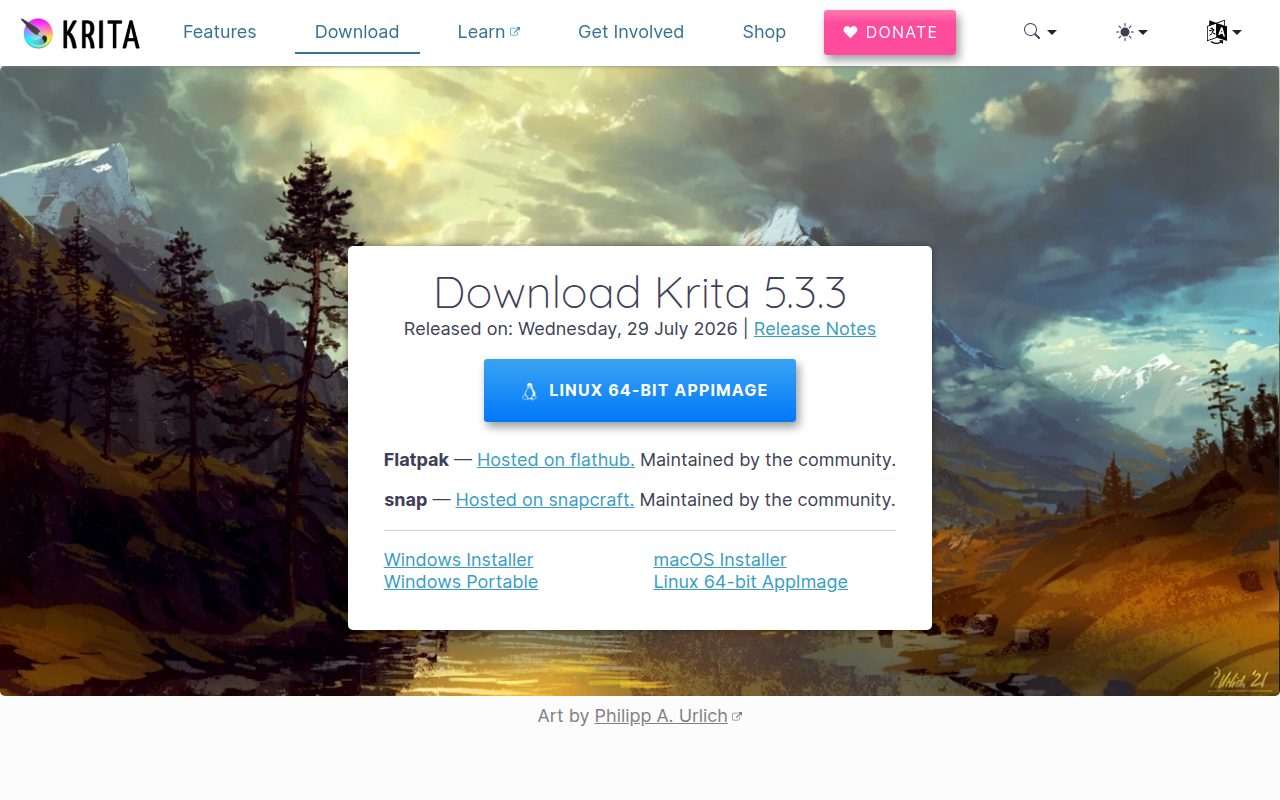
The official download page lists Krita 5.3.3 for Windows, macOS, Linux, and Android, with iPad and iPhone explicitly unsupported. The practical standout is that desktop downloads are free, while paid store versions are positioned as a way to support development and add automatic updates.
Pros
- It is built around illustration and digital painting.
- Desktop downloads are free.
- It supports Windows, macOS, Linux, and Android.
- It is maintained by the Krita Foundation and KDE community.
Cons
- It is not available for iPad or iPhone.
- It is less natural for template-based social design than Canva.
Artists and illustrators who want a free painting-first app with desktop support.
You need iPad support or your work is mostly quick branded layouts and social posts.
Canva Free Photo Editor
Key highlights
- Standout: Template-led photo edits, filters, and effects (Background Remover needs Canva Pro)
- Free tier: Free plan with basic tools and limited generative AI credits and assets
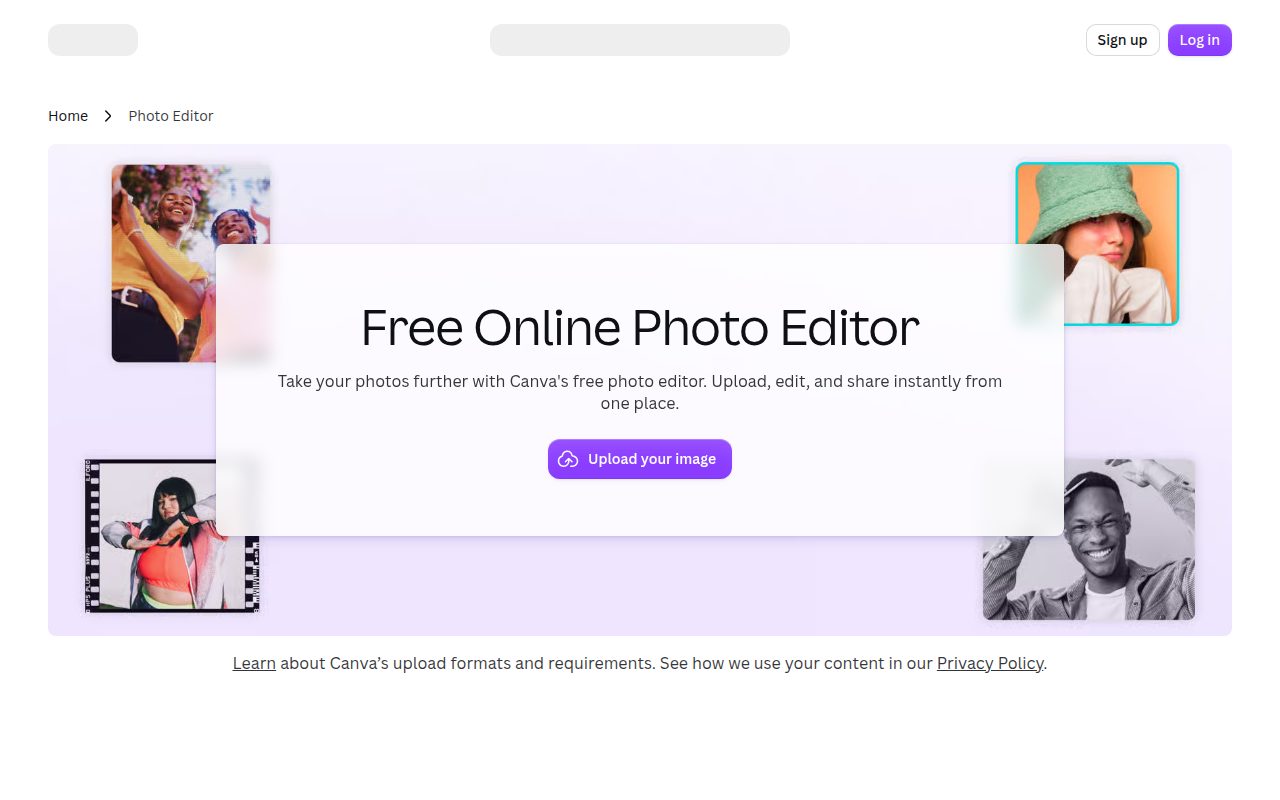
Canva Free Photo Editor is the pick for people who want an edit to become a finished graphic quickly. It is not trying to feel like a full desktop Photoshop replacement. Its strength is a template-first web and mobile workflow for photo edits, filters, and social graphics. Canva lists Background Remover as a Canva Pro, Teams, and Education feature, so plan around that if cutouts are central to your work.
Canva says its photo editor is free and does not add watermarks. The free plan includes basic tools, with limited generative AI credits and assets, so it earns its place for speed, polish, and publishing-friendly layouts rather than deep compositing control.
Pros
- It is easy to use for quick photo edits and graphics.
- It works on the web and mobile apps.
- Canva advertises Windows and Mac downloads.
- The free photo editor is listed with no watermarks.
Cons
- The free plan has limited generative AI credits and assets.
- Background Remover is limited to Canva Pro, Teams, and Education.
- It is not the strongest choice for detailed raster editing.
Creators, small teams, and social publishers who need fast visual posts more than deep layer control.
You want a traditional desktop editor for detailed pixel work.
Pixlr
Key highlights
- Standout: Web editor with subscription access across web, desktop, Android, and iOS
- Free tier: Free editor; paid plans remove ads and expand save and AI limits
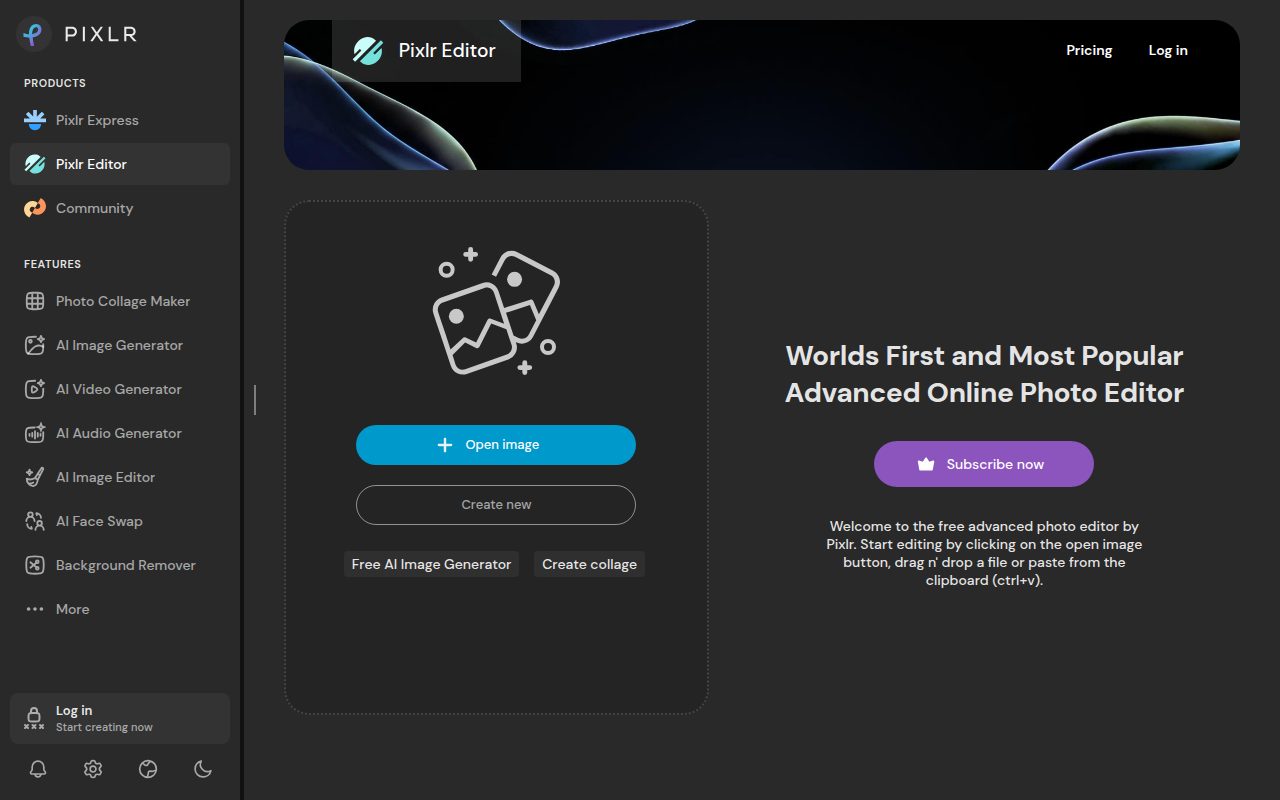
Pixlr sits between quick web design and fuller image editing. It is a browser-first AI photo editor, with subscription access across web, desktop, Android, and iOS through a Pixlr account.
Its standout is convenience across devices with an editor you can start from the web. The free editor is available, while the official pricing page says paid tiers remove ads and add unlimited saves, with AI credit and concurrency limits depending on the plan.
Pros
- It starts in the browser.
- It offers AI photo-editing tools.
- Pixlr account access spans web, desktop, Android, and iOS.
- It suits people who want a lighter editor than a full desktop suite.
Cons
- The free experience includes limits compared with paid plans.
- Unlimited saves are tied to paid access in the pricing research.
- It is less focused than Krita for painting or darktable for RAW work.
People who want a browser-first editor with AI tools and cross-device access.
You want a fully open-source desktop editor or unlimited free saves.
Paint.NET
Key highlights
- Standout: Layers, plugins, and a focused Windows interface
- Free tier: Free installer available
Paint.NET is the clean Windows-only choice for people who want layers and plugins without turning image editing into a full creative suite. It is lightweight, focused, and much easier to place than the heavier professional tools here.
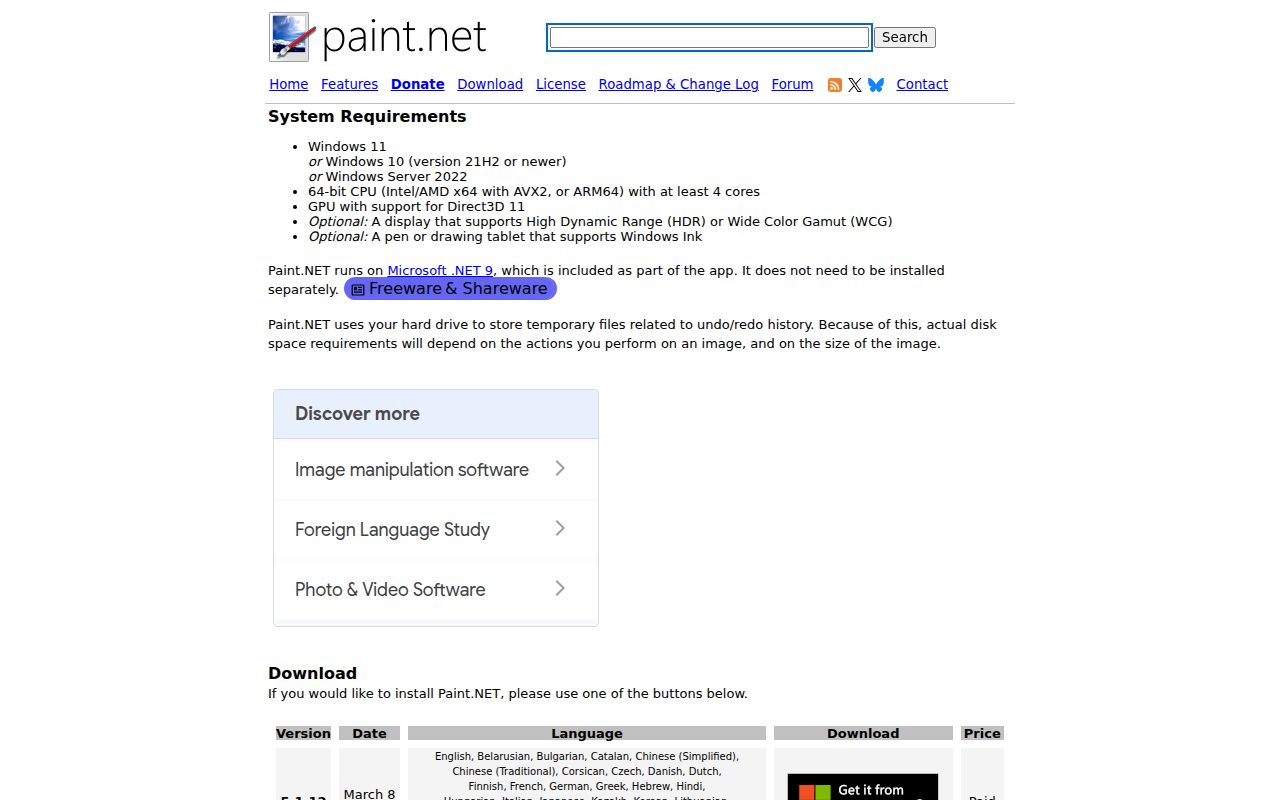
The official download page lists Paint.NET 5.1.12 and offers both a free installer and a paid store listing. Its standout is that narrow Windows focus: Windows 11, Windows 10 version 21H2 or newer, or Windows Server 2022, with 64-bit CPU requirements.
Pros
- It is lightweight and focused.
- It supports layers and plugins.
- The official page offers a free installer.
- It is a strong fit for Windows users who do not need a full suite.
Cons
- It is Windows only.
- It requires a supported modern Windows version and compatible 64-bit hardware.
- It is not meant for web-based editing across devices.
Windows users who want a simple image editor with layers, plugins, and a free installer.
You use macOS, Linux, iPadOS, Android, or a browser-first workflow.
Pixelmator Pro
Key highlights
- Standout: Mac and iPad image and design editor from Apple
- Free tier: No free tier listed
Pixelmator Pro is the polished Apple-platform choice when you want image editing and design in an Apple product rather than an open-source or browser app. It is not a free recommendation, so it makes sense only if the Apple workflow is the reason you are here.
Apple's current product page ties it to macOS 26 or iPadOS 26, while Apple support also says the Mac App Store version requires macOS 12 Monterey or later. Its standout is the Apple-owned image and design experience across Mac and iPad, with the official user guide available from Help inside the app.
Pros
- It is built for Apple image and design workflows.
- It supports Mac and iPad according to the current product research.
- It has an official Apple product page and support documentation.
- It suits people who want a polished alternative within the Apple ecosystem.
Cons
- It is not free.
- The current product page and Apple support list slightly different platform requirements.
- It is not the right choice for Windows or Linux users.
Mac and iPad users who want an Apple image and design editor and do not need a free plan.
You want a free Photoshop alternative or you work outside the Apple ecosystem.
darktable
Key highlights
- Standout: Non-destructive RAW development across Windows, macOS, and Linux
- Free tier: Free under GPL 3.0
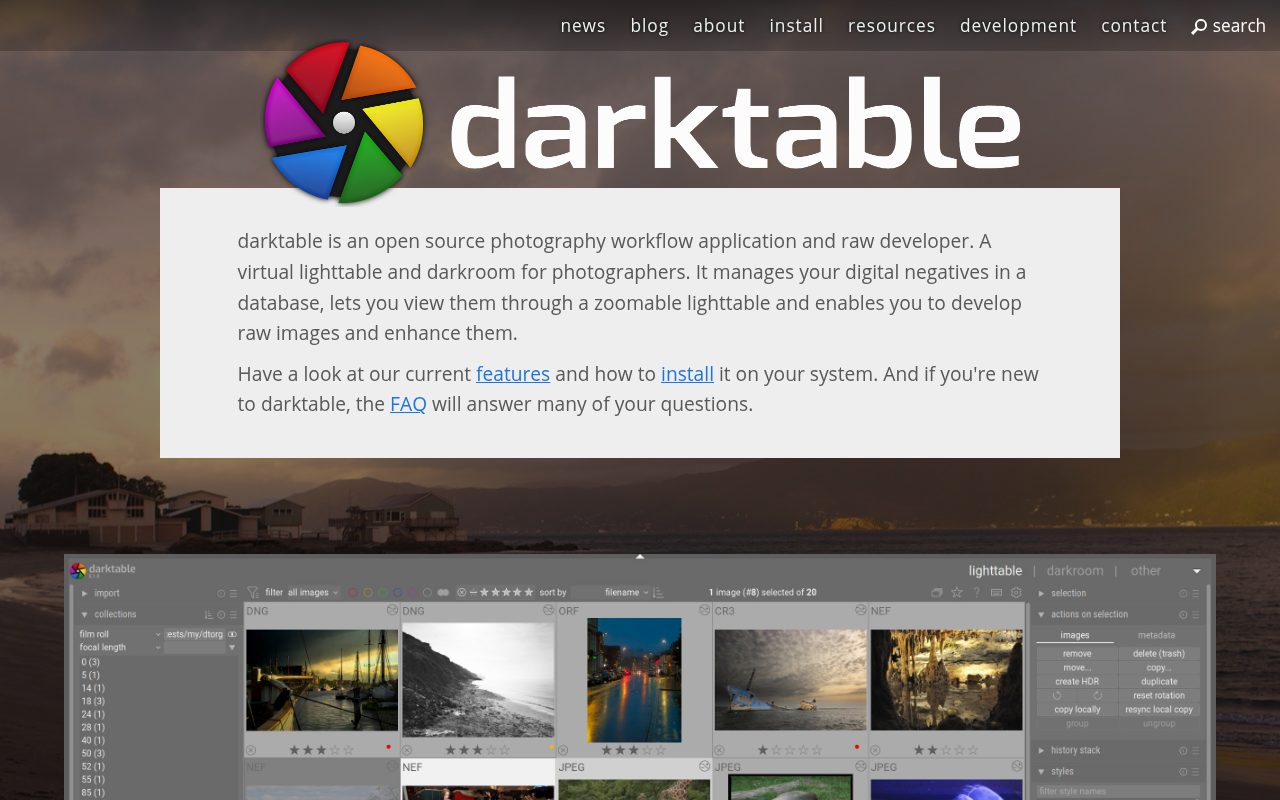
darktable is here because not every Photoshop alternative needs to behave like Photoshop. It is an open-source RAW workflow and non-destructive photo editor, closer to Lightroom-style RAW development than Photoshop-style compositing.
The official install page lists darktable 5.6.0 with options for Windows x64 and Windows on ARM64, macOS 13.5 Ventura or later, and Linux or Unix through AppImage, package managers, OBS, or Flatpak. Its standout is non-destructive RAW work under GPL 3.0, with no stated watermark, export, time, or ad limits.
Pros
- It is built for RAW photo development.
- It uses a non-destructive workflow.
- It supports Windows, macOS, and Linux or Unix paths.
- It is free under GPL 3.0.
Cons
- It is closer to Lightroom than Photoshop.
- It is not the best choice for compositing-heavy design work.
Photographers who want free, non-destructive RAW development across desktop platforms.
You need a Photoshop-like compositor for layered design work.
Adobe Express
Key highlights
- Standout: Lightweight photo editing and design on web and mobile
- Free tier: Free plan with core photo tools and up to 32 images per project
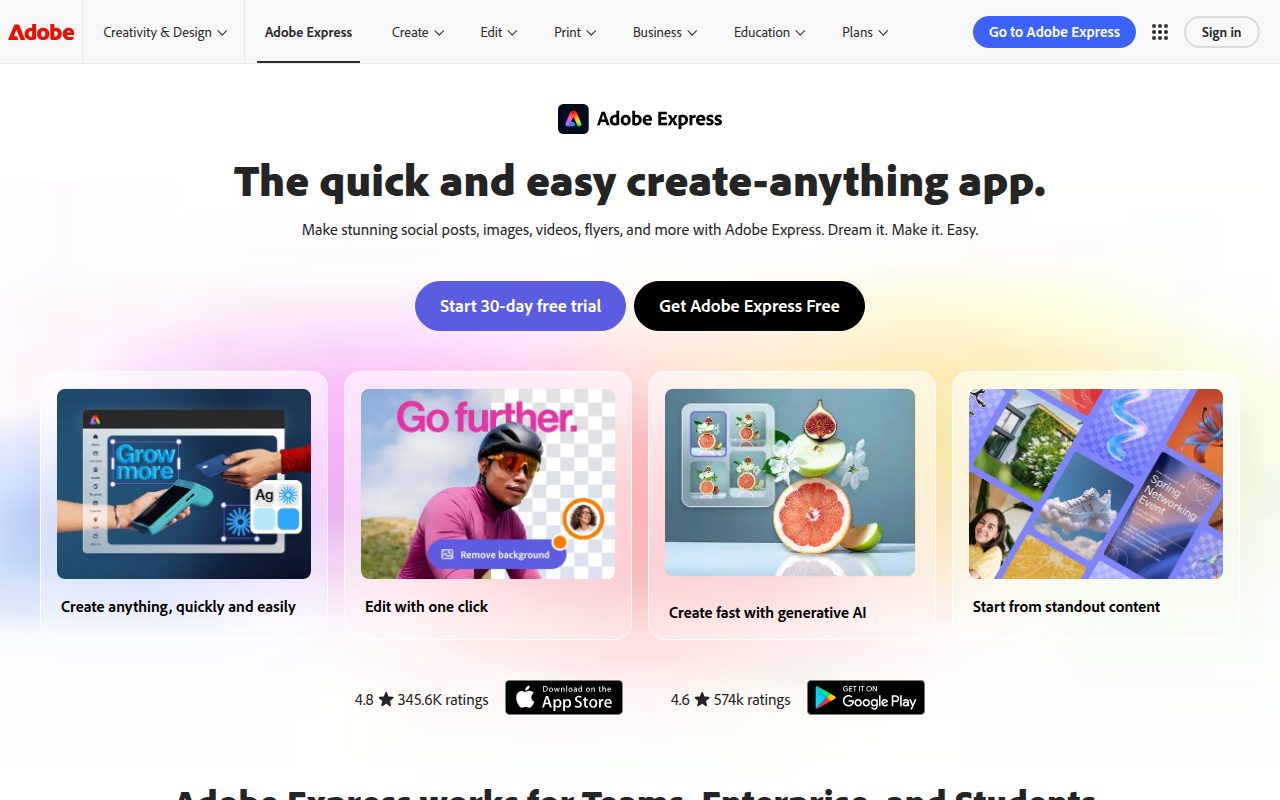
Adobe Express is the Adobe pick for people who want quick photo edits and designs without using full Photoshop. It is a lightweight web and mobile photo editor and design app, which makes it more approachable for everyday projects than a professional desktop editor.
The free plan includes core photo tools and effects, thousands of free templates, limited generative AI credits and assets, and up to 32 images per project. It earns its spot for people who already like Adobe's design direction but want a simpler tool for web and mobile work.
Pros
- It works on the web and mobile app.
- The free plan includes core photo tools and effects.
- It includes thousands of free templates.
- It is a lighter Adobe option than full Photoshop.
Cons
- The free plan has limited generative AI credits and assets.
- Projects are limited to up to 32 images in the free-plan research.
- It is not full Photoshop.
Adobe users who want fast web and mobile editing with templates and core photo tools.
You need full Photoshop-level editing or projects with more than 32 images on the free plan.
How to Choose
- Start with Affinity. It is the best default for most people because it covers photo, vector, and layout work in a free desktop app.
- Choose GIMP for open source. It is the right pick when licensing, desktop control, and raster editing matter most.
- Use Photopea for browser PSD work. It is the simplest answer when you need layered editing on a machine where installing software is not ideal.
- Pick Krita for painting. It is the strongest choice here for illustrators and brush-heavy creative work.
- Choose darktable for RAW files. It is built for non-destructive photo development rather than Photoshop-style compositing.
- Use Canva or Adobe Express for speed. They fit social graphics, templates, and quick publishing better than deep pixel editing.
- Keep platform limits front and center. Paint.NET is Windows only, Pixelmator Pro is for Apple's ecosystem, and Krita does not support iPad or iPhone.











