A good free password manager should feel boring in the best way. It should save logins, fill them when you need them, work across the devices you actually use, and stay out of the way once your vault is set up.
For most people, Bitwarden is the one to pick. Its free plan covers unlimited passwords and unlimited devices, it has apps and browser extensions for the major platforms, and it avoids the biggest catch that weakens many free password managers.
The other choices here are more specific. Some are best if you already live inside Apple, Google, or Firefox. Others make sense if you want an offline vault, a polished single-device setup, or a free plan with extras like aliases, documents, or dark web monitoring.
At a Glance
| Best for | Software | Standout | Free tier |
|---|---|---|---|
| Most people | Bitwarden | Unlimited passwords and devices | Free personal account |
| Privacy extras | Proton Pass | 10 hide-my-email aliases | Free Proton Pass plan |
| Offline control | KeePassXC | Local encrypted database file | Completely free |
| Apple users | Apple Passwords | Built into current Apple systems | Included with supported Apple devices |
| Chrome and Android users | Google Password Manager | Built into Chrome, Android, and passwords.google.com | Included with a consumer Google Account |
| Firefox loyalists | Firefox Password Manager | about:logins management and Firefox Sync | Included with Firefox |
| Document storage | Zoho Vault | Unlimited passwords, notes, files, and documents | Free forever for individuals |
| One-device use | RoboForm | Unlimited passwords on a single device | Free personal plan |
| One device type | LastPass | Unlimited storage with dark web monitoring | Free personal plan limited to one device type |
How we chose
We prioritized free password managers that have current official pages, clear setup paths, and a free tier that can stand on its own without pushing people into paid basics. We gave extra weight to unlimited password storage, broad app or browser availability, passkeys, autofill, sync clarity, and a standout feature that makes the product useful for a specific kind of user.
We disqualified deprecated or ambiguous free options, including Dashlane Free, because its official material conflicts with its announced Free plan ending. We also left out anything that required guessing at an official URL, anything positioned mainly as a paid upgrade funnel, and anything whose useful free limits were too narrow to recommend confidently.
Bitwarden
Key highlights
- Standout: Unlimited passwords and devices
- Free tier: Free personal account
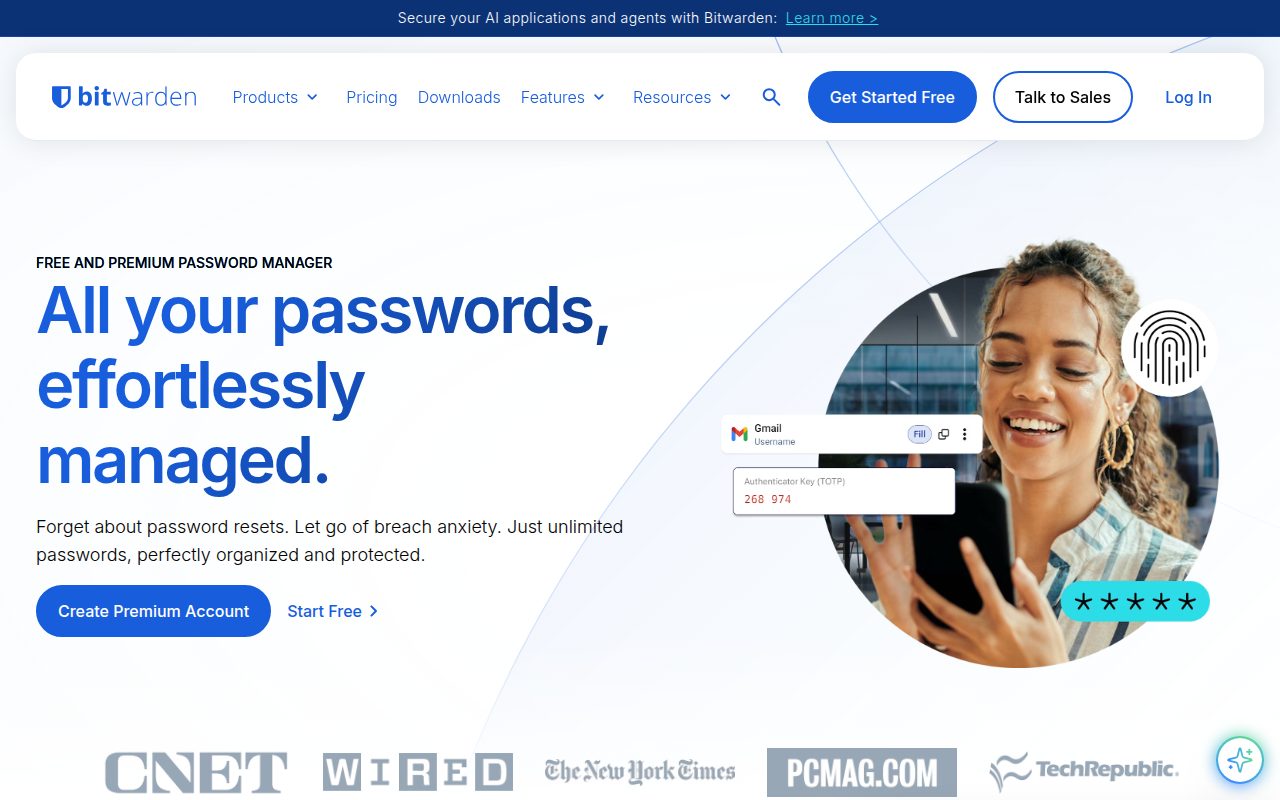
Bitwarden is the free password manager most people should choose. It is an open-source cloud password manager from Bitwarden Inc., and the free personal account covers the core job properly: unlimited passwords, unlimited devices, passkeys, a password generator, autofill, and one-user sharing.
That mix matters because a password manager becomes weaker when it only works on part of your life. Bitwarden has Windows, macOS, Linux, Android, iOS, a web vault, and major browser extensions, so it is easy to use the same vault on a laptop, phone, tablet, and browser without rebuilding your setup.
The standout is how complete the free tier feels without pretending to include everything. Integrated authenticator features, file storage, vault health reports, emergency access, priority support, and secure file sharing sit outside the free plan, but the essentials that most people need are already there.
Pros
- Unlimited passwords are included on the free personal account.
- Unlimited devices make it practical for mixed phone, desktop, and browser use.
- Apps and extensions cover Windows, macOS, Linux, Android, iOS, web, and major browsers.
- The free tier includes passkeys, generator tools, autofill, and one-user sharing.
Cons
- Integrated authenticator features are not included in the free plan.
- File storage, emergency access, vault health reports, and priority support require a higher tier.
- Secure file sharing is not part of the free plan.
Bitwarden is for most people who want a serious free password manager that works across devices without a single-device or single-platform catch.
you need built-in file storage, emergency access, or an integrated authenticator inside the free plan.
Proton Pass
Key highlights
- Standout: 10 hide-my-email aliases
- Free tier: Free Proton Pass plan
Proton Pass is Proton AG's encrypted password and identity manager, and it earns its spot by pairing unlimited login storage with privacy features that are useful before you ever think about upgrading. The free plan includes unlimited logins, notes, cards, and devices, plus browser, mobile, and desktop apps.
The concrete reason to choose it over Bitwarden is the alias feature. Proton Pass Free includes 10 hide-my-email aliases, which is a clean fit for anyone who wants to keep their real email address away from newsletters, trials, forums, and accounts they do not fully trust.
Its free plan also includes passkeys and weak or reused password alerts. Unlimited aliases, the built-in 2FA authenticator, secure vault and link sharing, dark web monitoring, file attachments, and emergency access are outside the free tier, so Proton Pass is strongest when aliases and Proton's privacy-focused ecosystem matter more than sharing tools.
Pros
- Unlimited logins, notes, cards, and devices are included in the free plan.
- Free users get 10 hide-my-email aliases.
- Browser, mobile, and desktop apps are available.
- Passkeys and weak or reused password alerts are included.
Cons
- Unlimited aliases are not included in the free tier.
- The built-in 2FA authenticator is not part of the free plan.
- Secure sharing, dark web monitoring, file attachments, and emergency access require a higher tier.
Proton Pass is for people who want a free password manager with email alias protection and unlimited device use.
your free-plan priority is built-in 2FA, file attachments, dark web monitoring, or secure vault sharing.
KeePassXC
Key highlights
- Standout: Local encrypted database file
- Free tier: Completely free
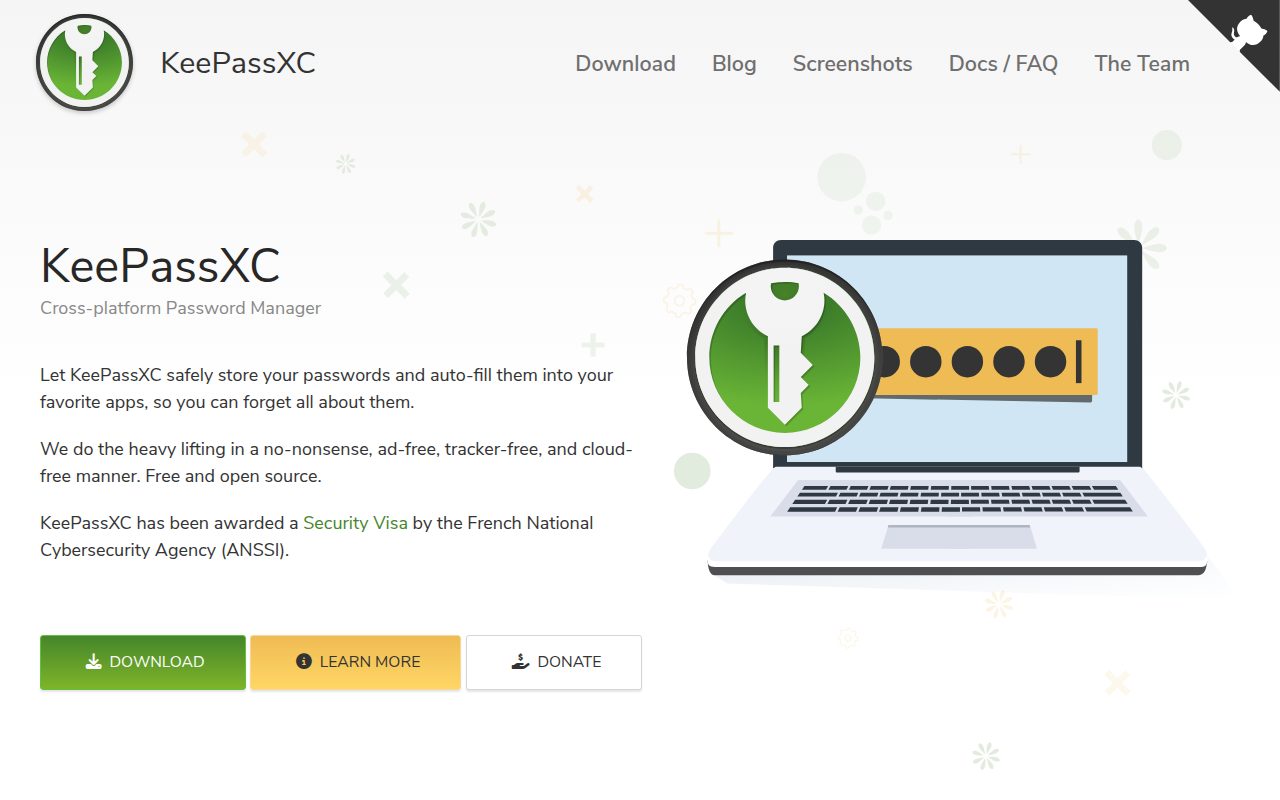
KeePassXC is the choice for people who want their password vault to be a local encrypted database instead of a cloud service. It is a free, open-source offline password manager from the KeePassXC Team, with no paid tier, ads, seats, or time limits.
Its strongest feature is the .kdbx database model. You create a database, set a master password, optionally add a key file or hardware key, and save the encrypted vault file yourself. That makes KeePassXC especially appealing if you want direct control over where the vault lives and how it is backed up.
The tradeoff is that KeePassXC is not trying to be a managed sync service. It runs on Windows, macOS, and Linux desktop, browser integration is separate, and syncing the encrypted database between devices is something you handle yourself.
Pros
- It is completely free with no paid tier or time limit.
- The encrypted database stays under your control.
- It supports Windows, macOS, and Linux desktop.
- Optional key file and hardware key setup can add another layer to the vault.
Cons
- It is not a cloud sync service.
- Mobile use is not the focus of KeePassXC itself.
- Browser integration requires separate setup.
KeePassXC is for people who want an offline desktop password manager and are comfortable managing their own encrypted vault file.
you want automatic cloud sync, mobile-first setup, or a service that manages every device connection for you.
Apple Passwords
Key highlights
- Standout: Built into current Apple systems
- Free tier: Included with supported Apple devices
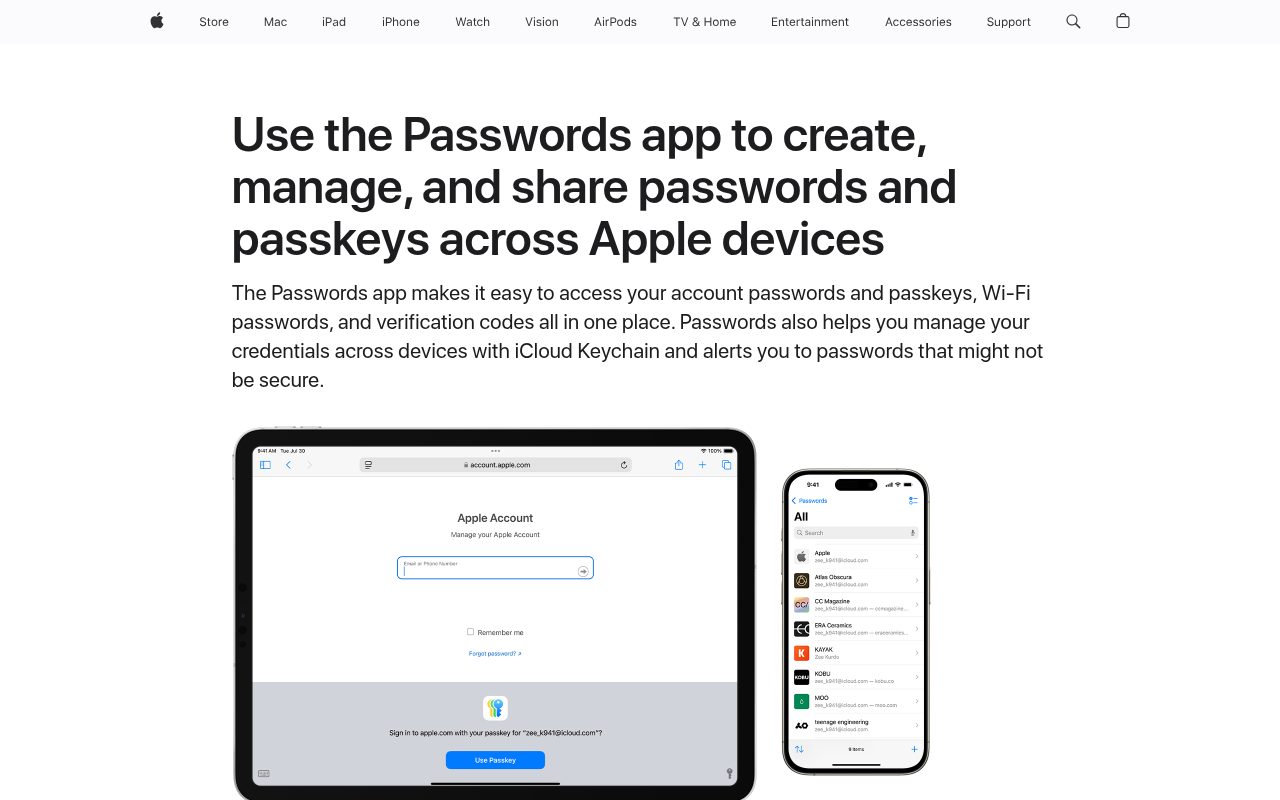
Apple Passwords is the easiest pick if your phone, tablet, and computer are already Apple devices. It is Apple's built-in password manager for current Apple systems, and iCloud Keychain handles sync when it is enabled with your Apple Account.
The standout is system-level convenience. On iPhone, iPad, Mac, and visionOS devices that support the Passwords app, you unlock with Face ID, Touch ID, a passcode, or your Mac account password, then manage saved accounts without installing a separate password manager.
It also reaches Windows through the iCloud Passwords app and extension, which helps if your Apple setup includes a PC. Still, this is clearly best when Apple is the center of your personal tech stack, because the experience is built around Apple operating systems and iCloud.
Pros
- It is built into supported Apple systems.
- iCloud Keychain can sync passwords across Apple devices.
- The Passwords app uses familiar Apple unlock methods.
- Windows access is available through iCloud Passwords.
Cons
- It depends on supported Apple operating systems for the best experience.
- iCloud and an Apple Account are needed for Apple-device sync.
- It is less natural for people whose main devices are outside Apple's ecosystem.
Apple Passwords is for people who mainly use iPhone, iPad, and Mac and want password management built into the system.
your daily setup is mostly Windows, Android, Chrome, or Firefox and you want a platform-neutral vault.
Google Password Manager
Key highlights
- Standout: Built into Chrome, Android, and passwords.google.com
- Free tier: Included with a consumer Google Account
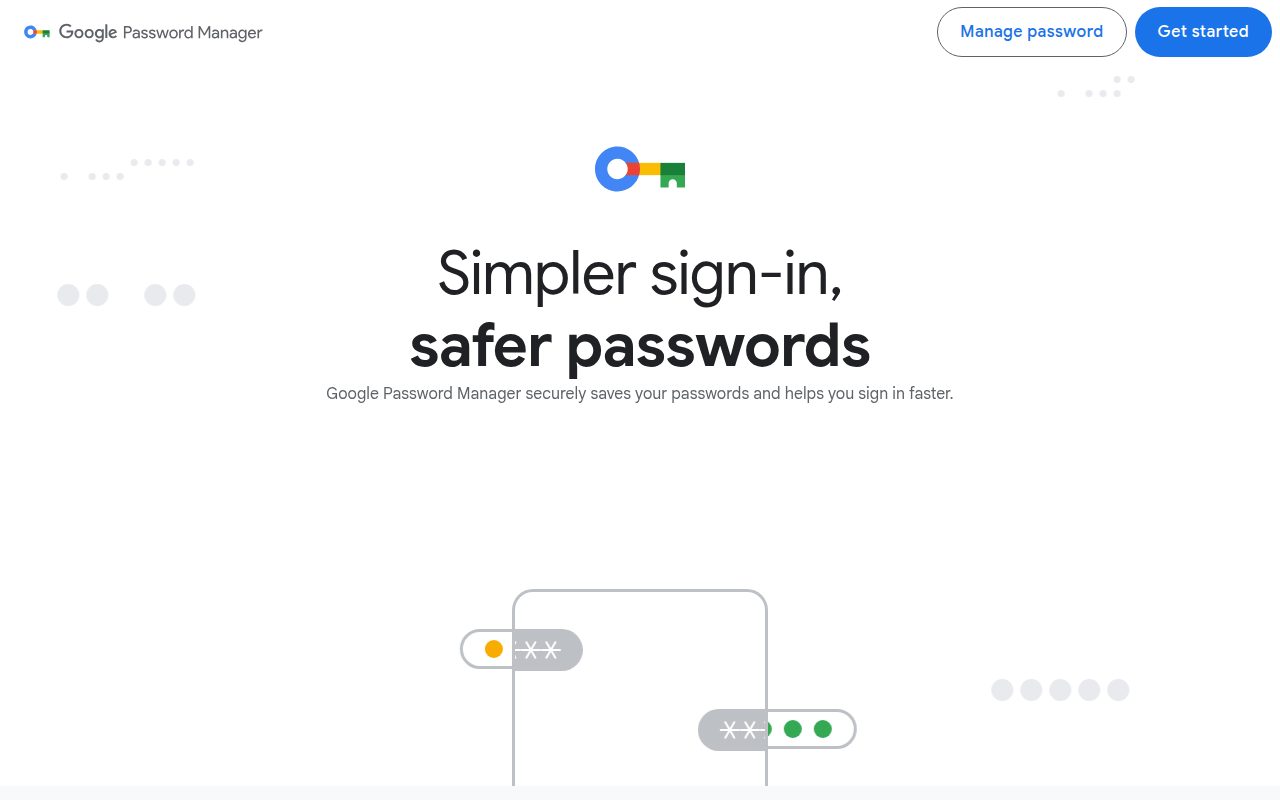
Google Password Manager is the straightforward choice if Chrome and Android are already where your logins live. It is Google's built-in account, browser, and Android password manager, with saved items managed through Chrome, Android settings, or passwords.google.com.
Its best feature is reach inside Google's everyday surfaces. Chrome can offer to save passwords and passkeys, Android can use Google Password Manager for saved logins, and the web dashboard gives you another place to manage items from a consumer Google Account.
This is not the pick for someone trying to separate passwords from a browser or Google account. It earns its place because many people already use Chrome on desktop and mobile, and for that audience the built-in manager is simple, free, and close at hand.
Pros
- It is included with a consumer Google Account.
- It works through Chrome, Android, and passwords.google.com.
- Chrome can offer to save passwords and passkeys.
- Android setup includes Google Password Manager settings and a home screen shortcut option.
Cons
- It is tied closely to Google Account, Chrome, and Android surfaces.
- Enterprise users may have settings controlled by an administrator.
- It is not a full cross-platform standalone vault in the same way as dedicated password managers.
Google Password Manager is for people who live in Chrome and Android and want password saving built into the tools they already use.
you want an independent password manager that feels the same across non-Google browsers and platforms.
Firefox Password Manager
Visit Firefox Password Manager
Key highlights
- Standout: about:logins management and Firefox Sync
- Free tier: Included with Firefox
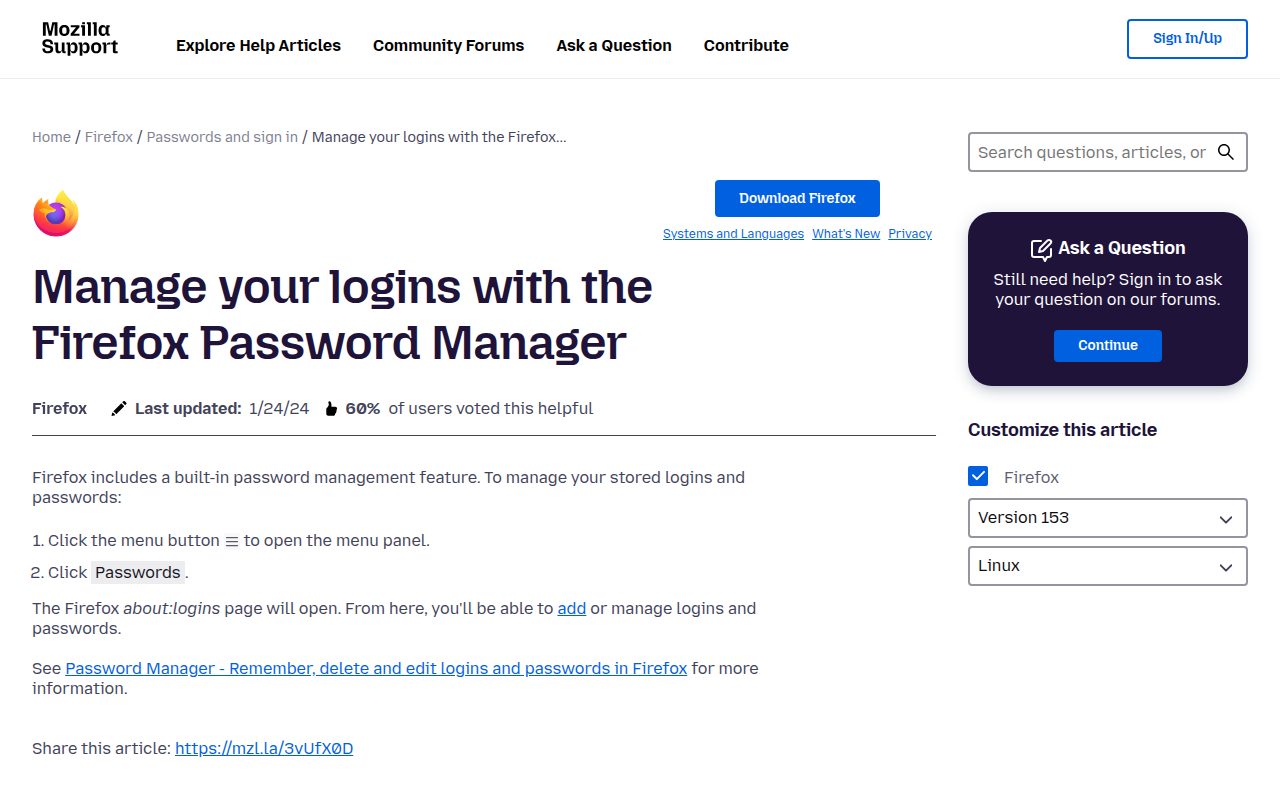
Firefox Password Manager is Mozilla's built-in browser password manager, and it makes the most sense for people who already choose Firefox on purpose. It saves logins from the browser and lets you manage them through about:logins.
The standout is how direct the desktop workflow is. Open the Firefox menu, go to Logins and Passwords, and about:logins gives you the saved-login view, including an export surface for logins when needed.
Firefox Sync can sync logins when you are signed into a Mozilla account, which gives it more range than a single browser install. Its limitation is just as clear: this is mainly a browser-scoped manager, so it is best for Firefox loyalists rather than people looking for a separate password app.
Pros
- It is free with Firefox.
- Saved logins are managed directly from about:logins.
- Firefox Sync can sync logins through a Mozilla account.
- The browser can save new logins after form submission.
Cons
- It is mainly scoped to Firefox.
- It is not a standalone password manager with broad app coverage.
- People using several browsers may outgrow it quickly.
Firefox Password Manager is for people who use Firefox as their main browser and want a built-in place to save and manage logins.
you need a dedicated vault that follows you across multiple browsers, mobile apps, and desktop apps.
Zoho Vault
Key highlights
- Standout: Unlimited passwords, notes, files, and documents
- Free tier: Free forever for individuals
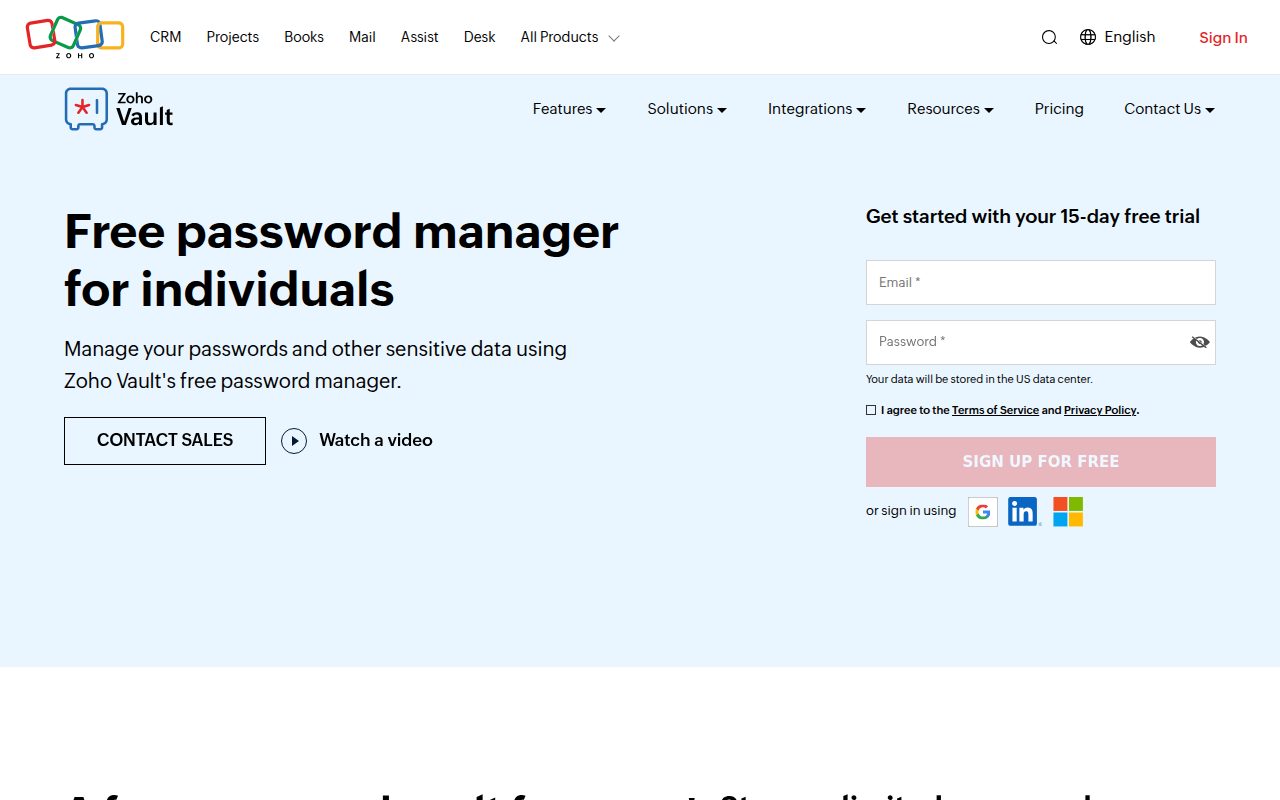
Zoho Vault is a strong free choice for individuals who want more than passwords in the same vault. Zoho's free forever edition includes unlimited passwords and notes, plus files and documents, across web, computers, smartphones, tablets, Android, iOS, and browser extensions for Chrome, Firefox, Edge, Safari, Vivaldi, and Brave.
The standout is that the free plan includes storage for documents and other sensitive details, not just website logins. It also includes import and export, 2FA, mobile apps, browser extensions, and offline access.
Zoho Vault is less compelling if your main need is team control, because sharing, team administration, and audit features sit in paid plans. For an individual who wants a free vault with broad device support and room for sensitive documents, it is one of the most generous options here.
Pros
- The free forever edition is available for individuals.
- It includes unlimited passwords, notes, files, and documents.
- It supports web, computers, smartphones, tablets, mobile apps, and major browser extensions.
- Import, export, 2FA, and offline access are included.
Cons
- Sharing features are paid.
- Team administration is outside the individual free edition.
- Detailed access, activity, and folder reports require a paid plan, though basic audit trails are included free.
Zoho Vault is for individuals who want a free password vault that can also hold notes, files, documents, and other sensitive details.
you need free team sharing, admin controls, or detailed access and activity reports.
RoboForm
Key highlights
- Standout: Unlimited passwords on a single device
- Free tier: Free personal plan
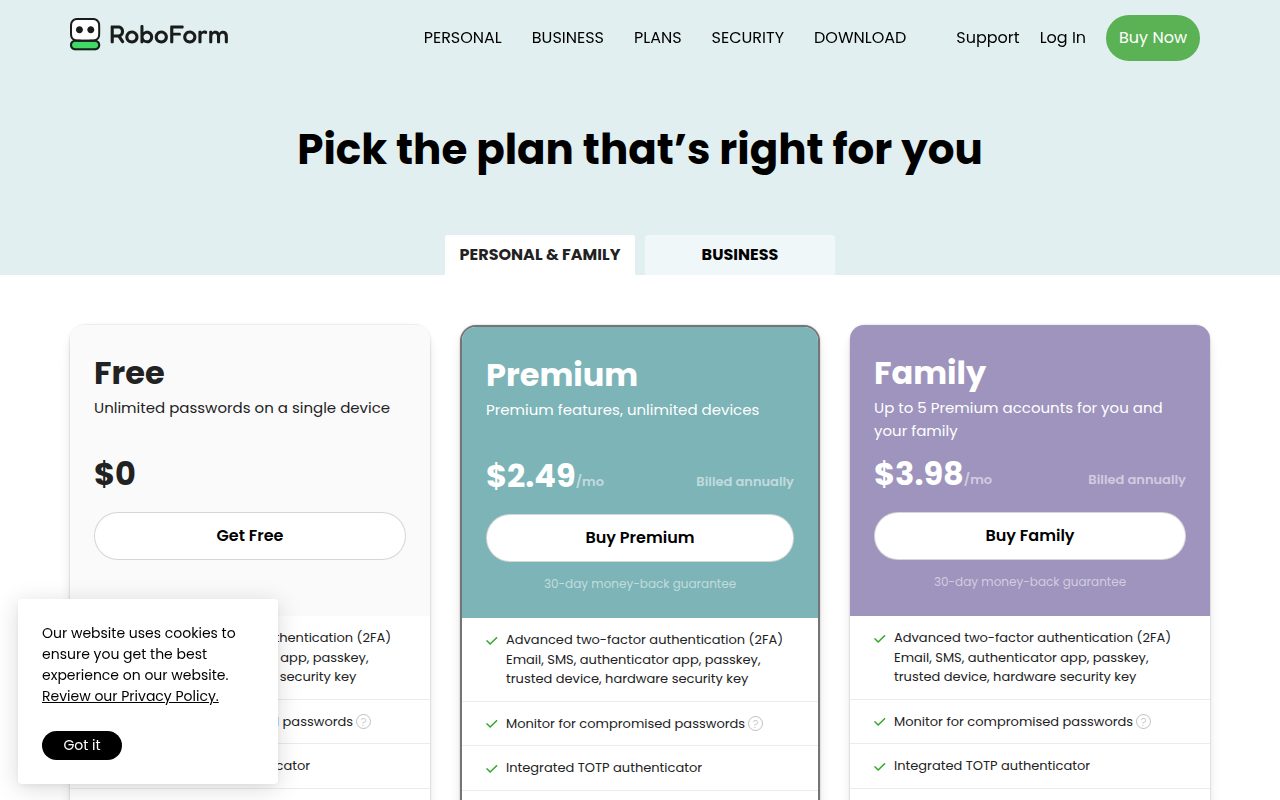
RoboForm is best when your free password manager only needs to live on one device. Its free personal plan includes unlimited passwords on a single device, and RoboForm apps and downloads are available for Windows, Mac, iOS, Android, Linux, Chrome OS, and browser extensions.
The standout is simple depth on one machine rather than broad sync. If you mainly use one laptop or desktop and want unlimited saved logins there, RoboForm Free is more practical than a free plan that caps the number of passwords.
The limit is the point to understand before choosing it. All-device access and other premium or family benefits are not part of the free plan, so RoboForm is a narrow recommendation, but a good one for a single-device setup.
Pros
- The free personal plan includes unlimited passwords on a single device.
- Apps and downloads cover Windows, Mac, iOS, Android, Linux, Chrome OS, and browser extensions.
- The setup path includes browser extension installation.
- Manual login creation is available from the Start Page.
Cons
- Free use is limited to a single device.
- All-device access is not included in the free plan.
- Premium and family benefits sit outside the free tier.
RoboForm is for someone who wants unlimited passwords on one main device and does not need free syncing everywhere.
you need the same free vault active across a phone, laptop, tablet, and multiple browsers.
LastPass
Key highlights
- Standout: Unlimited storage with dark web monitoring
- Free tier: Free personal plan limited to one device type
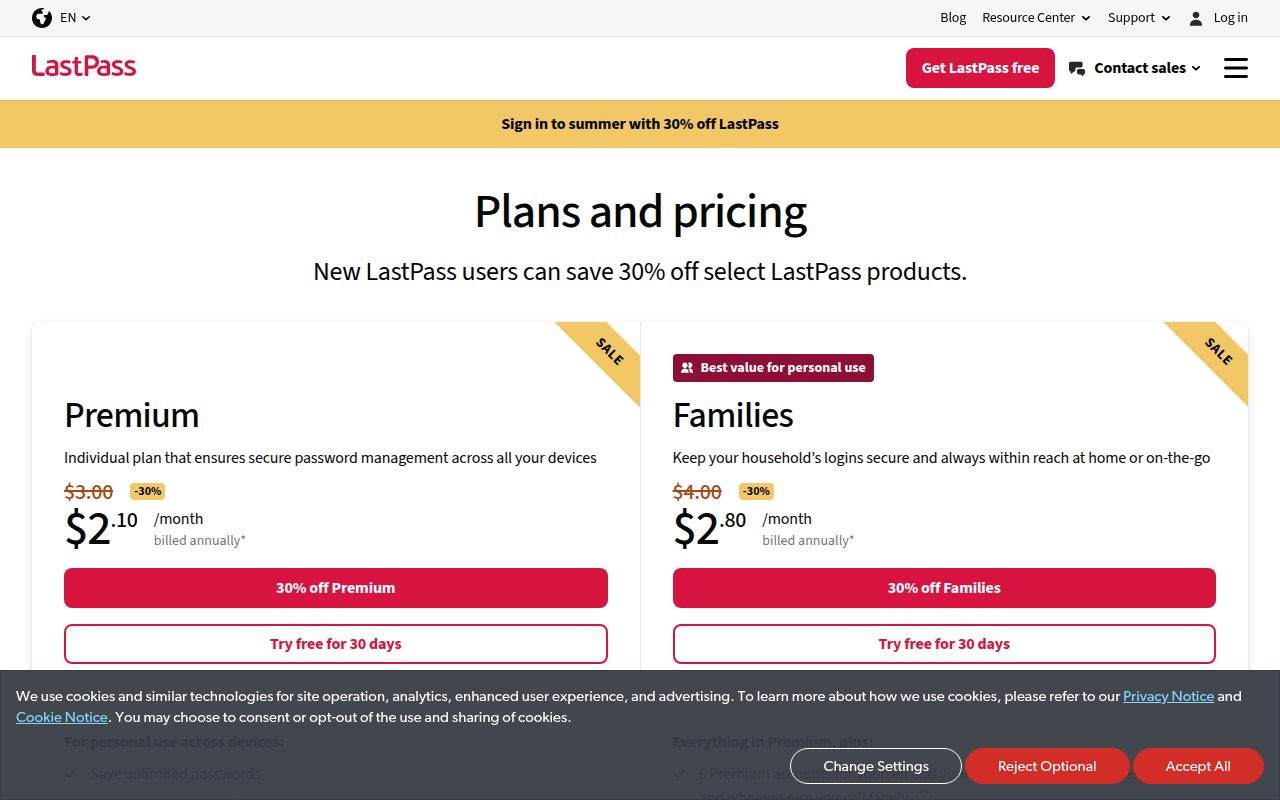
LastPass Free is for people who can live inside one device type. Its free personal plan includes unlimited password storage, autofill, dark web monitoring, basic password sharing, and a 30-day Premium trial, but the free plan is limited to one device type.
That one-device-type rule is the defining detail. It can make sense if you know you only want to use LastPass on computers or only on mobile devices, and you value the included monitoring and basic sharing more than broad free device access.
It is not the most flexible free option in this list, and most people should choose Bitwarden instead. LastPass keeps a place because its free tier still includes unlimited storage and a clear set of useful basics for someone whose setup fits the device-type limit.
Pros
- Unlimited password storage is included in the free personal plan.
- Autofill is included.
- Dark web monitoring is included in the free tier.
- Basic password sharing is included.
Cons
- The free plan is limited to one device type.
- The included Premium trial is temporary.
- It is less flexible than free options with unlimited devices.
LastPass is for people who want unlimited storage and dark web monitoring while staying within one device type.
you want one free password manager to work freely across both computers and mobile devices.
How to Choose
- Start with Bitwarden. It is the best free password manager for most people because it includes unlimited passwords and unlimited devices without locking the basics behind a paid tier.
- Choose Proton Pass for aliases. Its 10 hide-my-email aliases make it the better free pick when privacy at signup matters as much as password storage.
- Choose KeePassXC for offline control. It is the right fit when you want a local encrypted database and are comfortable managing sync or backups yourself.
- Stay native when your ecosystem is obvious. Apple Passwords makes sense for Apple-first setups, Google Password Manager for Chrome and Android, and Firefox Password Manager for people who mainly use Firefox.
- Watch the free limit. RoboForm is best for one device, LastPass is best for one device type, and Zoho Vault is the free pick when you want documents and notes in the same individual vault.











