

That snap, crackle, and pop coming through your speakers is not your audio file falling apart. It is almost always something fixable on the Windows side, whether that means a loose cable, an aggressive audio effect, or a driver that needs attention. The good news is that you rarely need to replace hardware to clear it up.
Work through the fixes below in order. They start with the quickest, safest checks and only move toward driver changes if the simple stuff does not solve it. Each step notes the separate path for Windows 11 and Windows 10 wherever they differ.
Start With the Cable, the Jack, and the Volume
Before you touch a single setting, rule out the hardware. A loose or partly seated connector is one of the most common reasons audio crackles, and it costs nothing to check.
Reseat the speaker or headphone cable, and if you are using a 3.5mm plug, make sure it is in the correct jack (some systems use green for output and pink for microphone input; others label the jacks).
Confirm the device is powered on, make sure the audio is not muted, and raise the volume.
If you are on USB speakers or headphones, try a different USB port.
You can also unplug your headphones to test whether the built-in speakers crackle too, which helps you tell whether the problem is the device or the PC.
Confirm Windows Is Sending Sound to the Right Device
Crackling sometimes comes from sound being routed to a device that is not the one you are actually listening through. Pointing Windows at the correct output can clear it instantly.
On Windows 11, go to Settings > System > Sound, then under Output select the speakers or headphones you want to use.
You can also click the volume icon on the taskbar, click the arrow to "Select a sound output," and pick the correct device.
On Windows 10, click the Speakers icon on the taskbar, click the arrow to open the device list, and choose the correct device.
Once the right output is selected, play something and listen for the crackle again.
Let the Built-In Audio Troubleshooter Take a Pass
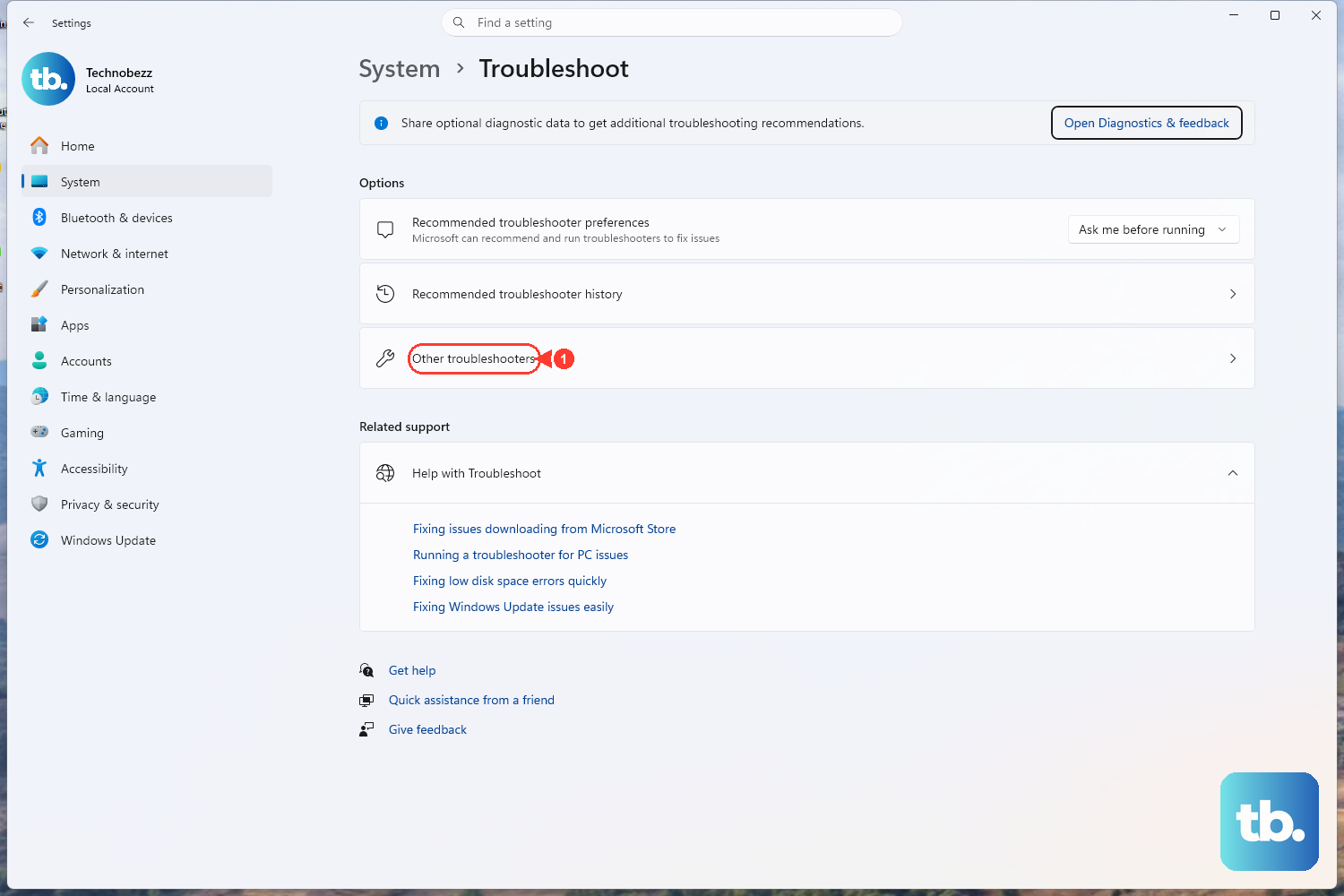
Windows can detect and repair many common audio problems for you. The current method is to open the official audio support page and choose "Run the troubleshooter in Get Help," which launches the Get Help app and runs the audio troubleshooter automatically.
If you prefer to stay in Settings, there is an in-Settings route.
On Windows 11, go to Settings > System > Troubleshoot > Other troubleshooters and select Run next to Audio.
On Windows 10, go to Settings > Update & Security > Troubleshoot, select Playing audio, then select Run the troubleshooter.
Apply any fix it suggests and test your sound.
Switch Off Audio Enhancements
Audio enhancements and effects are a frequent cause of distortion and crackling, because they reprocess the sound in ways your hardware may not like. Turning them off is a quick, reversible test.
On Windows 11, go to Start > Settings > System > Sound.
Under Output, select your audio device.
Select Audio enhancements and turn enhancements Off.
Play something and test.
On Windows 10, the path lives in the classic Sound panel.
Right-click the Volume icon on the taskbar and select Sounds.
Go to the Playback tab, select your device, then select Properties.
Open the Enhancements tab.
Check "Disable all enhancements" (or "Disable all sound effects").
Select OK and test.
Try a Different Default Audio Format
Windows plays back at a default sample rate and bit depth, and a format your hardware does not handle well can produce popping. Choosing a different one is often the fix for stubborn crackle.
On Windows 11, go to Start > Settings > System > Sound, under Output select your device, select Advanced, and under Default format choose a different format.
Then test.
On Windows 10, right-click the Volume icon, select Sounds, go to the Playback tab, select your device, then select Properties.
Open the Advanced tab, and under Default format choose a different setting, select OK, and test.
If the first alternative does not help, try another.
Restart the Windows Audio Services
If the audio services did not start correctly, the sound stack can behave erratically, including crackling. Restarting them gives the audio engine a clean start.
- 1.Select Start, type services.msc, and press Enter to open the Services console.
- 2.Right-click Windows Audio and select Restart.
- 3.Right-click Windows Audio Endpoint Builder and select Restart.
- 4.Play something and test.
You can also restart Remote Procedure Call (RPC) alongside these two services if the audio services alone do not resolve the issue.
Update the Audio Driver Through Device Manager
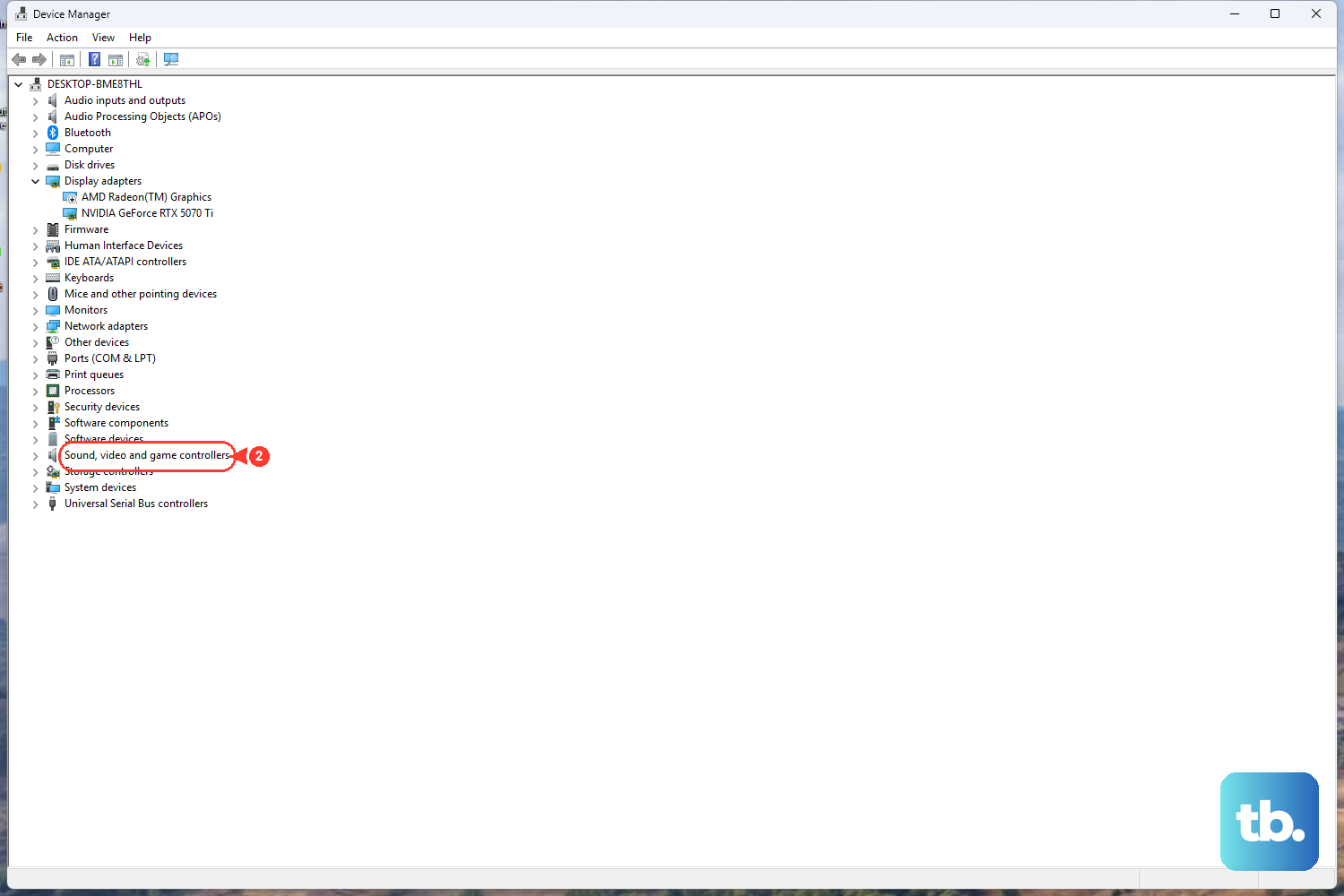
An outdated audio driver is a classic source of crackling and popping. Letting Windows search for a newer one is straightforward and safe.
Select Start, type Device Manager, and open it.
Expand Sound, video and game controllers.
Right-click your audio device and select Update driver.
Select Search automatically for updated driver software and follow the on-screen instructions.
Restart your PC when finished.
Roll Back the Driver If the Trouble Started After an Update
If the popping or crackling began right after a driver change, the newer driver is the likely culprit, and going back to the previous version is the cleaner move.
Right-click Start and select Device Manager.
Expand Sound, video and game controllers.
Right-click your audio device and select Properties.
You must be signed in with administrator permissions. Open the Driver tab and select Roll Back Driver.
Choose a reason when prompted, select Yes, and restart if prompted.
If Roll Back Driver is greyed out, no previous driver is stored on your PC, so this option simply is not available and you can move on to the next fix.
Reinstall the Audio Driver From Scratch
When neither updating nor rolling back helps, reinstalling the driver gives Windows a fresh copy. Windows attempts to reinstall it automatically after a restart, so this is less drastic than it sounds.
Open Device Manager and expand Sound, video and game controllers.
Right-click your audio device and select Uninstall device.
Confirm if prompted.
Restart your PC.
After the restart, Windows attempts to reinstall the driver. If it does not reinstall, download and install the latest compatible audio driver from the device manufacturer's website.
Test your audio once the PC is back up.
Install the Latest Windows Updates
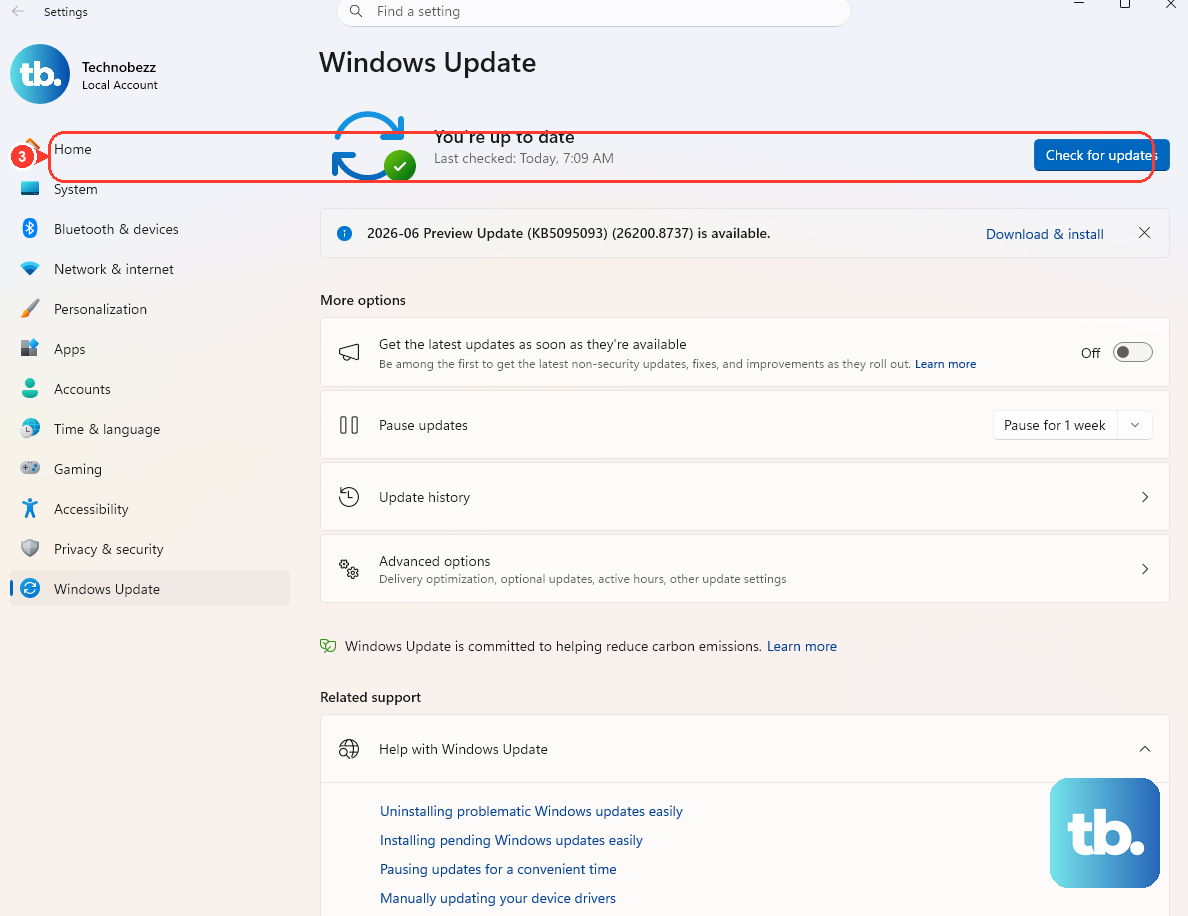
Windows updates can include audio fixes and newer drivers, so it is worth making sure you are current before assuming the problem runs deeper.
On Windows 11, go to Settings > Windows Update and select Check for Windows updates, then select Download & install if updates are available and restart if prompted.
Windows 10 support ended on October 14, 2025, so free software updates, technical assistance, and security fixes are no longer provided. Consider moving to Windows 11. To check for available updates on Windows 10, go to Settings > Update & Security > Windows Update and select Check for Windows updates, select Download & install if offered, and restart if prompted.
Crackling on a Bluetooth Speaker or Headphones
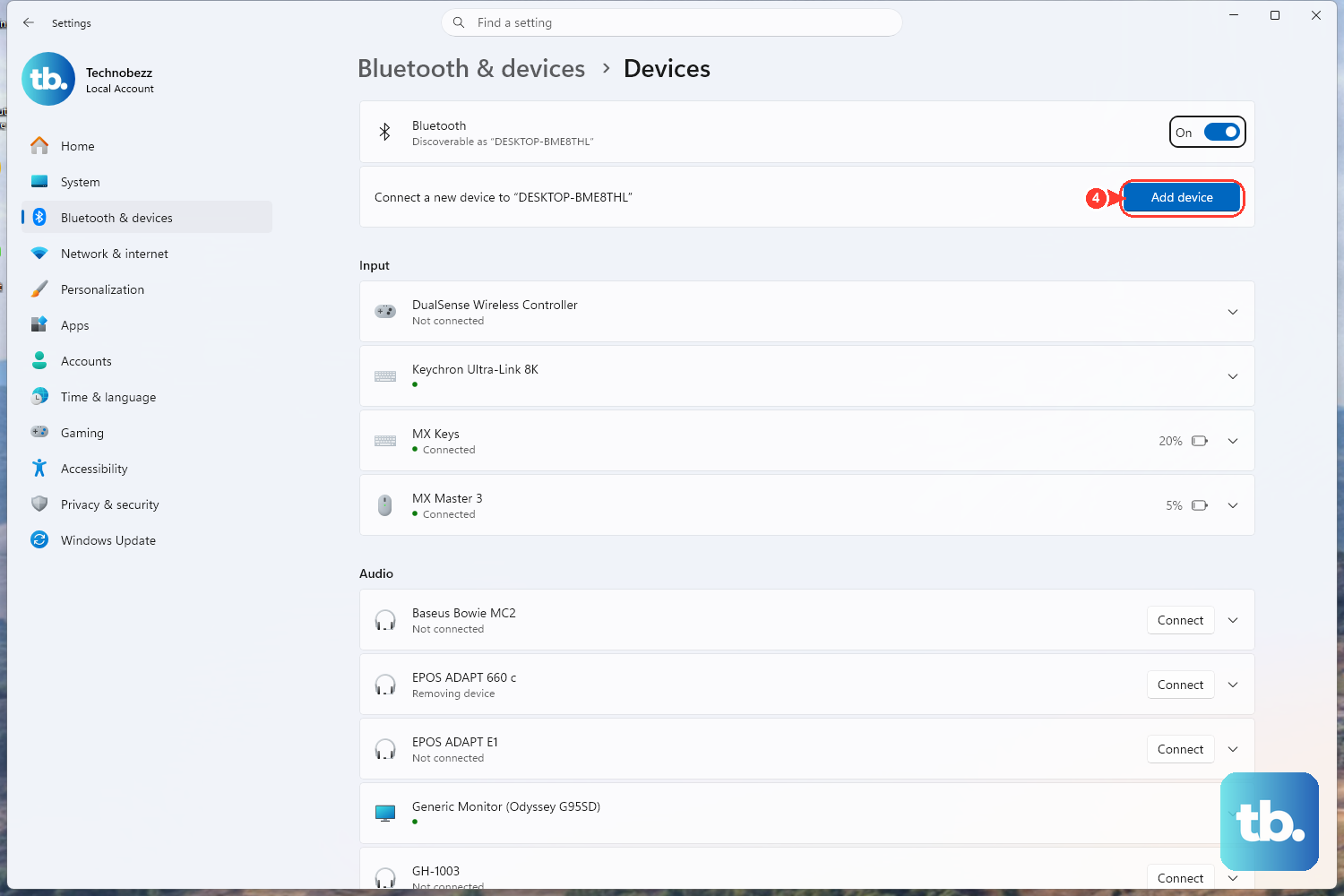
Wireless audio has its own failure points, so if the crackle is on a Bluetooth device, treat it a little differently. Start with the dedicated Bluetooth troubleshooter.
The current method is "Run the troubleshooter in Get Help" from the official Bluetooth support page.
If you would rather use Settings, on Windows 11 go to Settings > System > Troubleshoot > Other troubleshooters and select Run next to Bluetooth.
On Windows 10, go to Settings > Update & Security > Troubleshoot, select Bluetooth, then Run the troubleshooter.
If the troubleshooter does not fix it, removing and re-pairing the device clears a glitched connection.
On Windows 11, go to Start > Settings > Bluetooth & devices > Devices, select More options for the problem device, select Remove device, then Yes, and add it again.
On Windows 10, go to Start > Settings > Devices > Bluetooth & other devices, select the problem device, select Remove device, then Yes, and add it again.
Make sure Bluetooth is turned on before you re-pair.
Frequently Asked Questions
Why is my audio crackling all of a sudden?
Sudden crackling often traces back to a recent change, such as a driver update or a setting that altered how Windows processes sound. If it started right after a driver update, rolling back the audio driver in Device Manager is the most direct fix. If you cannot tie it to a single event, work through the cable check, audio enhancements, and default format steps in order.
Do I need to download anything to fix crackling audio?
Not for the initial checks. The built-in audio troubleshooter, the Services console (services.msc), and Device Manager all run inside Windows. The current troubleshooter method opens through the Get Help app. Updating or reinstalling an audio driver may require downloading it from the device manufacturer's website.
Will turning off audio enhancements hurt my sound quality?
Audio enhancements add processing effects on top of your sound, and they are a common cause of distortion and crackling. Turning them off removes those effects but does not damage anything; you can switch them back on at any time using the same path if you decide you prefer them.
What if rolling back the driver is greyed out?
If Roll Back Driver cannot be selected, it means Windows has no previous driver stored for that device. In that case, try updating the driver through Device Manager instead, or uninstall the device so Windows attempts to reinstall the driver after a restart.
My Bluetooth speaker crackles but my wired speakers do not. What should I check?
That may point to Bluetooth settings, drivers, or compatibility limitations. Run the Bluetooth troubleshooter first, and if the crackle persists, remove the device and pair it again. Confirm Bluetooth is turned on before re-pairing so the device can reconnect cleanly.