
When apps on your Apple TV 4K crash back to the home screen or freeze, it can stop your streaming night in its tracks. Whether it's Netflix, Hulu, or a game, the fixes are usually straightforward and don't take long to try.
Force Close and Relaunch the App
Double-press the TV button on your Siri Remote to bring up the app switcher. Swipe up on the problematic app's preview to close it completely. Then, go back to the home screen and tap the app icon again to launch it fresh.
This clears the app from the device's active memory. I've found it solves about half of the random crashes I encounter, especially with streaming apps that have been running for a long time.
Restart Your Apple TV
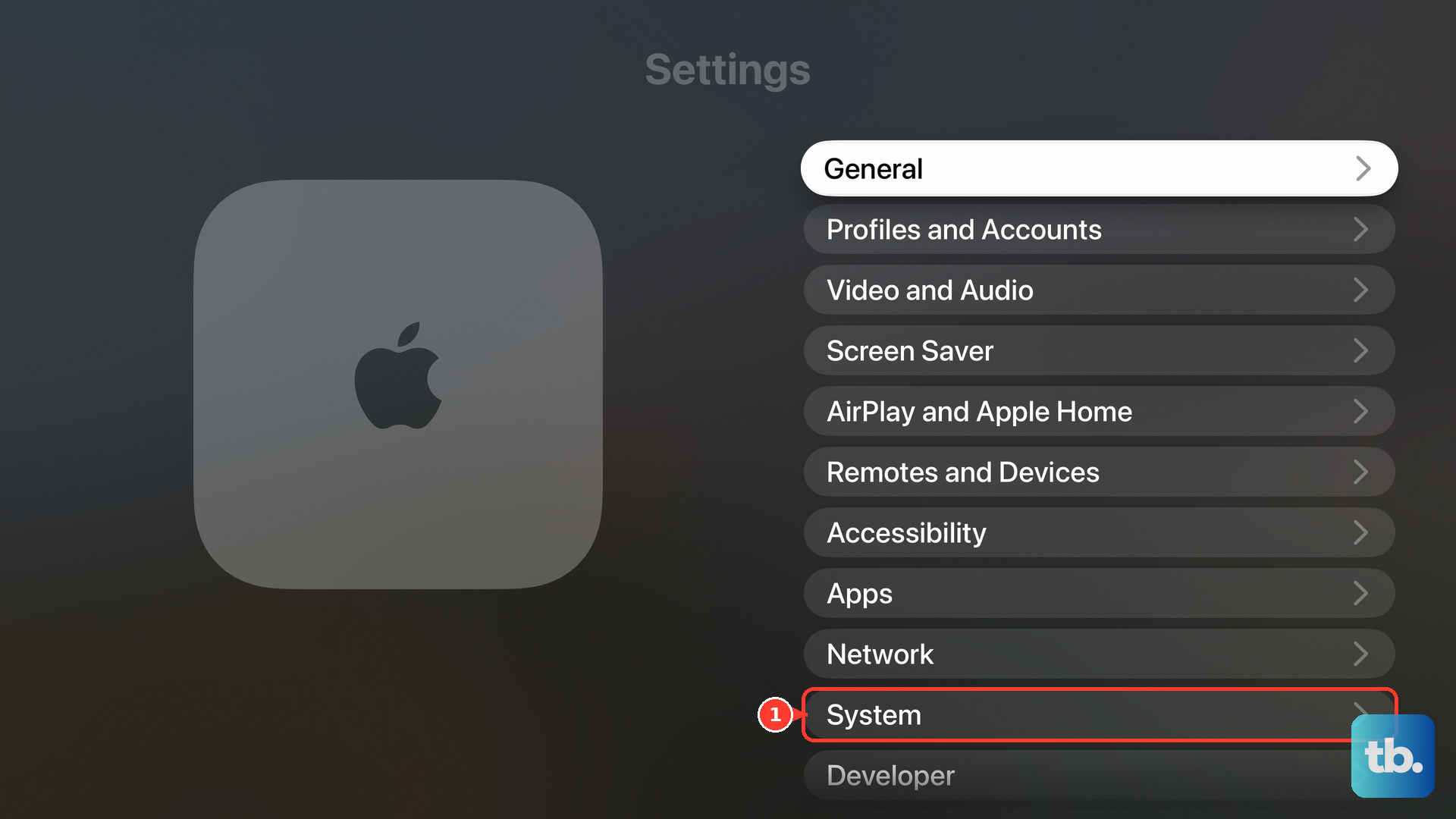
Go to Settings > System > Restart. This is a soft restart that closes all processes and reloads tvOS cleanly. If you can't navigate the menus because an app has frozen the system, you can force a restart with the remote.
Press and hold both the Back button (or the TV/Control Center button on newer remotes) and the Volume Down button for about five seconds. You'll see the status light on the front of the Apple TV flash rapidly before it reboots.
Check Your Internet Connection
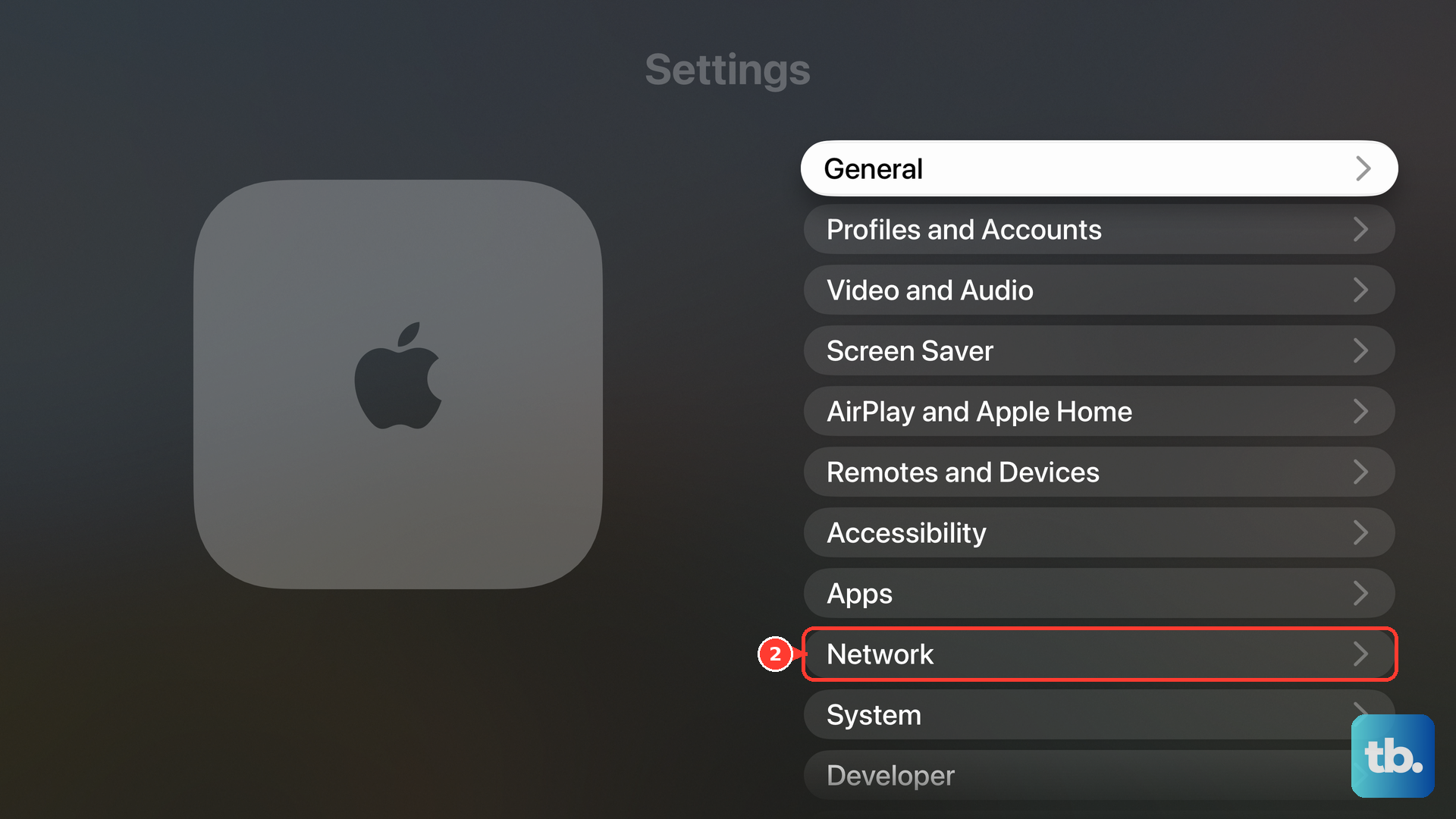
Go to Settings > Network and run a connection test. If you're on Wi-Fi, try moving closer to your router or, even better, connect via the built-in Ethernet port for a more stable signal.
Streaming apps are particularly sensitive to network hiccups. A poor connection can cause the app to time out and crash instead of just buffering.
Update the Problem App
Navigate to the App Store on your Apple TV and select your profile icon in the top right. Check under Purchased or Updates to see if the crashing app has an available update.
Outdated apps can have bugs that conflict with the latest version of tvOS. Enabling automatic updates in the App Store settings can prevent this issue in the future.
Update tvOS
Head to Settings > System > Software Updates. If an update is available, install it. Apple frequently releases updates that include bug fixes for app stability and performance.
Make sure your Apple TV stays connected to power during the update process, as an interruption can cause more serious problems.
Delete and Reinstall the App
On the home screen, highlight the problematic app and press and hold the touch surface on the Siri Remote until the icon jiggles. Select Delete App, then confirm. This removes all of the app's data and cache from your device.
Go back to the App Store, search for the app, and download it again. This gives you a completely clean installation, which can resolve corruption that a simple update might not fix.
Check for a Service Outage
Sometimes the issue isn't your Apple TV at all. If a specific app like Disney+ or Max is crashing, the service's servers might be down.
Quickly check the service's official status page on your phone or a site like Downdetector. If there's a widespread outage, you'll just have to wait for them to resolve it on their end.
Free Up Storage Space
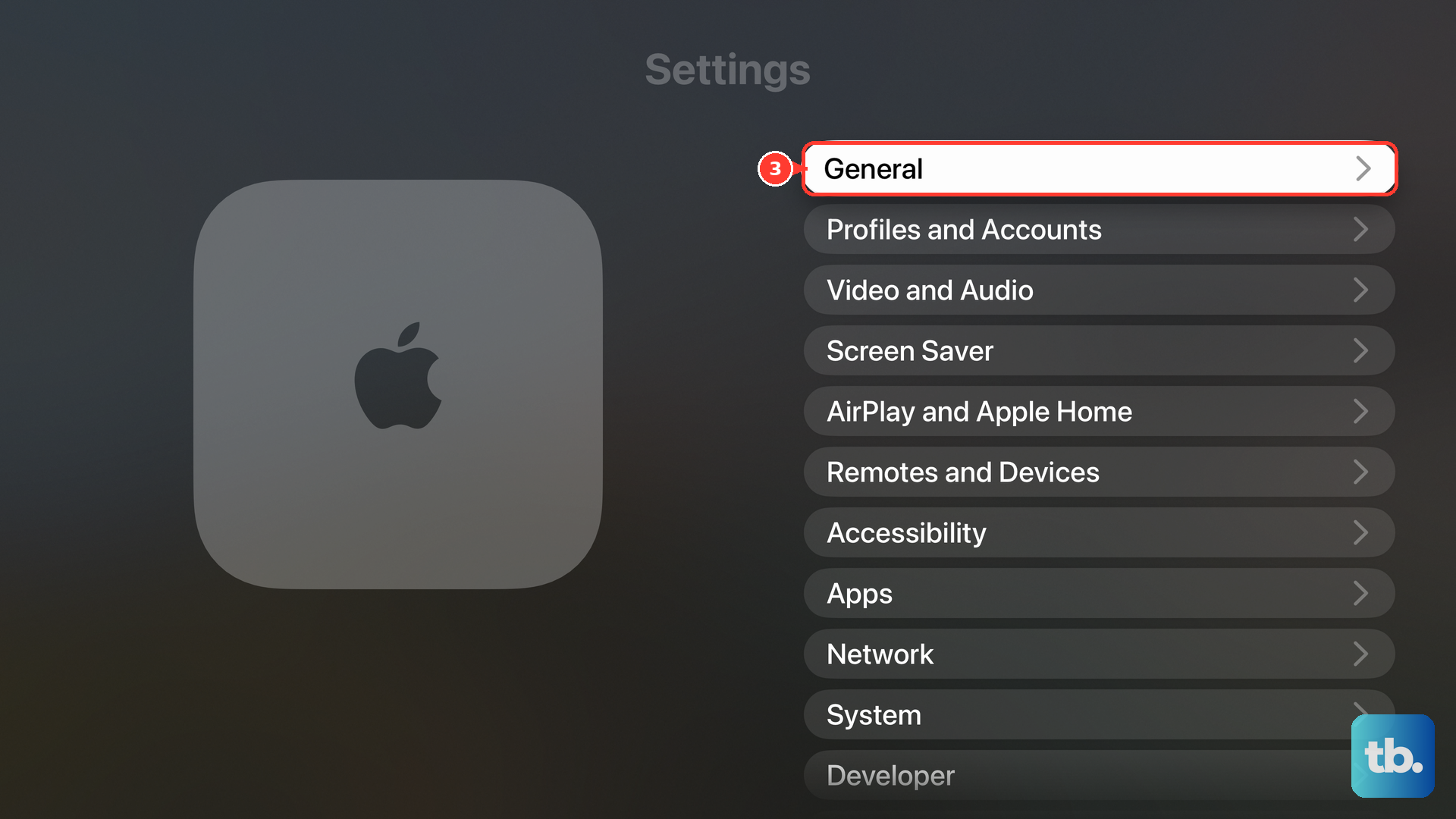
Go to Settings > General > Manage Storage. Your Apple TV 4K has limited storage for apps and their cached data.
If it's nearly full, apps can malfunction. Delete any large games or apps you no longer use to free up several gigabytes of space.
Check HDMI-CEC and Audio Settings
HDMI-CEC conflicts between your TV, soundbar, and Apple TV can sometimes cause system-wide instability. Go to Settings > Remotes and Devices > Control TVs and Receivers and try turning this setting off temporarily to see if app crashes stop.
Also, try changing the audio format in Settings > Video and Audio > Audio Format to a different setting, like switching from Dolby Atmos to Dolby Digital. Some users report this resolves crashes in specific media apps.
Reset All Settings
If one app is consistently broken and nothing else works, you can try resetting settings without erasing your content. Go to Settings > System > Reset and choose Reset All Settings.
This will return all system settings (like network, audio, and accessibility) to their defaults, but it won't delete your installed apps or accounts. You'll need to reconnect to Wi-Fi and reconfigure any custom settings afterward.