
When your Acer Nitro V 15 won't connect to WiFi, it can stop your gaming session or work cold. Whether the list of networks is empty, you're stuck with a "No Internet" warning, or the signal keeps dropping mid-match, these steps will get you back online.
Toggle WiFi and Restart the Laptop
Click the network icon in your taskbar and turn WiFi off. Wait about ten seconds, then switch it back on. This quick refresh often clears up a temporary glitch with the wireless adapter. If that doesn't work, give the laptop a full restart from the Start menu. A reboot clears out the network stack and reloads all drivers, which fixes more issues than you'd think.
Run the Windows Network Troubleshooter
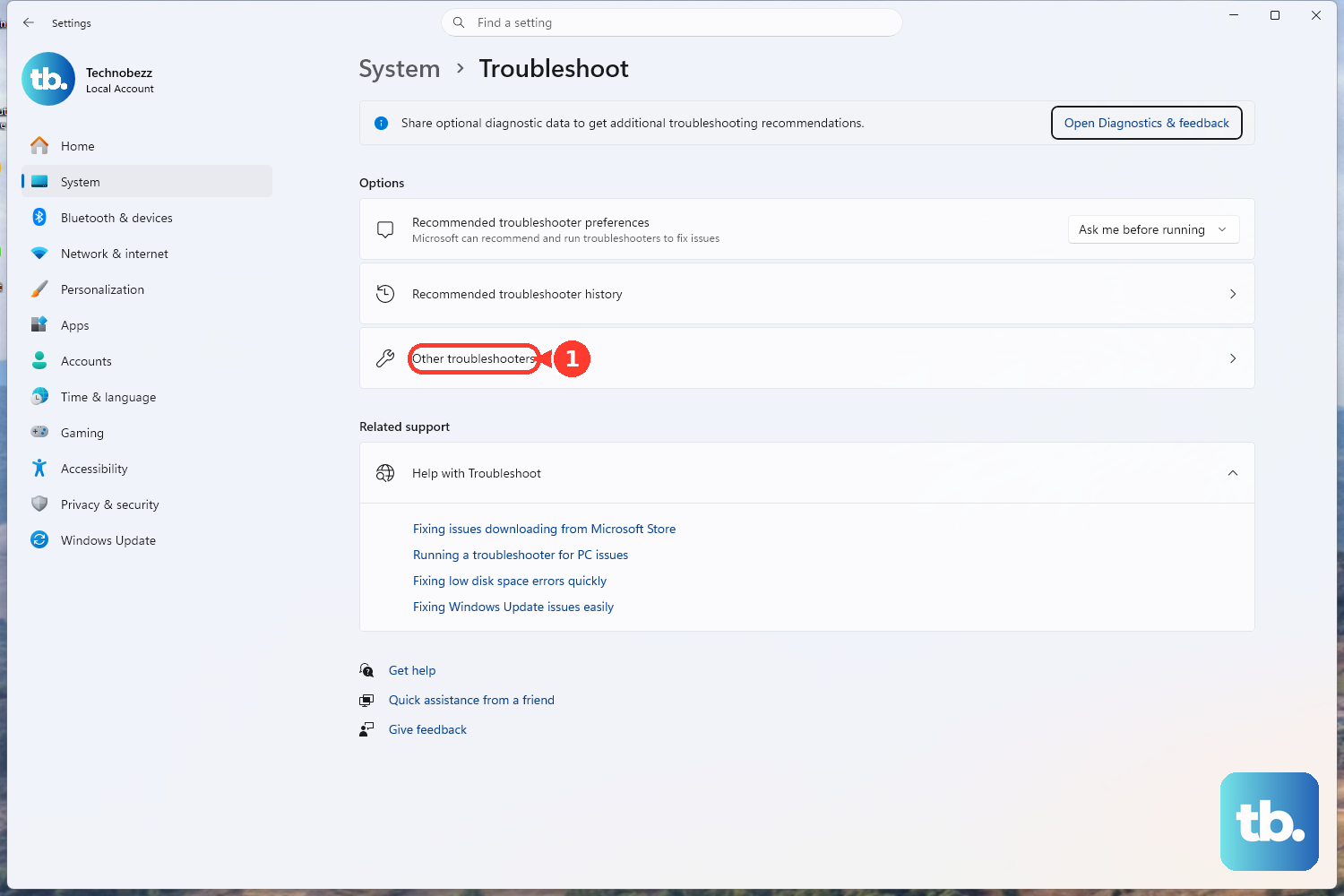
Windows has a built-in tool that can diagnose and fix common problems automatically. Right-click the WiFi icon in the system tray and select Troubleshoot problems. Let it run through its checks; it might reset your adapter or change a setting that got stuck. You can also find it by going to Settings > System > Troubleshoot > Other troubleshooters and running the one for Internet Connections.
Forget and Re-add Your Network
Sometimes the saved profile for your WiFi network gets corrupted. Go to Settings > Network & internet > Wi-Fi > Manage known networks. Find your home network, click the three dots next to it, and select Forget. After that, scan for networks again, select yours, and re-enter the password to create a fresh connection.
Update Your Wireless Network Driver
Outdated or buggy drivers are a major cause of wireless problems on gaming laptops. Press the Windows key + X and choose Device Manager. Expand the Network adapters section, right-click your wireless device (it might be called Intel Wi-Fi 6 or something similar), and select Update driver > Search automatically for drivers. If Windows says you have the best one, I'd recommend visiting the official Acer support site, entering your Nitro V 15's serial number, and manually downloading the latest driver from there.
Reset Your Network Settings
This is a more comprehensive fix that will wipe and reinstall your network adapters. Navigate to Settings > Network & internet > Advanced network settings. At the bottom, click on Network reset. Confirm by clicking Reset now. Your laptop will restart, and you'll need to reconnect to your WiFi and re-enter passwords afterward, but it often resolves persistent, weird connection issues.
Disable Power Saving for the WiFi Adapter
To save battery, Windows can sometimes be too aggressive about putting your WiFi adapter to sleep, which can cause dropouts. In Device Manager under Network adapters, right-click your wireless adapter and choose Properties. Go to the Power Management tab and uncheck the box that says Allow the computer to turn off this device to save power. Click OK. This is a simple setting that makes a big difference for stability.
Use Command Prompt to Reset Network Stack
Open Command Prompt as an administrator by searching for "cmd", right-clicking it, and selecting Run as administrator. Type or paste the following commands one at a time, pressing Enter after each: netsh winsock reset, then netsh int ip reset, and finally ipconfig /flushdns. After running them all, restart your laptop. This clears out old network data and resets core internet protocols.
Check for Windows and Driver Updates
Head to Settings > Windows Update and click Check for updates. Install any available feature or quality updates. Microsoft frequently patches network-related bugs. While you're there, click on Advanced options > Optional updates to see if there are any driver updates listed. Keeping Windows fully updated is crucial for hardware compatibility.
Test with a Different Network and Check Your Router
Try connecting your Nitro V 15 to a different WiFi source, like your phone's mobile hotspot. If it connects fine, the problem is likely with your home network. Restart your router and modem by unplugging them from power for a full minute. Also, if you're gaming far from the router, the laptop's known thermal behavior under load can sometimes affect performance; using the Max Fan mode in the NitroSense app can help keep components, including the wireless card, running optimally.
Adjust Your Router's WiFi Settings
If you're comfortable accessing your router's settings, try switching your network's WiFi channel to a less congested one. You can also try switching between the 2.4GHz and 5GHz bands. The 5GHz band is usually faster and less crowded, but it has a shorter range. For the most stable connection, ensure your router's firmware is also up to date.











