
So your Vivo X200 Pro won't charge. You've plugged in the 90W brick, maybe swapped cables, and the screen stays stubbornly dark. It's a frustrating spot to be in, especially with that massive 6000mAh battery that's supposed to last two days. The good news is, this is almost always something you can fix yourself without a trip to a service center.
Whether you're dealing with a USB-C port that's not connecting, a wireless charger that's not working, or a phone that just won't power on at all, we'll walk through the solutions. Let's start with the quickest fixes and work our way through.
1. Force Restart Your Vivo X200 Pro
This should always be your first move. A force restart clears out any temporary software glitches in Funtouch OS 15 that might be interfering with the charging circuit. It takes about 15 seconds and solves more problems than you'd think.
For the Vivo X200 Pro, press and hold the Power button for 12 seconds or longer. Keep holding it until you feel a vibration or see the Vivo logo appear on the screen. Once it boots back up, plug it in and check for the charging indicator.
2. Clean the USB-C Charging Port Thoroughly
This is the single most common fix for any phone that won't charge. The X200 Pro's USB-C port is a magnet for pocket lint, dust, and debris. Over time, that gunk packs in so tightly that your cable's connector can't reach the contacts inside.
Grab a bright light and look directly into the port. If you see any dark material clogging it up, you need to clean it out. First, power the phone off completely for safety. Then, use a wooden or plastic toothpick to gently scrape around the sides and bottom of the port.
Avoid using anything metal, as you could short the delicate pins. A quick blast of compressed air can help, but don't hold the nozzle too close. Finally, give the phone a gentle tap with the port facing down to dislodge any loose particles.
3. Test a Different Cable and Power Adapter
You need to isolate the problem. Is it the phone, or is it your charging gear? The 90W charger that came in the box is great, but cables and adapters do fail.
Try a different USB-C cable first, preferably one you know works with another device. Then, try a different wall adapter. Don't forget to test the wall outlet itself by plugging in a lamp or another device. Also, remove your phone case, especially if it's very thick or has a magnetic ring, as it could be preventing a solid connection.
If your X200 Pro starts charging with a different setup, you've found your culprit. I'd recommend replacing with a high-quality cable rated for at least 100W to handle the phone's fast charging properly.
4. Check for Software Updates
Vivo releases updates for Funtouch OS that often include bug fixes for power management and charging. If you're running an older version, a simple update could resolve the issue.
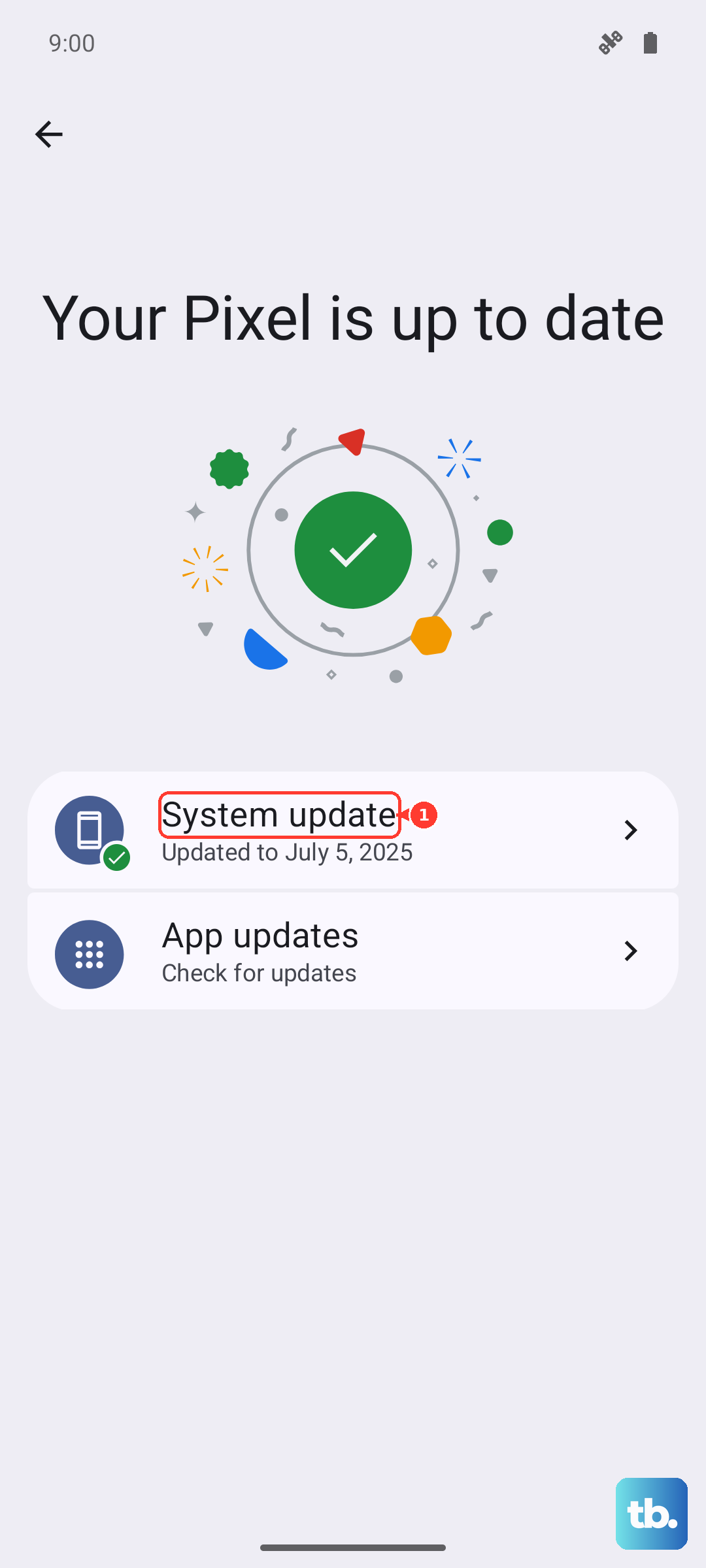
Go to Settings > System > System updates. Download and install any available update. If your phone is off and won't turn on, you might need to charge it for a while first or try the force restart method while it's plugged in.
5. Wait If the Battery Is Fully Drained
If you've run the 6000mAh battery down to absolute zero, it won't show any signs of life immediately when you plug it in. This is a safety feature. Leave it connected to the wall charger (not a computer or car USB port) for at least 30 minutes.
You should eventually see a battery icon or a charging indicator on the screen. If there's still nothing after a half hour, try the force restart procedure again while it remains plugged into the wall.
6. Try Wireless Charging
The X200 Pro supports 30W Qi wireless charging. If wired charging isn't working, trying a wireless pad can tell you if the problem is specific to the USB-C port or a broader issue with the phone itself.
Place your phone correctly on a Qi charger. Make sure you remove any thick cases. If the phone charges wirelessly but not via cable, that points directly to a problem with the USB-C port, likely debris or physical damage.
Keep in mind that wireless charging generates more heat. If the phone gets too warm, it may slow down or pause charging to protect the battery, which is normal.
7. Inspect Your Charging Settings
Funtouch OS has built-in features to protect your battery's long-term health. Sometimes these can be misinterpreted as a charging fault. Go to Settings > Battery > More battery settings.
Look for any options like "Smart charging" or "Charging optimization." These modes learn your habits and may delay full charging to reduce battery wear. You can temporarily disable them to see if your phone will then charge to 100%. Also, check if any extreme power-saving modes are activated, as they can limit functionality.
8. Charge with the Phone Powered Off
A misbehaving app or background process in Android 15 could be causing a conflict that prevents proper charging. Power your X200 Pro down completely, then plug in the charger.
If it begins charging normally while off, you know the hardware is fine and it's a software-related issue. This is also the fastest way to charge the phone, as no system resources are being used.
9. Consider a Factory Reset (Last Resort)
If you've tried every other step and the phone still refuses to charge reliably, a deep software issue might be the cause. A factory reset will wipe your phone back to its original state, so this is an absolute last resort.
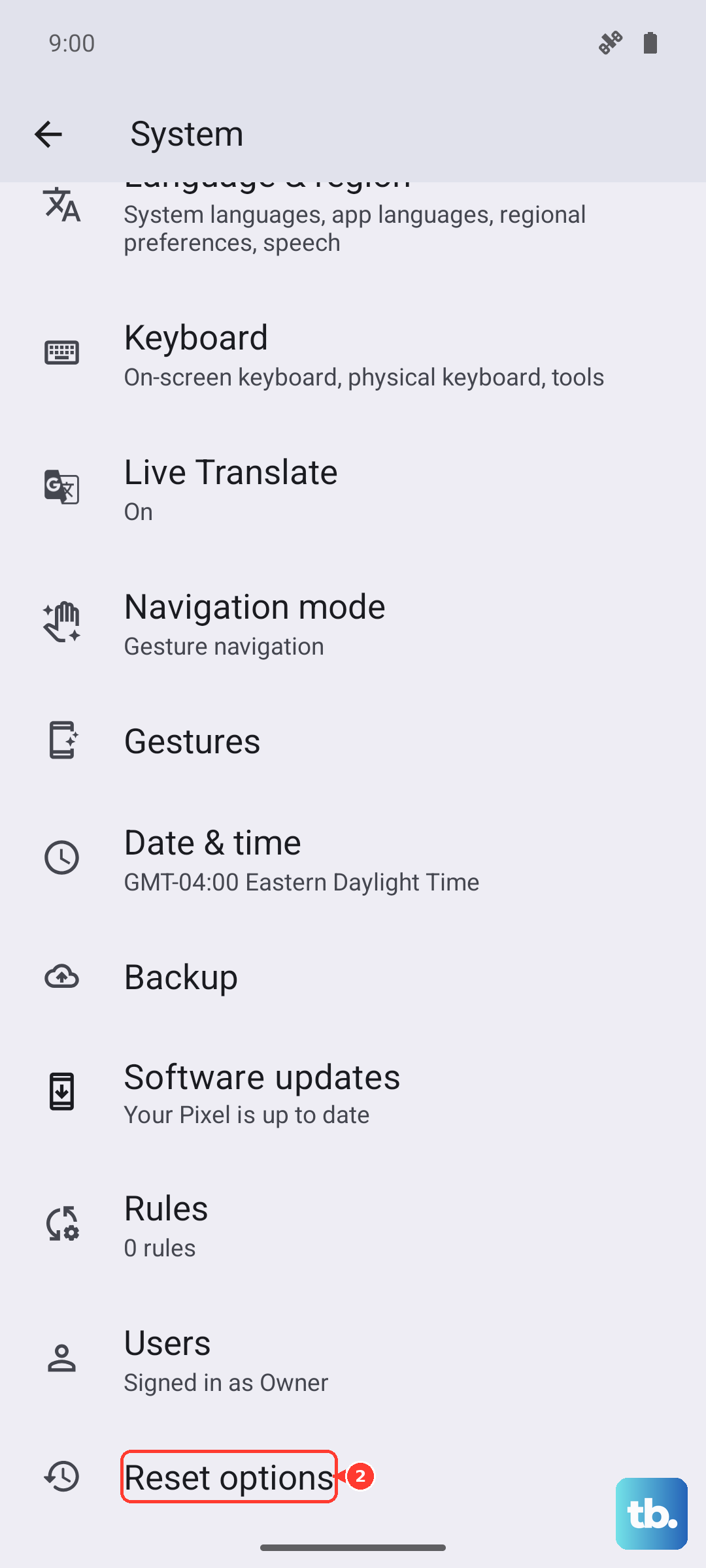
Make sure you back up all your important data first. To perform the reset, go to Settings > System > Reset options > Erase all data (factory reset). After the reset is complete, set the phone up as new and immediately test the charging. If the problem persists after a full reset, it is almost certainly a hardware issue.
In that case, you would need to contact Vivo support or visit an authorized repair center. Given the phone's limited availability outside of certain markets, checking Vivo's official website for your region's support options is your best next step.