
When your Vivo X200 Pro's microphone stops picking up your voice, it can turn simple tasks into a real headache. Calls drop to silence, voice notes record nothing, and Google Assistant just stares back at you. The first thing to do is figure out exactly which microphone is acting up, as your phone has several.
A fast way to narrow this down is a browser based online mic test. If the meter responds when you talk, the mic itself is fine and the problem sits in software or settings.
Test Your Vivo X200 Pro's Microphones
Open your Voice Recorder app, which comes pre-installed with Funtouch OS. Tap the record button and speak at a normal volume for about 10 seconds. Play it back. If it sounds muffled or silent, you've confirmed the issue.
Next, try a phone call. Use a landline or another phone to call your X200 Pro. If the person on the other end can't hear you, but you can hear them, it points to the primary call microphone. For a more thorough check, record a video using the main camera, then switch to the selfie camera and record another clip. Compare the audio. This can tell you if the problem is with the bottom microphone, the top earpiece mic, or both.
Quick Fixes to Try Immediately
Grab your phone and take a close look at the small pinhole openings. The main microphone is a tiny hole next to the USB-C charging port at the bottom. There's also one up top near the earpiece. These can easily get clogged with pocket lint or dust.
Use a soft-bristled brush, like a clean toothbrush, to gently sweep over these openings. You can also try blowing a short, sharp burst of air across them. Avoid using compressed air cans directly into the hole, as the pressure could damage the internal component.
If you're using a case, especially a rugged one with port covers, take it off. I've seen cases where a poorly designed cover partially blocks the microphone grille. Test your voice recorder again without the case to rule this out.
Disconnect Bluetooth and Accessories
Your phone might be trying to send audio to a paired device. Swipe down from the top of your screen to open the Quick Settings panel and tap the Bluetooth icon to turn it off. If you have wired headphones plugged into the USB-C port, unplug them, as the phone can sometimes get stuck routing audio through an accessory that's no longer there.
Check App Permissions in Funtouch OS
Android 15 and Funtouch OS 15 have granular permission controls. If an app like WhatsApp, Telegram, or your camera can't access the mic, it won't work. Go to Settings > Apps > App Management.
Find the app giving you trouble and tap on it. Select Permissions. Look for the Microphone permission and make sure it's set to "Allow" instead of "Deny." Do this for each app where the microphone fails.
Force Close and Reopen the Problem App
Sometimes a single app just glitches. Swipe up from the bottom and hold to enter the recent apps view. Find the app window and swipe it all the way up to close it. Wait a few seconds, then tap the app icon to launch it fresh. This clears its temporary memory and can resolve conflicts with the audio hardware.
Restart Your Vivo X200 Pro
A simple reboot clears out temporary system caches and stops errant background processes. Press and hold the power button until the power menu appears, then tap "Restart." If your screen is unresponsive, you can force a restart by pressing and holding the power button for about 12 seconds, until you feel the phone vibrate and see the Vivo logo.
Update Funtouch OS
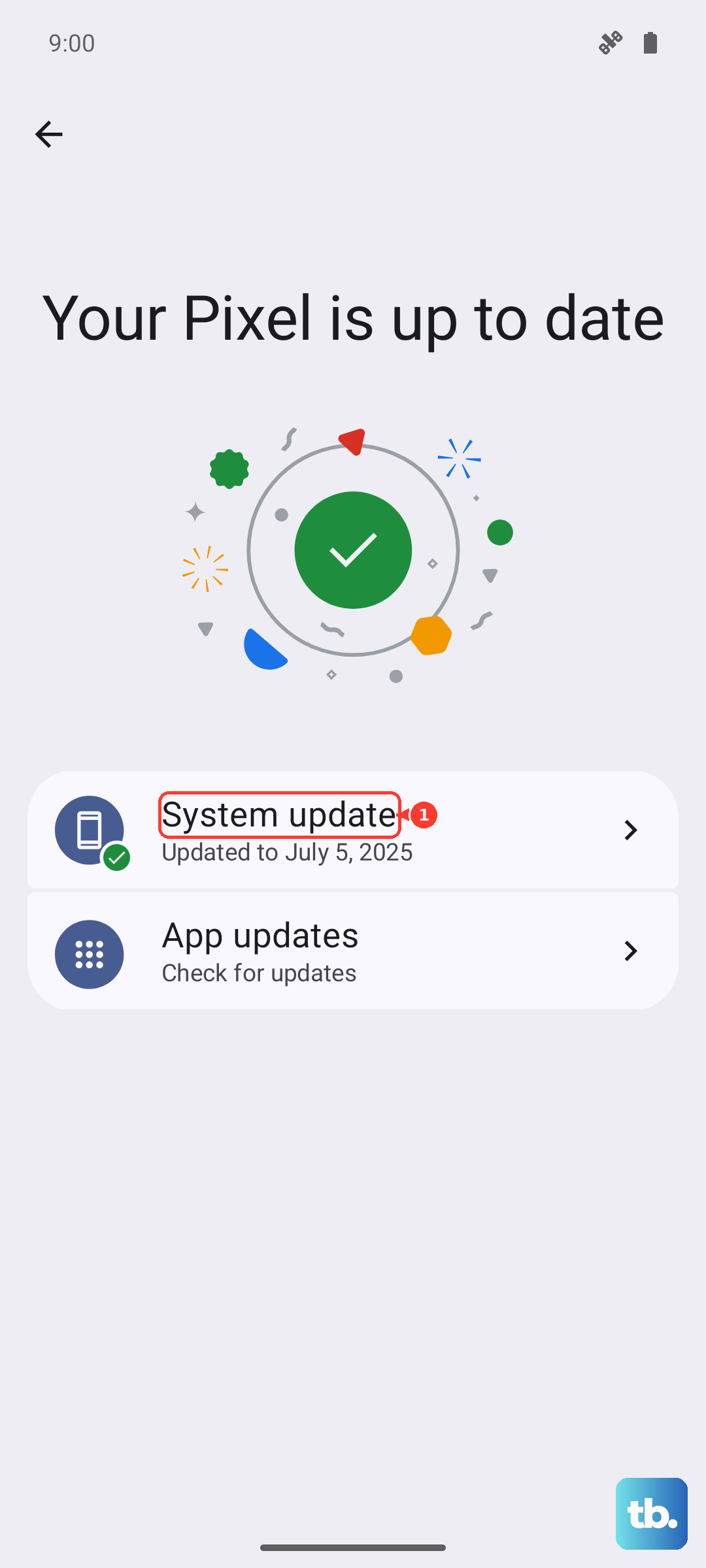
Vivo periodically releases updates that fix bugs, including audio and microphone issues. Connect to Wi-Fi and go to Settings > System Update. Tap "Check for updates." If an update is available, it's a good idea to install it. Your phone's large 6000mAh battery means you can do this without worrying about running out of power mid-update.
Disable Vivo's Audio Enhancements
Vivo includes various sound enhancement features that can sometimes interfere. Go to Settings > Sound & vibration. Look for settings like "Audio effects," "Sound quality," or "Hi-Fi" for specific apps. Try turning these enhancements off temporarily, then test your microphone again in a call or recording.
Reset All Settings
This is a stronger step that won't delete your photos, messages, or apps, but it will reset all your system settings to default. Things like Wi-Fi passwords, Bluetooth pairings, and custom display settings will be lost. Go to Settings > System Management > Backup and Reset > Reset phone. Choose Reset all settings and enter your lock screen PIN if prompted. After the phone reboots, you'll need to reconfigure your preferences, but it can clear out a deeper software conflict.
Check for Hardware Damage
Think back to the phone's recent history. Has it been exposed to moisture, even high humidity? Was it dropped recently? While the X200 Pro is built well, a hard impact could damage the tiny microphone module. Also, check the USB-C port itself. If it's damaged or has debris inside, it could be affecting the nearby microphone.
If you've methodically tried all these steps, checking for blockages, managing permissions, updating software, and resetting settings, and the microphone is still dead, the issue is likely physical. The microphone is a small, separate component soldered to the phone's logic board. Repairing it requires professional disassembly with the right tools.