
When your Samsung Galaxy Z Fold 7's sound cuts out, it's especially frustrating given what you paid for this device. Audio problems on the Fold 7 can show up as no sound during calls, crackling from the speakers, or media playing through the inner screen but not the outer display. Most of these issues are fixable at home without a trip to the service center.
The Z Fold 7 runs Android 15 with Samsung's One UI on top, and the audio system handles output across both the cover screen and the main foldable display. That dual-screen setup means sound routing can get confused sometimes. Let's walk through the fixes that actually work for this specific device.
Check the Volume Sliders Carefully
The Fold 7 has separate volume controls for media, calls, notifications, and the system. You might have media volume cranked but calls muted without realizing it. Press the volume rocker on the side of the phone and tap the arrow that expands into the full panel. Look at each slider individually and make sure none are all the way down.
Also check that the phone isn't stuck in vibrate or silent mode. Swipe down twice from the top of the screen to open the quick settings panel. The sound icon at the top should show Sound mode, not Vibrate or Silent. Tap it to switch if needed.
Turn Off Separate App Sound
Samsung lets you route specific apps to Bluetooth devices while the rest of the phone plays through the speakers. It's a useful feature on the Z Fold 7 when you're watching a movie on the big screen through earbuds. But if you turned it on and forgot, it can make it seem like your speakers stopped working for certain apps. Go to Settings > Sounds and Vibration > Separate App Sound and toggle it off if it's enabled.
Disconnect Bluetooth and Unplug Accessories
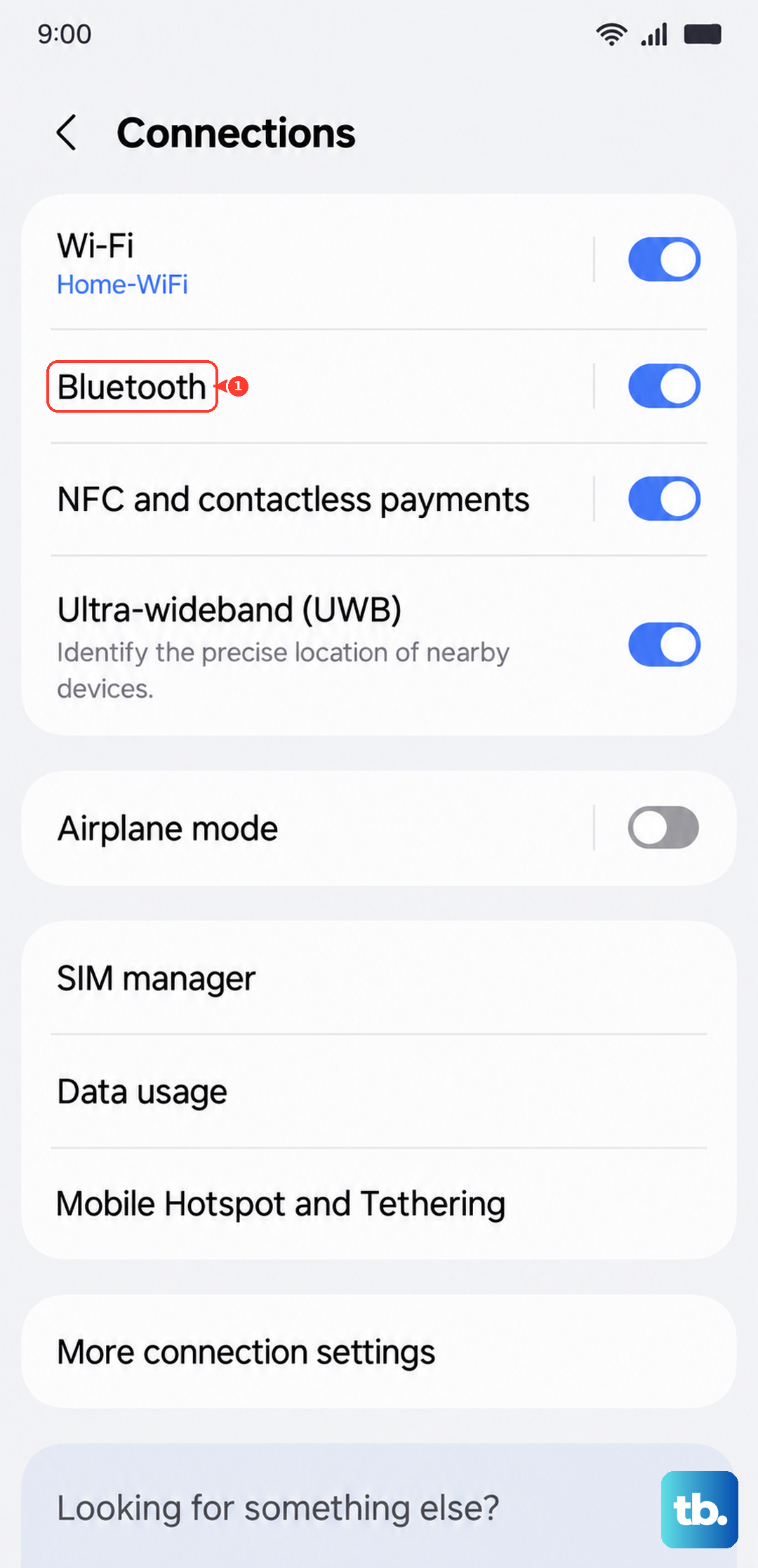
The Z Fold 7 might be sending audio to a connected device without you realizing it. Open Settings > Connections > Bluetooth and either turn Bluetooth off or manually disconnect any paired headphones, speakers, or your car.
If you're using a USB-C to 3.5mm adapter or any wired accessory through the charging port, unplug it. The phone can get stuck thinking an external device is still connected even after you disconnect it.
Remove your phone case too. Some cases for the Z Fold 7 cover the speaker grills or the USB-C port area in ways that muffle sound.
Check Do Not Disturb and Accessibility Settings
Do Not Disturb on Android 15 can block all sounds including media if you've got it set too aggressively. Go to Settings > Notifications > Do Not Disturb and make sure it's turned off. Check that media sounds aren't listed under blocked interruptions.
The Z Fold 7 has hearing accessibility options that can mute everything. Open Settings > Accessibility > Hearing Enhancements and confirm that Mute all sounds isn't toggled on. It's easy to enable this by accident when messing with accessibility shortcuts.
Clean the Speaker Grills
Dust and pocket lint love to collect in the narrow speaker grills on foldable phones. The Z Fold 7 has speakers at the top and bottom of both the cover screen and the main display. Check all of them with a flashlight. If you see buildup, use a soft-bristled toothbrush or a dry cotton swab to gently clean the grills. Do not use compressed air cans directed at the speakers, the pressure can push debris deeper into the phone.
Never stick anything metal or sharp into the speaker openings. The Fold 7's speakers are more exposed than on many slab phones because of the hinge design, so they need gentler care.
Force Restart the Phone
A regular restart clears temporary glitches, but if the screen is unresponsive or the phone feels frozen, you need a forced restart. On the Galaxy Z Fold 7, press and hold the Volume Down and Side buttons simultaneously for 10 seconds. The device will restart on its own. This doesn't erase any data, it just cuts power and reboots the system cleanly.
Once it's back on, test the speakers with a phone call or some music. If the sound returns, you were looking at a software hiccup that needed a full boot cycle.
Boot Into Safe Mode
Safe mode starts the Fold 7 with only the preinstalled apps active. If your sound works fine in safe mode, a third-party app you installed is causing the problem. To enter safe mode, press and hold the Side button and Volume down button until the power menu appears. Tap and hold Power off until the safe mode prompt shows up, then tap Safe mode to confirm.
While in safe mode, check if audio plays normally. If it does, start uninstalling apps you added recently. Focus on apps that manage audio like equalizers, sound enhancers, or media players. Reboot normally once you've removed the culprit.
Clear the System Cache
The cache partition stores temporary system files that can get corrupted after updates. The Z Fold 7's recovery menu lets you wipe this without affecting your personal data. Turn the phone off completely. Press and hold the Volume Up and Side buttons together until the Samsung logo appears, then release. Use the volume buttons to highlight Wipe cache partition and press the Side button to select it. Confirm on the next screen, then select Reboot system now when it finishes.
This won't touch your photos, messages, or apps. It just clears out the system's temporary junk that might be interfering with audio processing.
Check for Software Updates
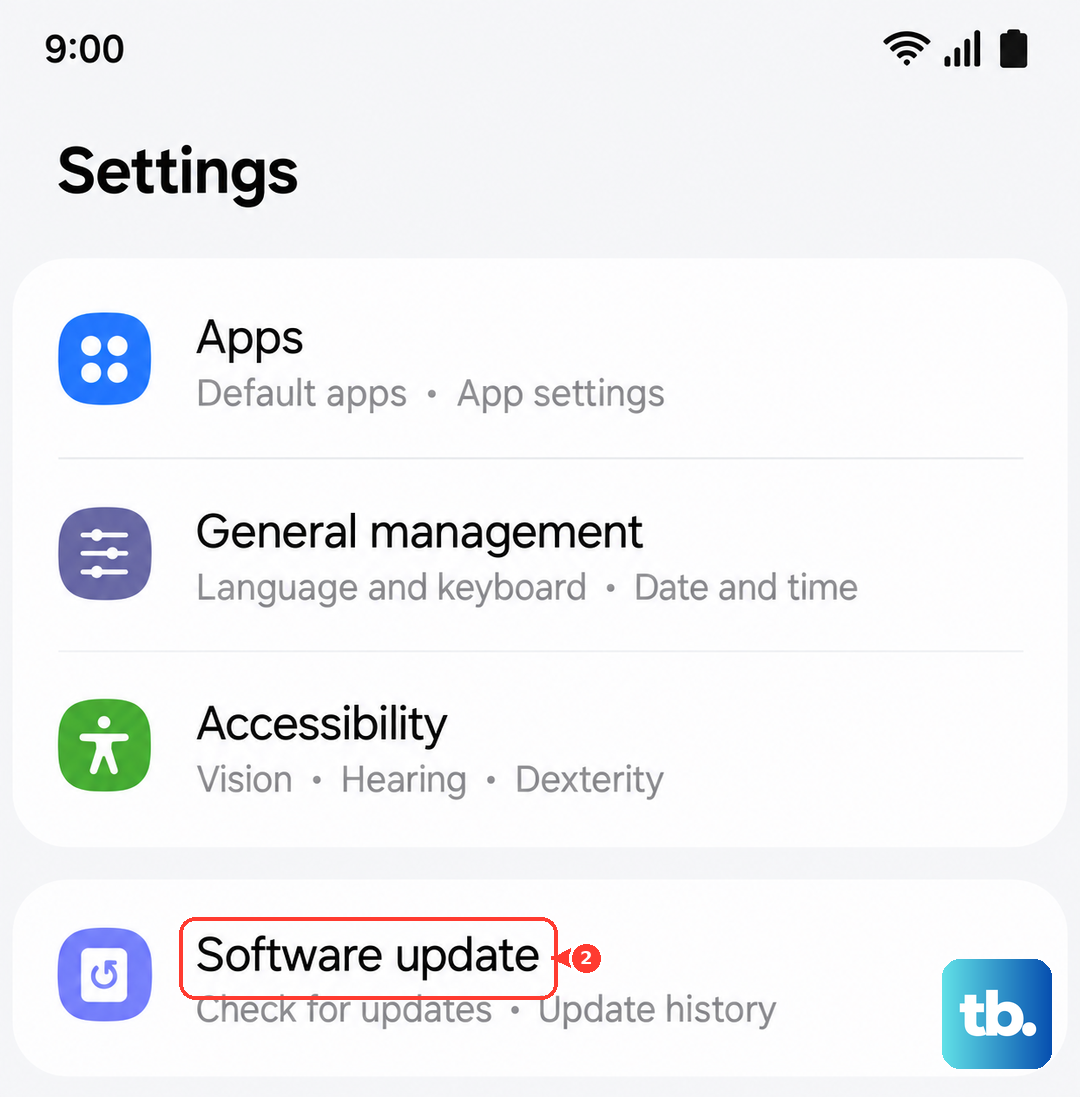
Android 15 receives patches that often fix audio bugs specific to Samsung's foldable lineup. Go to Settings > Software Update > Download and install. If an update is available, install it over Wi-Fi. The Z Fold 7's modem handles updates well, but keep the phone plugged in during the process to avoid battery drain issues, especially if you've noticed the phone stopping at 45% charge.
Reset All Settings
This is the last step before a full factory reset. Resetting settings restores all system preferences to default without deleting your apps or data. Go to Settings > General Management > Reset > Reset all settings. Confirm and enter your PIN if prompted. The phone reboots, and you'll need to reconfigure things like Wi-Fi passwords and wallpaper. Your photos and apps stay put.
This often resolves audio routing issues on the Fold 7 that individual settings changes can't touch.