
Watching the keyboard pop up for a split second before disappearing is one of those annoyances that can derail your whole flow on the Galaxy Z Fold 7. Whether it's the Samsung keyboard, Gboard, or another third-party option, the fix is usually quicker than you think. Here is how to get your keyboard back with these nine fixes.
Force Stop the Keyboard App and Restart
The quickest fix is to force stop the keyboard app and let it start fresh. This clears temporary bugs that can prevent the keyboard from loading.
Head to Settings > Apps > tap the three-dot menu and select Show system apps. Find your keyboard app (Samsung Keyboard, Gboard, SwiftKey, or similar) and tap Force stop. Give it a few seconds, then try typing anywhere to see if the keyboard shows up.
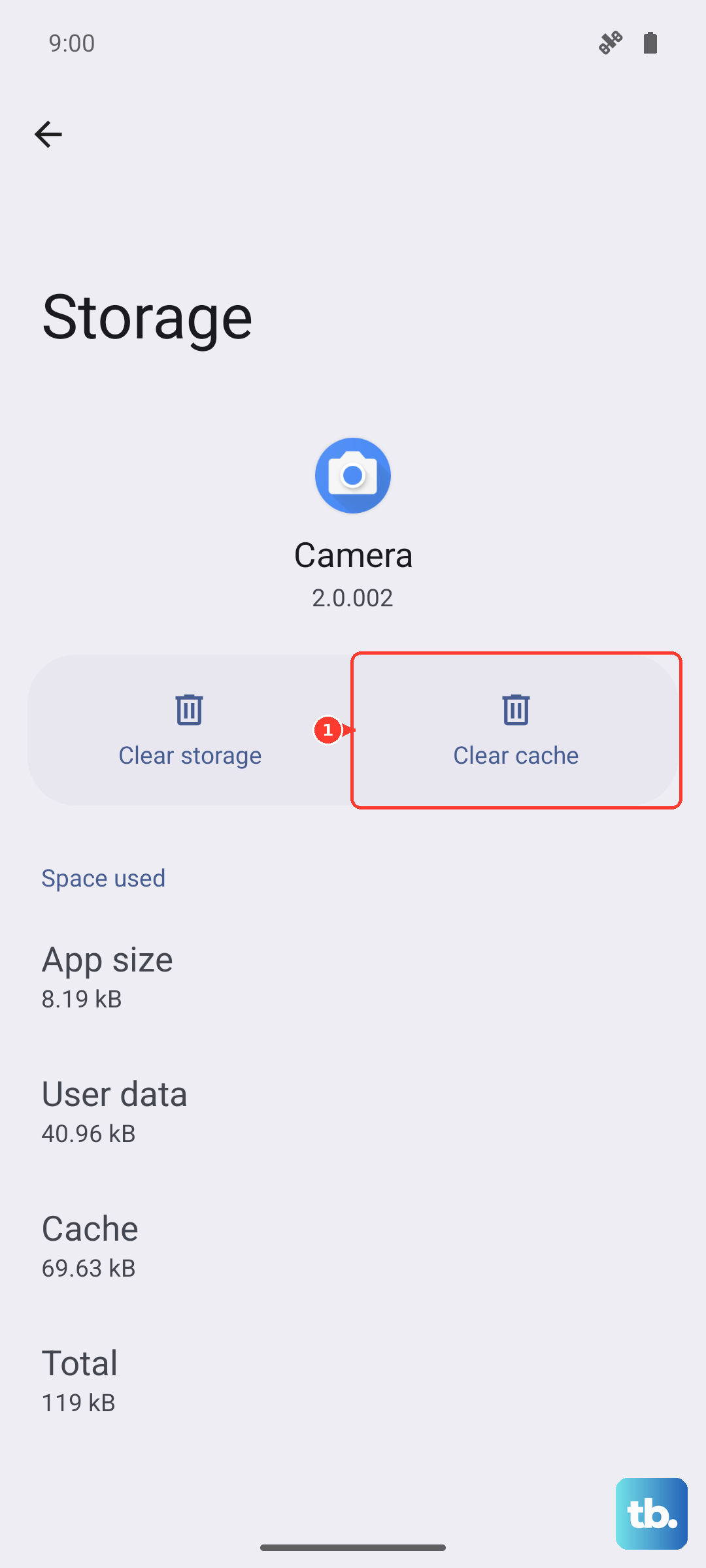
If force stopping didn't help, follow the same path but tap Storage then Clear cache. If things are still broken, tap Clear data next, you will lose your custom dictionary and saved words, but it often resolves deeper conflicts.
Try the Forced Restart
A standard reboot often works, but the Z Fold 7 can sometimes need a forced restart when a single app has locked up the input system. Press and hold the Volume down and Side buttons simultaneously for 10 seconds until the device restarts. This is a hard reboot and can clear software glitches that a normal restart won't touch.
Check for App Updates in the Play Store
An outdated keyboard app might not play nicely with Android 15 or One UI on the Z Fold 7. Open the Google Play Store, tap your profile picture in the top right, then select Manage apps & device. Any available updates for your keyboard app will show under the Updates available section. Install them and test the keyboard again.
Reset the Samsung Keyboard Settings
If you are using the stock Samsung Keyboard, the settings might have gotten a little scrambled. Go to Settings > General management > Language and input > On-screen keyboard > Samsung Keyboard. Tap Reset to default settings near the bottom. This won't delete your saved words but will reset things like key-tap feedback and layout tweaks back to factory defaults.
Bluetooth or Accessory Conflicts on the Fold
The Z Fold 7's larger screen makes it easy to connect external keyboards, but sometimes a connected Bluetooth keyboard (or even a case that has a keyboard cover) can confuse the software. If you have a Bluetooth keyboard paired, go to Settings > Connections > Bluetooth and unpair or disconnect it. On the Z Fold 7, also check if your case has a built-in keyboard that might be interfering, try removing the case temporarily.
Another possibility is that the S Pen or another accessory is causing input conflicts. If you use the S Pen frequently, try folding the device closed to switch modes and see if the keyboard returns.
Disable the Dictionary Provider
Samsung keyboards rely on a separate Dictionary Provider app for predictive text and autocorrect. If that app is buggy, the keyboard may crash before it can even load. Go to Settings > Apps > Show system apps and find Dictionary Provider or DICP. Tap Disable to turn it off, then test the keyboard. You can re-enable it later if you want those features back.
Boot Into Safe Mode
Safe mode boots the Z Fold 7 with only system apps running, which helps you figure out if a third-party app is behind the keyboard mess. With the device on, press and hold the Side key until the power menu appears. Tap Power off, then press and hold Side + Volume down together until you see the Samsung logo. Keep holding Volume down until Safe mode appears in the bottom left corner.
If the keyboard works fine in Safe mode, a third-party app is the culprit. Start uninstalling recently downloaded apps one by one, especially tools, launchers, or theme packs that might hook into the system input.
Update the Device Software
Samsung frequently pushes software updates for the Z Fold 7 that include keyboard-related fixes. Go to Settings > Software update > Download and install. If an update is available, install it and restart the phone. Even if the notes don't specifically mention the keyboard, system-wide fixes often resolve input issues.
Reset All Settings
This option restores system preferences to default without deleting your apps or personal files. It is a middle ground between the smaller fixes and a full factory reset. Go to Settings > General management > Reset > Reset all settings. You will need to re-enter your Wi-Fi passwords, but your photos, messages, and accounts stay put.
If the keyboard is still refusing to show up after all of these, you might want to try installing a different keyboard from the Play Store as a temporary workaround, Gboard and SwiftKey are both solid alternatives. Start with the forced restart and the app cache clear first. Those two fixes alone solve the vast majority of keyboard issues on the Z Fold 7.