A frozen Samsung Galaxy Z Fold 7 can be unsettling, especially with a big foldable screen that suddenly stops responding. The display might be stuck on an app, the home screen, or just go black. In most cases, this is a temporary software hiccup that you can fix in minutes without losing anything.
Force Restart the Z Fold 7
This is your first move for a completely unresponsive screen. Press and hold the Volume down and Side buttons simultaneously for about 10 seconds. Keep holding even if the screen stays black, it takes the full 10 seconds for the device to restart. You won't lose any data, and it works on most software freezes.
On older Samsung phones the button combo was different, but for the Z Fold 7 it's Volume down plus the Side key. If the phone vibrates or the Samsung logo appears, let go and let it boot up normally.
Give It a Few Minutes
Sometimes the phone isn't actually frozen, it's just busy. Heavy tasks like installing a system update, restoring a backup, or syncing a large batch of photos can make the screen unresponsive while the processor grinds through the work. If the back of the phone feels warm, it's likely still doing something. Wait 5 to 10 minutes before force restarting.
Plug It In
A deeply discharged battery can make the Z Fold 7 appear dead or frozen. If the battery was low the last time you used it, connect a USB-C charger and wait at least 15 minutes. The phone may need a bit of juice before it can respond to button presses. Use a certified Samsung or USB PD PPS charger, the Z Fold 7 supports up to 25W wired charging, and using a weak charger will barely wake it up.
If you have a Qi wireless pad handy, you can also try wireless charging. The Z Fold 7 supports up to 15W wireless, but some generic pads may not work. If the pad doesn't seem to charge, inspect the center of the back panel for proper alignment.
Clean the USB-C Port
Dust and lint in the charging port can cause charging issues that look like a frozen phone. Take a close look at the USB-C port with a flashlight. If you see debris, use a can of compressed air to blow it out gently. Don't stick anything metal or sharp inside, you can damage the pins. A clean port ensures the phone gets power when you need it.
Close a Stuck App
If only one app is misbehaving but the rest of the interface works, you can force-close it without restarting. Swipe up from the bottom of the screen and hold to open the recent apps view. Swipe up on the frozen app to dismiss it. Then tap the app again to relaunch. If a particular app keeps freezing, check the Galaxy Store or Play Store for updates, or uninstall and reinstall it.
Free Up Storage Space
When internal storage drops below a few hundred megabytes, Android can struggle to write temporary files, which leads to freezes. If you can navigate into Settings, go to Settings > Device care > Storage and see what's taking up space. Delete old downloads, clear app caches, or move photos to the cloud. Aim for at least 2 GB free to keep things running smoothly.
Update the Software
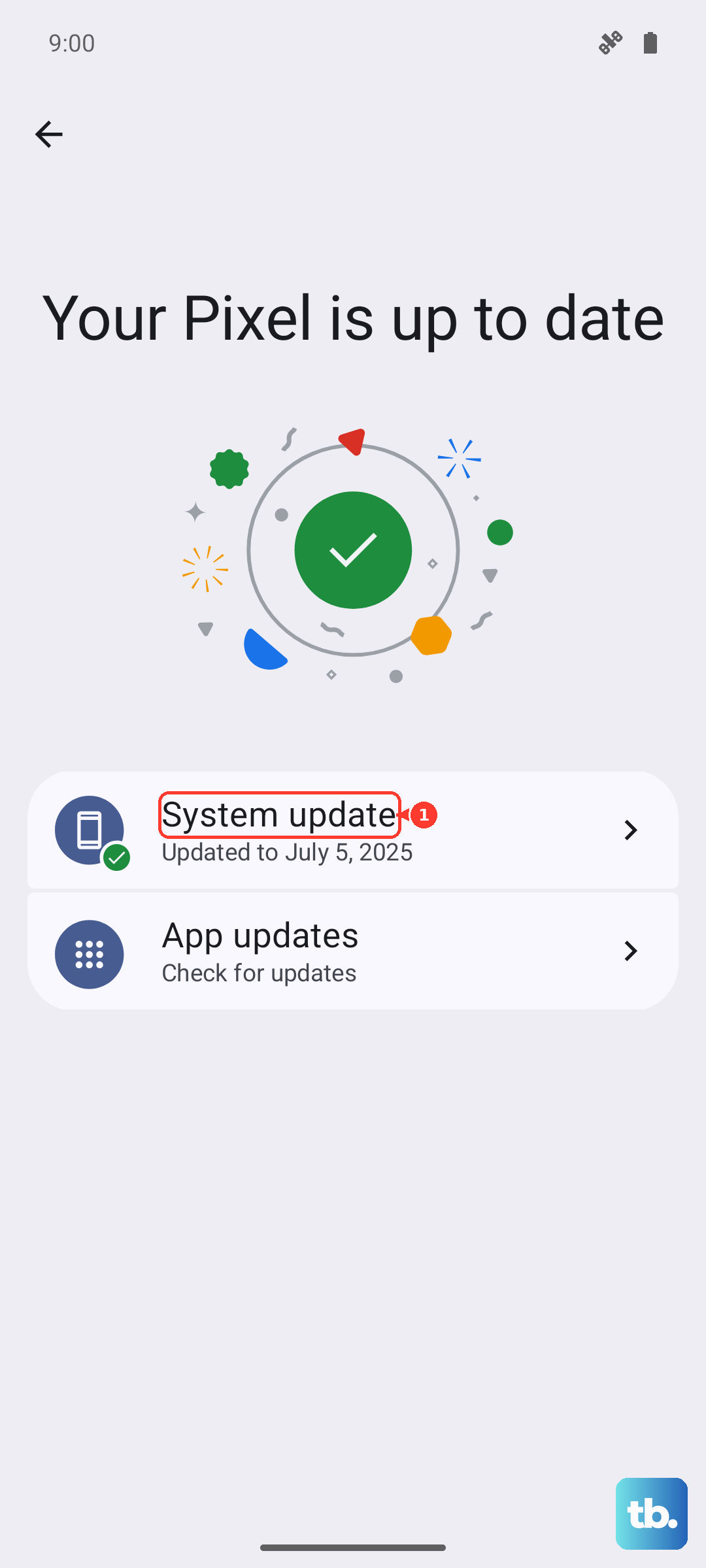
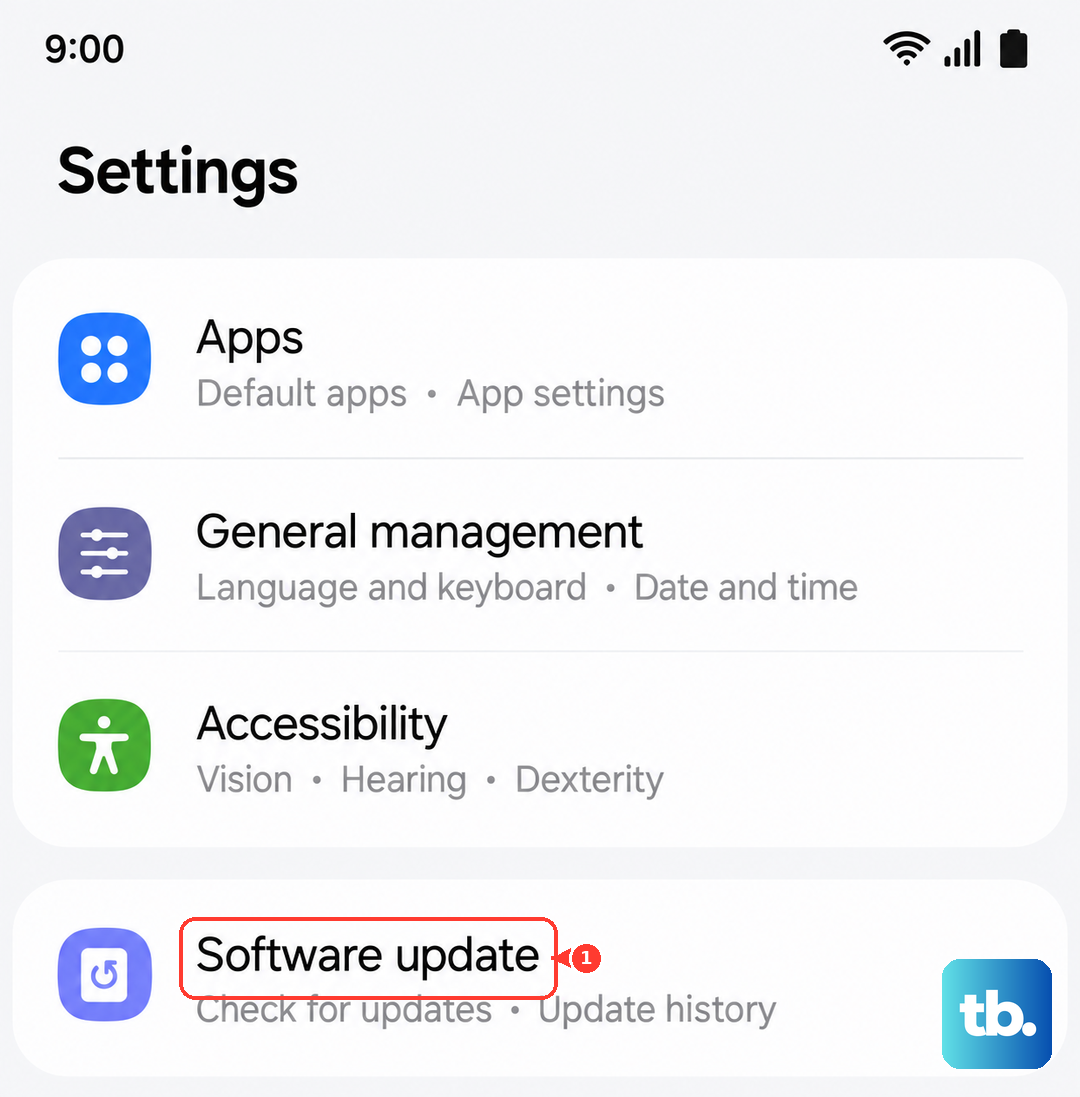
Software bugs are a common cause of freezing, and Samsung pushes updates regularly. After you get the phone running again, go to Settings > Software update > Download and install. If an update is available, install it. Most Android 15 updates for the Z Fold 7 have included stability fixes for the foldable display and multitasking features.
Check for Overheating
The Z Fold 7 will shut down or freeze if its internal temperature gets too high. If the device feels hot to the touch, especially near the hinge or the upper half of the back, remove any case and set it in a cool, shaded spot. Don't put it in the fridge or freezer; just let it cool down naturally for 15 to 20 minutes. Avoid charging while it's still warm.
Reset Settings Without Losing Data
If the phone keeps freezing after a restart, corrupted system settings could be the culprit. Go to Settings > General management > Reset > Reset all settings. This clears network, display, and system preferences but keeps your photos, messages, and apps intact. You'll need to re-enter Wi-Fi passwords and reconfigure any custom settings afterward.
Factory Reset as a Last Resort
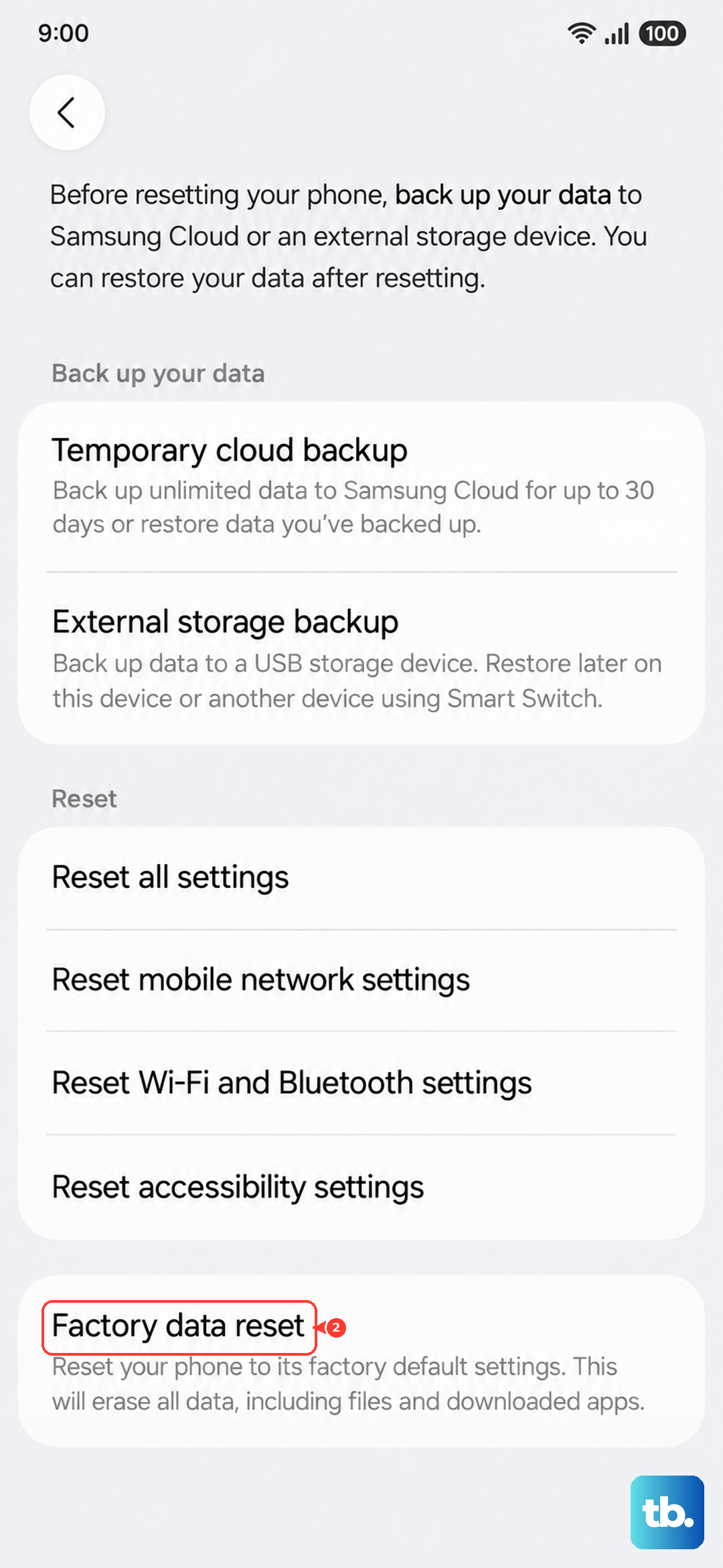
A factory reset wipes everything and restores the phone to its out-of-box state. Only try this after you've backed up your data. Go to Settings > General management > Reset > Factory data reset. If the phone won't boot at all, you can factory reset from recovery mode: press and hold Volume up and the Side button, then use the volume keys to navigate to "Wipe data/factory reset." This should only be necessary if nothing else has worked.