
The Galaxy Z Flip 7 runs Android 16 out of the box, and Samsung stays on top of updates for its foldables. You get new One UI features, important security patches, and fixes for quirks like the intermittent charging some users reported. Here is how to keep your software current.
Download and Install Over the Air
Open Settings > Software update > Download and install. Your Z Flip 7 will check for available firmware. If something is there, tap Download and then Install now (or schedule it for overnight).
Make sure your battery is above 50% or keep the phone plugged in. The Z Flip 7 supports 25W wired charging and 15W wireless, so either works while the update installs. Wi-Fi is also required for the download unless you are using Samsung Smart Switch on a computer.
Turn On Automatic Downloads
In that same Software update menu, toggle on Auto download over Wi-Fi. Your phone grabs the update package in the background as soon as Samsung releases it. You still have to tap Install to finish the job, but the heavy lifting happens automatically.
You can also enable Install updates overnight if you prefer to handle the restart while you are asleep. It is one less thing to think about.
Use Smart Switch Instead
If the over-the-air method keeps failing or your Z Flip 7 is low on storage, Samsung Smart Switch on a PC or Mac is a reliable backup. Download Smart Switch from Samsung's website, connect your phone with a USB-C cable, and open the program. It recognizes the Z Flip 7 immediately. If an update is available, click Update and the software handles the rest.
Does the Update Keep Failing?
Sometimes a download hangs or the installation gets stuck mid-way. On the Z Flip 7, a force restart is your first move. Press and hold Volume Down + Side key for 10 15 seconds until the device restarts. This won't erase your data. It just clears the temporary glitch that paused the update.
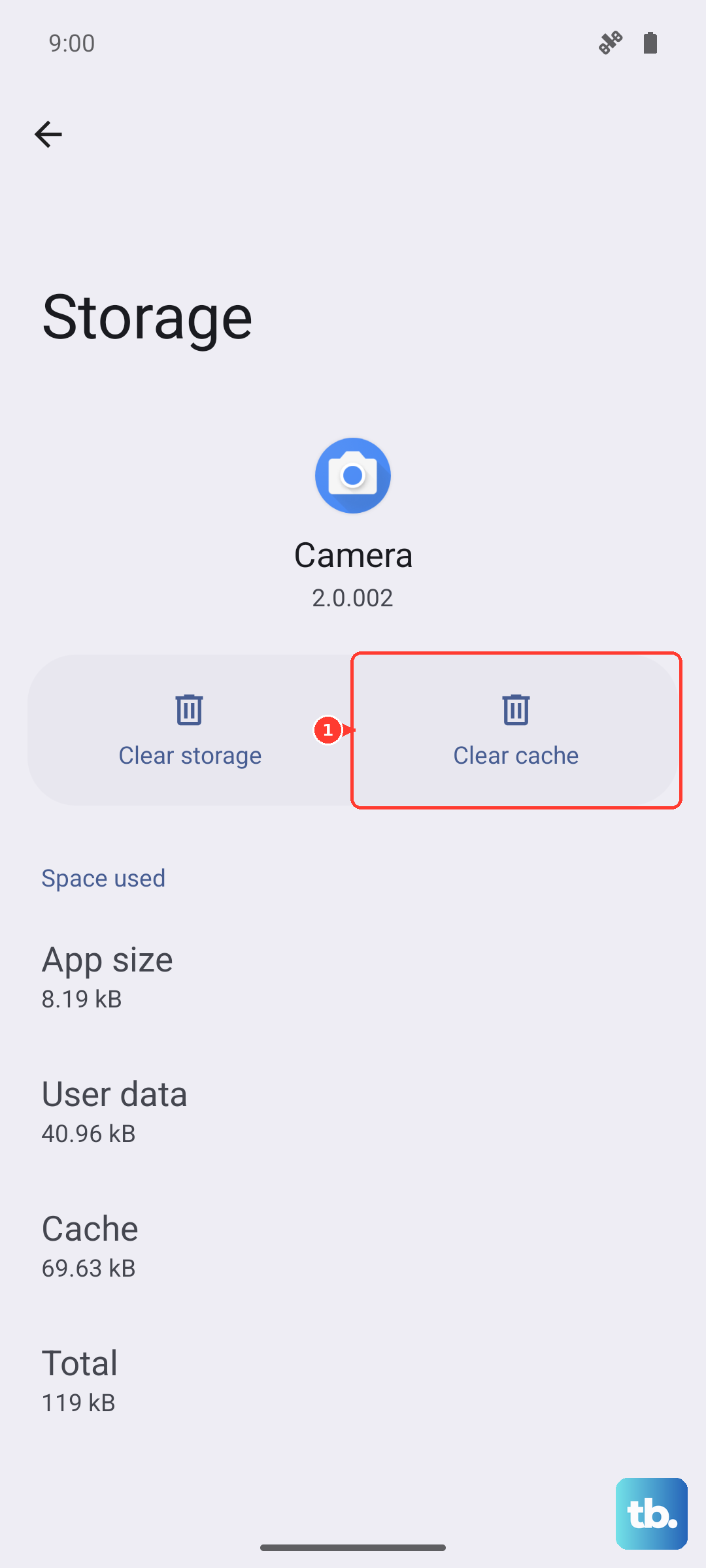
If the update still won't install, go to Settings > Apps > Software update, tap Storage, and hit Clear cache. Then try downloading the update package again from the Software update menu.
Another option is booting into recovery mode. Power off the phone completely, then press and hold Volume Up + Side key. From the menu, select Wipe cache partition. This cleans out system junk without touching your personal files. Reboot and try the update once more.
Get Your Phone Ready
For major updates, like a full One UI version jump, spend a couple minutes prepping your Z Flip 7. Head to Settings > Accounts and backup > Back up data and make sure your files are safe. Major upgrades can take up 5 10 GB of space, so check your storage under Settings > Battery and device care > Storage to make sure you have room.
Check Your Current Software Version
If you want to confirm exactly what build you are running, go to Settings > About phone > Software information. You will see your Android version (Android 16), the One UI version, and the current security patch level. This helps when reading about a specific fix for a known Z Flip 7 issue so you can verify whether you already have it.
Why Updates Are Worth It for the Z Flip 7
Samsung's monthly security patches address vulnerabilities that target Android devices. For the Z Flip 7, software updates also refine the cover screen experience, improve flex mode, and optimize battery life. Given the known issue where the Z Flip 7 can stall during charging, an update is exactly what usually resolves that kind of behavior.
Keeping the software current means your foldable runs smoother, stays more secure, and avoids the weird bugs that tend to pop up over time.











