
Keeping your Samsung Galaxy Z Fold 6 updated is one of the best things you can do for it. These updates deliver critical security patches, fix bugs that might affect the unique foldable experience, and often bring performance tweaks for the inner and outer displays. Samsung is pretty consistent, pushing monthly security updates and a major One UI upgrade annually.
Check for and Install an Update
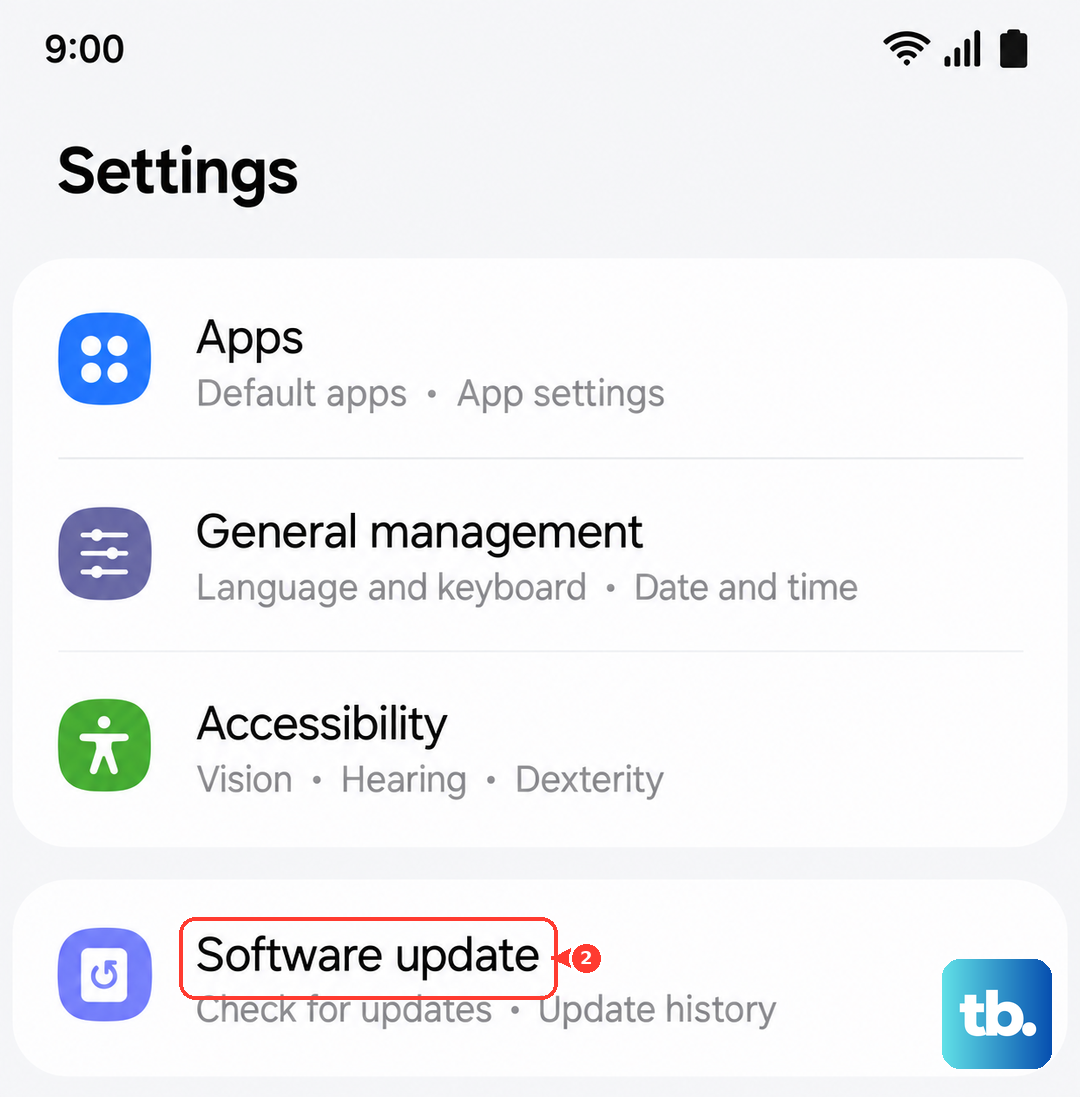
Head into your phone's settings. Tap on Software update and then select Download and install. Your Z Fold 6 will check with Samsung's servers to see if anything new is available. If an update is waiting, you'll see a prompt to download it.
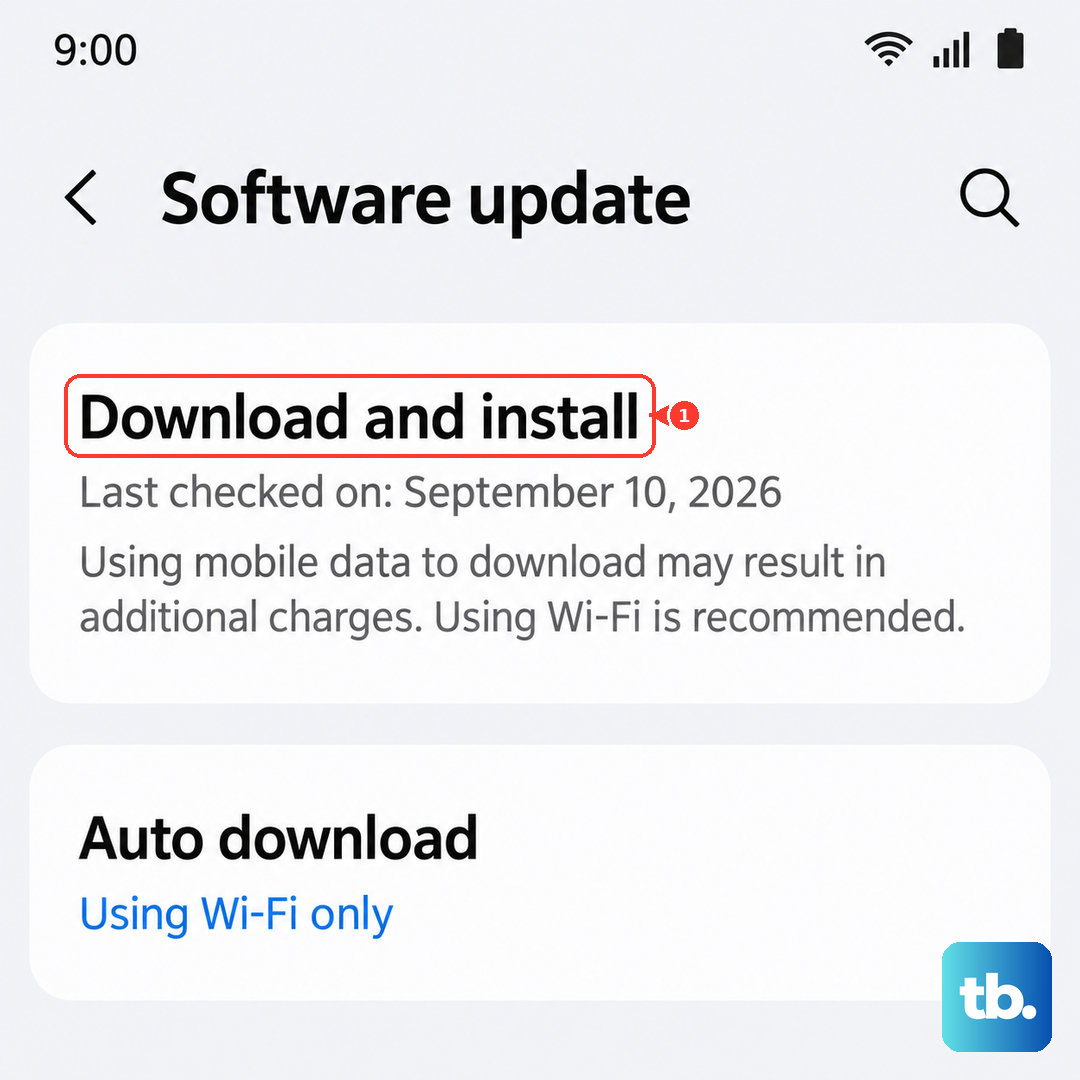
I'd recommend being connected to a strong Wi-Fi network and having your phone plugged into its 25W charger, or at least above 50% battery, before you start. Major One UI updates can be several gigabytes, so you don't want a mobile data charge or the phone shutting down mid-process.
Set Updates to Happen Automatically
You can make this process mostly hands-off. Go back to Settings > Software update. Here, you can toggle on Auto download over Wi-Fi. With this on, your phone will grab update files in the background when you're on Wi-Fi, so they're ready to go when you are.
There's also an option to Auto install overnight. This schedules the actual installation for a time when you're not using the phone, typically between 2:00 AM and 5:00 AM, so it doesn't interrupt your day.
Use Samsung Smart Switch on a Computer
Sometimes, an over-the-air update might fail due to storage constraints or a glitch. That's where Samsung's Smart Switch desktop app comes in handy. Download it from Samsung's website to your Windows PC or Mac.
Connect your Galaxy Z Fold 6 using a USB-C cable, open Smart Switch, and it will immediately check for any available firmware updates. If one is found, you can initiate the download and installation directly through your computer, which can be more stable for large files.
If an Update Gets Stuck or Fails
A frozen update can be unsettling. First, try a force restart. Press and hold the Volume Down button and the Side button together for about 10 seconds. Release when you see the Samsung logo. This reboots the system and often clears the temporary hiccup.
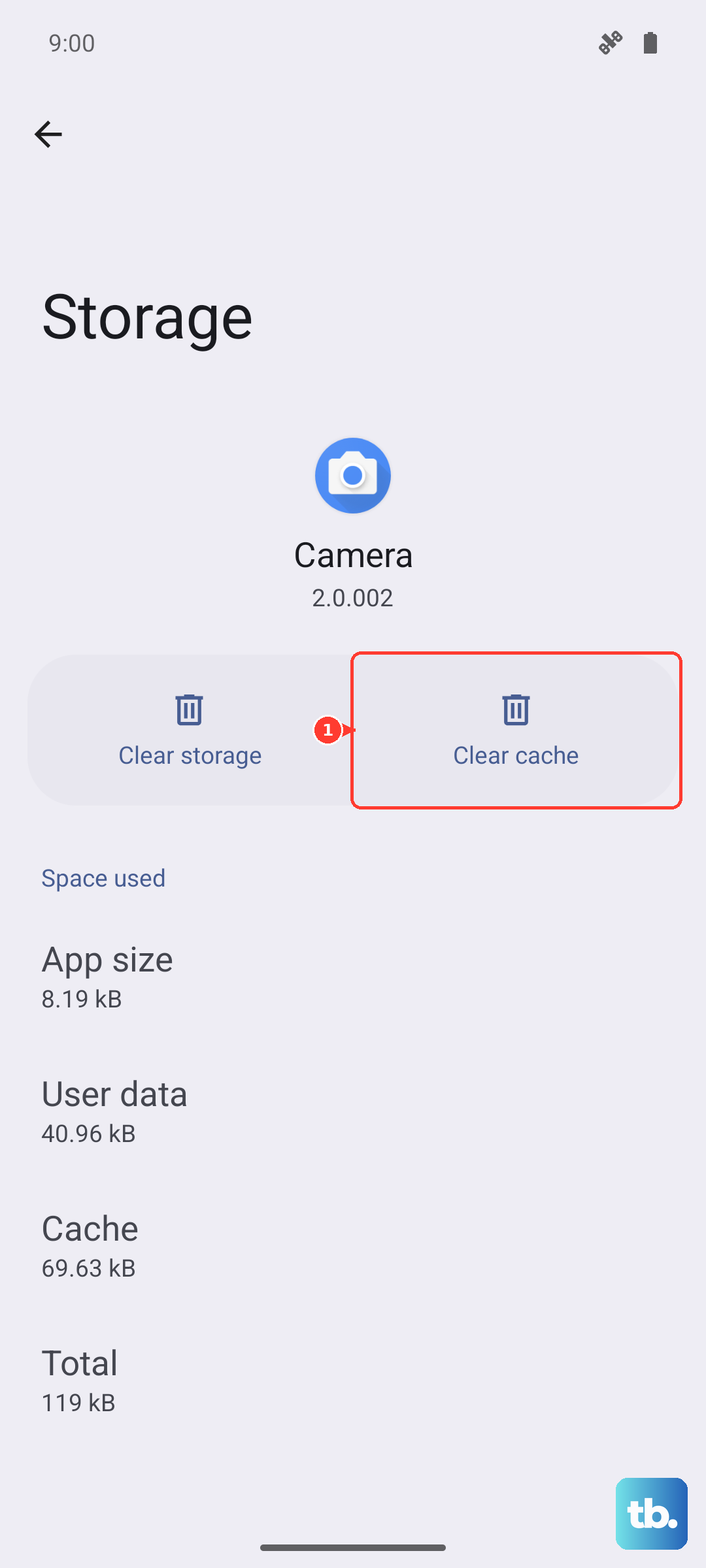
If the problem persists, you can clear the cache for the update service itself. Go to Settings > Apps, tap the three-dot menu, select Show system apps, and find Software update. Tap on it, go to Storage, and hit Clear cache. Then try checking for the update again.
For more stubborn issues, you might need to wipe the system cache partition. Turn off the phone, then press and hold Volume Up and the Side button until the recovery menu appears. Use the volume keys to navigate to Wipe cache partition and select it with the side button. This doesn't delete any personal data.
Check Your Current Software Version
It's good to know what you're currently running. Go to Settings > About phone > Software information. This screen shows your Android version, One UI version (like 6.1.1), and the all-important Android security patch level. This info is useful if you're checking online for specific update notes for the Z Fold 6.
Prep Your Phone Before a Major Update
Before installing a significant One UI version jump, a quick backup is a smart move. You can do this by going to Settings > Accounts and backup > Backup data. Choose what you want to save to your Samsung Cloud or Google Account.
Also, check you have enough free space. A major Android/One UI update can require 5-10 GB of free storage. You can manage files in Settings > Battery and device care > Storage.
Why Updates Matter for the Z Fold 6
For any phone, monthly security patches are non-negotiable for protecting your data. For a device as sophisticated as the Z Fold 6, updates are even more crucial. They often contain optimizations specifically for the foldable form factor, improving how apps transition between screens or enhancing S Pen functionality on the inner display.
Updates can also address specific hardware nuances, like hinge sensor calibration or display performance. Skipping them means missing out on the polish and protection Samsung has specifically developed for your device.











