
Your Z Fold 7 has been acting up, maybe it stops charging at 45%, the wireless charging pad won't recognize it, or the whole system has gone sluggish. A factory reset often clears software-level issues that masquerade as hardware failure. Here's how to do it right.
Back up before you wipe
Open Settings > Accounts and backup > Back up data and run a Samsung Cloud backup. Then go to Settings > Accounts and backup > Google Drive and make sure app data, call history, and contacts are set to back up automatically.
Your photos need love too. Connect the Fold 7 to a computer and copy the DCIM folder over, or make sure Google Photos is syncing. Once you hit factory reset, everything on the internal storage is gone.
Remove your Samsung and Google accounts
Skipping this step will trigger Factory Reset Protection, which locks the phone to your accounts. Go to Settings > Accounts and backup > Manage accounts and tap each account listed. Select Remove account and confirm with your PIN or password.
This matters most if you're selling or trading in the Fold 7. The next owner won't be able to activate it without your credentials, and that's a hassle you don't need.
Factory reset from Settings
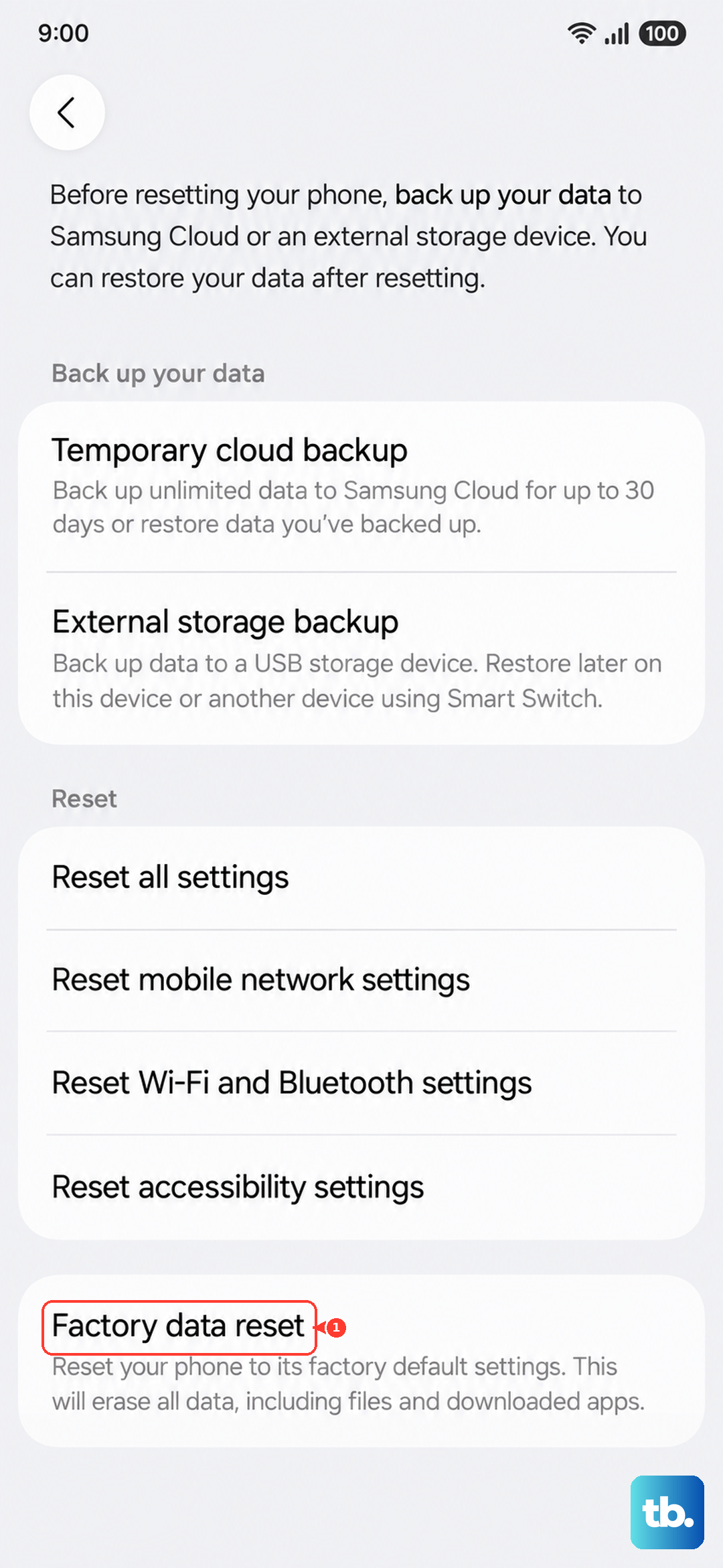
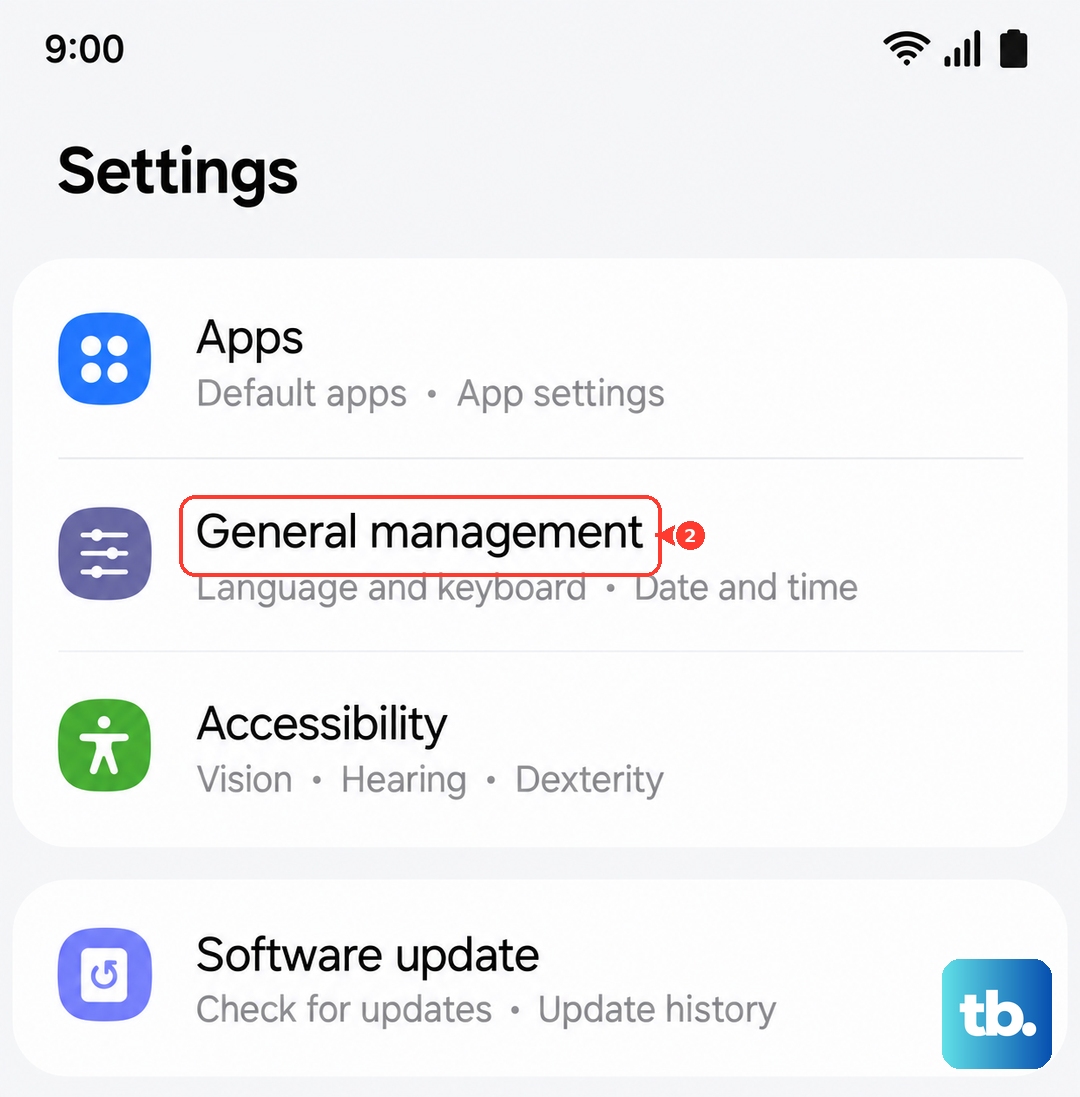
This is the simplest method on a phone that still boots. Head to Settings > General management > Reset > Factory data reset. Review the list of everything that'll be erased, it covers accounts, settings, apps, and media.
Scroll down, tap Reset, then confirm with Delete all. Enter your PIN or password one more time and the Fold 7 will restart and begin wiping. When it finishes, you'll see the Android 15 setup screen.
If the screen is black: recovery mode reset
When your Fold 7 won't boot or hangs on the Samsung logo, recovery mode is your only option. Start with a forced restart: press and hold Volume down and Side buttons simultaneously for 10 seconds until the device restarts. If the phone is frozen but not dead, this often kicks it back to life.
If that doesn't help, turn the phone off completely. Press and hold Volume Up + Side button until you see the Samsung logo, then release. The recovery menu will appear. Use the Volume keys to scroll to Wipe data/factory reset and press the Side button to select it. Confirm with Factory data reset, then highlight Reboot system now and press the Side button again.
Try these lighter resets first
A full wipe is overkill for some problems. Open Settings > General management > Reset and check the targeted options. Reset network settings if Wi-Fi or Bluetooth are flaky, or reset app preferences if the phone keeps force-closing on specific actions.
These resets don't touch your personal data, apps, or accounts. They just restore system defaults. If your charging is still acting up, take a look at the USB-C port first, a bit of dust or lint can stop the connection cold. Use compressed air to blow it out gently.
Restore your data after the reset
When the Fold 7 boots fresh, follow the on-screen setup. Sign into your Google and Samsung accounts when prompted and restore from your backup. Samsung Cloud and Google Drive will pull your data back, and Smart Switch can handle anything you saved to a computer.
If you notice battery drain or charging issues after restoring, give it a day or two. Android 15 recalibrates battery stats and optimizes background apps gradually. The Fold 7's 25W wired charging is capped by design, so don't expect speeds like you'd see on a OnePlus or Xiaomi, that's normal for this model, not a bug after reset.











