You unfold your Galaxy Z Fold6, expecting that big 7.6-inch inner display to light up, and instead you are staring at nothing but black. Maybe the cover screen still works and the inner one is dead, maybe it is the reverse, or maybe neither screen responds no matter how many buttons you press. A black screen on a foldable can feel alarming because there are two displays to worry about, but in most cases it is a battery, software, or temporary glitch issue rather than a broken panel. Work through the fixes below in order, starting with the safest options, and you will resolve the vast majority of black-screen situations without losing any data.
Start by Charging the Phone and Ruling Out a Dead Battery
The most common reason a Z Fold6 shows a black screen is simply that the battery has drained too low to boot. A deeply depleted battery will not power the display even when you press the buttons, so the phone looks completely dead when it is actually just empty.
Plug the Z Fold6 into a wall outlet using the appropriate Samsung charger and let it charge for at least 1 hour. The battery charging indicator may take up to 10 minutes to appear on the display, so do not panic if you see nothing right away.
After it has charged, press and hold the Power button (or Side button) for 15 to 20 seconds until the Samsung Galaxy logo appears.
While you are at it, inspect the cable, charging port, and adapter for damage, debris, corrosion, or bent pins.
Plug the adapter directly into a wall outlet rather than an extension cord or power strip.
Force Restart a Frozen or Unresponsive Z Fold6
If the screen is black or unresponsive but the phone has charge, a forced restart clears the temporary glitch causing the freeze. This does not erase any of your data; it simply cuts power and reboots the device.
Press and hold the Volume down button and the Side button (or Power button) at the same time.
Keep holding until the device turns off and turns back on. The screen will turn black when the device turns off, and then the Samsung logo will appear.
Samsung's guidance describes this hold as roughly 10 to 20 seconds, and notes the process can take up to 60 seconds, so keep holding until you see the logo. On the dedicated blank-display guidance, the wording is to hold the Power button (or Side button) and Volume down button for 20 seconds, so do not let go too early.
Check Both Screens and Remove Cases or Accessories
Because the Z Fold6 is a dual-screen foldable, with a 7.6-inch inner display and a 6.3-inch cover display, a black screen might affect only one of the two. Open and close the phone and test each display separately to see whether the problem is on the main screen, the cover screen, or both.
Next, remove any case, cover, or accessory that could be pressing on the buttons or blocking the sensors. A poorly fitting case can interfere with a sensor or hold a button down, which can leave a screen looking dark.
With the accessory off, force restart again using the steps above and check whether the affected screen returns.
Boot Into Safe Mode to Rule Out a Misbehaving App
If the phone actually boots but the screen goes black, freezes, or acts up only after you open certain apps, a downloaded third-party app is the likely culprit. Safe mode temporarily loads the phone with only its built-in software so you can confirm this.
Power off the device completely.
Turn the device on, and when the Samsung logo appears, press and hold the Volume down button.
Keep holding until "Safe mode" displays in the bottom-left corner of the screen.
If the black-screen problem disappears in Safe mode, you have your answer, and a recently installed app is causing it. Uninstall the apps you added around the time the trouble started, then restart the phone normally to exit Safe mode.
You can also enter Safe mode from a running phone by pressing and holding the Side button and Volume down button (or swiping down from the top-right and tapping the Power icon), then touching and holding the Power off icon and tapping the Safe mode icon.
Update One UI to the Latest Version
A buggy software build can trigger black-screen and freeze problems, and Samsung pushes fixes through regular updates. Getting current is one of the easiest long-term fixes once the phone is bootable.
- 1.Open Settings.
- 2.Swipe to and then tap Software update (or System updates, depending on the model).
- 3.Tap Download and install.
- 4.Tap Check for system updates or Check for software updates (the wording varies by carrier).
- 5.When the download is complete, follow the on-screen instructions to install the update.
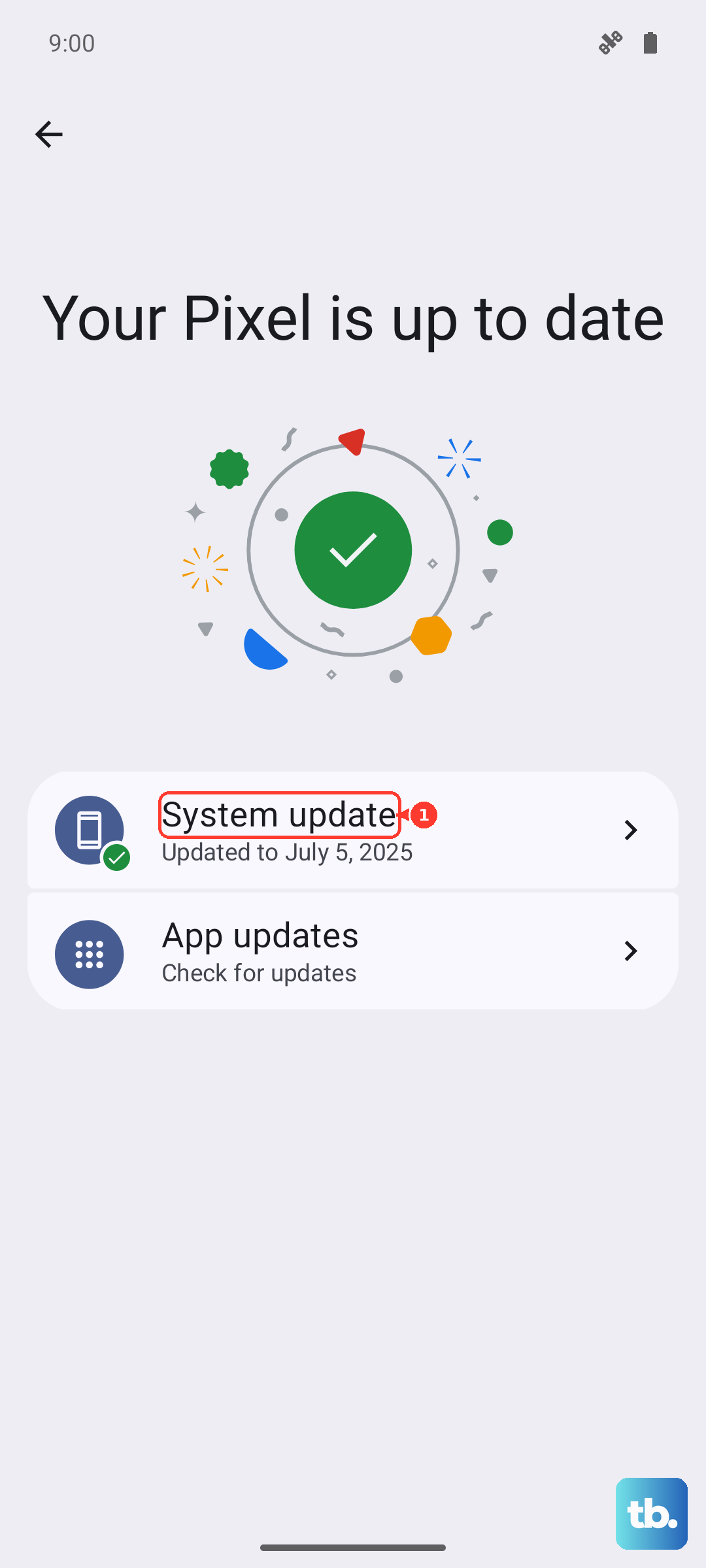
The Z Fold6 is officially eligible for the One UI 7 update based on Android 15, so do not assume the phone is stuck on the version it shipped with. To confirm what you are currently running, go to Settings, then About phone, then Software information.
When the Phone Hangs at the Samsung Logo
Sometimes the screen lights up and shows the Samsung logo, then never moves past it. That stuck-at-logo state is different from a fully black screen, and it has its own recovery path.
First, force restart by pressing and holding the Volume down and Side buttons simultaneously for approximately 10 seconds.
If the phone still will not boot past the logo, Samsung recommends connecting it to a computer and using Samsung Smart Switch, the official desktop software for PC or Mac, to update or recover the device.
If Smart Switch cannot revive it, the device needs service.
Back Up Your Data, Then Factory Reset as the Last On-Device Fix
If the black screen keeps coming back after everything above and the phone can still reach Settings, a factory reset can clear corrupted software that lighter fixes cannot touch. This is the most powerful on-device option, and it is also the most destructive, so treat it carefully.
A factory reset permanently erases everything on the phone, so back up your data first. Samsung's warning reads, "Please save any information you need prior to the factory reset because your personal information may not be recovered."
Once you have a backup, perform the reset.
Go to Settings, then General management, then Reset, then Factory data reset.
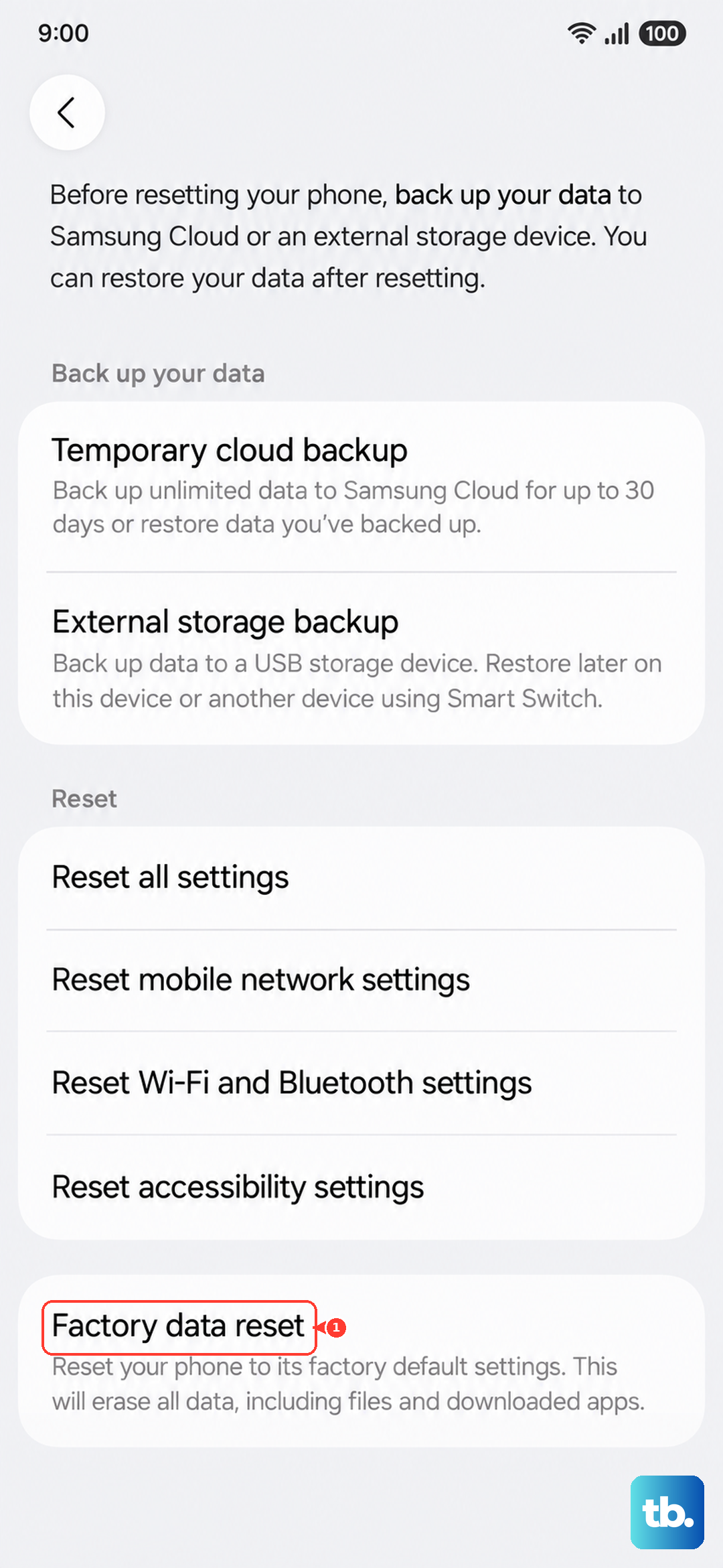
Review the confirmation details and tap Reset.
Tap Delete all to complete the reset.
Request Service From Samsung Support
If the screen still will not turn on after charging, force restarting, checking both displays, and the other steps above, Samsung states the device needs service. At that point the issue is likely hardware, and continued attempts at home will not help.
Contact the Samsung Support Center to request a repair, where you can find a service location or arrange next steps for a repair.
Frequently Asked Questions
Why is only one screen on my Z Fold6 black?
The Z Fold6 has two separate displays, a 7.6-inch inner screen and a 6.3-inch cover screen, so one can fail to light up while the other works. Open and close the phone to test both, remove any case that may be interfering, and force restart by holding the Volume down button and the Side button (or Power button) until the Samsung logo appears.
Will a force restart erase my data?
No. Force restarting the Z Fold6 by holding the Volume down and Side buttons simply cuts power and reboots the phone, and it does not delete any of your apps, photos, or settings. A factory reset is the only step here that erases data, and it requires backing up first.
How long should I charge a Z Fold6 that shows a black screen?
Charge it with the appropriate Samsung charger for at least 1 hour before trying to power it on. The battery charging indicator may take up to 10 minutes to appear on the display, so give it time, then press and hold the Power button (or Side button) for 15 to 20 seconds until the Samsung Galaxy logo appears.
My phone is stuck at the Samsung logo instead of going black. What should I do?
Force restart by pressing and holding the Volume down and Side buttons simultaneously for approximately 10 seconds. If it still will not boot, connect the phone to a computer and use Samsung Smart Switch to update or recover the device, and if that fails, the phone needs service.
Can a software update really fix a black screen?
Yes, because a buggy build can cause black-screen and freeze issues, and Samsung delivers fixes through updates. Go to Settings, tap Software update (or System updates), tap Download and install, then Check for software updates, and install anything available. The Z Fold6 is eligible for the One UI 7 update based on Android 15.