
The Wi-Fi icon's still there, but nothing loads. Your Galaxy Z Flip 7 shows "Connected" and then drops off, or it just spins endlessly without ever joining the network. This is a common headache on the Z Flip 7, but most of the time it's fixable without a trip to the service center.
Let's run through the fixes that actually work on this phone, starting with the fastest ones.
Quick Toggle and a Force Restart
Pull down the notification shade twice and tap the Wi-Fi icon to turn it off. Wait about five seconds, then tap it back on. This forces the phone to re-scan and often solves temporary connection hiccups.
If that didn't do it, try the force restart that's specific to the Z Flip 7. Press and hold Volume Down + Side key for 10 15 seconds until the device restarts. This clears out any software glitches that might be interfering with the Wi-Fi radio without losing any data.
Turn Airplane Mode On Then Off
This trick works because it resets every wireless radio in the phone at once. Drop down the notification shade and tap the Airplane Mode icon. Leave it on for about 15 seconds, then tap it again to turn it off.
Your Z Flip 7 will reconnect to the network fresh, and it sometimes picks up a connection that was stuck in limbo.
Forget the Network and Reconnect
If your phone has old or corrupted credentials saved, it'll keep trying to connect and failing. Go to Settings > Connections > Wi-Fi, tap the gear icon next to your network, and select Forget. Then tap the network again and enter the password from scratch.
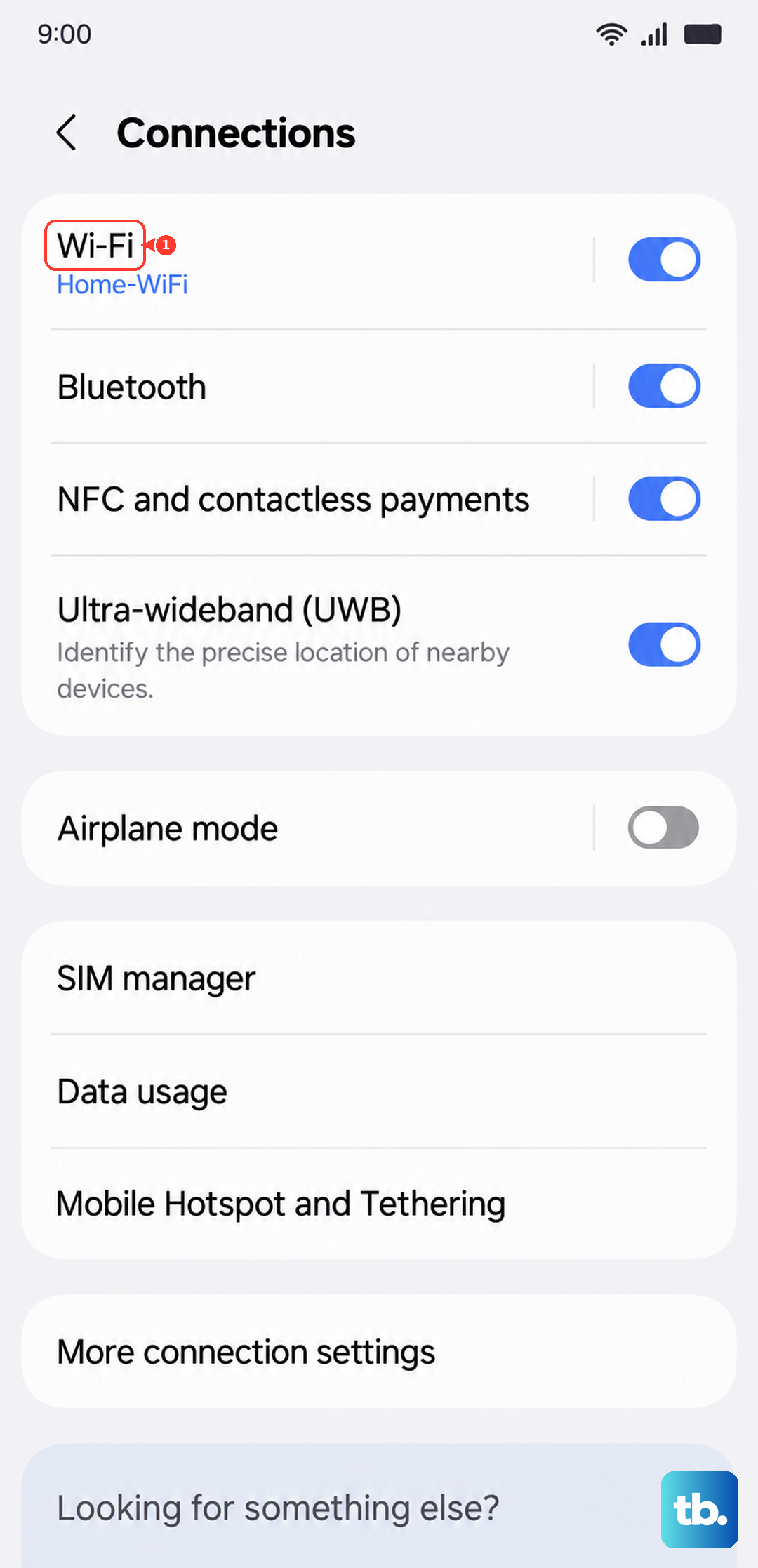
This is especially useful if you changed your Wi-Fi password recently or if you're on a network that uses a portal login page.
Is the Date and Time Correct?
This one sounds unrelated, but it matters more than you'd think. Your Z Flip 7 uses security certificates to authenticate with secure Wi-Fi networks, and those certificates rely on accurate time. If the date and time are off, authentication fails silently.
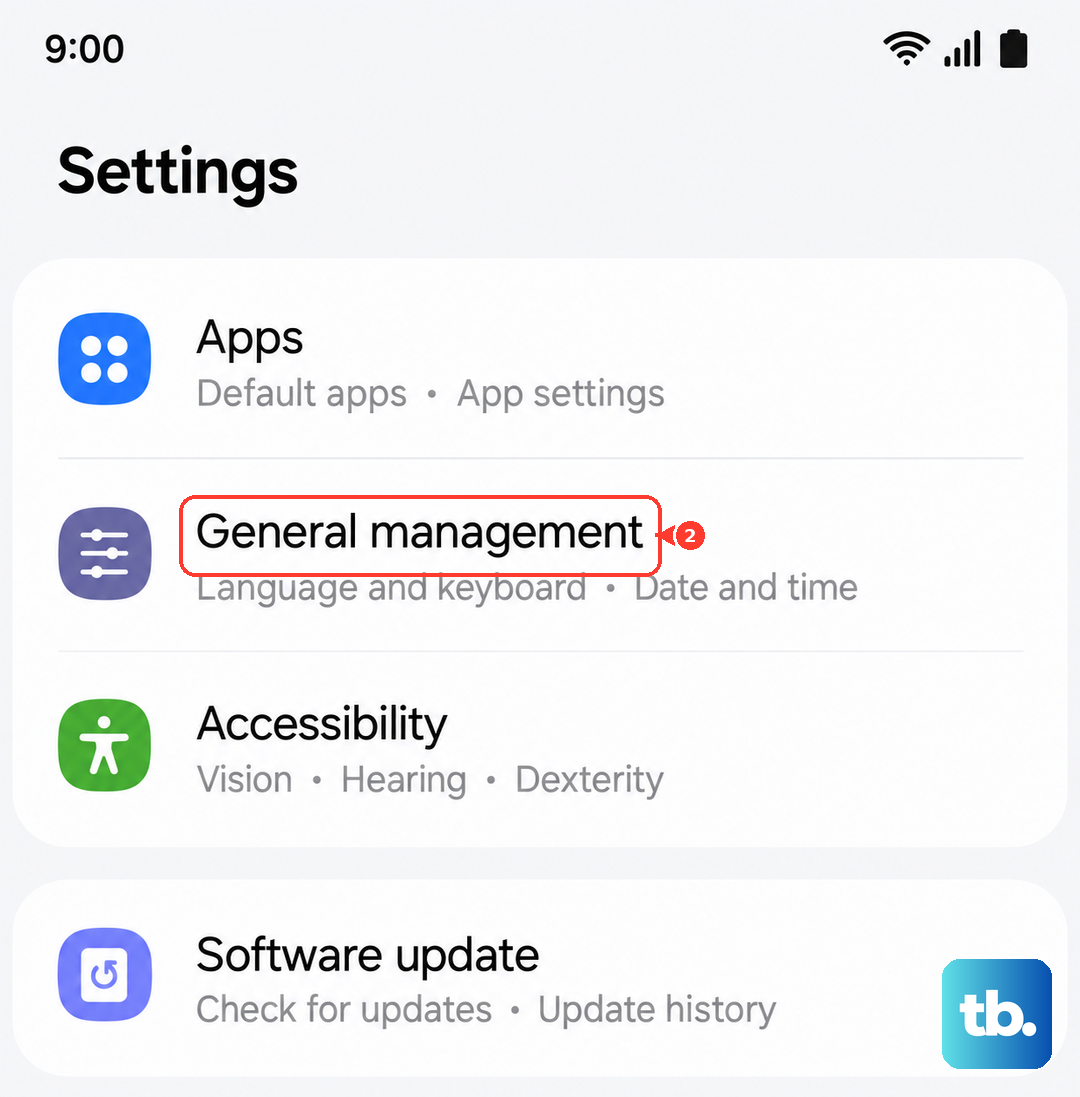
Open Settings > General Management > Date and Time and make sure Automatic date and time is toggled on. If it's already on, toggle it off, wait a few seconds, then toggle it back on to force a refresh.
Turn Off Power Saving Mode
Power saving mode on the Z Flip 7 can throttle background activity, and Wi-Fi sometimes gets caught in the crossfire. If you've got battery saver turned on, head to Settings > Battery and switch it off.
You should see your Wi-Fi connection stabilize almost immediately. If you need to keep power saving on, you can add Wi-Fi to the list of apps that aren't affected by it.
Disable Smart Network Switch
Samsung includes a feature called Smart Network Switch that automatically moves you to mobile data when Wi-Fi is weak. It helps with connectivity, but it can also prevent your phone from properly connecting to Wi-Fi in the first place.
Go to Settings > Connections > Wi-Fi, tap the three dots in the corner, and select Intelligent Wi-Fi. Turn off Switch to mobile data. Now your phone will stick to Wi-Fi and actually try to connect
Check for Software Updates
Samsung pushes regular updates that include Wi-Fi stability fixes. Open Settings > Software update > Download and install. If there's an update waiting, install it and let the phone reboot.
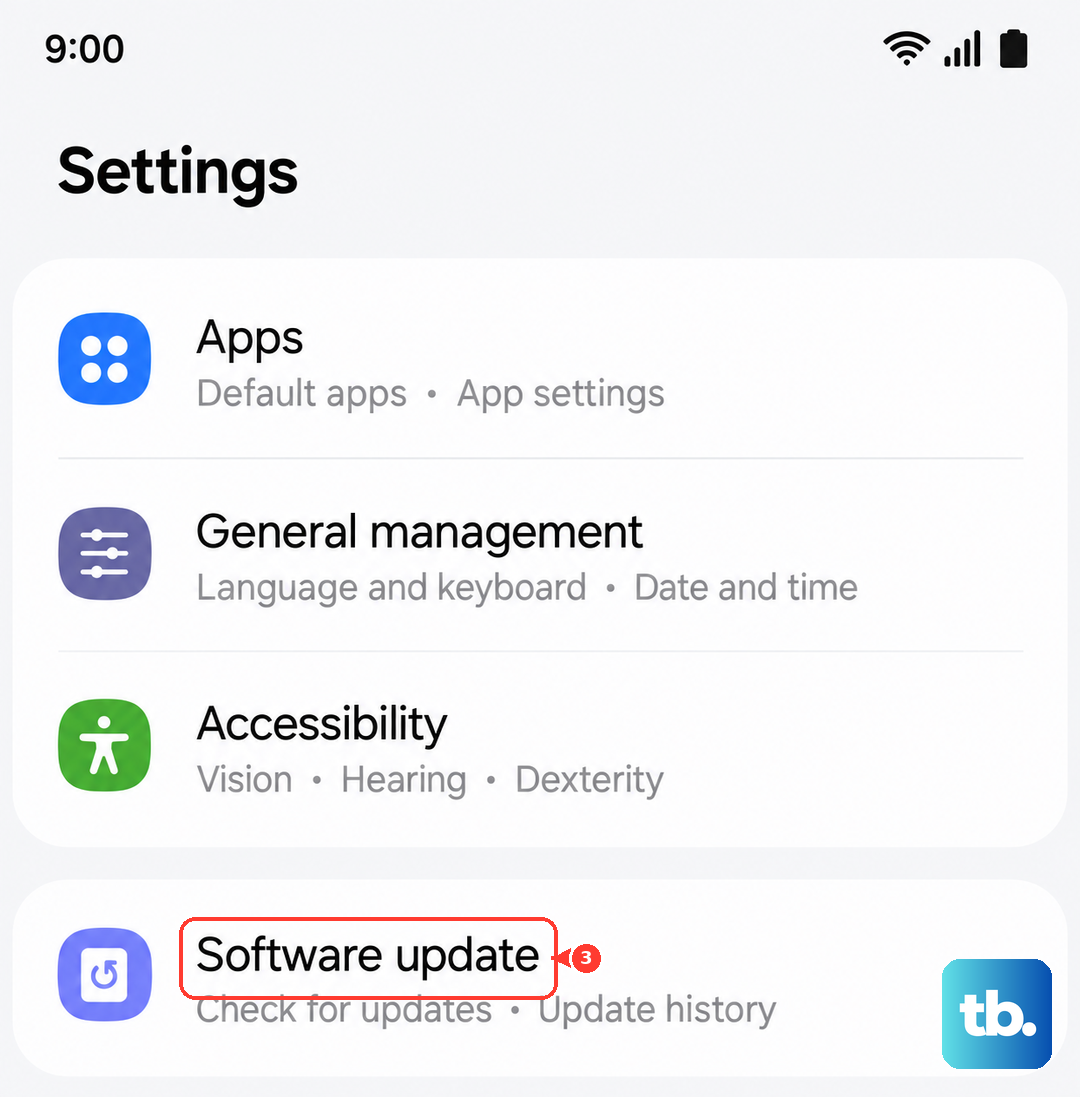
The Z Flip 7 runs Android 16, and some early builds had Wi-Fi handoff issues that were patched in later updates.
Restart Your Router
The problem might not be your phone at all. Unplug your router from power, wait a full 60 seconds, and plug it back in. If other devices in the house are also struggling with Wi-Fi, the router was the issue.
While you're at it, check if your router's firmware needs an update. Older firmware can cause compatibility hiccups with newer devices like the Z Flip 7.
Boot Into Safe Mode
Third-party apps, especially VPNs and ad blockers, can hijack your Wi-Fi connection. To test this, press and hold the Side key, then tap and hold Power off until the safe mode prompt appears. Tap Safe mode and let the phone restart.
If Wi-Fi works fine in safe mode, one of your apps is the culprit. Start uninstalling recently added apps until you find the one causing the trouble.
Reset Network Settings
This is the last stop before a factory reset. Go to Settings > General Management > Reset > Reset network settings. This wipes all saved Wi-Fi networks, Bluetooth pairings, and mobile data settings.
You'll need to reconnect to Wi-Fi and re-pair your Bluetooth devices afterward, but it clears out any corrupted network configuration that's been building up.
If none of these steps work, you may be dealing with a hardware issue. In that case, it's worth contacting Samsung or a trusted repair shop to have the Wi-Fi antenna checked.