
The Galaxy Z Flip 7 supports 25W wired charging and 15W wireless, but actually hitting those speeds can be surprisingly tricky. A mix of hardware quirks, software bugs, and accessory choices can leave you waiting a lot longer than expected.
Grab a 25W USB-C Power Adapter
Samsung phones use a specific standard called Super Fast Charging to hit the full 25W. A standard USB-C PD charger might only deliver 15W.
Check the fine print on your adapter. If it doesn't support PPS (Programmable Power Supply) alongside PD, you're likely stuck at slower charging speeds. Look for Samsung's official adapter or a third-party one that explicitly lists Super Fast Charging (25W) or PPS support.
Check the Cable (It Matters More Than You Think)
Since the Z Flip 7 uses USB-C on both ends, a standard USB-C to USB-C cable will fit. But not every cable can deliver the 3A or 5A needed for Super Fast Charging.
A cable designed only for 60W laptops might negotiate poorly with the phone. Stick with the cable that came in the box, or buy a high-quality 5A-rated USB-C cable to avoid negotiation issues.
Center Your Phone for Wireless Charging
Wireless charging on the Z Flip 7 tops out at 15W, but only under perfect conditions. Because of the phone's shape, the charging coil is in a specific spot. You need to center the phone precisely on the pad.
If it's off by even a bit, it might charge at a measly 5W or stop altogether. Samsung's official wireless charger is the most reliable bet for hitting that 15W peak, as many third-party pads have compatibility quirks with this specific model.
Why Your Charging Stops Intermittently (And the Fix)
Several users have reported that the Z Flip 7 will simply stop charging mid-cycle for no apparent reason. This is a known software bug related to how the phone negotiates power delivery over time. Samsung is reportedly working on a fix for this.
In the meantime, the quickest workaround is a soft reset. Press and hold the Volume Down key and the Side key for 10-15 seconds until the device restarts. This resolves the handshake issue temporarily until the official patch drops.
The Pre-Order Battery Bug (Does Your Phone Reach 100%)
There's a specific and somewhat odd issue affecting some pre-order units: the phone reports a full charge but stops short of the actual 100% capacity. You might unplug it only to watch the battery drop faster than expected.
If this sounds familiar, try this: when your phone says 100%, unplug the cable and plug it back in for another 15-20 minutes. This seems to push past the software reporting error and tops the battery off completely.
Turn Off Battery Protection (Temporarily)
Samsung's Battery Protection feature is great for long-term battery health, but it can interfere when you need a quick top-off. By default, it pauses charging at 80% or 95% depending on your usage habits.
If you need the fastest full charge right now, go to Settings > Battery > Battery Protection and set it to Off. Just remember to switch it back to Basic or Adaptive later to preserve battery lifespan.
A Hot Phone Charges Slowly
The Z Flip 7 has a compact internal structure, which means it can heat up faster than a traditional slab phone during fast charging. When the internal temperature sensors detect too much heat, the phone automatically slows down charging to protect the battery.
Remove the phone from direct sunlight, avoid using it while tethered to the charger, and take off any thick cases. Letting it cool down on a hard, flat surface will restore full charging speed.
Clean Your USB-C Port
Pocket lint and debris are the enemy of USB-C connections. If the cable wiggles more than it should or feels loose, you've probably got gunk packed down in the port. This creates resistance and can trick the phone into thinking it can't handle 25W.
Use a wooden toothpick or a plastic dental pick to carefully dig out any compacted lint. Do not use a metal object. A clean connection is essential for reliable Super Fast Charging.
Is Your Software Up to Date?
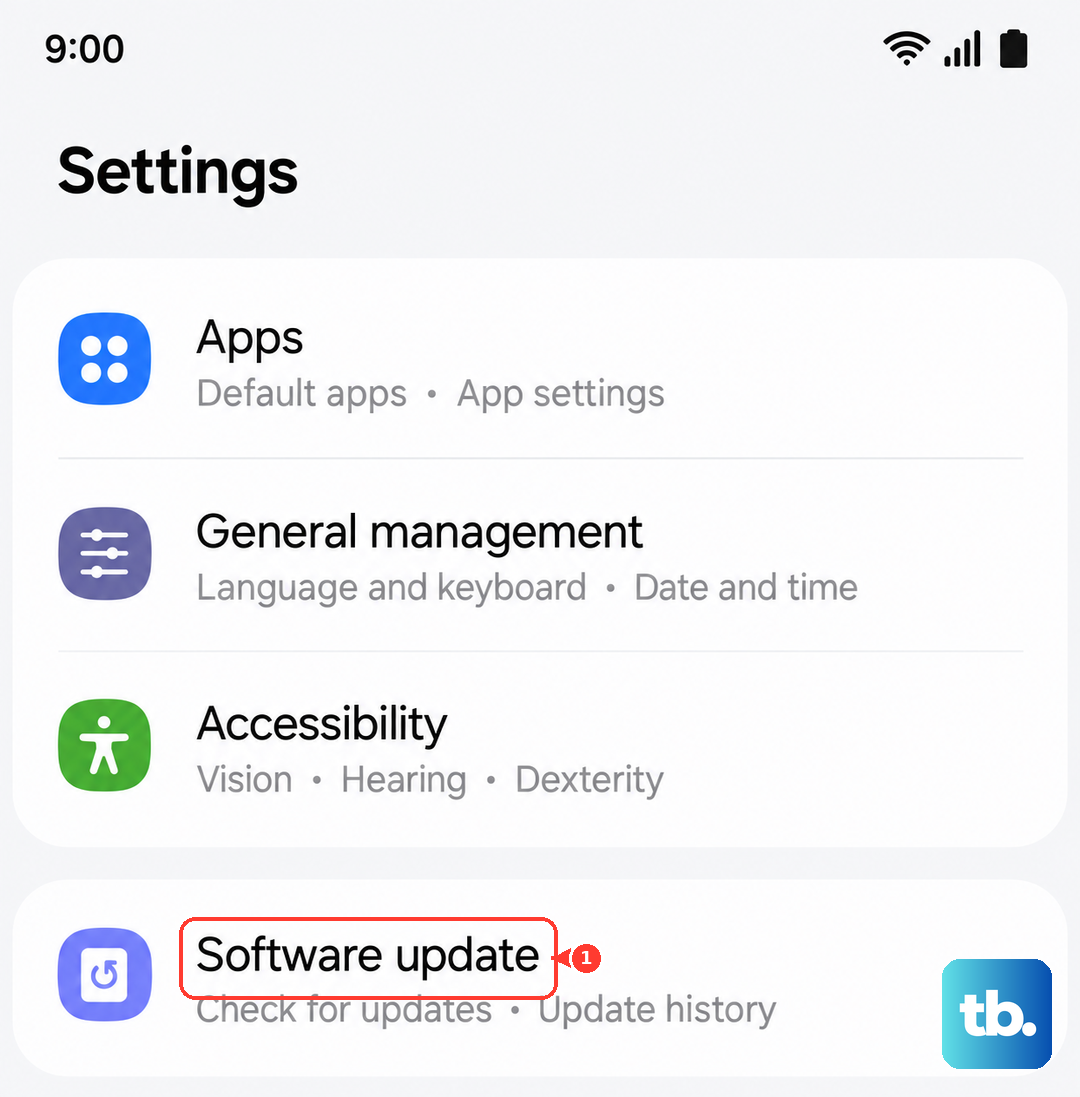
Samsung has been actively pushing software patches to address the intermittent charging and battery reporting bugs. If you're still waiting for a fix, manually check for it.
Go to Settings > Software Update > Download and install. Running the latest firmware ensures you have all the current charging optimizations and bug fixes Samsung has released.
Swap Out Your Accessories for Testing
If you've tried everything and your Z Flip 7 is still charging slow, it's time to isolate the variable. Test your phone with a completely different USB-C cable and a different wall charger.
Ideally, borrow a friend's Samsung adapter and cable that you know works. If the phone charges normally, the issue is with your original accessories. Cables and adapters degrade over time, especially if they travel with you.











