
Email not syncing on your Samsung Galaxy Z Flip 7 can be a real headache, especially when you're waiting for an important message. The good news is that most sync problems are quick to fix and don't require any technical know-how.
Before we get into the specific fixes, make sure your phone is actually connected to the internet. Open a web page or try another app that uses data. Also, check if your email provider is having a known outage a quick visit to their status page or social media can save you time.
Force Restart the Z Flip 7
A simple restart clears out temporary glitches that can mess with background sync. The Z Flip 7 has a dedicated force restart method that works even if the phone seems stuck.
Press and hold the Volume Down and Side key together for about 10 to 15 seconds. The phone will restart on its own. Once it's back up, open your email app and give it a minute to sync. This fixes a surprising number of sync hiccups.
Check Your Sync Settings
Your email app might be blocked by account sync settings. Head to Settings > Accounts and backup > Manage accounts and make sure Auto sync data is turned on. Tap your email account, then tap Sync account or Sync now if those options appear. For Gmail, you can also check inside the Gmail app under Menu > Settings > your account > Data usage and tick Sync Gmail.
Turn Off Battery Saving for Email
Android 16 on the Z Flip 7 is aggressive about saving battery. If the email app is being put to sleep, it can't sync in the background. Go to Settings > Battery > Background usage limits. Make sure your email app isn't listed under Sleeping apps or Deep sleeping apps. If it is, tap the app and select Remove. You can also search for the app in Settings > Apps, tap it, and choose Battery > Unrestricted to prevent any battery restrictions.
Toggle Data Connections
Sometimes a quick network reset does the trick. Swipe down twice from the top of the screen to open the quick settings panel. Tap the Airplane mode icon to turn it on, wait about 30 seconds, then tap it again to turn it off. If you're on Wi‑Fi, try switching to mobile data or vice versa. This forces your phone to re-establish a fresh connection to the email server.
Clear the Email App Cache
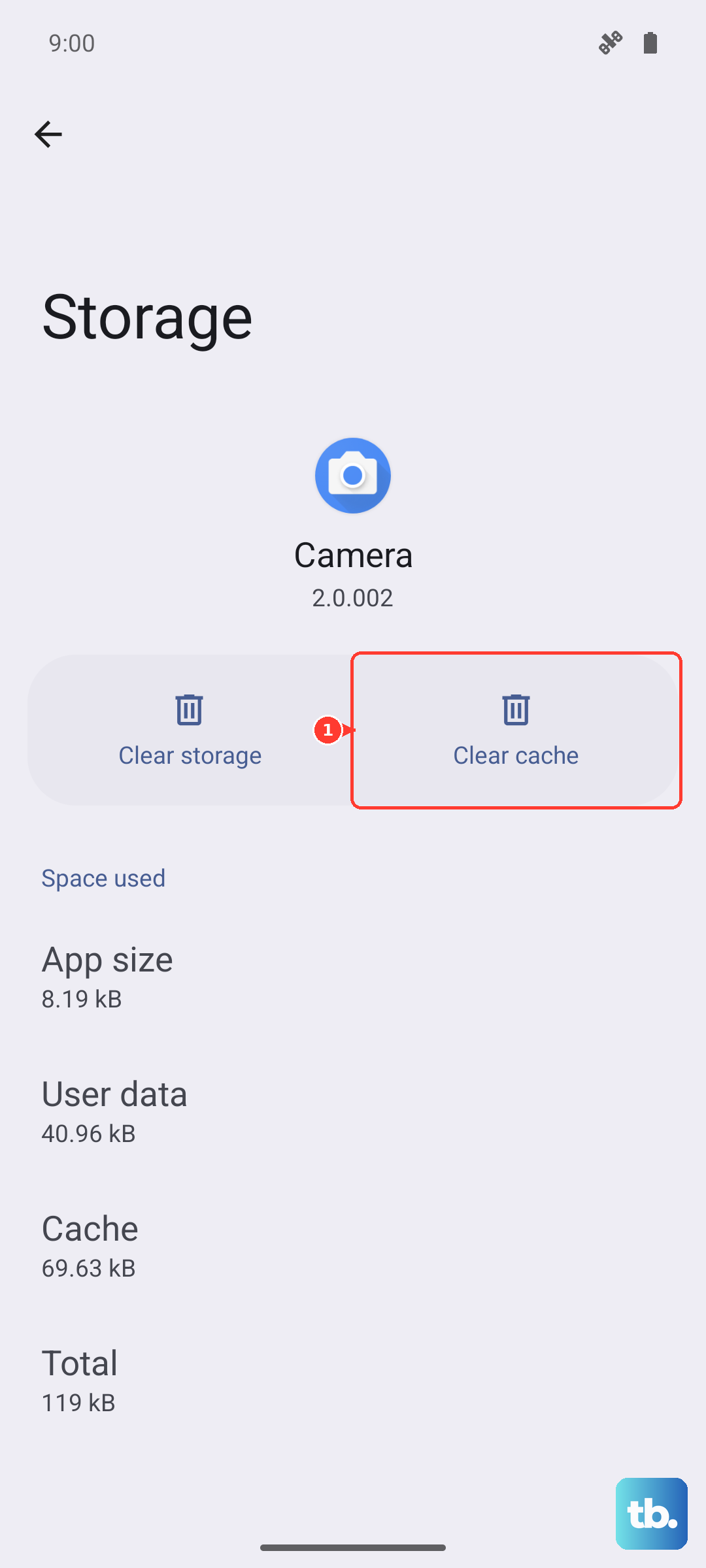
Corrupted cache data can prevent emails from loading. Go to Settings > Apps and find your email app (Samsung Email, Gmail, Outlook, etc.). Tap Storage, then Clear cache. Don't tap Clear data unless you're okay with signing in again. After clearing the cache, reopen the app and see if new messages come through.
Make Sure Date and Time Are Automatic
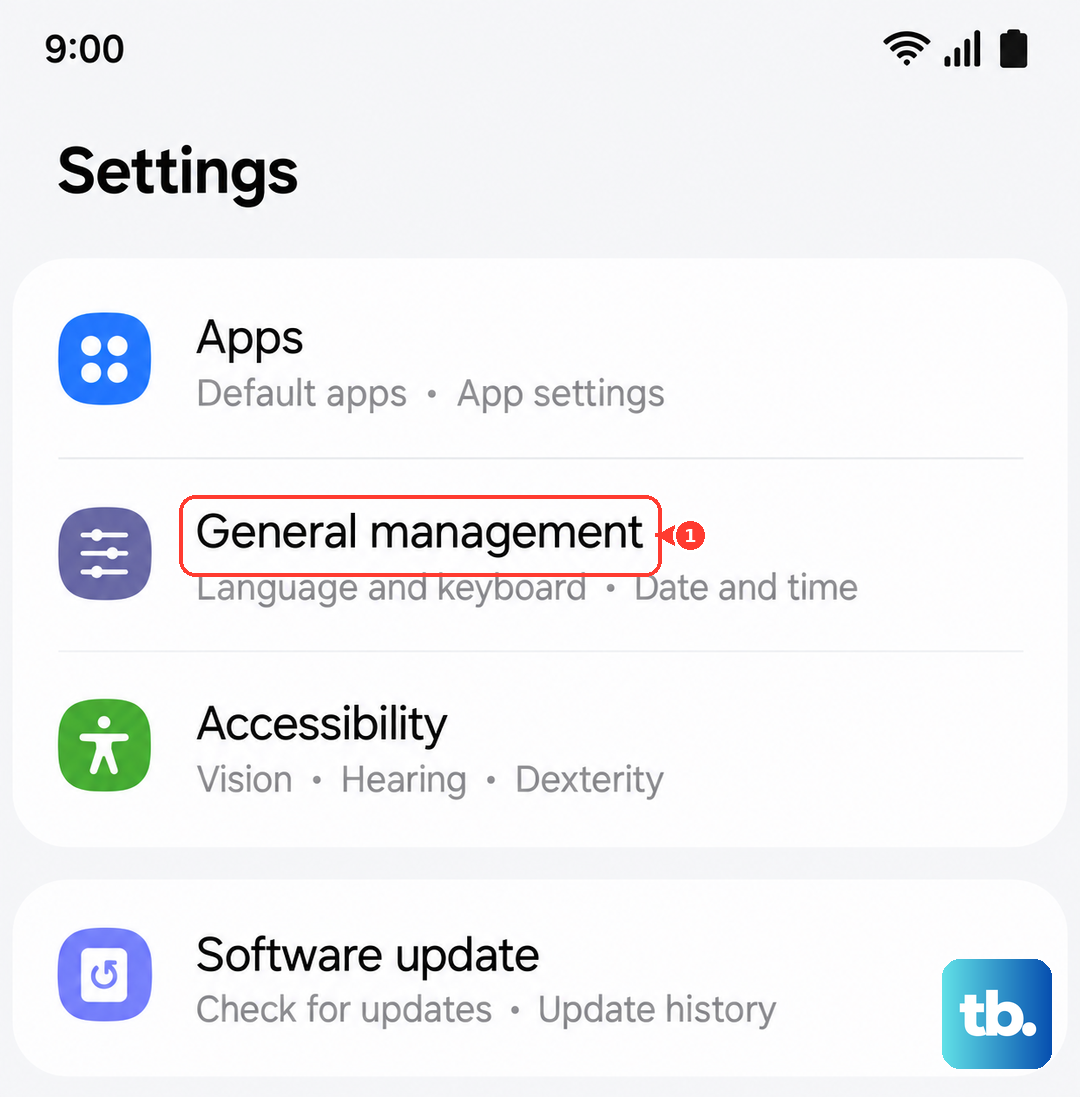
Email servers rely on accurate timestamps. If your date or time is off, sync can fail. Open Settings > General management > Date and time and turn on Automatic date and time. Also enable Automatic time zone. This ensures your Z Flip 7 is always in sync with the network.
Disable Any Active VPN
VPNs can interfere with email connections, especially if they route traffic through a server with different time zones or blocked ports. Go to Settings > Connections > More connection settings > VPN and toggle off any active VPN. Try syncing your email again. If it works, you may need to adjust your VPN settings or add an exception for your email provider.
Update Your Email App
An outdated app might have bugs that affect sync. In the Google Play Store, tap your profile picture, then Manage apps & device > Updates available. In the Galaxy Store, tap Menu (three horizontal lines) > Updates. Find your email app and tap Update if available. For Gmail, you can also check for updates in the Play Store by searching "Gmail" and tapping Update.
Re-add Your Email Account
If nothing else works, deleting and adding your account fresh often resolves deeper configuration problems. Go to Settings > Accounts and backup > Manage accounts, tap your email account, then tap Remove account. Confirm the removal. Now go back and tap Add account, choose your email provider, and sign in with your credentials. This forces a fresh sync with the server.
Check Notification Settings
If emails are actually arriving but you're not getting alerts, the notification settings may be off. Go to Settings > Notifications > App notifications, find your email app, and make sure Show notifications is turned on. Tap the app name and customize the alert sounds and pop‑up style to your liking.
Reset Network Settings
Persistent sync problems can stem from corrupted network settings. This won't delete your apps or data. Go to Settings > General management > Reset. Use Reset mobile network settings for cellular issues, or Reset Wi-Fi and Bluetooth settings for Wi-Fi or Bluetooth problems. Review the warning, confirm the reset, then reconnect to Wi-Fi if needed and check your email.
Update Device Software
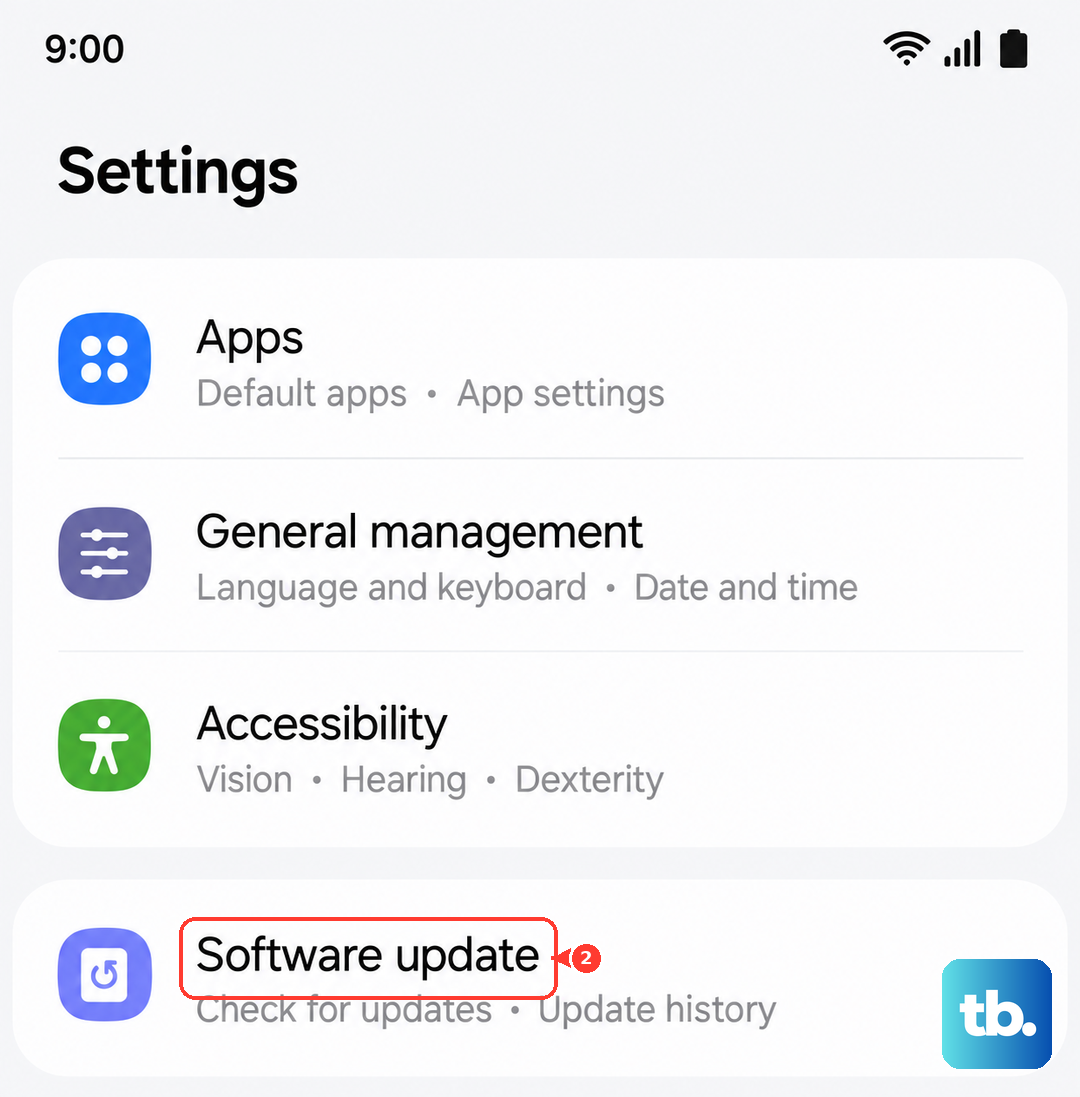
Samsung regularly releases software updates that fix bugs, including email sync issues. Go to Settings > Software update > Download and install. If an update is available, install it and restart your phone. This is especially worth doing if you're on an early firmware build of Android 16 on the Z Flip 7.
Most sync problems are fixed by one of these steps. Start with the easiest force restart and toggle network connections before moving on to account removal or a network reset. You'll likely have your emails flowing again in minutes.