
When your Samsung Galaxy Z Flip 6 keeps closing apps, it's usually a software hiccup that you can fix yourself. The most common quick fix is to simply restart your phone. Press and hold the Volume Down and Side button together for about ten seconds until you see the Samsung logo appear.
Update Your Apps and Software
Outdated apps are a prime suspect for crashes. Open the Google Play Store, tap your profile icon, and go to Manage apps & devices. Look under "Updates available" and install everything. It's also crucial to check for a system update.
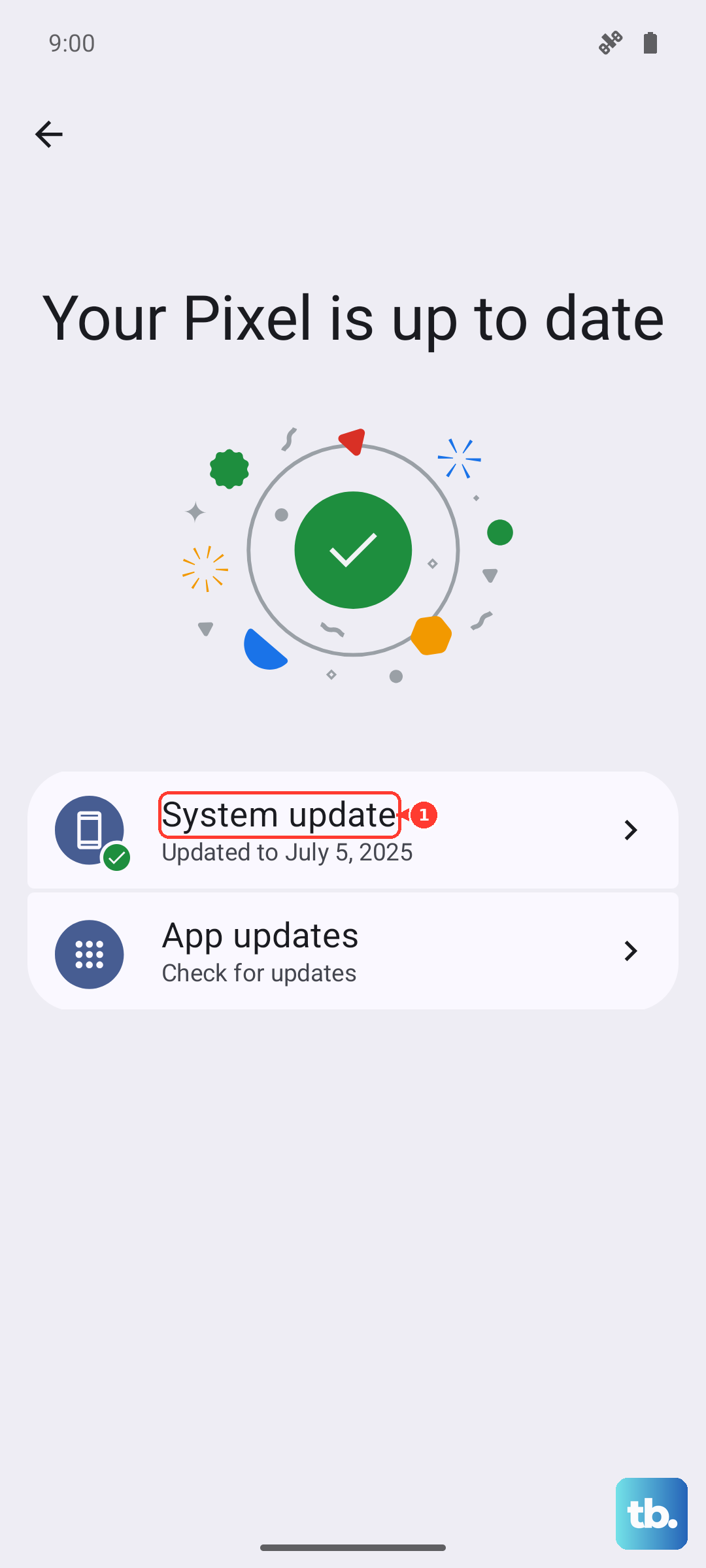
Go to Settings > Software update and tap Download and install. Samsung regularly releases updates for One UI that squash bugs affecting app stability, especially on newer foldables like the Z Flip 6.
Force Stop and Clear App Cache
If a specific app is misbehaving, force stopping it can break the cycle. Head to Settings > Apps, select the problematic app, and tap Force stop. Then, open the app again.
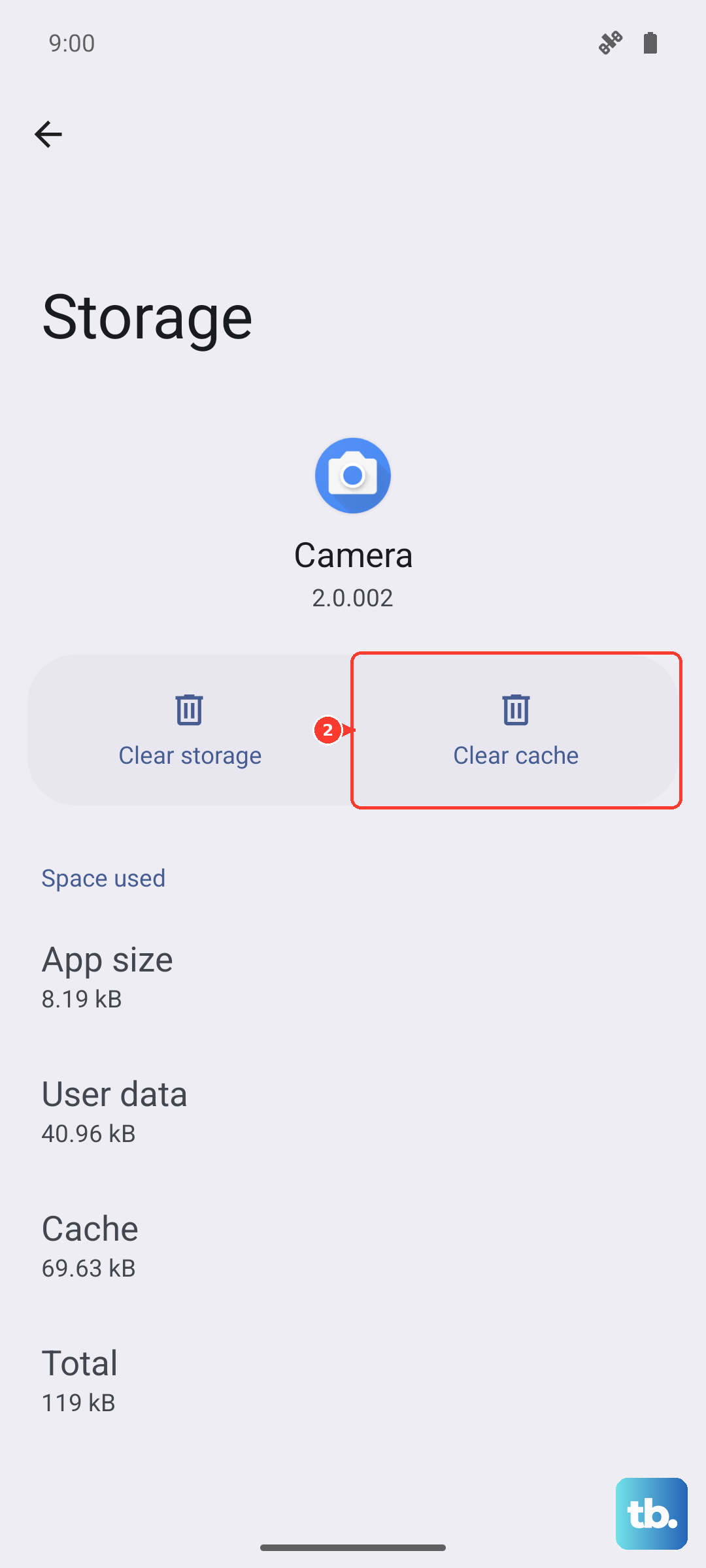
For a deeper clean, go into that same app's settings and tap Storage. Choose Clear cache first. This deletes temporary files without touching your login info or saved data. If the app is still closing, you can try Clear data, but be aware this will reset the app as if it were freshly installed.
Check Your Available Storage and Memory
Your Z Flip 6 needs breathing room to run apps smoothly. If your storage is nearly full, apps can't create the temporary files they need to operate. I'd check under Settings > Device care > Storage to see if you need to clean up old files.
Similarly, having too many apps open at once can overload the phone's memory. Get in the habit of closing apps from the recent apps view when you're done with them. You can also enable the "RAM Plus" feature in your device care settings, which uses some storage as extra virtual memory.
Look for App Conflicts and Reinstall
Sometimes, an app just has a bad install or conflicts with the unique hardware of a foldable. Uninstalling and reinstalling it from the Play Store gives it a completely fresh start. This often resolves weird crashes that other steps don't fix.
Pay attention to if the crashing happens more often when using the cover screen. Some third-party apps aren't fully optimized for the small outer display yet. You can try disabling the app from the cover screen in Settings > Cover screen to see if that's the culprit.
Boot Into Safe Mode
To figure out if a downloaded app is causing the problem, boot your phone into Safe Mode. This temporarily disables all third-party apps. Press and hold the power button until the power menu appears, then long-press the "Power off" option until you see the Safe Mode prompt.
If your apps stop closing in Safe Mode, you know one of your installed apps is the issue. Start by removing any recently downloaded apps, or apps known for being resource-intensive, to identify the troublemaker.
Consider a Factory Reset
If you've tried everything and apps are still force-closing, a factory reset is the final step. This will erase all data on your phone, so you must back up everything important first using Samsung Cloud or a computer.
Once backed up, go to Settings > General management > Reset > Factory data reset. After the reset, set up your phone and test the apps before restoring your full backup, just in case the backup contains corrupted data that was causing the problem.