
When your Samsung Galaxy S25 Ultra won't download or install apps, it can bring your new phone to a standstill. You're staring at a download that won't start, or an install that gets stuck at 99%. I've found this is usually a quick fix, often related to a temporary glitch in the Play Store or a simple setting.
Let's get your S25 Ultra back to downloading apps normally. We'll start with the fastest solutions first.
Check Your Internet Connection First
This sounds obvious, but it's the most common culprit. The Galaxy S25 Ultra needs a stable connection to talk to Google's servers. Pull down the notification shade twice to open the Quick Settings panel and make sure Wi-Fi or mobile data is truly connected.
If you're on Wi-Fi, try switching to your 5G mobile data for a moment. Some networks, like public or corporate Wi-Fi, can block the specific ports the Play Store uses. Toggling airplane mode on for 10 seconds and then off can also force a fresh connection.
Restart Your Galaxy S25 Ultra
A simple restart clears out temporary system glitches that can stall app downloads. Just press and hold the side button and either volume key, then tap "Restart" on the screen.
If the phone is completely unresponsive, you can force a restart. Press and hold the Volume Down button and the Side button together for about 10 seconds until you feel a vibration and see the Samsung logo.
Clear the Google Play Store Cache
The Play Store stores temporary data to speed things up, but this cache can become corrupted. Clearing it forces the app to fetch fresh data. Go to Settings > Apps, then find and select Google Play Store.
Tap on Storage, then hit Clear Cache. This doesn't delete any of your data or account info. After doing this, open the Play Store again and try your download.
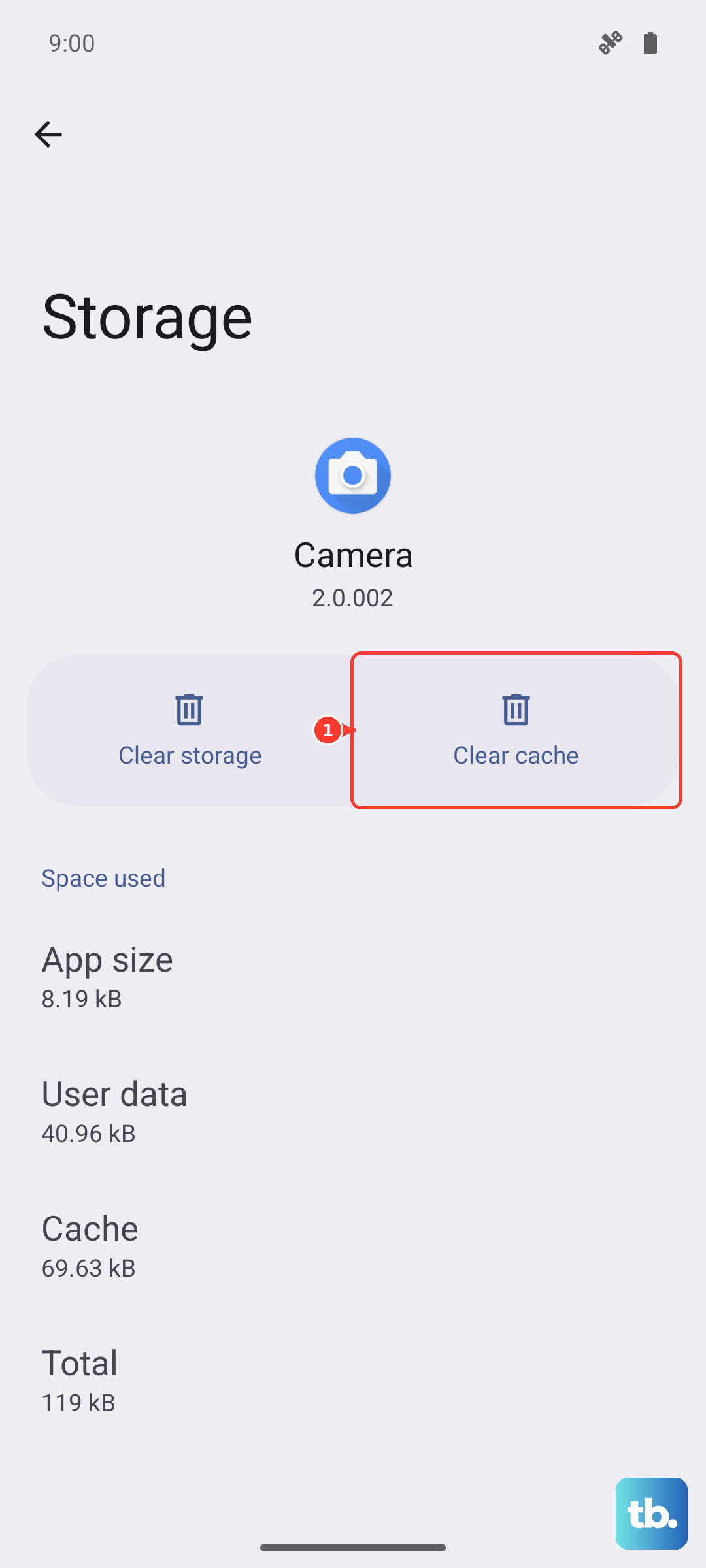
Clear Google Play Services Data
If the Play Store cache didn't help, the issue might be with Google Play Services. This is the background app that handles communication for all Google services. Go back to Settings > Apps, find Google Play Services, and tap on it.
Tap Storage, then Manage Storage. Here, tap Clear All Data. You'll get a warning that this will delete your information, but it generally just resets the service's connection. Your account will remain. After this, restart your phone.
Check for Software Updates
An outdated version of Android or One UI can sometimes cause conflicts with the latest Play Store services. Samsung frequently releases updates that include stability fixes. To check, go to Settings > Software update and tap Download and install.
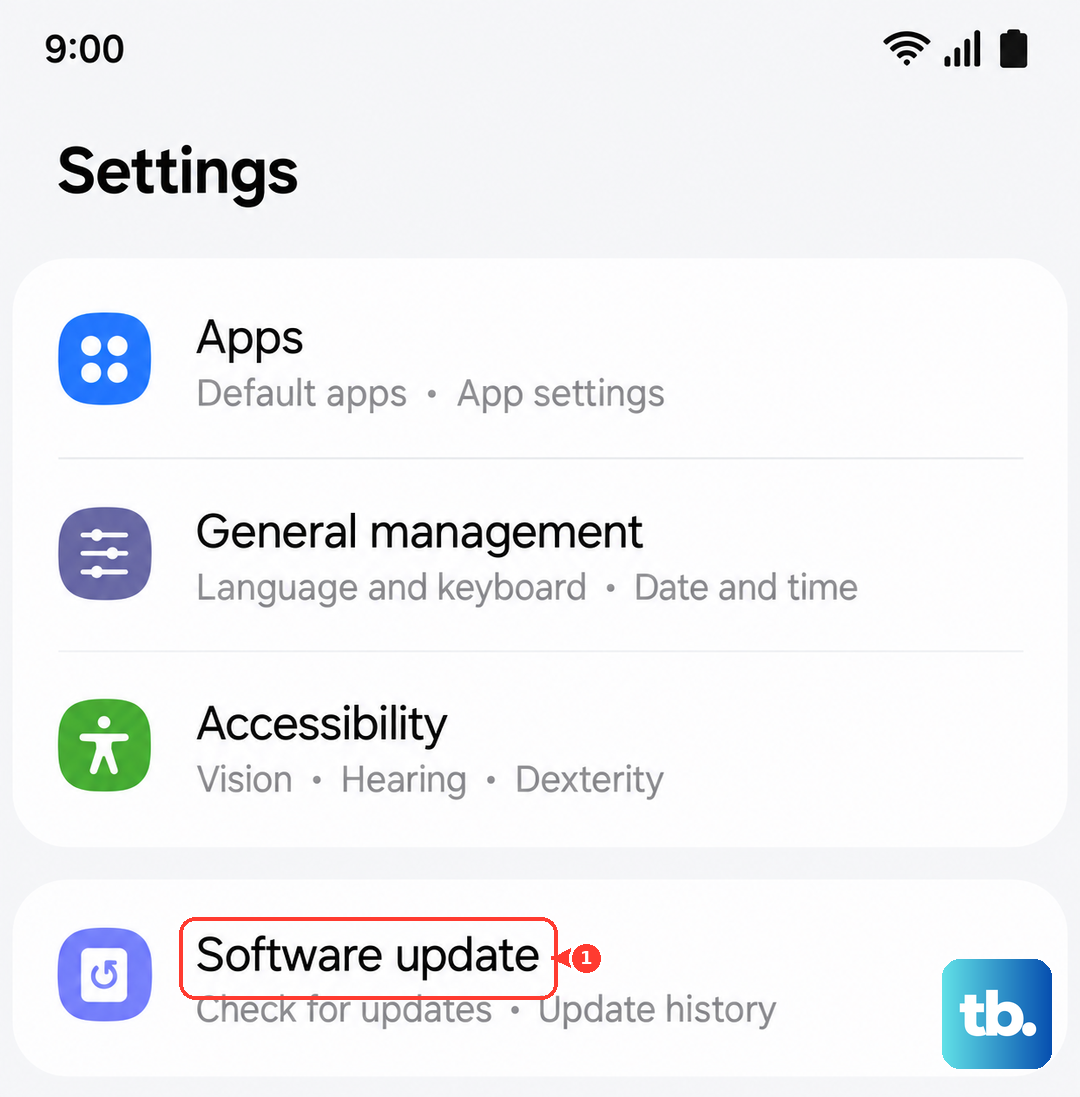
If an update is available, I'd recommend installing it while connected to Wi-Fi and with your phone charging. The S25 Ultra's 45W wired charging will get this done quickly.
Verify Your Google Account Sync
Sometimes the sync between your phone and Google account gets stuck, which can interfere with downloads. Go to Settings > Accounts and backup > Manage accounts. Select your Google account.
Tap Sync account and see if any services are stuck syncing. You can tap the three-dot menu and select Cancel sync, wait a moment, then manually trigger a sync again by tapping on each service or hitting "Sync now".
Free Up Storage Space on Your Phone
The Galaxy S25 Ultra has a lot of storage, but if you've been shooting a lot of 200MP photos or 8K video, you might be closer to full than you think. The Play Store needs free space to download and unpack app files.
Go to Settings > Device care > Storage. This will show you what's using space. You can use the "Clean now" suggestion or manually review large files. Consider offloading videos to cloud storage or a computer.
Remove and Re-add Your Google Account
This is a more thorough step that refreshes your account's connection to the device. First, make sure you know your Google account password. Then, go to Settings > Accounts and backup > Manage accounts.
Select your Google account and tap Remove account. Confirm, then restart your phone. After it boots, go back to the same menu, tap Add account, choose Google, and sign back in. This often resolves persistent authentication issues.
Check App-Specific Permissions
The Download Manager and Google Play Services need proper permissions to function. Go to Settings > Apps. Tap the three-dot menu and select Show system apps. Now, search for "Download Manager".
Select it and ensure it is enabled. Then, find "Google Play Services" in the app list. Tap it, go to Permissions, and ensure all permissions, especially Storage, are allowed. Also check that "Modify system settings" is allowed for this app.
Reset All App Preferences (A Safe Reset)
This is a useful last step before considering a factory reset. It resets all your permission decisions, background restrictions, and default app assignments without deleting any personal data. Go to Settings > Apps.
Tap the three-dot menu in the top right and select Reset app preferences. Confirm. You'll need to re-grant permissions to apps when you use them next, but this can clear up a conflict that's blocking installations.
If You See a Specific Error Code
Sometimes the Play Store gives you a numeric error. For error DF-BPA-09, you need to clear data for Google Services Framework. Find it in Settings > Apps (you'll need to show system apps), select it, go to Storage, and tap Clear Data.
For errors like 491 or 963, the combination of clearing the Play Store cache and data, followed by a restart, usually works. If you see "Insufficient storage," you definitely need to follow the step above to free up space on your S25 Ultra.