
When your Samsung Galaxy S25 Ultra keeps closing apps, it interrupts everything you're doing. The Snapdragon 8 Elite chip and 16GB of RAM in this phone are built to handle it, so when apps crash, it's usually a software hiccup you can fix yourself.
Restart Your Galaxy S25 Ultra
This is the quickest fix and solves most temporary glitches. Just press and hold the Volume Down button and the Side button together for about ten seconds. You'll feel a vibration and see the Samsung logo as the phone restarts.
Give it a moment to boot up completely, then try opening the app that was crashing. I'd start with this one, as it clears the phone's memory and stops any background processes that might be interfering.
Update the Problem App
Outdated apps are a common culprit for crashes, especially with a new OS like Android 15. Open the Galaxy Store or Google Play Store and check for updates. In the Play Store, tap your profile icon in the top right, then go to Manage apps & device.
Look under "Updates available." If you see the app that's failing, update it. For apps you got from the Galaxy Store, open it, tap the menu icon, and go to Updates to see what's pending.
Force Stop and Relaunch the App
If an app is frozen or behaving badly, force stopping it gives it a clean slate. Go to Settings > Apps, then find and tap on the troublesome app. On its info page, tap Force stop.
A warning will pop up, just confirm it. Wait a few seconds, then open the app again from your home screen. This is different from just swiping it away from the recent apps view, it completely resets the app's state.
Clear the App's Cache
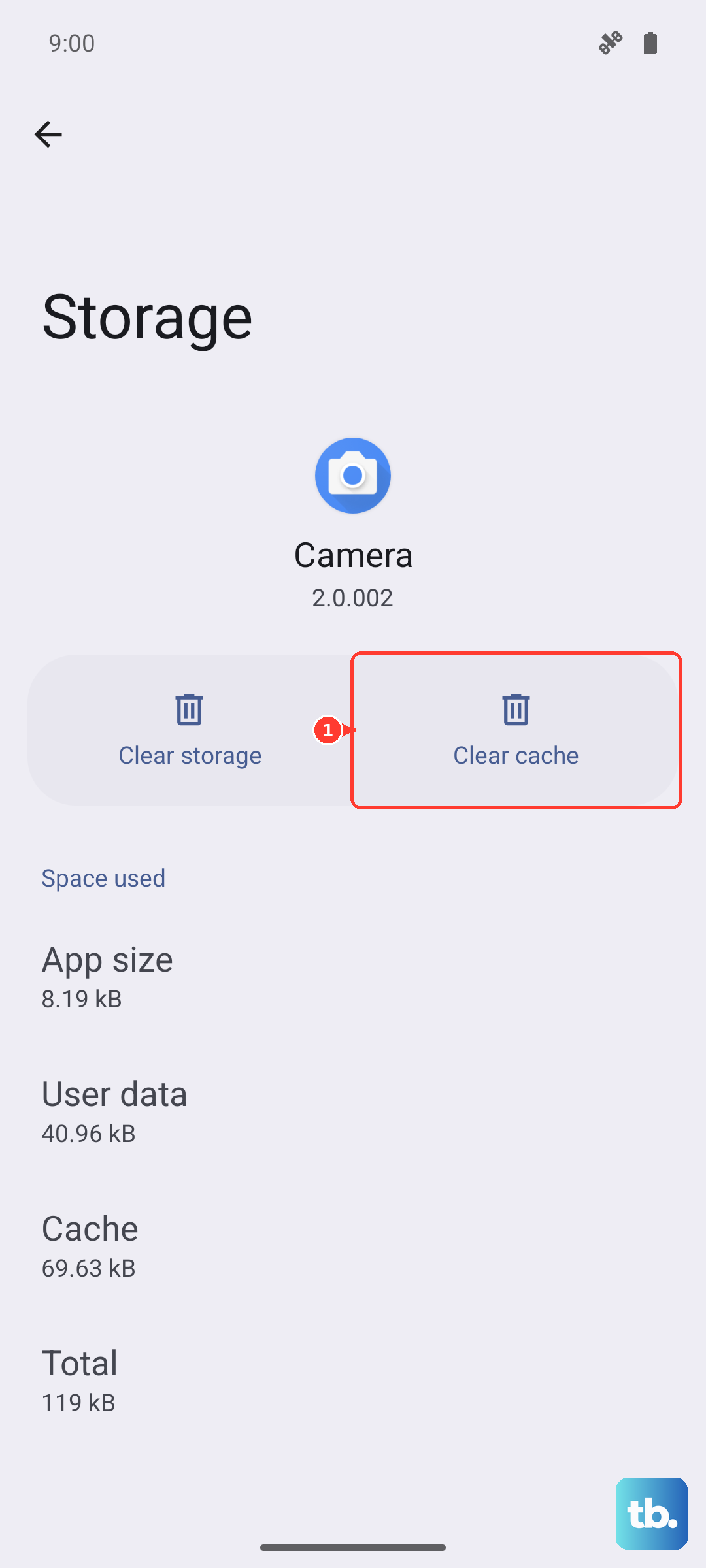
Over time, an app's temporary cache files can become corrupted. Clearing them won't delete your login info or saved data. Go back to Settings > Apps, select the app, and then tap Storage.
You'll see two options: Clear cache and Clear data. Tap "Clear cache" first. This is the safe option. If the app still crashes, you can come back and try "Clear data," but know that will reset the app like it's brand new, so you might have to sign in again.
Check Your Phone's Storage
While the S25 Ultra starts with at least 256GB, it can fill up fast with 4K video and large apps. Go to Settings > Device care > Storage. The phone will show you what's using space.
If you're below 10GB of free space, apps can struggle to create temporary files. Use the "Clean now" suggestion or manually review and delete old downloads, unused apps, or backed-up photos and videos.
Reinstall the App Completely
If a single app is the problem, a fresh install often fixes it. Press and hold the app icon on your home screen or app drawer and tap Uninstall. Confirm, then head to the app store you originally used to download it.
Search for the app and install it again. This replaces all the app's files, which can eliminate any deep-seated corruption that clearing the cache didn't fix.
Update Your Phone's Software
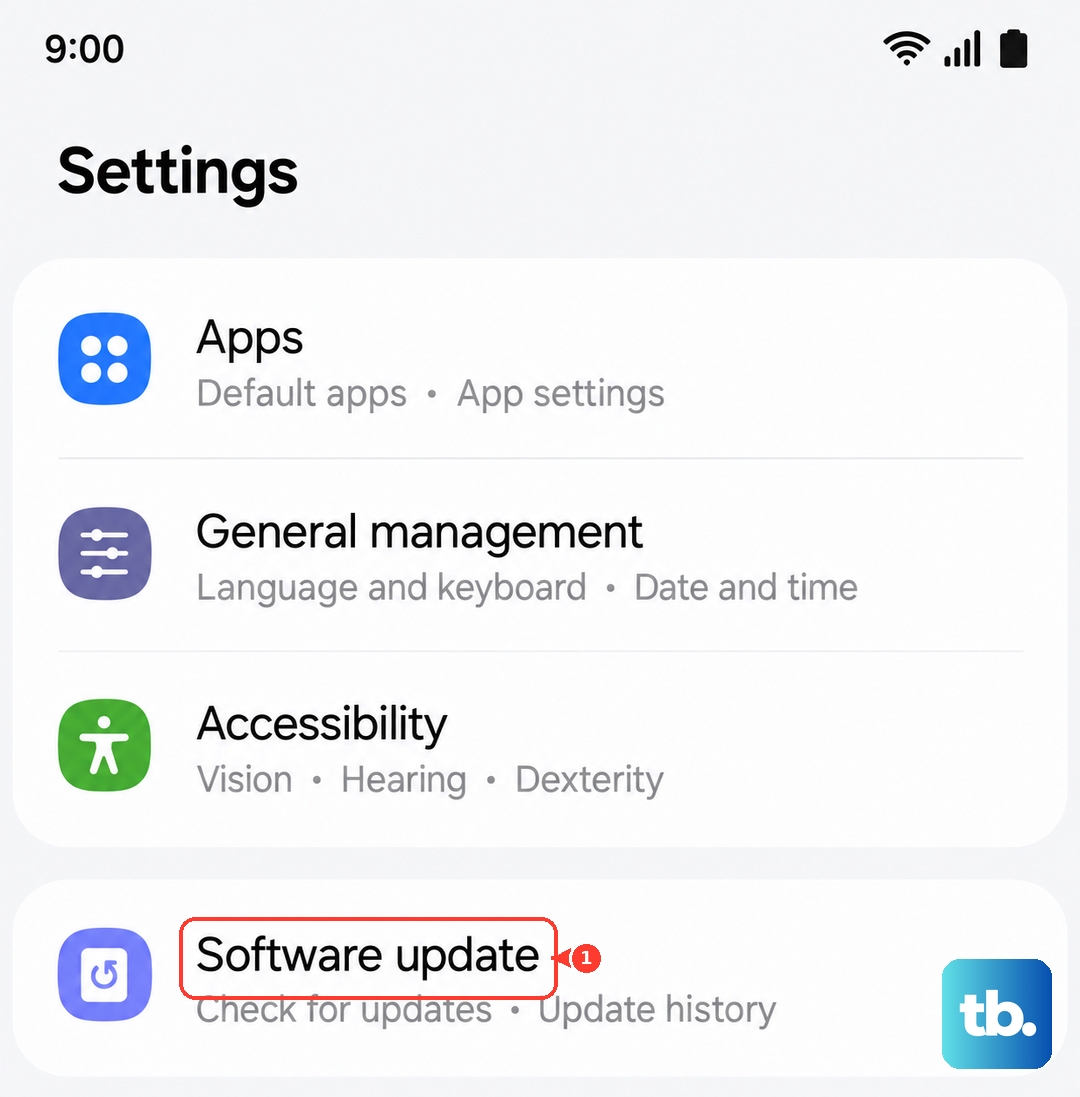
Samsung regularly releases updates for One UI and Android that include stability patches. Go to Settings > Software update and tap Download and install.
Make sure your phone is connected to Wi-Fi and has a good battery charge. These updates can address system-wide issues that might be causing multiple apps to close, not just one.
Review Performance Settings
The S25 Ultra has a few settings that can impact app stability. First, try enabling Enhanced processing. Go to Settings > Device care > Performance profile and select Standard.
This keeps the processor running at a higher performance level, which can help with demanding apps. Also, check Settings > Developer options (if you have it enabled) and ensure "Don't keep activities" is turned off, as that aggressively closes apps in the background.
Boot Into Safe Mode
This starts your phone with all third-party apps disabled. If the crashing stops in Safe Mode, you know a downloaded app is causing the conflict. To enter Safe Mode, press and hold the power button until the power menu appears.
Then, press and hold the "Power off" option on the screen. You'll get a prompt to reboot to Safe Mode. Tap it. Your screen will say "Safe mode" in the corner. Test your apps here. To exit, just restart the phone normally.