
If your Samsung Galaxy Z Flip 6 is getting uncomfortably warm, it's usually a sign that something is pushing the processor a bit too hard. A foldable phone packs a lot of tech into a compact space, so heat management is key. I'd start by checking what's running in the background and adjusting a few settings.
First, try a simple force restart. Press and hold the Volume Down button and the Side button together for about ten seconds. Keep holding until you see the Samsung logo appear on the screen. This clears out any temporary software glitches that might be causing a runaway process and generating extra heat.
Check for Power-Hungry Apps
Open your phone's Settings and go to Device Care > Battery. Tap on Battery usage to see which apps have been consuming the most power since your last full charge. An app using a surprisingly high percentage is often the culprit behind overheating.
If you spot one, you can force stop it from that same menu. For a more permanent fix, consider uninstalling the app if you don't need it, or check the Play Store for an update. Developers often release patches that fix bugs causing excessive battery drain and heat.
Adjust Your Display and Performance Settings
The main inner display on the Z Flip 6 is beautiful but can generate heat, especially at high brightness. Try lowering the brightness manually or ensure Adaptive Brightness is turned on. You can find this in Settings > Display.
Next, head to Settings > Battery and device care > Battery > More battery settings. Here, enable Adaptive battery. This feature learns your usage patterns and limits battery for apps you don't use often, which can reduce background activity and heat.
Also, consider switching from the high-performance mode to a standard or light mode. You can usually find this under Settings > Battery and device care > Performance profile. The standard setting is perfect for daily tasks and runs much cooler.
Be Mindful of Charging and Your Environment
It's normal for any phone to get warm while charging, especially if you're using it at the same time. The Z Flip 6 supports 25W wired and 15W wireless charging. To minimize heat, try not to use the phone intensively for gaming or video calls while it's plugged in or on a wireless charger.
Also, pay attention to where you leave your phone. Never leave it in direct sunlight, like on a car dashboard, or on top of other electronics that radiate heat. A hot environment makes it much harder for the phone to cool itself down. If you're outside on a warm day, keep it in a bag or shade instead of your pocket.
Update Your Software and Manage Background Processes
Outdated software can sometimes have bugs that affect thermal management. Go to Settings > Software update and tap Download and install. Installing the latest One UI and Android security patches can resolve known issues that cause overheating.
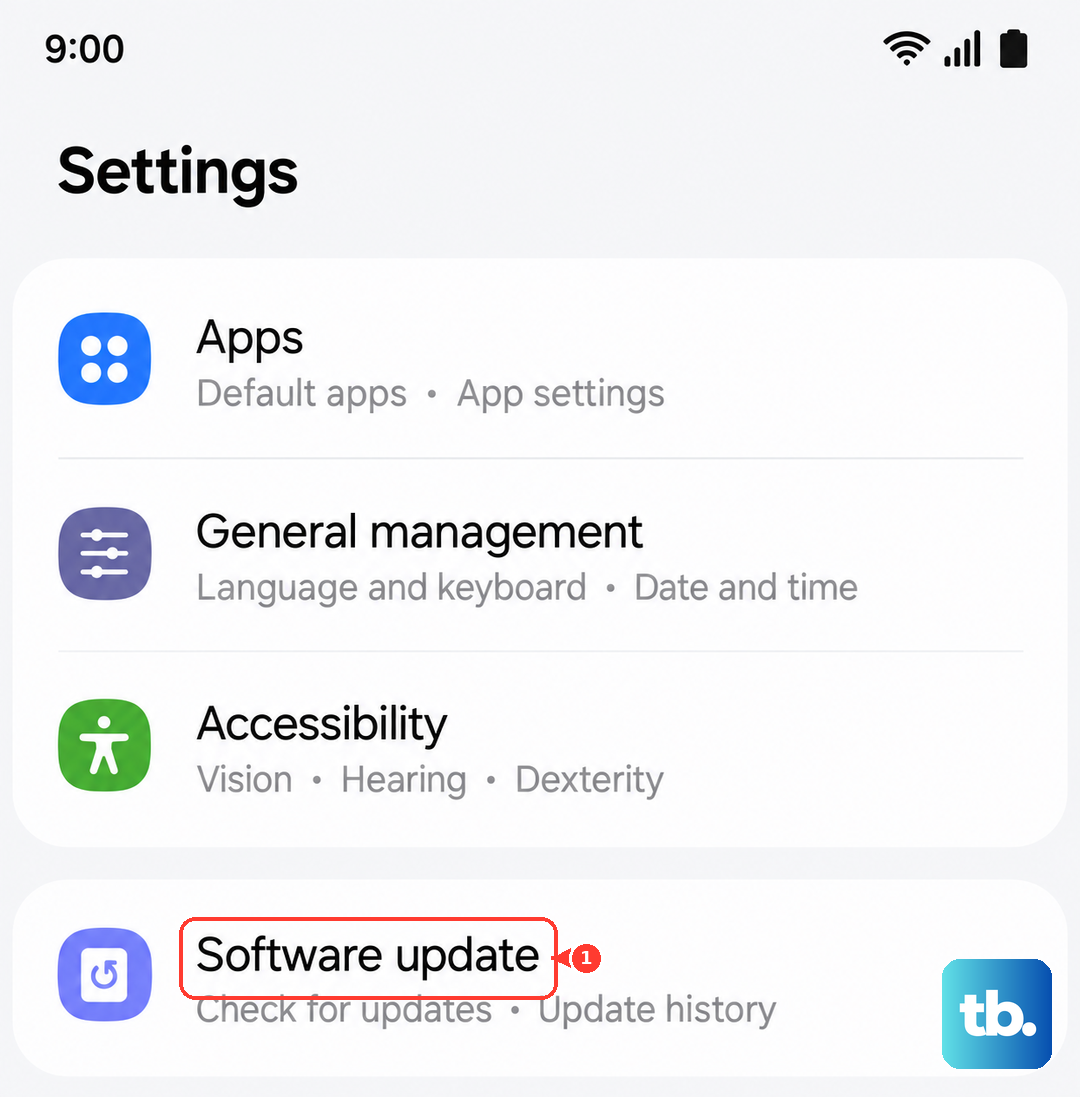
Some apps continue running even when you close them. You can put apps you rarely use into deep sleep to prevent this. Navigate to Settings > Apps, select an app, and tap Battery. Choose Restricted to significantly limit its background activity. This is a good strategy for social media and news apps that frequently refresh in the background.
Consider Your Usage with the Foldable Design
The unique hinge and dual screens on the Z Flip 6 can influence heat. When using Flex Mode for hands-free video calls, the phone is working to power both halves of the display and run the camera. It's a great feature, but extended use will naturally make the device warmer than simply browsing the web.
Similarly, using the cover screen for more complex tasks through Good Lock's Labs feature can be more demanding on the processor than you'd expect. If you notice heat building up during specific folded or unfolded use, try closing the app and giving the phone a minute to cool down.
Finally, ensure the phone's vents and speakers aren't blocked by a case, especially a thick one. While a case is important for protection, some can trap heat. If your phone is consistently hot, try removing the case for a short period to see if it cools down faster.