So your Samsung Galaxy Tab S9 won't charge. You've plugged it in, maybe swapped cables, and the battery icon just sits there. It's a frustrating spot to be in, but I've seen this issue pop up with a few common fixes that usually get things going again.
Whether it's a slow trickle charge or no response at all, the problem often comes down to the charger, the port, or a simple software hiccup. Let's start with the quickest thing you can try.
Force Restart Your Galaxy Tab S9
This is my go-to first step. A force restart clears out any temporary software glitches that might be interfering with the charging system. It takes about 10 seconds and often resolves the issue right away.
For the Galaxy Tab S9, press and hold the Volume Down button and the Side/Power button simultaneously. Keep holding them for about 10 seconds until you see the Samsung logo appear on the screen. Once it boots back up, plug in your charger and check for the charging indicator.
Check Your Charger and Cable
The Tab S9 supports fast charging up to 45W, but it won't reach those speeds with just any old phone charger. If you're using a low-wattage brick, the tablet might charge incredibly slowly, or it might even discharge if you're using it heavily.
Try a different USB-C cable first, preferably one you know works for data transfer. Then, test with a different wall adapter. The ideal setup is Samsung's own 45W charger, but any quality USB-PD charger rated for 25W or higher should get you a decent speed. I'd avoid using a laptop's USB port or a car charger for this test, as they often don't provide enough power.
Clean the USB-C Charging Port
This is probably the most common hardware fix. Over time, pocket lint, dust, and debris can get packed into the USB-C port. Eventually, there's so much gunk that the cable can't plug in all the way or make a proper connection.
Grab a flashlight and take a close look inside the port. If you see any dark material clogging it up, turn off the tablet. Then, use a wooden or plastic toothpick to gently scrape out the lint. Don't use anything metal, as you could scratch the delicate contacts. A quick blast of compressed air can help, too. After cleaning, try plugging the cable in again, it should click in firmly without any wobble.
Turn Off the Screen While Charging
This is a simple but effective tip specific to the Tab S9. The tablet charges significantly faster when the screen is off. If you're trying to charge while watching a video or browsing in DeX mode, you might notice the battery percentage barely moves, or even goes down.
For the fastest charge, just press the power button to turn off the display before you plug it in. If you need to use DeX mode, be aware that it's very power-hungry. You'll want to make sure you're using at least a 45W charger, otherwise the tablet might still lose battery even while plugged in.
Check for Software Updates
Sometimes, a bug in the One UI software can mess with charging management. Samsung releases updates that often include fixes for power-related issues. It's worth checking if you're running the latest version.
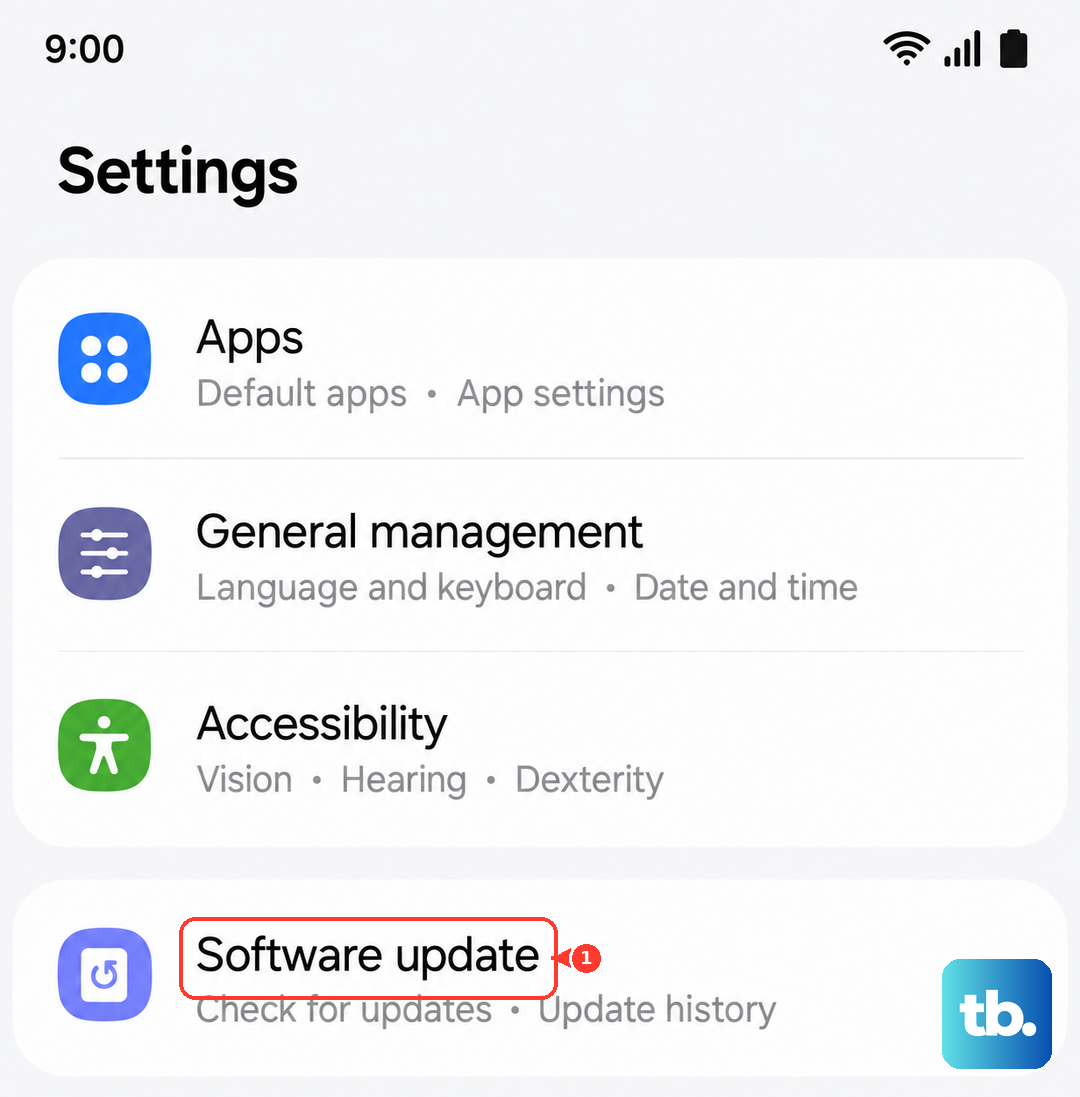
Go to Settings > Software update and tap on Download and install. If an update is available, let it install completely. After the tablet restarts, try charging it again. If your tablet is completely dead and won't turn on, you might need to use a computer to update it, but let's try the simpler steps first.
Try Charging with the Tablet Turned Off
If a background app or process is causing abnormal power drain, it can interfere with charging. To rule this out, turn your Galaxy Tab S9 completely off. Press and hold the Side button, then tap "Power off" on the screen.
Once it's fully shut down, plug in your charger. You should see a large battery icon appear on the screen, indicating it's receiving power. If it charges normally while off, you know the issue is related to the software or an app running when the device is on.
Wait If the Battery Is Fully Drained
If you've let the battery run down to absolute zero, the tablet won't show any signs of life immediately when you plug it in. This is normal behavior for lithium-ion batteries. Don't panic.
Leave it connected to a known-good, high-wattage wall charger for at least 30 minutes. Don't try to turn it on during this time. After a half-hour, press and hold the power button to see if the Samsung logo appears. If it does, let it continue charging. If there's still no response, move on to the next step.
Boot into Safe Mode
Safe Mode starts your tablet with all third-party apps disabled. This is a great way to check if a recently downloaded app is causing the problem by draining battery or blocking charging processes.
To enter Safe Mode, first press and hold the Side button until the "Power off" menu appears. Then, press and hold the "Power off" text on the screen. A prompt will ask if you want to reboot to Safe Mode. Tap OK. Once booted, you'll see "Safe mode" in the bottom corner. Try charging the tablet now. If it works fine in Safe Mode, you'll need to uninstall recently added apps one by one to find the culprit.
Consider a Factory Reset (Last Resort)
If you've tried every other step and the tablet still won't charge reliably, a software corruption might be the cause. A factory reset will wipe all your data and settings, so this is an absolute last resort. Make sure you've backed up any important files first.
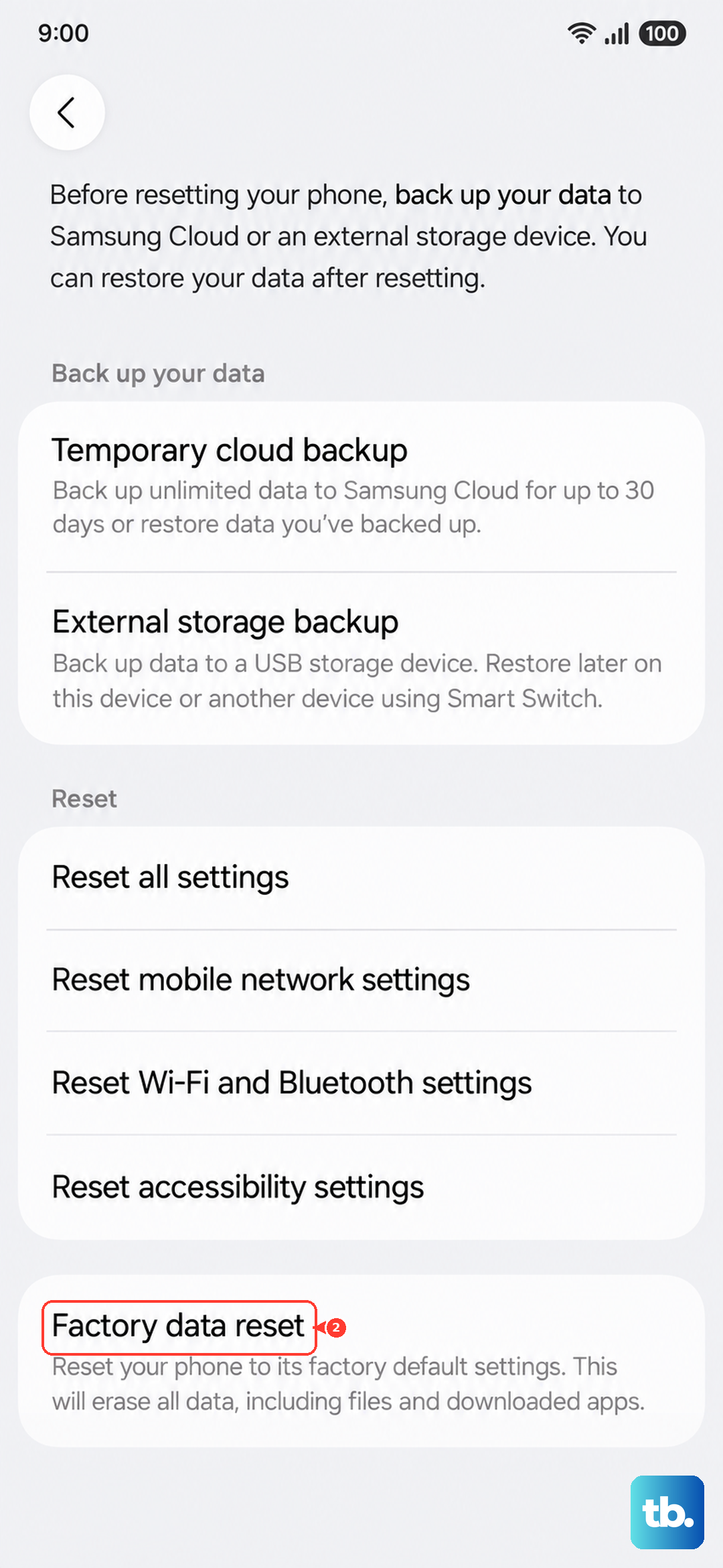
You can initiate a reset from the settings menu if the tablet is on. Go to Settings > General management > Reset > Factory data reset. If the tablet won't turn on at all, you can use the hardware buttons. Turn off the tablet, then press and hold the Volume Up and Side buttons together. When the Samsung logo appears, release only the Side button. This will boot you into the recovery menu, where you can use the volume keys to navigate to "Wipe data/factory reset" and select it with the power button.